


Triggers & Variables
Configure what starts your chatbot, manage variables for data capture, and branch the flow with conditions.
Triggers determine when your chatbot activates. Variables store data during a conversation. Conditions control which path the flow follows. Together they make a chatbot responsive.
Triggers
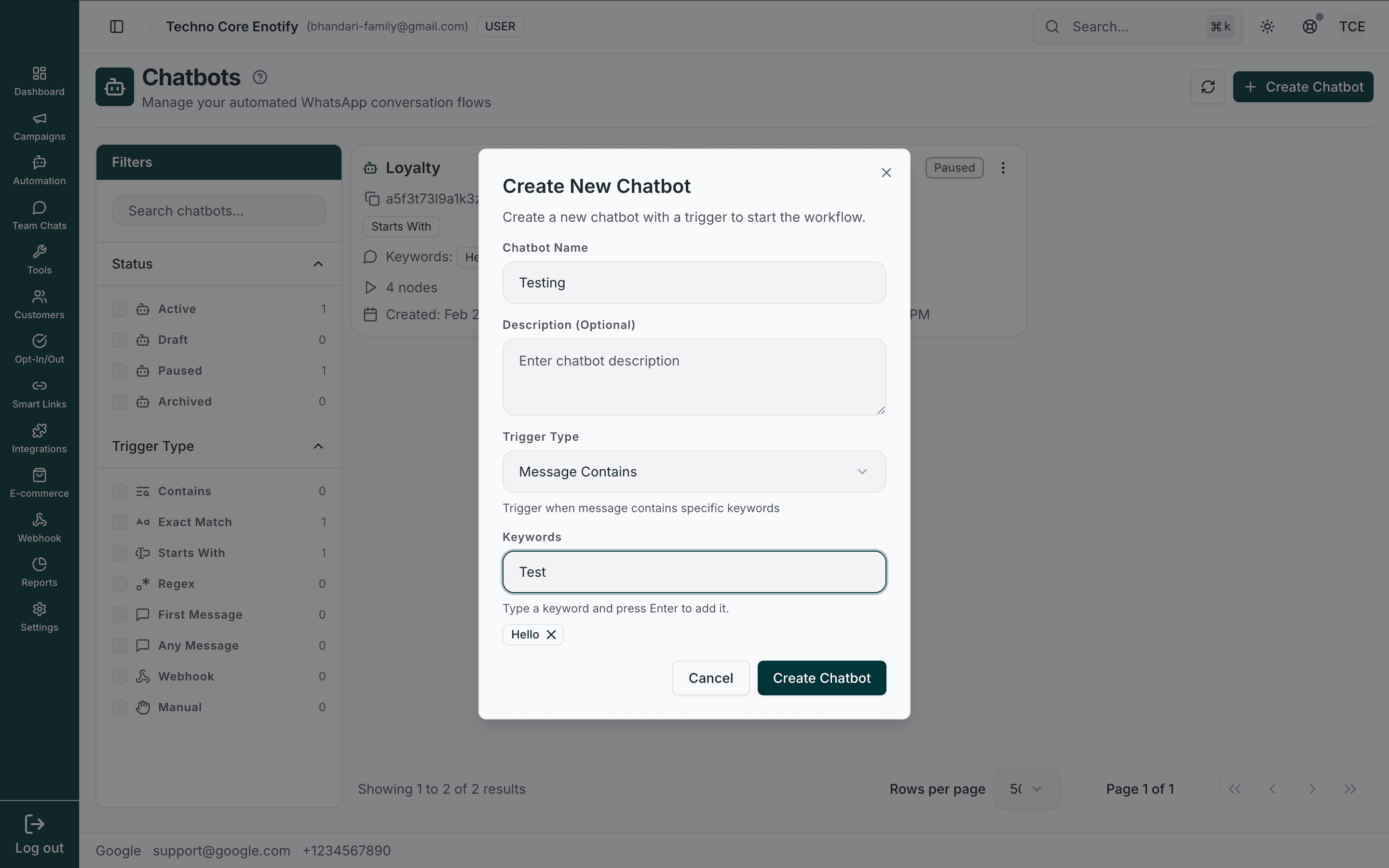
A trigger defines what starts a chatbot. You choose the Trigger Type when you create the chatbot; for keyword-based types you also add keywords (type a word and press Enter to add it).
Trigger types
| Trigger type | Starts when… | Best for |
|---|---|---|
| Message Contains | The message contains any of your keywords (case-insensitive) | General welcome bots, broad topic matching |
| Exact Match | The message exactly equals one of your keywords | Button replies, confirmations |
| Starts With | The message begins with one of your keywords | Command-style or prefixed inputs |
| Regex | The message matches a regular-expression pattern | Order numbers, codes, structured input |
| First Message | A contact messages you for the very first time | Onboarding new contacts |
| Any Message | Any incoming message from the contact | Catch-all assistants and fallbacks |
| Webhook | An external webhook call starts the flow | Triggering from another system |
| Manual | An agent or automation starts it explicitly | Internally launched flows |
Partial vs exact
"Contains" matches the keyword anywhere in the message, so order also matches "reorder". Use Exact Match or Starts With when you need precision.
Keep triggers specific
If two chatbots could match the same message, narrow them so they don't overlap — tighten keywords, prefer Exact Match or Starts With over Contains, and reserve First Message for onboarding. The chatbot's trigger type and keywords are shown on its card and in the Filters sidebar on the Chatbots page.
Variables
Variables store data during a conversation. Use them to capture customer input, pass data between nodes, and personalize messages.
Creating a variable
Any field that saves a value (an Ask Question answer, a form response, an HTTP response, a ticket number) lets you pick an existing variable or create one with the + button. Give it a name and a type.
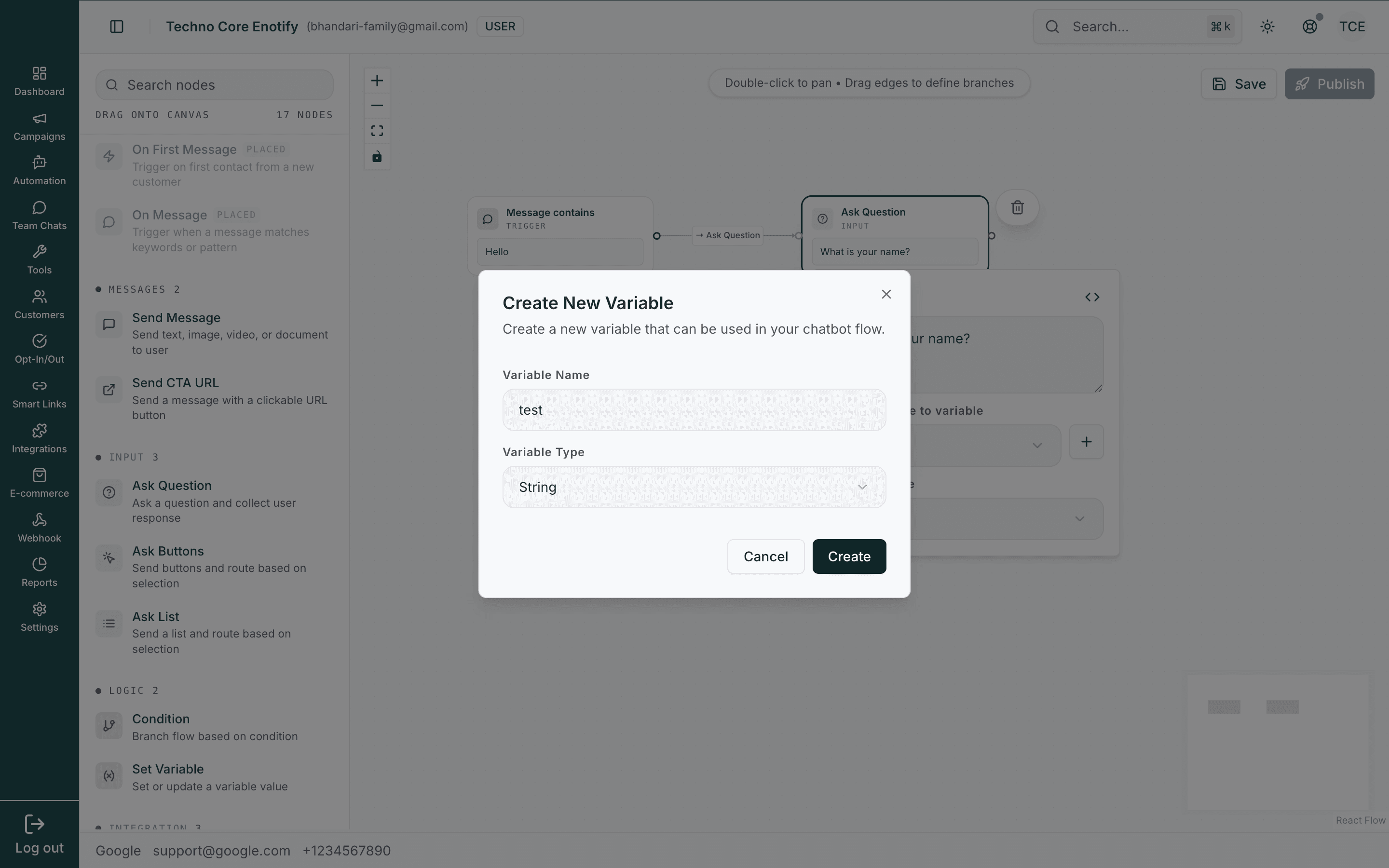
| Type | Stores | Example |
|---|---|---|
| String | Text | "John Doe" |
| Number | Numeric value | 5 |
| Boolean | True / false | true |
| Object | Structured data | A form or HTTP response |
How variables get set
| Source | How |
|---|---|
| Ask Question | The reply is saved to the chosen variable |
| Ask Buttons / Ask List | The selection is saved to the chosen variable |
| Set Variable | You assign a value directly |
| HTTP Request | The response is saved to a variable |
| Send Form | The submission is saved as an object variable |
| Create Ticket | The new ticket number is saved to a variable |
Inserting values into fields
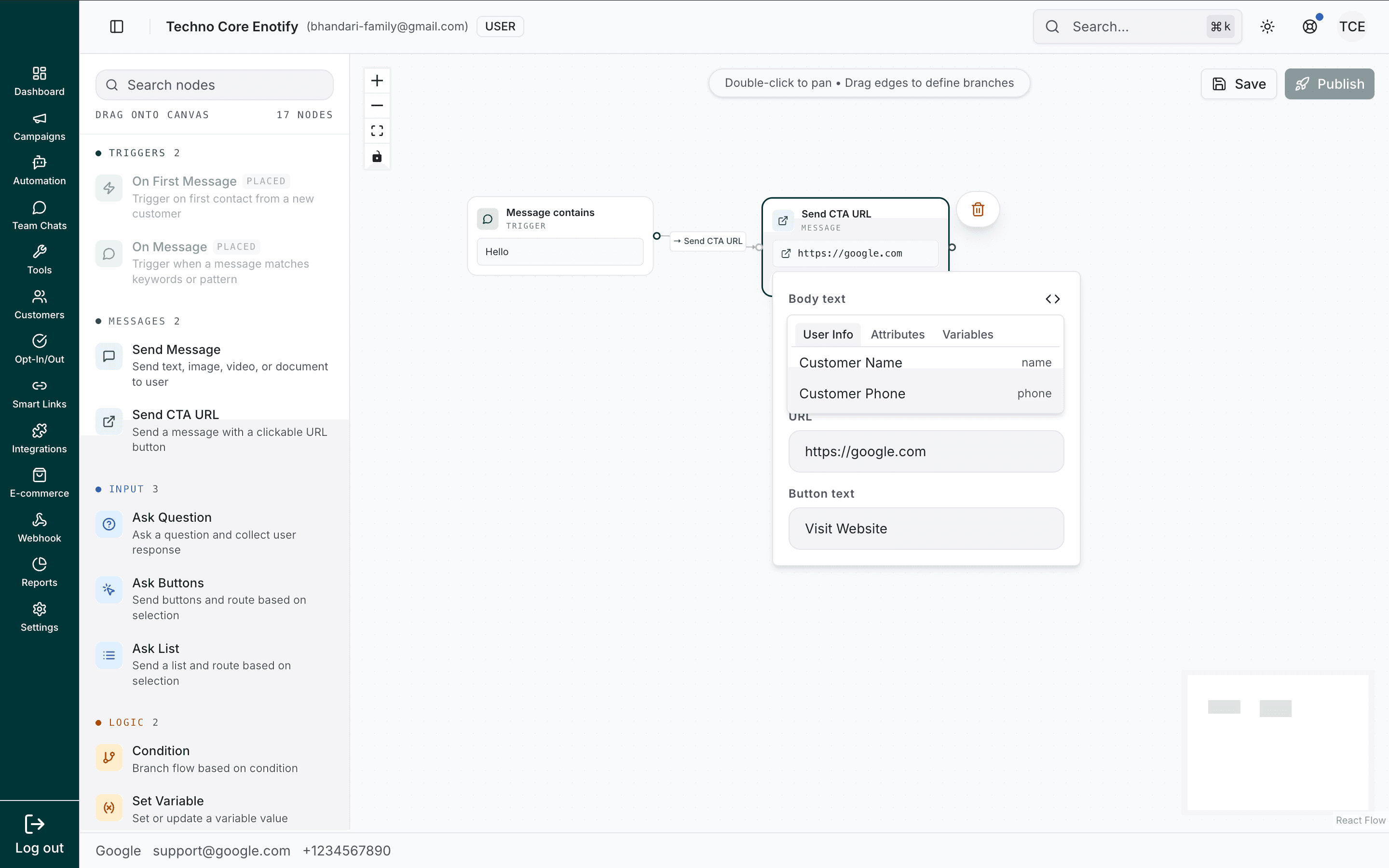
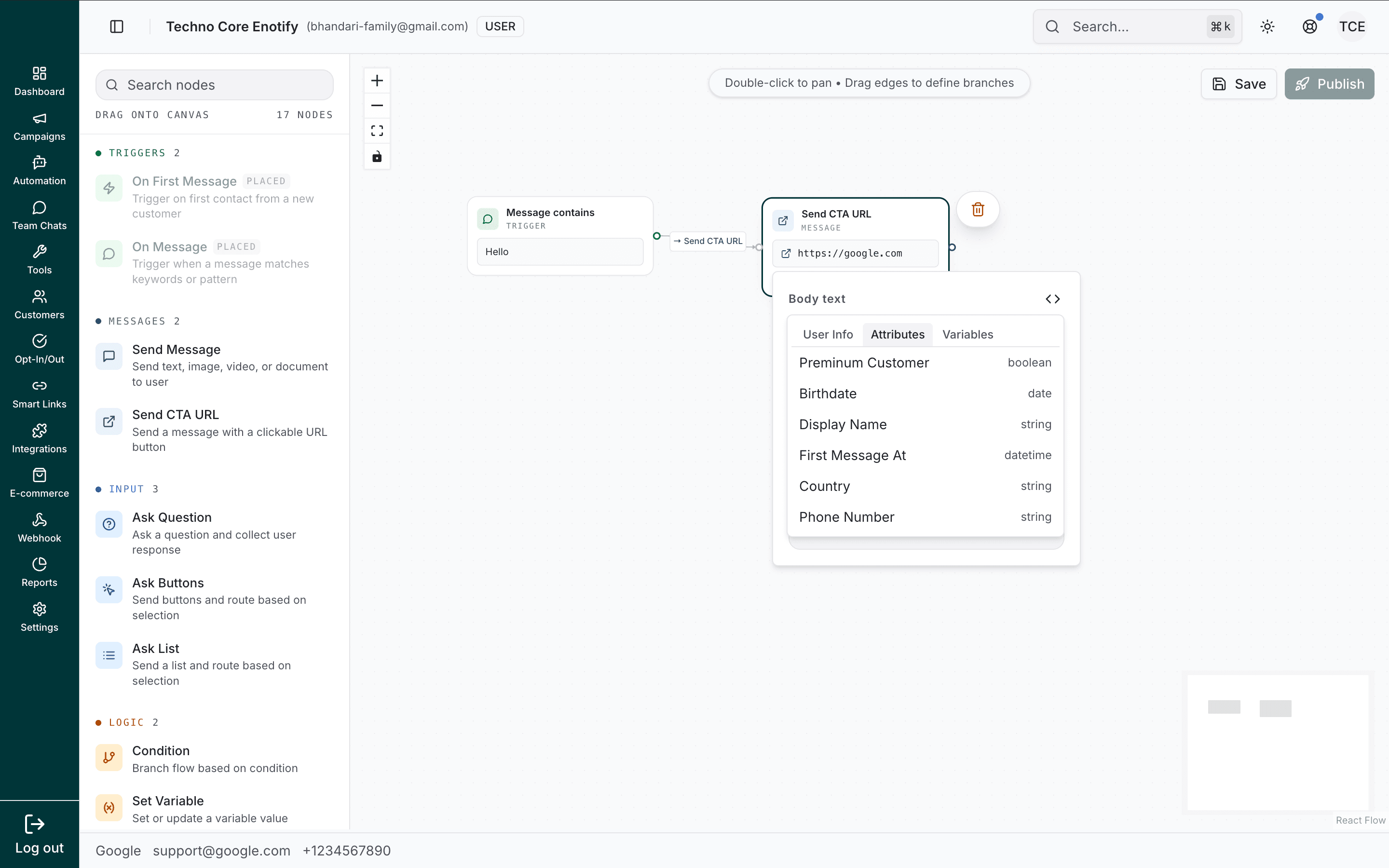
Wherever a field shows the </> icon, open the picker to insert a value. It has three tabs.
User Info — built-in fields like Customer Name and Customer Phone.
Attributes — the contact attributes on the customer's profile.
Variables — the flow variables you've created (empty until you add one).
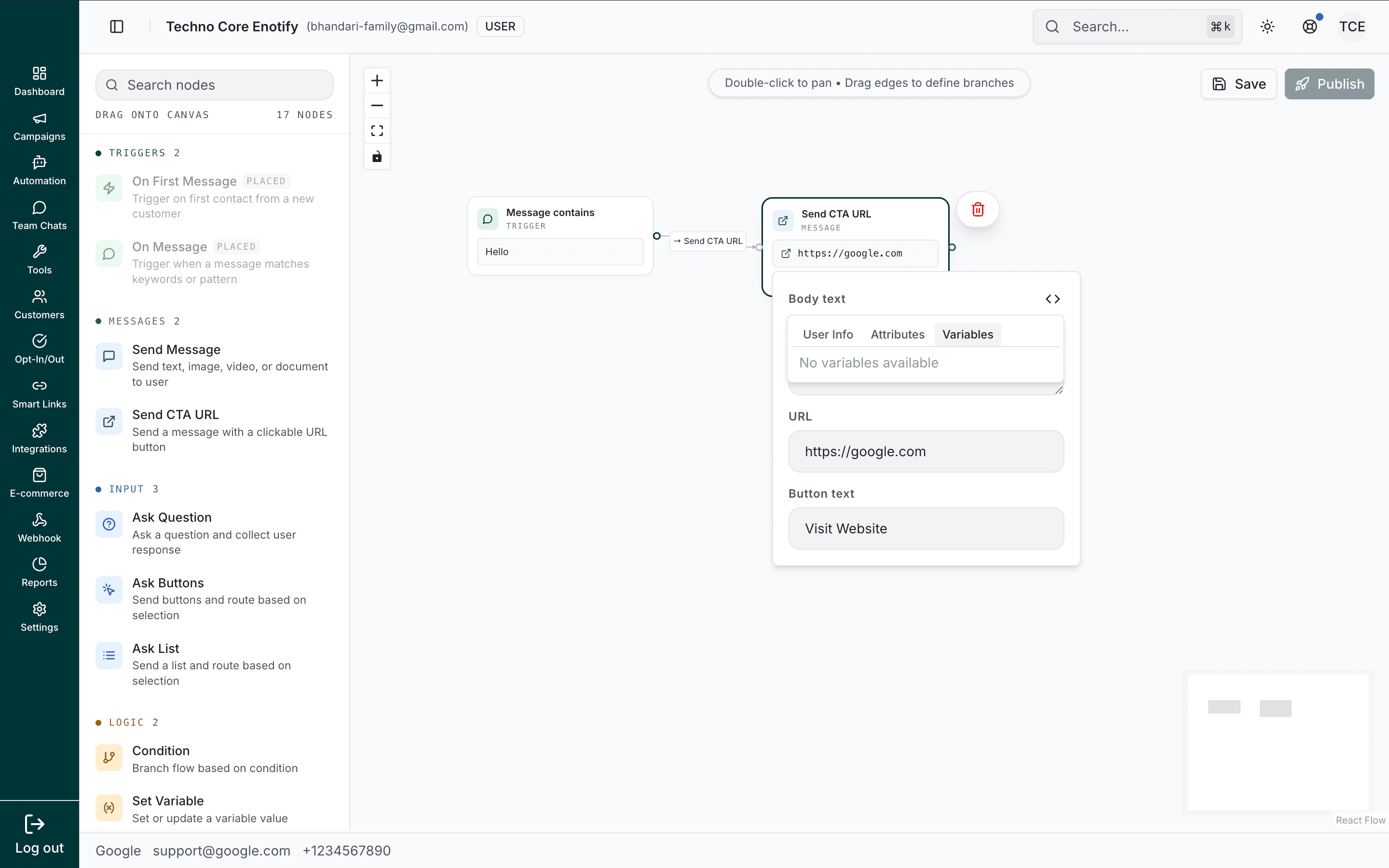
Inserted values render in double curly braces, for example:
Hello {{customer.name}}, your birthday is {{customer.attributes.Birthdate}}.Conditions & branching
The Condition node routes the flow by comparing a variable against a value. Add one or more conditions; each has a variable, an operator, and a value.
Operators: Equal to, Not equal, Greater than, Less than, Greater than or equal, Less than or equal.
The value field accepts static text or another variable (via the </> picker), so you can compare two variables directly.
Input validation
Ask Question can validate the reply before accepting it. If validation fails, the customer sees the node's Invalid message and retries; the flow doesn't advance until the input is valid.
| Validation | Checks |
|---|---|
| None | Accept any reply |
| A valid email address | |
| Phone | A valid phone number |
| Number | Numeric input only |
| Regex | A custom pattern you supply |
Best practices
How is this guide?