


Chat Widget Builder
Customize a WhatsApp chat launcher and widget, preview it live, and generate embed code for your website.
The Chat Widget Builder (under Tools) lets you style the floating chat button, configure the popup widget (branding, welcome text, destination number), see a live preview, then generate a script snippet for your site.
In the app: Dashboard → Tools → Chat Widgets
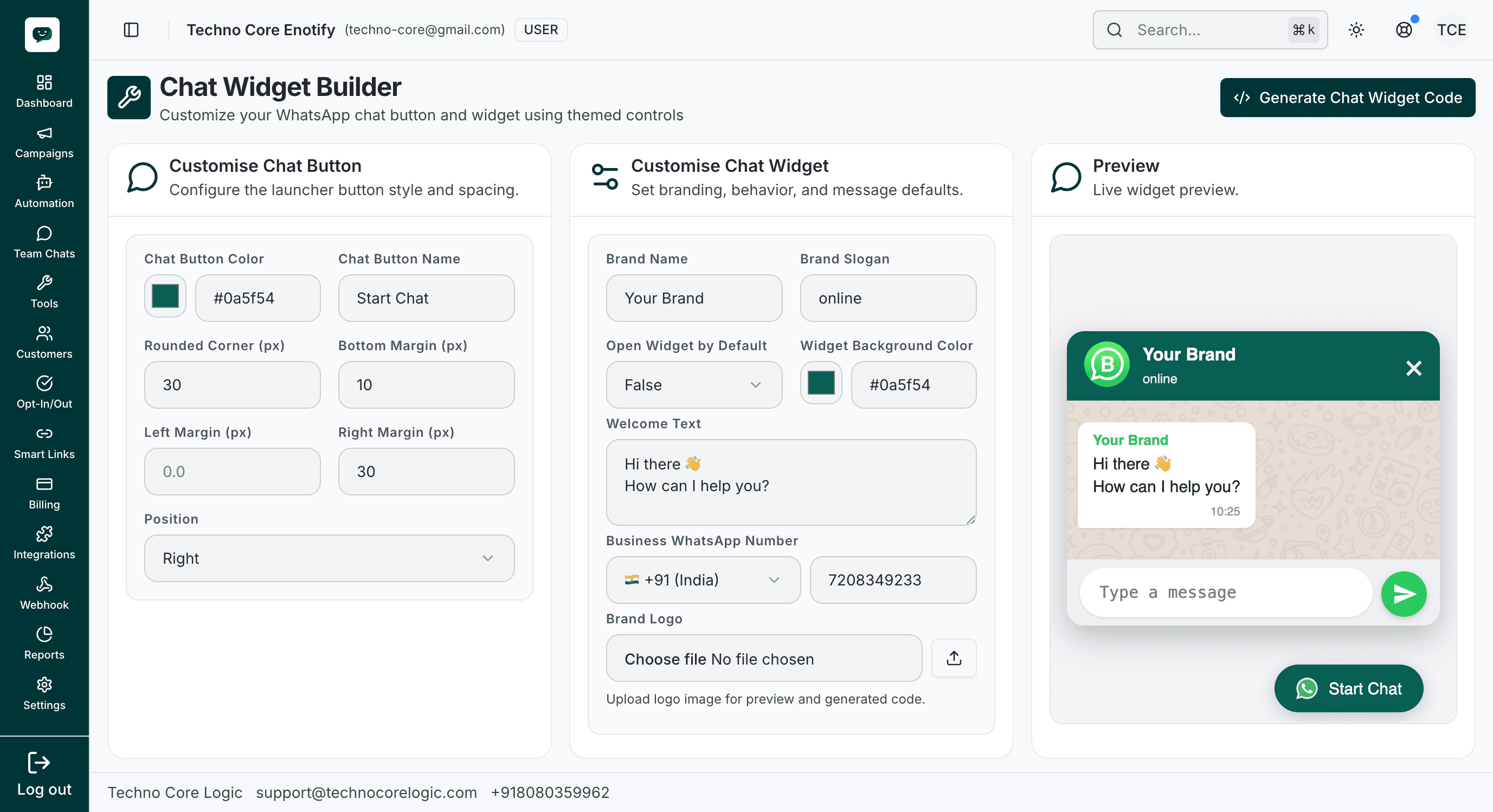
Layout at a glance
The screen is split into three areas:
- Customise Chat Button — Launcher appearance and position on the page
- Customise Chat Widget — Header, copy, colors, WhatsApp number, and logo
- Preview — Live widget and button as visitors will see them
Use Generate Chat Widget Code (top right) when you are ready to copy the embed snippet.
Customise Chat Button
| Control | Purpose |
|---|---|
| Chat Button Color | Background color of the floating button (hex picker + text field) |
| Chat Button Name | Label on the button (for example “Start Chat”) |
| Rounded Corner (px) | Border radius of the button |
| Bottom / Left / Right Margin (px) | Spacing from the edges of the viewport |
| Position | Left or Right side of the screen |
Adjust these until the launcher matches your site’s layout and brand.
Customise Chat Widget
| Control | Purpose |
|---|---|
| Brand Name | Title shown in the widget header |
| Brand Slogan | Subtitle under the brand name (for example response-time hint) |
| Open Widget by Default | True or False — whether the panel opens as soon as the page loads |
| Widget Background Color | Header / chrome color for the widget |
| Welcome Text | First message visitors see (supports line breaks) |
| Business WhatsApp Number | Country code dropdown plus the business number messages should go to |
| Brand Logo | Upload an image; when you generate code, a hosted URL can be used in the snippet |
If you upload a new logo before generating code, the platform uploads the file and uses the returned URL in the generated embed.
Generate and embed
Tune and verify in Preview
Change button and widget settings and confirm the Preview column updates—check mobile-friendly spacing, readability, and that the welcome text reads well.
Generate Chat Widget Code
Click Generate Chat Widget Code. A dialog opens with the full script snippet.
Paste on your website
Copy the snippet and place it near the end of your page HTML, typically just before </body>. The snippet loads the widget script and calls waDisplayChatWidget with your options object.
Embed behavior (technical)
The generated code:
- Defines an
optionsobject (launcher + widget settings, including a digit-only WhatsApp destination derived from country code and number) - Injects a
<script>tag that loads the hosted widget script - On load, runs
waDisplayChatWidget(options)so the widget appears without extra framework wiring
Add the snippet once per page (or once in a global layout) so the script is not loaded multiple times.
Best practices
How is this guide?