


Smart Links
Create trackable short links for campaigns and marketing — link setup, custom codes, click analytics, geography, and device breakdowns.
Smart Links turn any destination URL into a short, trackable link. Share the short link in campaigns, WhatsApp messages, or anywhere else, and every click is recorded — counts, location, device, and browser — so you can measure engagement and attribute traffic.
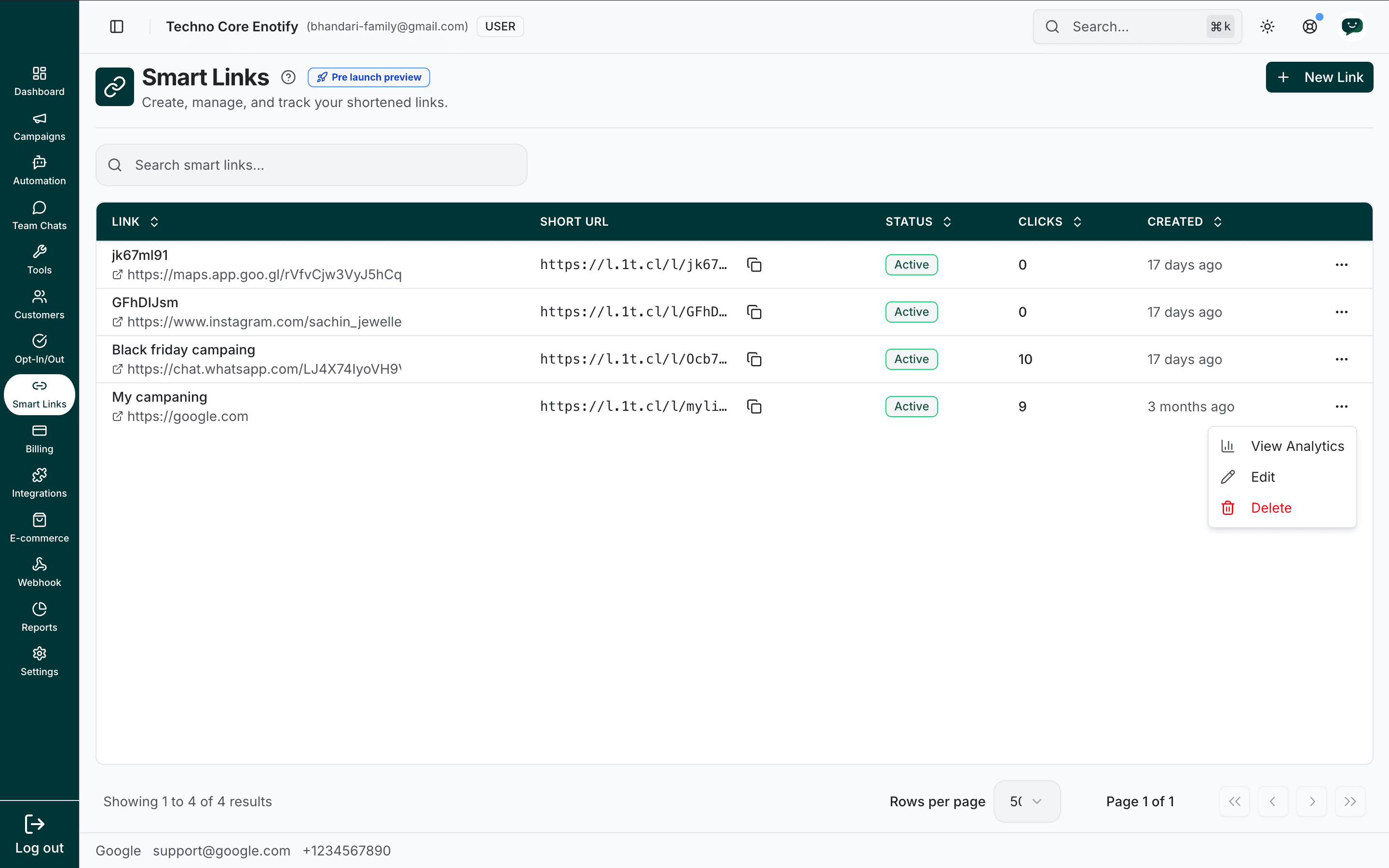
In the app: Dashboard → Smart Links
Pre-launch preview
Smart Links are marked Pre launch preview. Behaviour and analytics may change before general availability.
How smart links work
You create a short link → Share it in a campaign or message →
A customer clicks it → We record the click and analytics →
The customer is redirected to the destination URLEach click is captured with its timestamp, location, device, browser, and operating system, and is classified as a unique visitor, a repeat click, or a bot.
The Smart Links page
The list shows every link on your account. Use the search bar to filter by name or URL. Each row shows:
| Column | Meaning |
|---|---|
| Link | The link title and its destination URL |
| Short URL | The generated short link, with a copy icon |
| Status | Active while the link redirects |
| Clicks | Total clicks recorded |
| Created | When the link was created |
The ⋯ menu on each row opens View Analytics, Edit, and Delete. Use New Link (top right) to create one.
Create a smart link
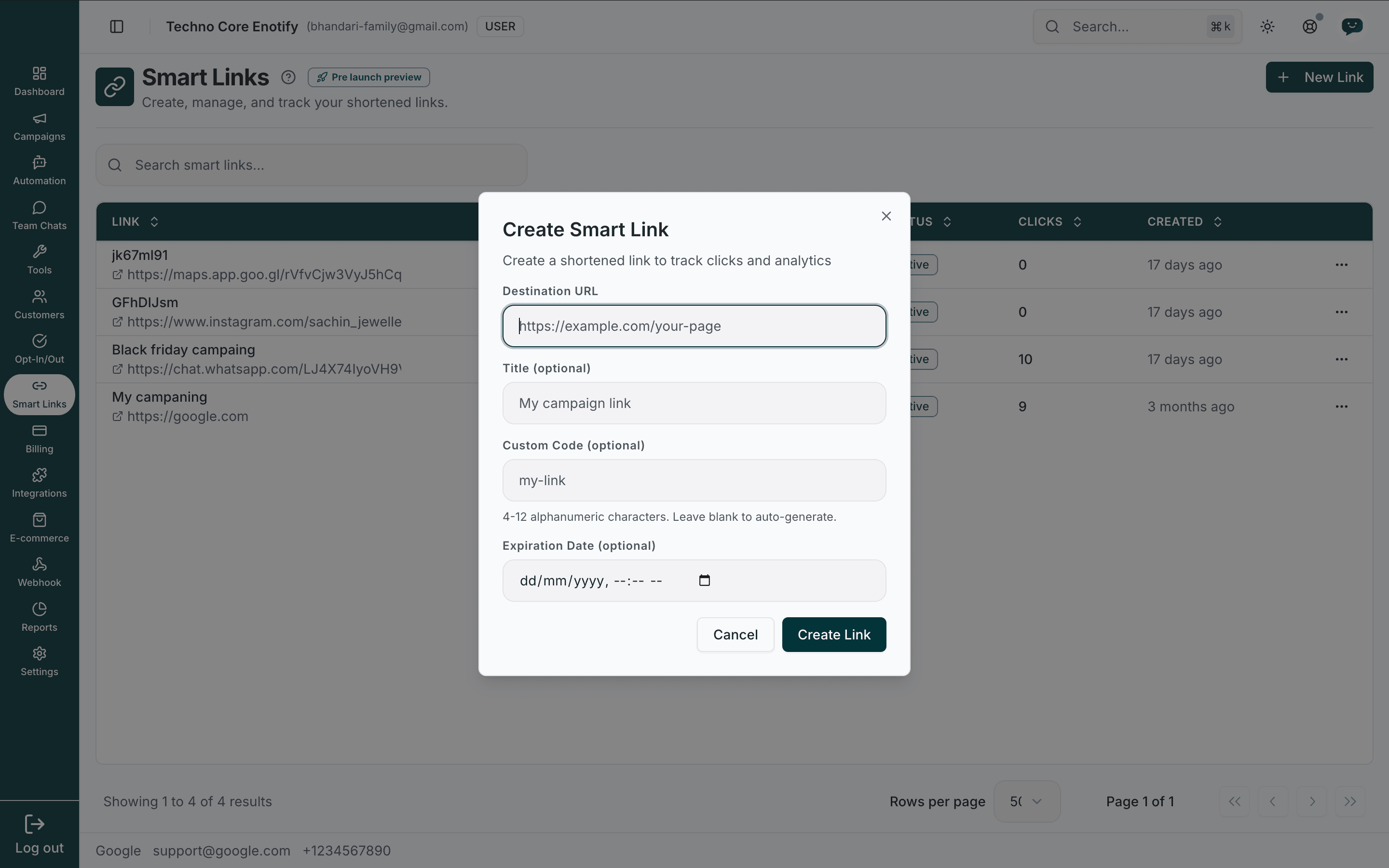
Fill in the link details
| Field | Notes |
|---|---|
| Destination URL (required) | The full URL customers are redirected to, e.g. https://example.com/your-page |
| Title (optional) | A label for your reference, e.g. "My campaign link" |
| Custom Code (optional) | The short code at the end of the URL. 4–12 alphanumeric characters. Leave blank to auto-generate |
| Expiration Date (optional) | When the link stops redirecting. Leave blank for a link that never expires |
Create and share
Click Create Link. The link appears in the list as Active. Copy its short URL and use it in:
- Campaign templates and message body text
- Chatbot replies and team chats
- Emails, social posts, QR codes, or anywhere you share links
Always share the short link
Only clicks on the short URL are tracked. If you share the raw destination URL, no analytics are recorded.
Edit a smart link
From the ⋯ menu, choose Edit to update the link's settings.
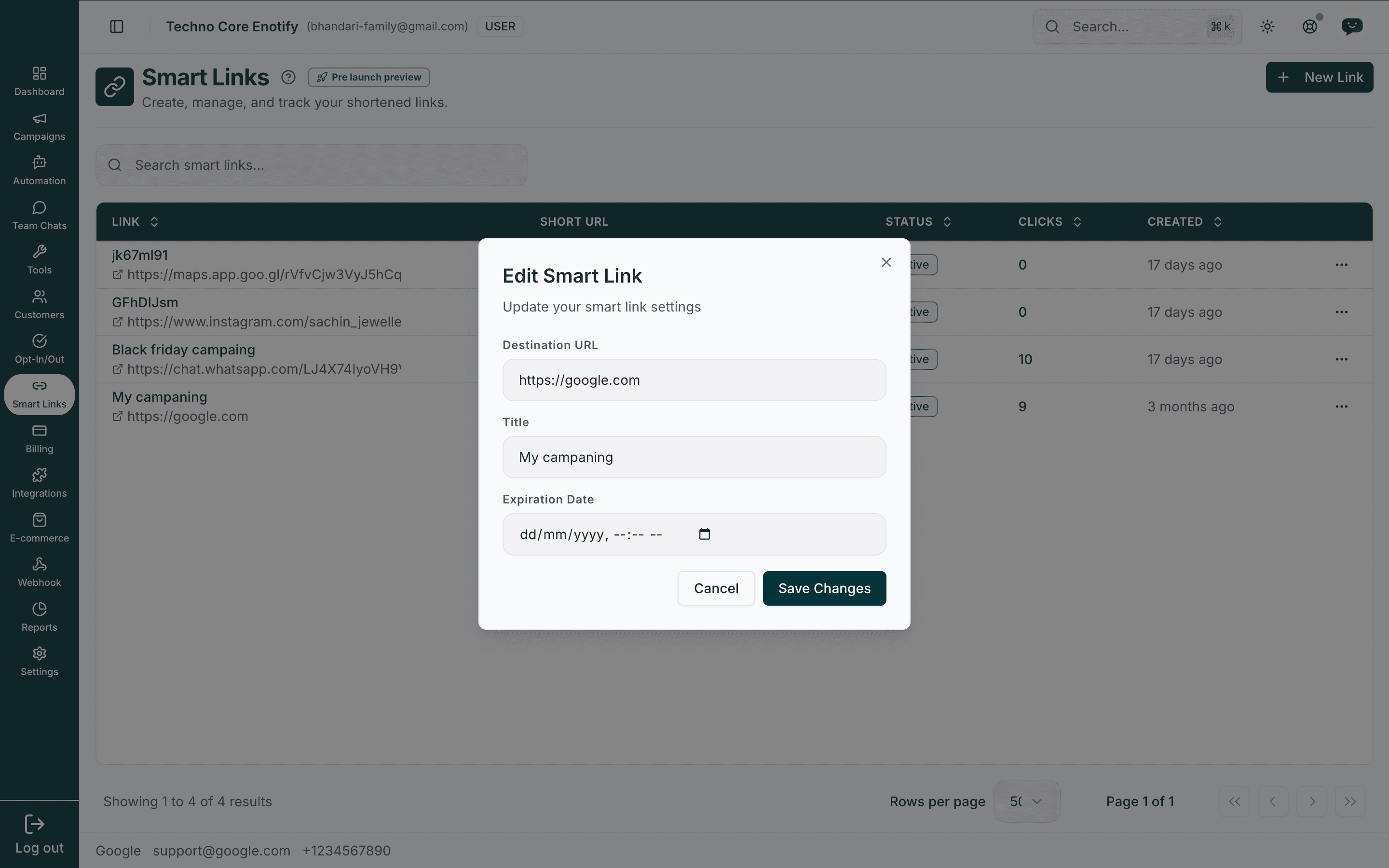
You can change the Destination URL, Title, and Expiration Date. The custom code is fixed once created, so the short URL stays stable — edit the destination to repoint a link without reissuing it.
Delete a smart link
From the ⋯ menu, choose Delete. A confirmation dialog appears first.
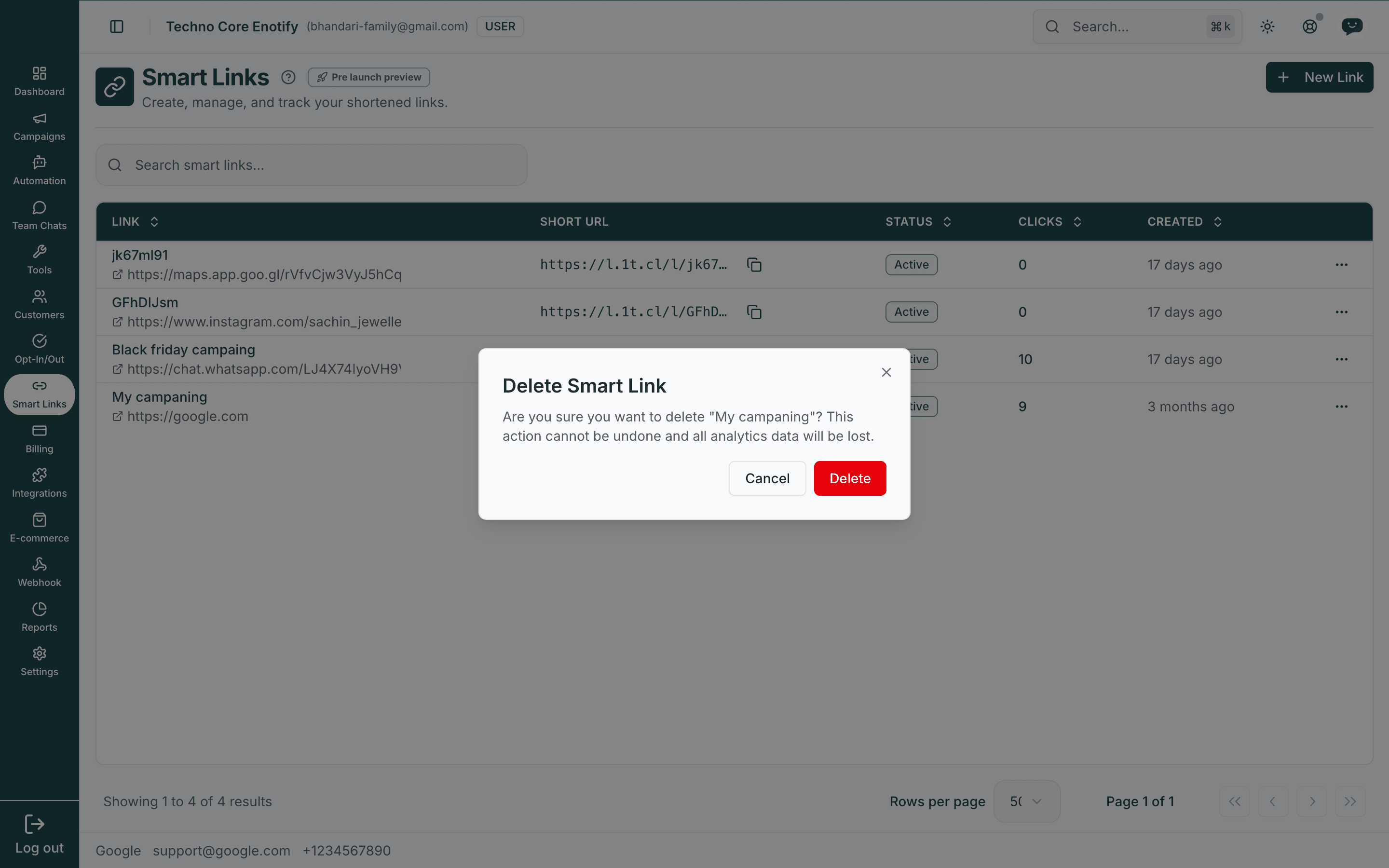
Deletion is permanent
Deleting a link stops it redirecting and permanently removes all of its analytics data. This cannot be undone.
Analytics
Choose View Analytics from the ⋯ menu, or click into a link, to open its analytics screen.
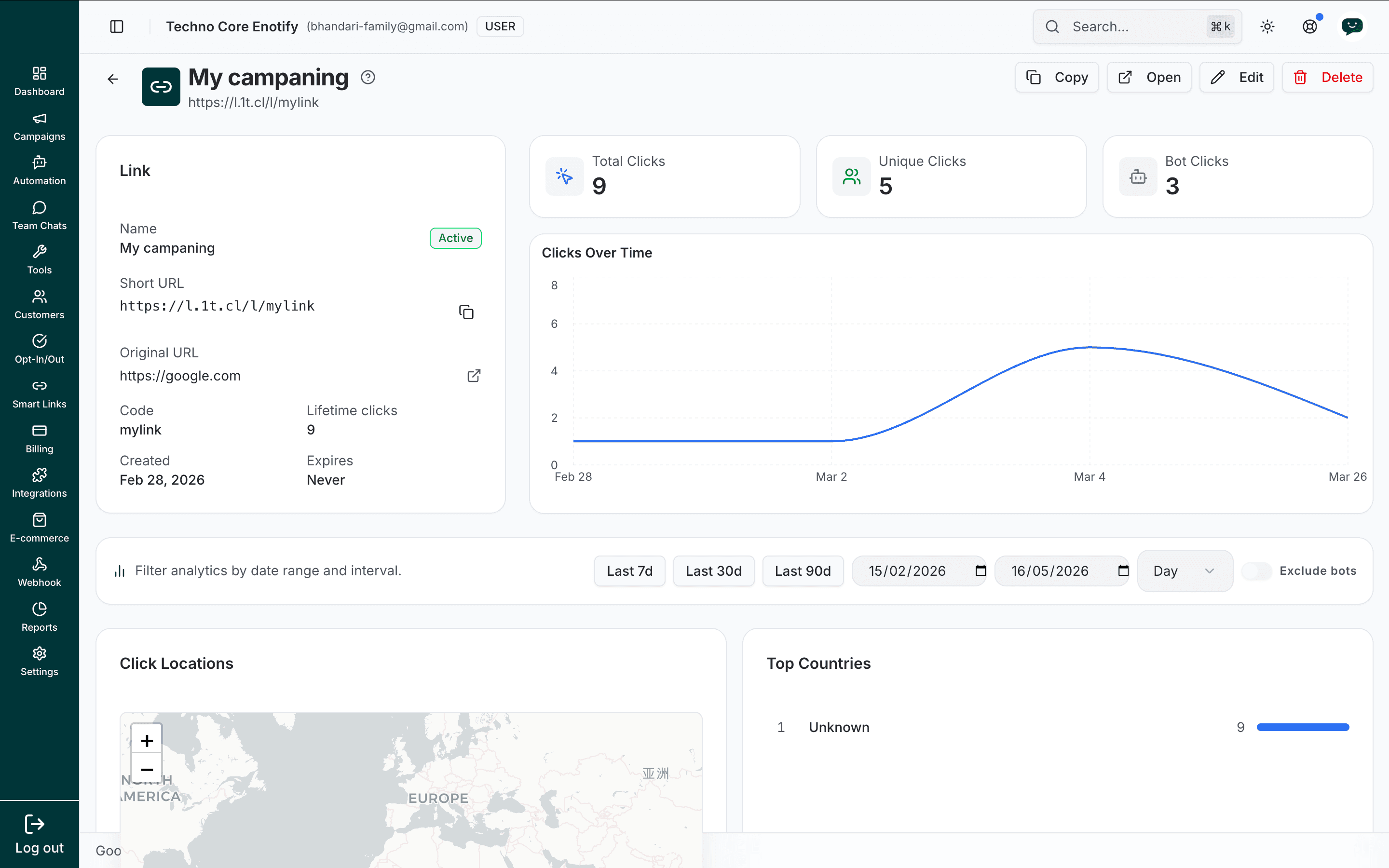
The header offers Copy, Open, Edit, and Delete. Three summary cards report:
| Metric | What it tells you |
|---|---|
| Total Clicks | Every click recorded |
| Unique Clicks | Distinct visitors, deduplicated |
| Bot Clicks | Clicks identified as automated traffic |
The Link panel lists the name, status, short and original URLs, code, lifetime clicks, creation date, and expiry. Clicks Over Time charts click volume across the selected period.
Filtering
A filter bar controls the date range and grouping: presets Last 7d / Last 30d / Last 90d, a custom start and end date, and a Day interval selector. Toggle Exclude bots to remove automated traffic from the charts.
Audience breakdown
Scroll down for where and how clicks happen:
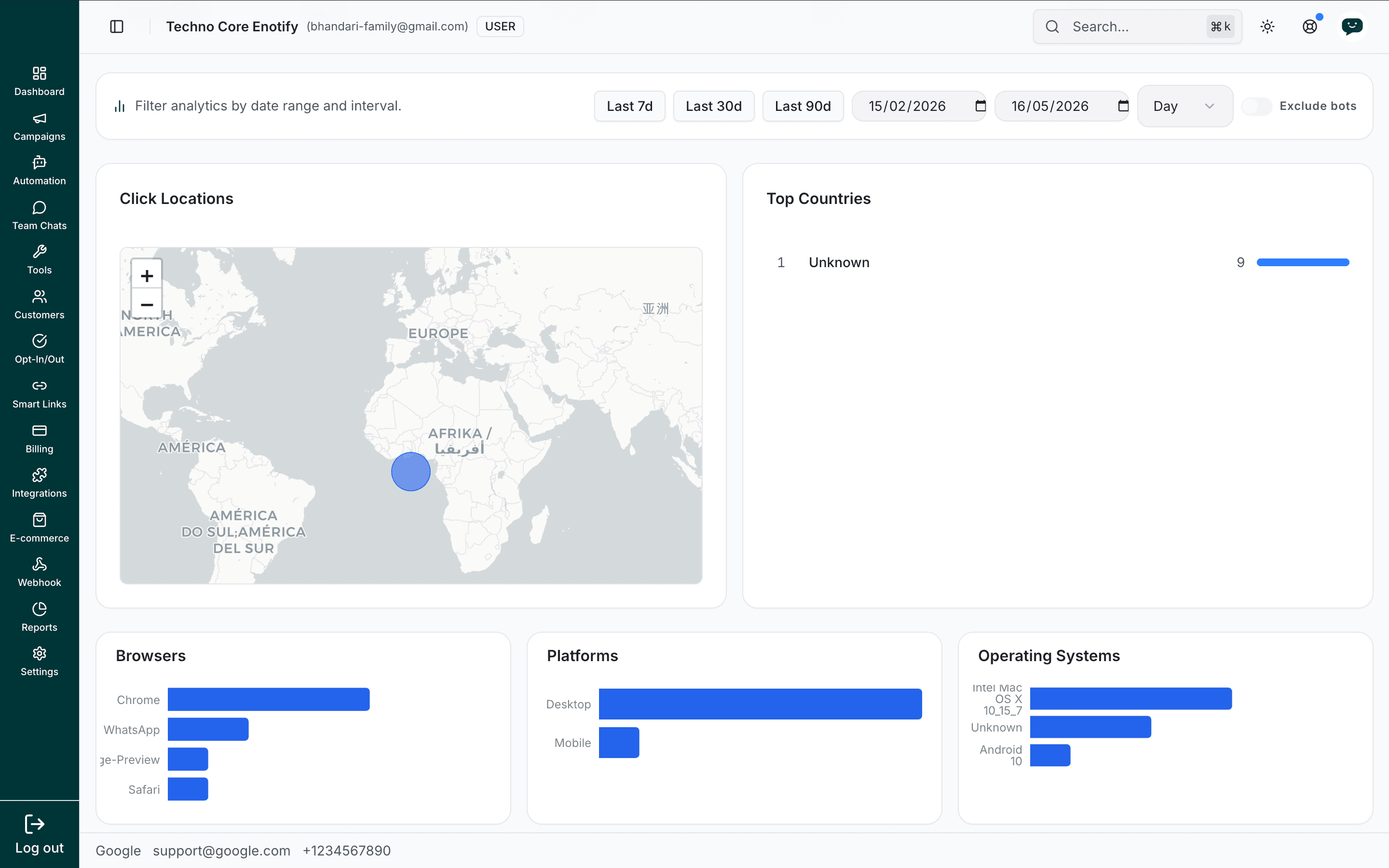
| Section | Shows |
|---|---|
| Click Locations | A world map plotting where clicks originated |
| Top Countries | Click counts ranked by country |
| Browsers | Browser breakdown, e.g. Chrome, WhatsApp, Safari |
| Platforms | Desktop vs. mobile split |
| Operating Systems | OS breakdown, e.g. macOS, Android |
Measuring the full funnel
Pair smart links with the Delivery Report to follow a campaign end to end:
- Delivered — messages that reached customers (Delivery Report)
- Clicked — customers who clicked the link (Smart Links analytics)
- Converted — customers who completed the action (your own site analytics)
Best practices
How is this guide?