


Chatbot Overview
Build automated WhatsApp conversation flows with the visual editor — create, configure, test, and publish chatbots.
Build automated WhatsApp conversations using a visual drag-and-drop flow editor. Chatbots handle incoming messages, qualify leads, answer FAQs, collect data, call your APIs, and hand off to human agents — all without writing code.
In the app: Dashboard → Automation → Chatbot
How chatbots work
A chatbot is a flow — a series of connected nodes on a visual canvas. Each node performs a specific action: send a message, ask a question, check a condition, call an API, or hand off to a human. Nodes are connected by edges (lines) that define the path a conversation follows.
When a customer sends a message that matches the chatbot's trigger (for example, a message containing "hi"), a new session starts at the trigger node and follows the path based on the customer's replies and your logic.
Customer sends "Hi" → Trigger matches → flow starts
  → Send welcome message → Ask Buttons "How can I help?"
    → Customer taps "Sales" → Condition → Sales path
    → Customer taps "Support" → Condition → Assign to Skillset
Key concepts
| Concept | What it means |
|---|---|
| Flow | The complete chatbot — all nodes and connections together |
| Node | A single step in the flow (send a message, ask a question, etc.) |
| Edge | A connection between two nodes that defines the path |
| Trigger | The condition that starts the chatbot (keyword, first message, pattern, etc.) |
| Variable | A named value that stores data during the conversation (customer name, reply, etc.) |
The Chatbots page
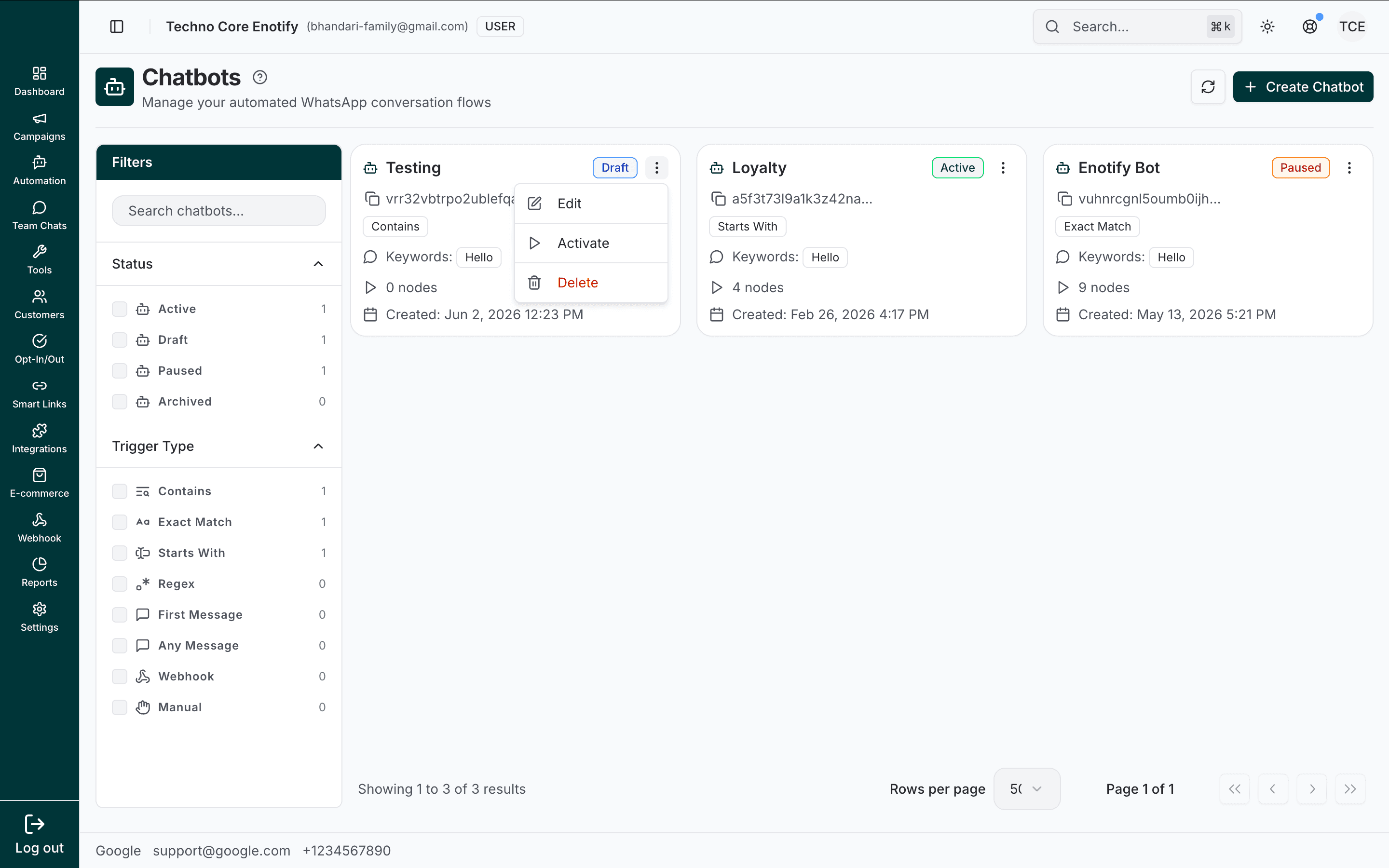
Each chatbot is shown as a card with its trigger type badge, its keywords, the number of nodes in its flow, its status, and its created date. The ⋮ menu on a card offers Edit, Activate, and Delete.
The Filters sidebar narrows the list by:
- Status — Active, Draft, Paused, or Archived (each with a live count)
- Trigger Type — Contains, Exact Match, Starts With, Regex, First Message, Any Message, Webhook, or Manual
Use the search box to find a chatbot by name, and Create Chatbot (top right) to add one.
Building a chatbot
Create a new chatbot
Click Create Chatbot. Give it a name and optional description, then choose how it starts.
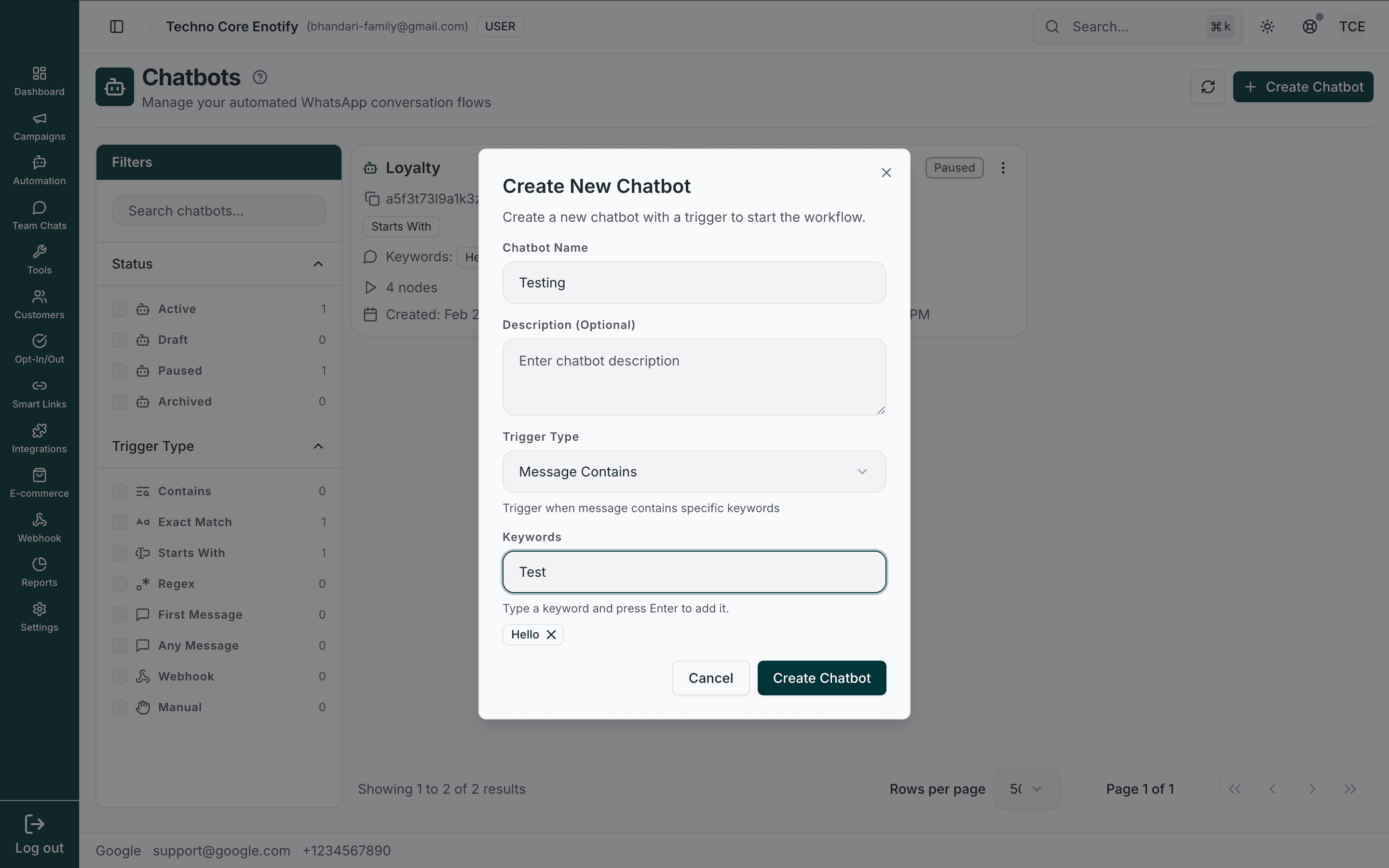
| Field | Notes |
|---|---|
| Chatbot Name (required) | A label for the chatbot, shown on its card |
| Description (optional) | A note about what the chatbot does |
| Trigger Type | What starts the flow. See Triggers & Variables |
| Keywords | For keyword-based triggers, type a word and press Enter to add it. Add as many as you need |
Build the flow
The editor opens on a canvas with the node sidebar on the left. Drag a node onto the canvas and connect nodes by dragging from one node's output port to another's input port.
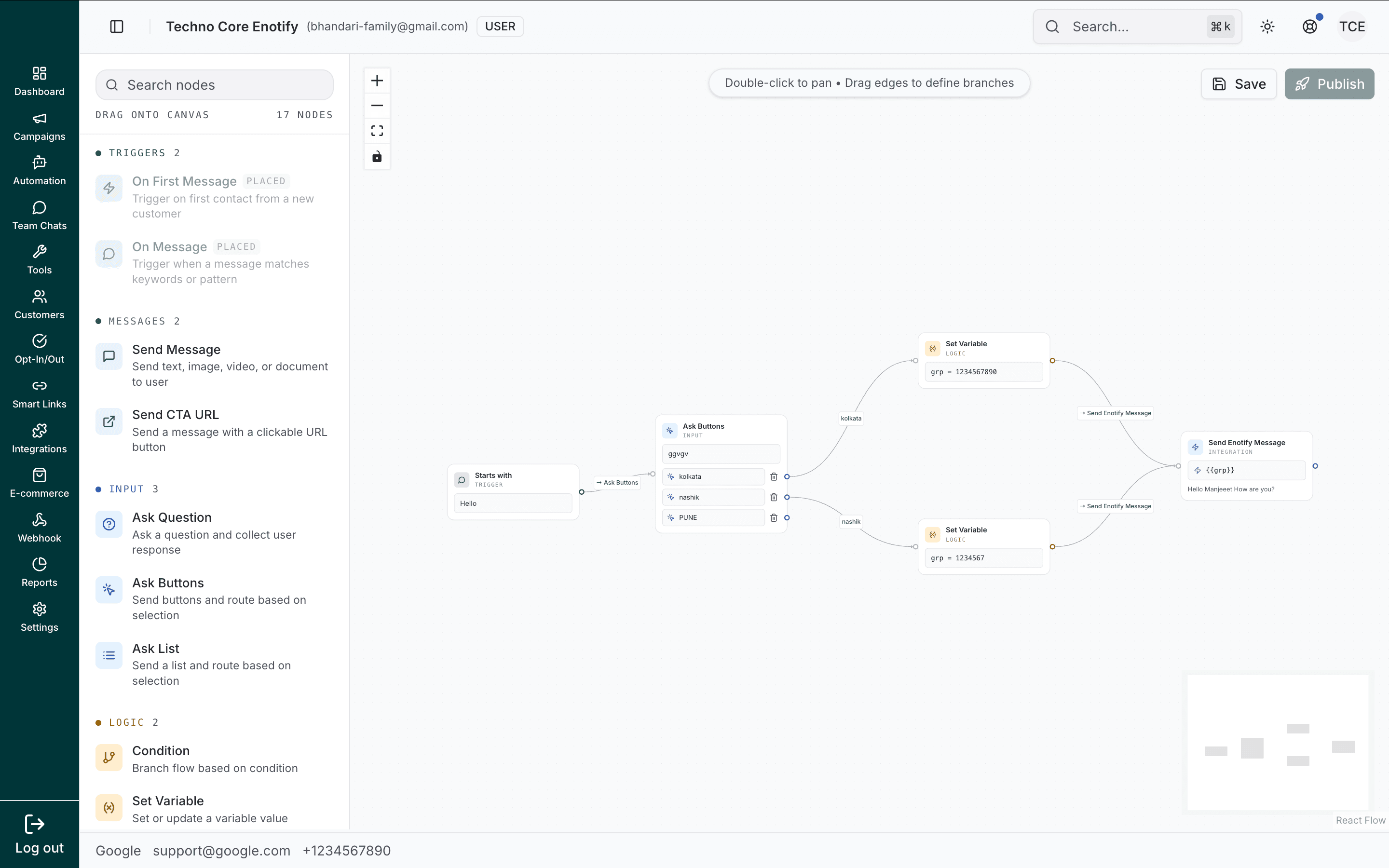
Canvas controls:
- Double-click the canvas to pan, or drag to move around
- Drag from an output port to define a branch to the next node
- Scroll / the +/− buttons to zoom, and the minimap to navigate large flows
- Search nodes at the top of the sidebar to find one of the 17 node types fast
See the Nodes Reference for all 17 nodes and their configuration.
Configure variables
Capture and reuse data with variables. Create them from any "save to variable" field with the + button, and insert saved values into message text with the </> variable picker. Variables flow between nodes — store a reply, branch on it in a Condition, and personalize a later message.
Save and publish
Click Save to keep your work as a draft. When you're ready to go live, click Publish — the platform compiles your flow and starts handling matching incoming messages.
Safe updates
Editing a chatbot after publishing doesn't affect conversations already in progress. Active sessions continue on the version that was live when they started; new sessions use the latest published version.
Chatbot statuses
| Status | Meaning |
|---|---|
| Draft | Being built. Not handling any messages. |
| Active | Live and responding to matching triggers. |
| Paused | Temporarily stopped. No new sessions start, but existing ones can continue. |
| Archived | Retired. Cannot be activated. |
Activate, pause, or delete a chatbot from the ⋮ menu on its card.
Delete a chatbot
From a card's ⋮ menu, choose Delete. A confirmation dialog appears first.
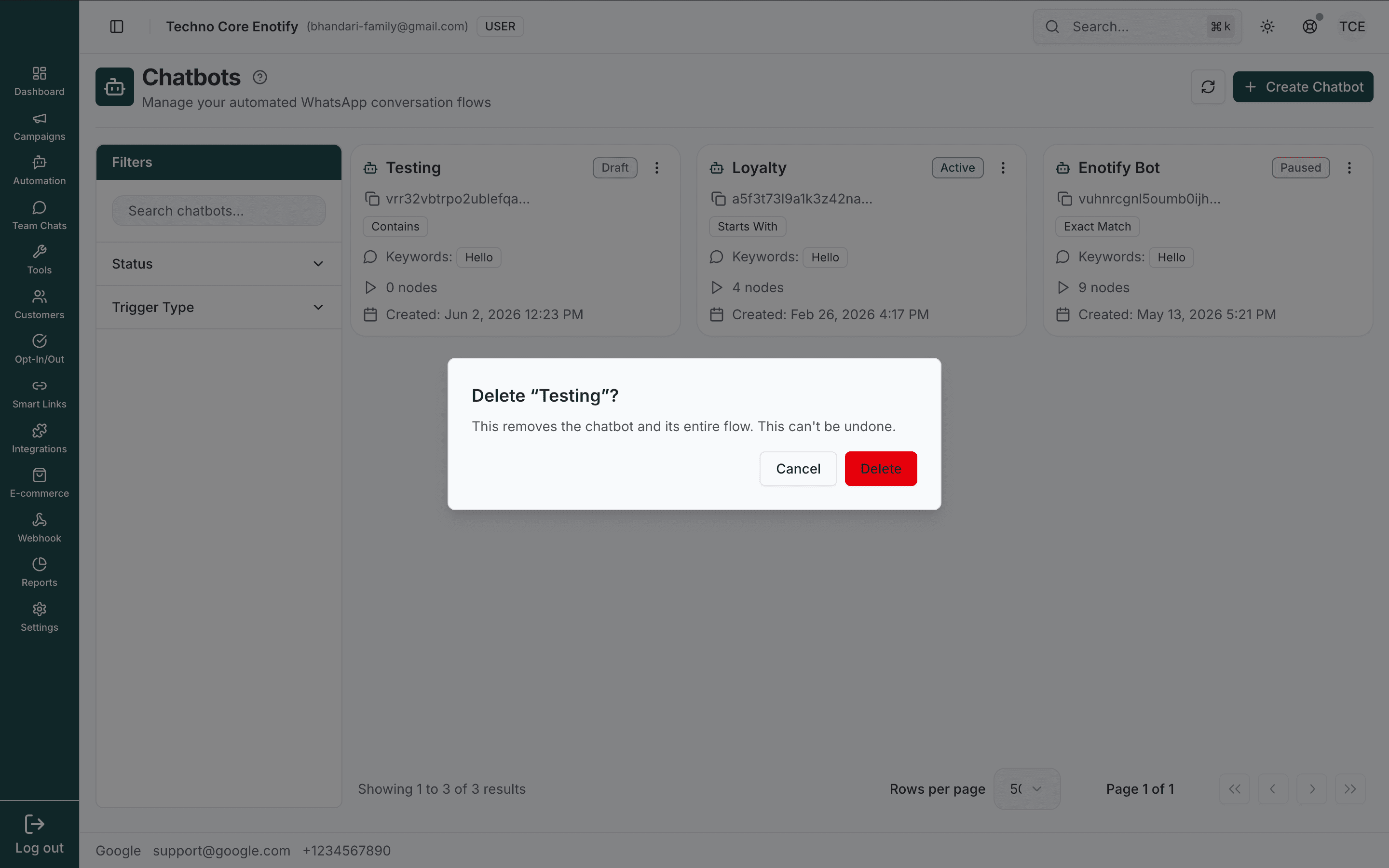
Deletion is permanent
Deleting a chatbot removes it and its entire flow. This cannot be undone.
What's next
Nodes Reference
All 17 node types — triggers, messages, input, logic, integration, and action nodes with configuration details.
Triggers & Variables
Every trigger type, the variables system, validation, and branching with conditions.
Flow Examples
Complete chatbot flows for common use cases — welcome, FAQ, lead capture, and support escalation.
Best practices
How is this guide?