


AI Bot
Build WhatsApp AI assistants from templates — personality and guardrails, knowledge bases, built-in tools, and human escalation.
AI Bot turns a WhatsApp number into an AI assistant that answers in your brand's voice. Start from a template, give it a personality and guardrails, feed it a knowledge base, attach tools so it can take actions, and let it escalate to a human when it is out of its depth. Unlike the rule-based Chatbot, an AI Bot understands free-form questions and replies in natural language.
In the app: Dashboard → Automation → AI Bot
Pre-launch preview
AI Bot is marked Pre launch preview. Behaviour and configuration may change before general availability.
AI Bot vs Chatbot
| Chatbot | AI Bot | |
|---|---|---|
| How it replies | Fixed flow of nodes you draw | Generates answers from a model |
| Best for | Predictable, structured journeys (menus, forms, qualification) | Open-ended questions, FAQs, sales conversations |
| Setup | Visual flow editor | Template + personality + knowledge base |
| Guardrails | The flow itself | Tone, topic and competitor restriction, escalation rules |
Run both: a chatbot for deterministic steps, an AI Bot for the open conversation around them.
The AI Bot page
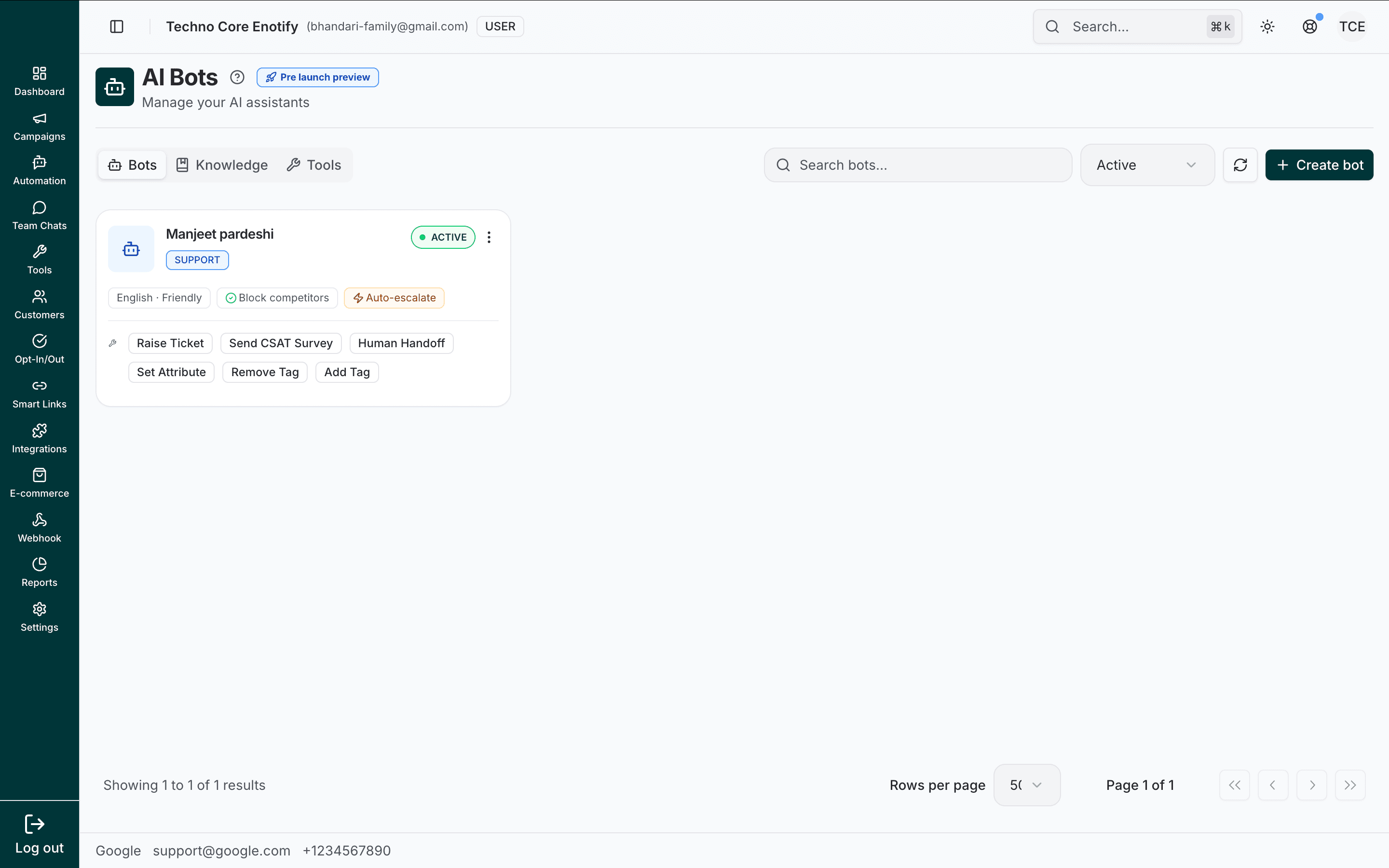
The page has three tabs — Bots, Knowledge, and Tools — across the top.
The Bots tab lists every assistant on your account as a card showing its template badge, language and tone, an Active / Inactive status, the guardrails in force (Block competitors, Auto-escalate), and the tools attached to it. Use the search box to find a bot by name, the status filter to show only Active or Inactive bots, and Refresh to reload. Click Create bot (top right) to add one, or the ⋮ menu on a card to edit or delete it.
AI Bot is an add-on
The number of AI Bots you can run is set by your plan and the AI Bot add-on. If you hit the limit, top up capacity from Billing → Usage / Add-ons.
Create a bot
Creating a bot is a four-step wizard: pick a template, shape its personality, attach knowledge, and enable tools. A progress bar tracks your place (25% → 100%).
Choose a template
The template sets the bot's starting behaviour and pre-loads a set of tools. Pick the closest fit; you can refine everything in the next steps.
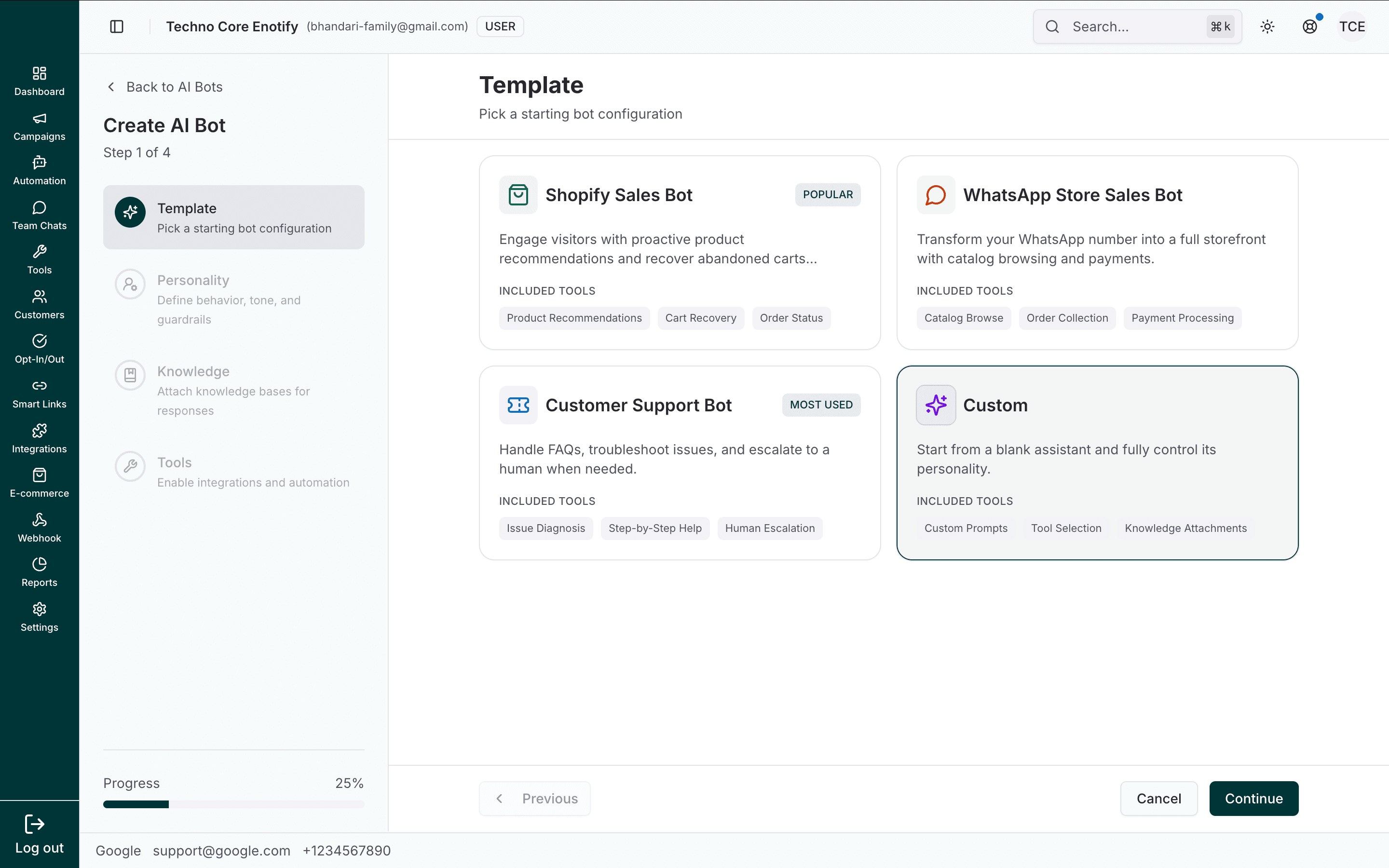
| Template | What it's for | Included tools |
|---|---|---|
| Shopify Sales Bot (Popular) | Recommend products and recover abandoned carts for a connected Shopify store | Product Recommendations, Cart Recovery, Order Status |
| WhatsApp Store Sales Bot | Turn your WhatsApp number into a storefront with catalog browsing and payments | Catalog Browse, Order Collection, Payment Processing |
| Customer Support Bot (Most used) | Handle FAQs, troubleshoot issues, and escalate to a human when needed | Issue Diagnosis, Step-by-Step Help, Human Escalation |
| Custom | Start from a blank assistant and fully control its personality | Custom Prompts, Tool Selection, Knowledge Attachments |
Define personality and guardrails
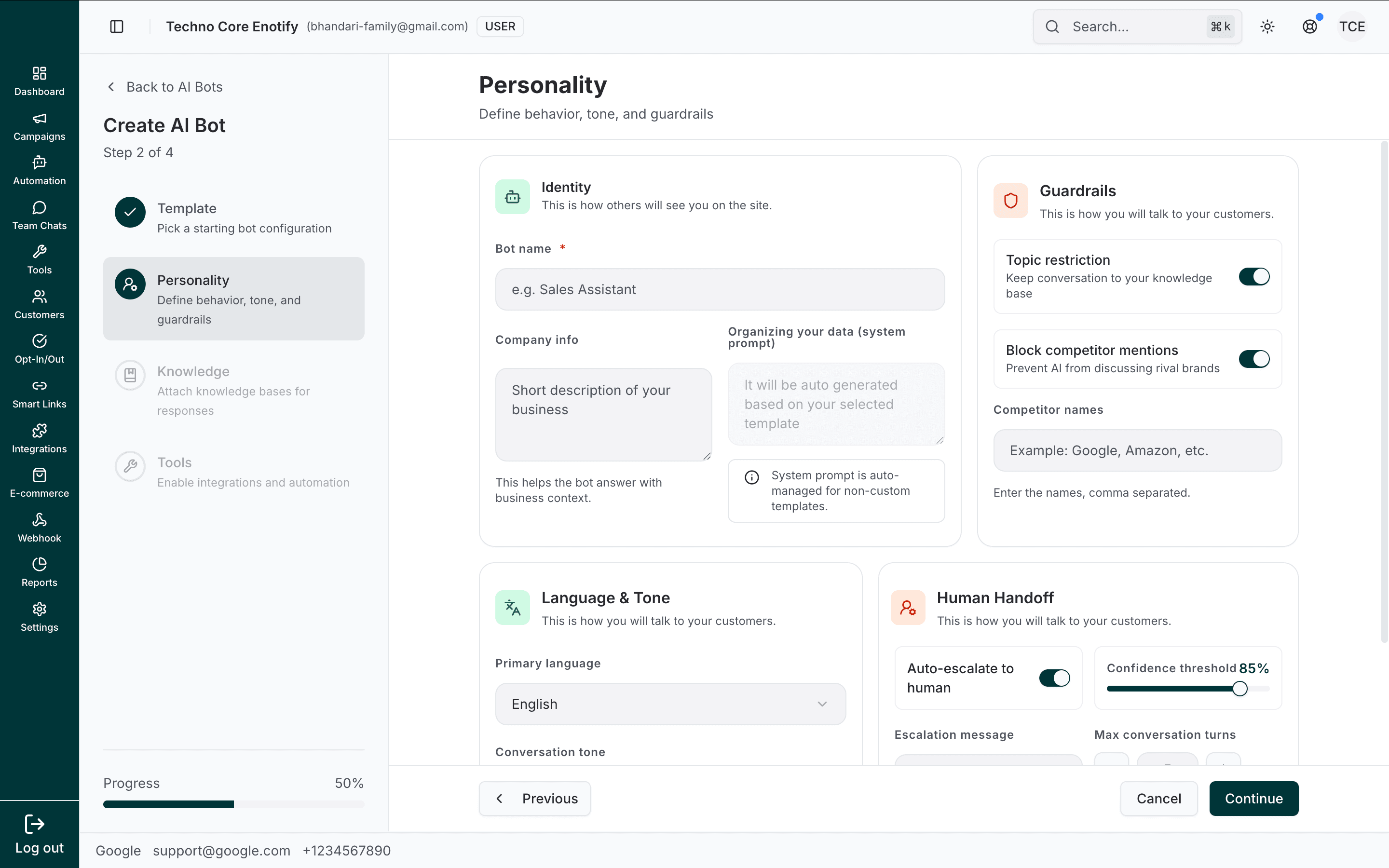
Shape how the bot speaks and where it draws the line. The screen is split into four panels.
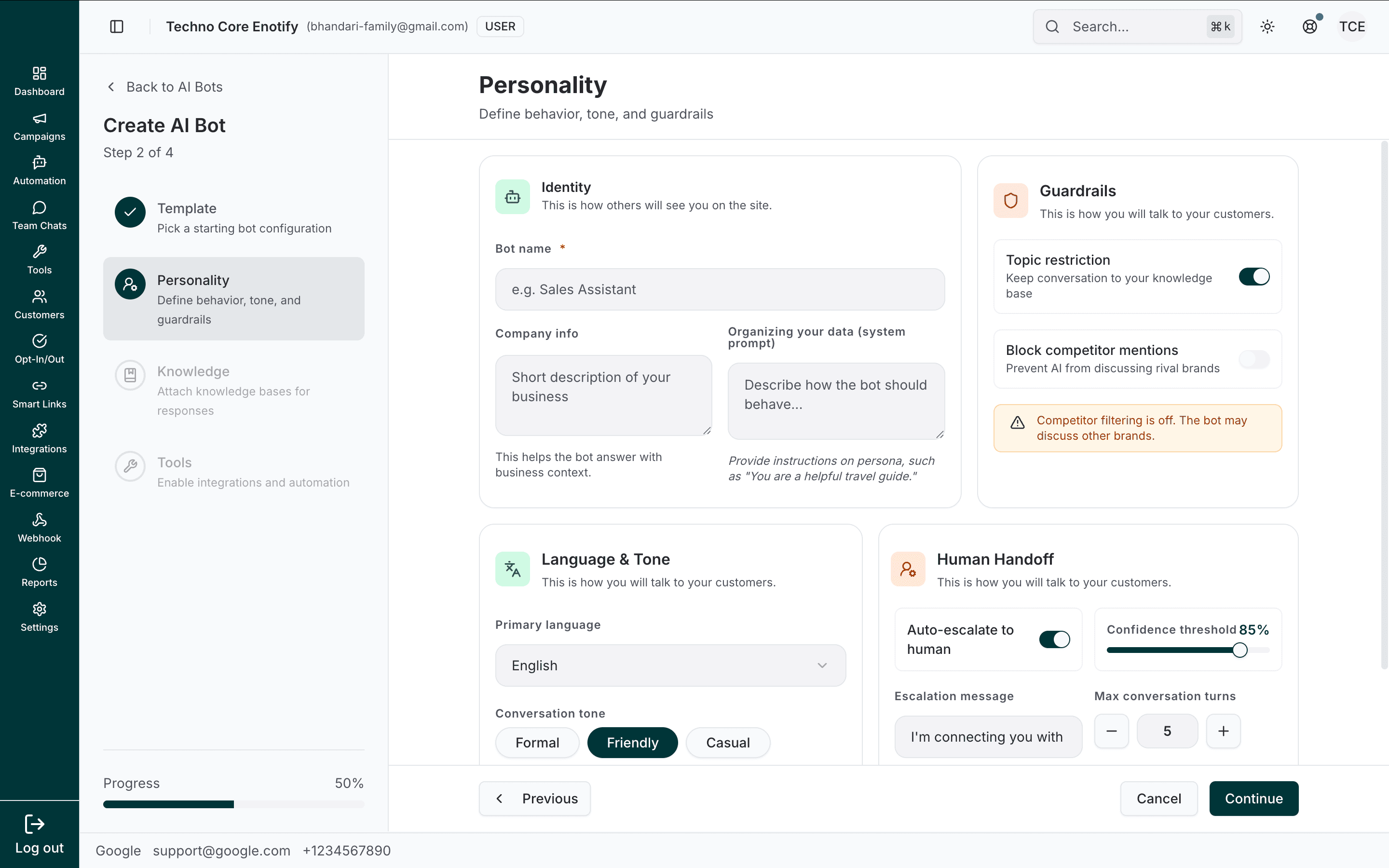
Identity — how the bot presents itself.
| Field | What it does |
|---|---|
| Bot name | The assistant's name, e.g. "Sales Assistant" |
| Company info | A short description of your business, used for context |
| Organizing your data (system prompt) | The bot's core instructions. Editable on Custom, auto-generated on every other template (see below) |
Who writes the system prompt?
On the Custom template you write the system prompt yourself: describe the bot's persona and how it should behave, for example "You are a helpful travel guide." On every other template (Shopify, WhatsApp Store, Customer Support) the system prompt is auto-generated and managed for you from your selection, so the field stays read-only.
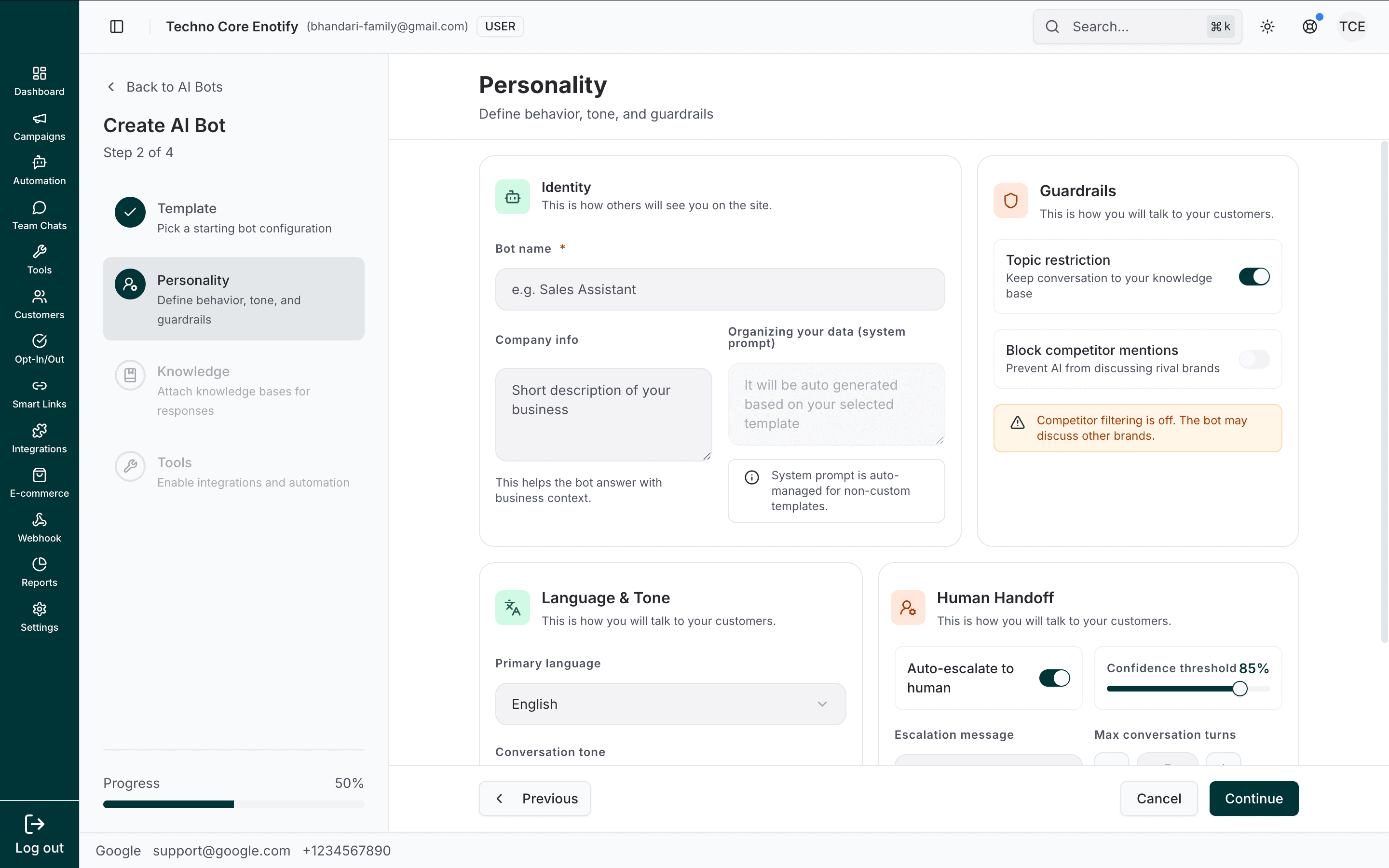
Guardrails — keep the bot on-message.
| Setting | What it does |
|---|---|
| Topic restriction | Keeps the conversation to your knowledge base |
| Block competitor mentions | Prevents the bot discussing rival brands |
When Block competitor mentions is on, a Competitor names field appears — list the brands, comma separated. While it is off, a banner reminds you "Competitor filtering is off. The bot may discuss other brands."
Language & Tone — how the bot sounds.
| Setting | What it does |
|---|---|
| Primary language | The language the bot replies in |
| Conversation tone | Formal, Friendly, or Casual |
| Max response length | A character cap that keeps replies concise for chat |
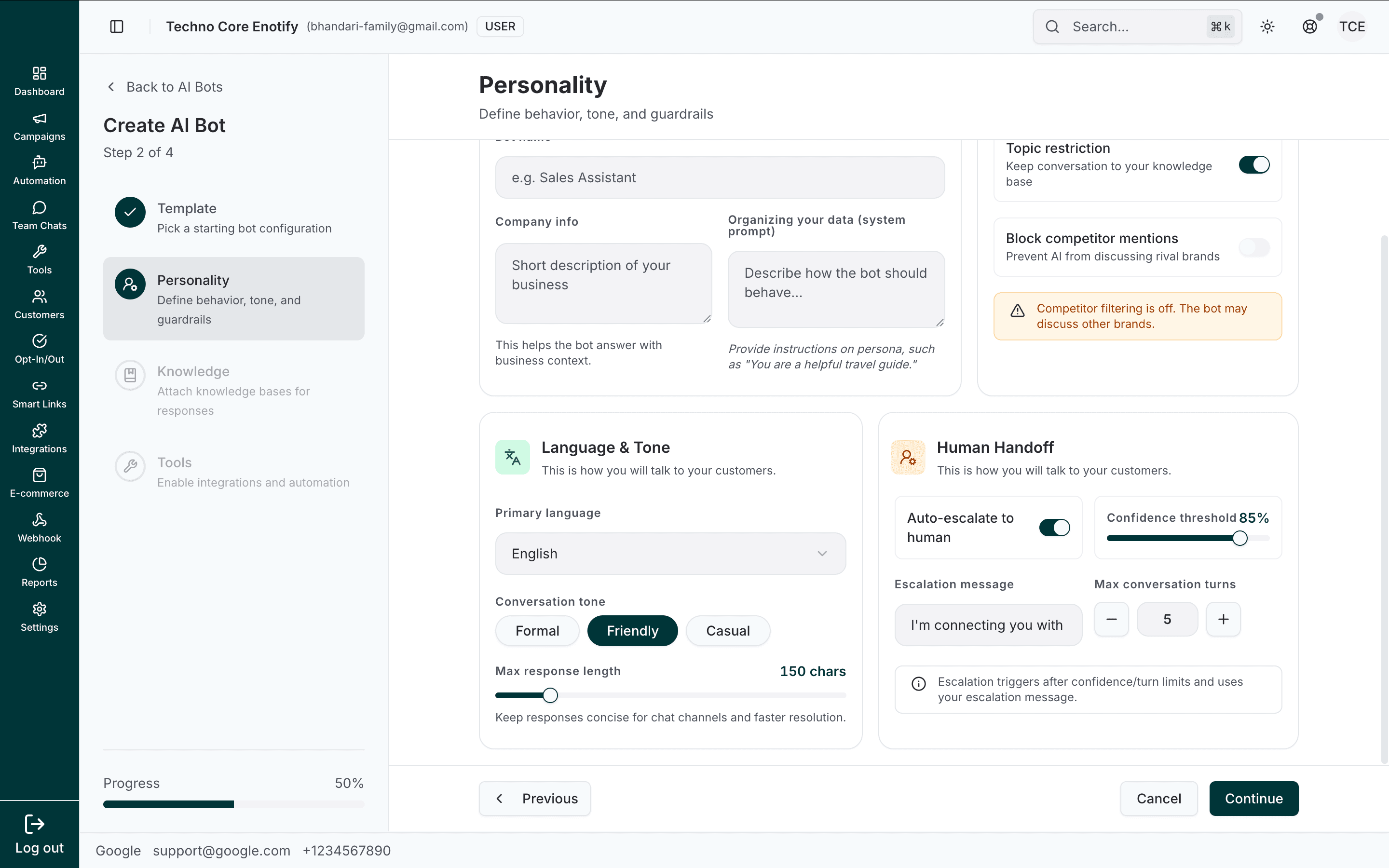
Human Handoff — when to bring in a person.
| Setting | What it does |
|---|---|
| Auto-escalate to human | Hand the conversation to an agent when the bot is stuck |
| Confidence threshold | How sure the bot must be before answering; below it, it escalates |
| Escalation message | What the customer sees at handoff |
| Max conversation turns | The back-and-forths the bot attempts before passing to a human |
Escalation
Escalation triggers after the confidence or turn limits are hit, and sends your escalation message. The conversation then lands in Team Chats for an agent to pick up.
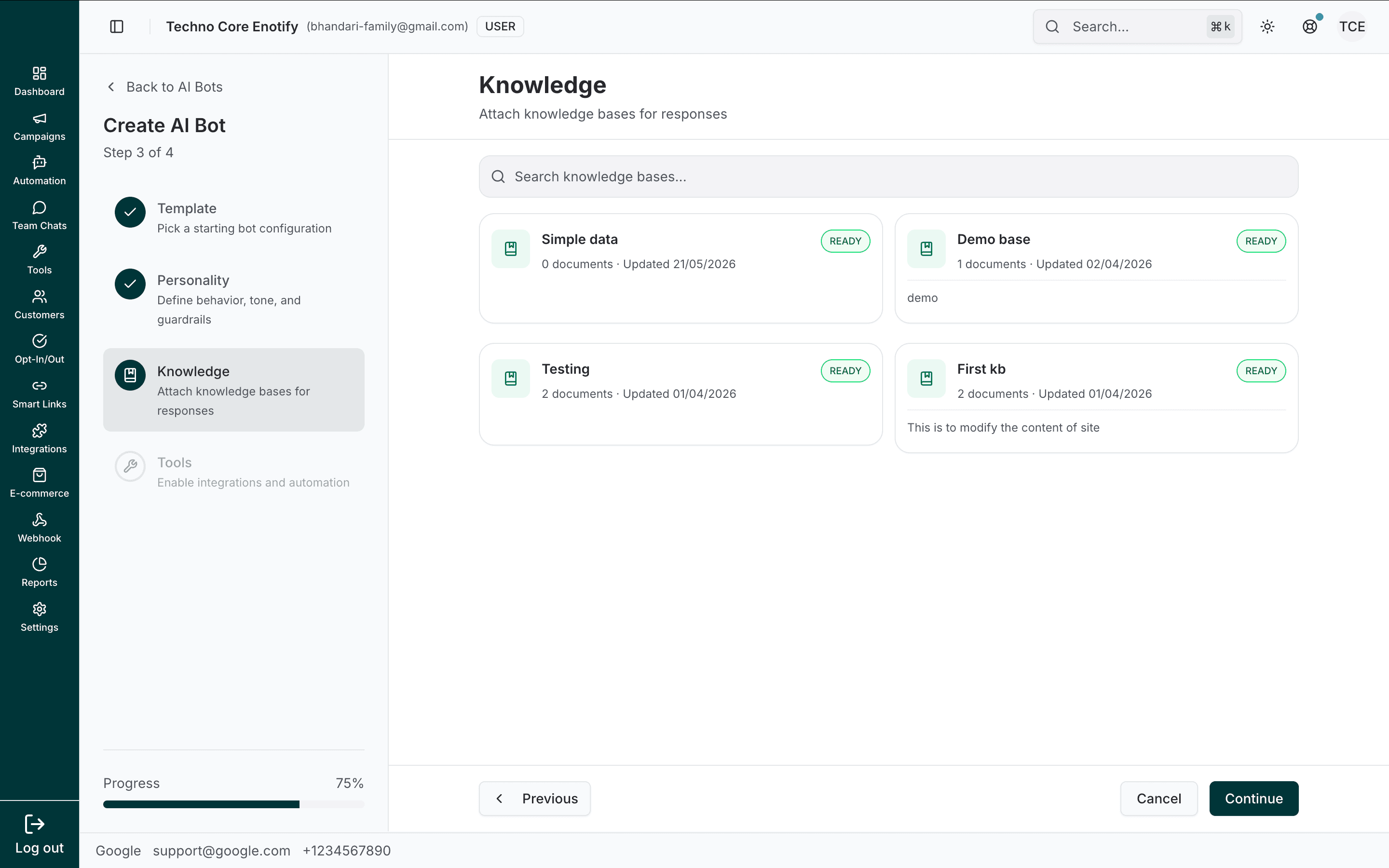
Attach knowledge
Pick the knowledge bases the bot should answer from. Each card shows the knowledge base name, its document count, last-updated date, and a Ready status. Select one, several, or none (the bot then answers from the template and its instructions alone). You can change this any time after creation.
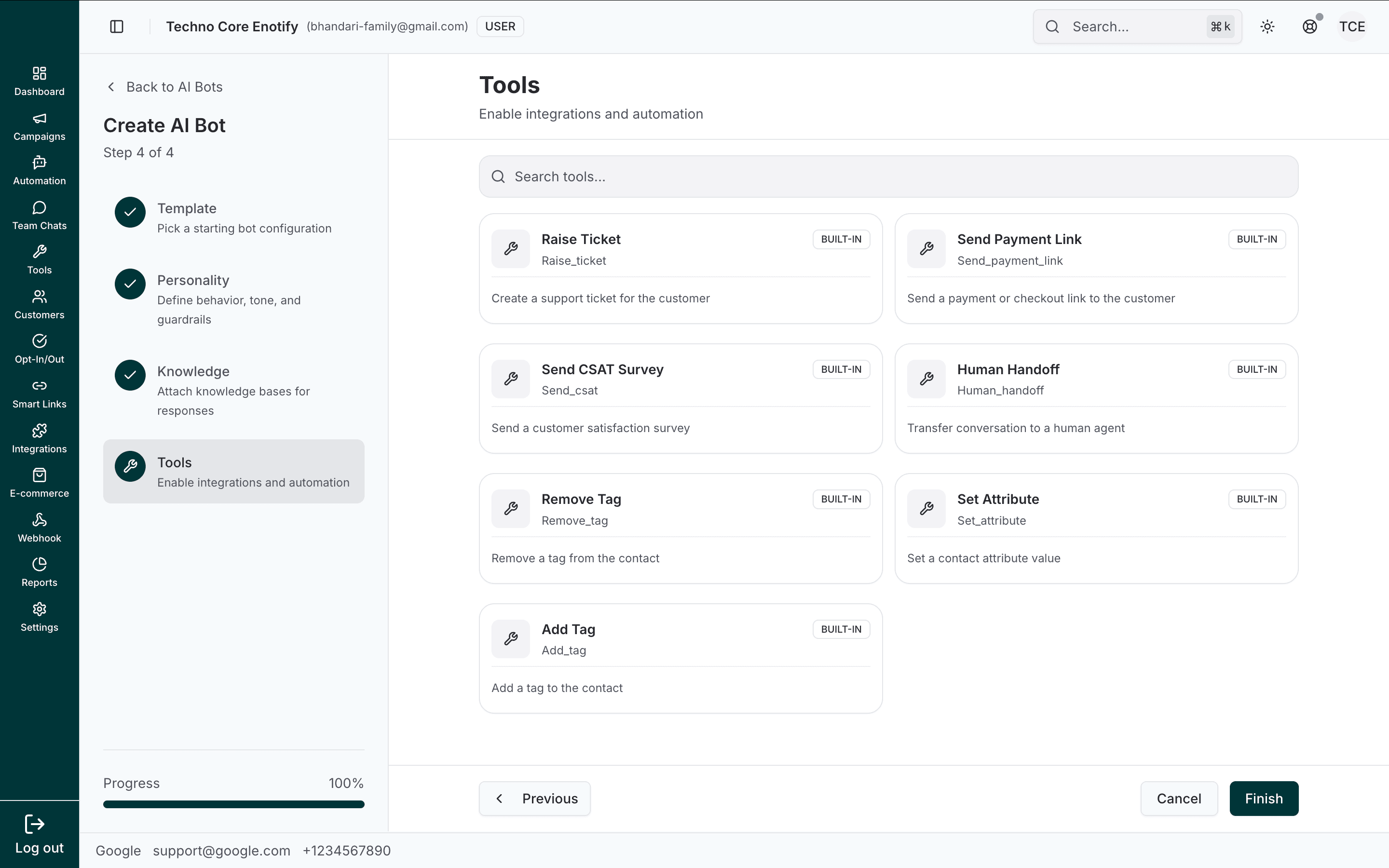
Enable tools
Turn on the tools the bot may use, then Finish. The new bot appears on the Bots tab, ready to activate.
Manage a bot
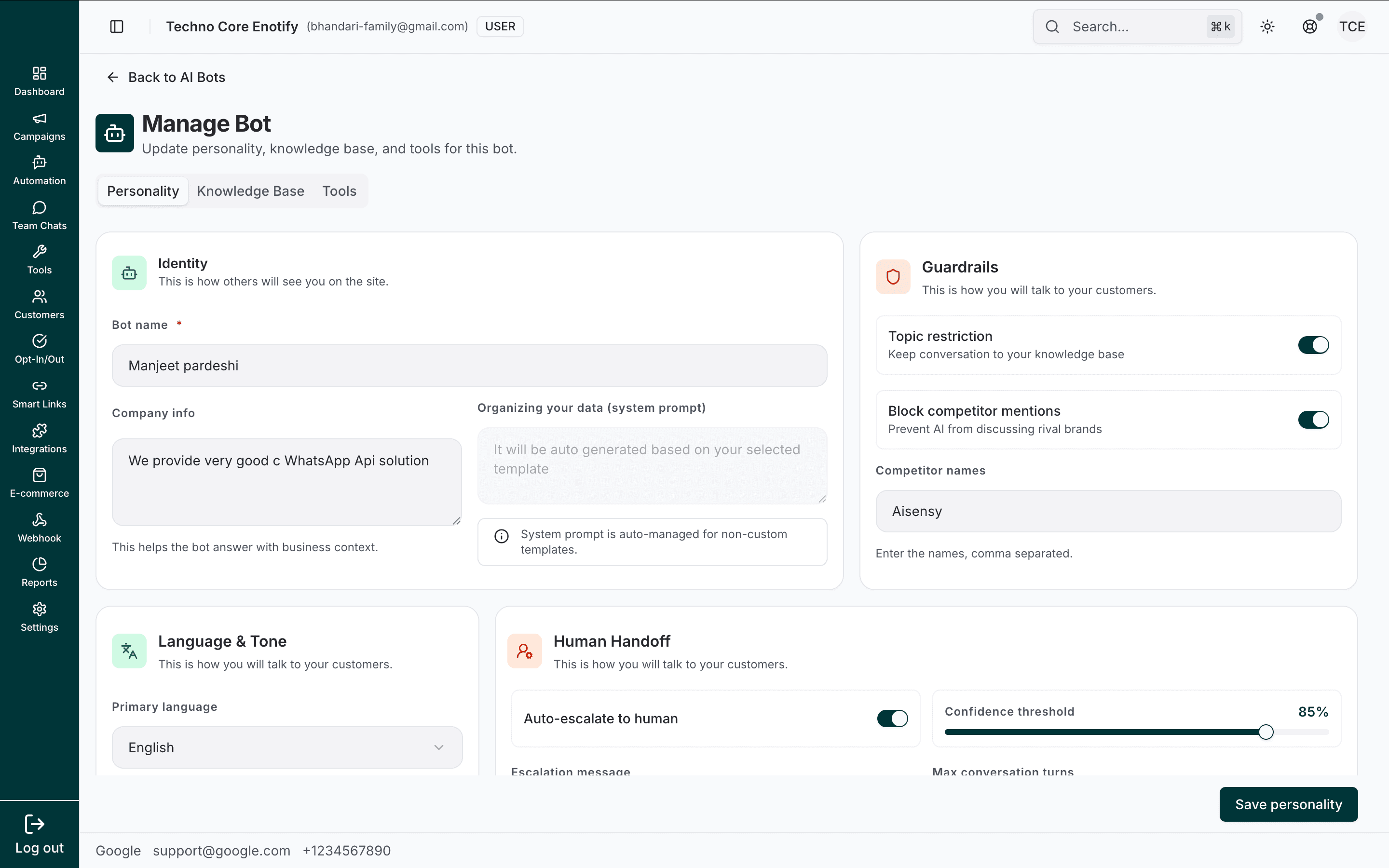
Open a bot from the Bots tab to reach Manage Bot, where everything you set in the wizard can be changed across three tabs: Personality, Knowledge Base, and Tools.
Personality
Edit identity, guardrails, language and tone, and human handoff exactly as in the wizard. Click Save personality to apply.
Knowledge base
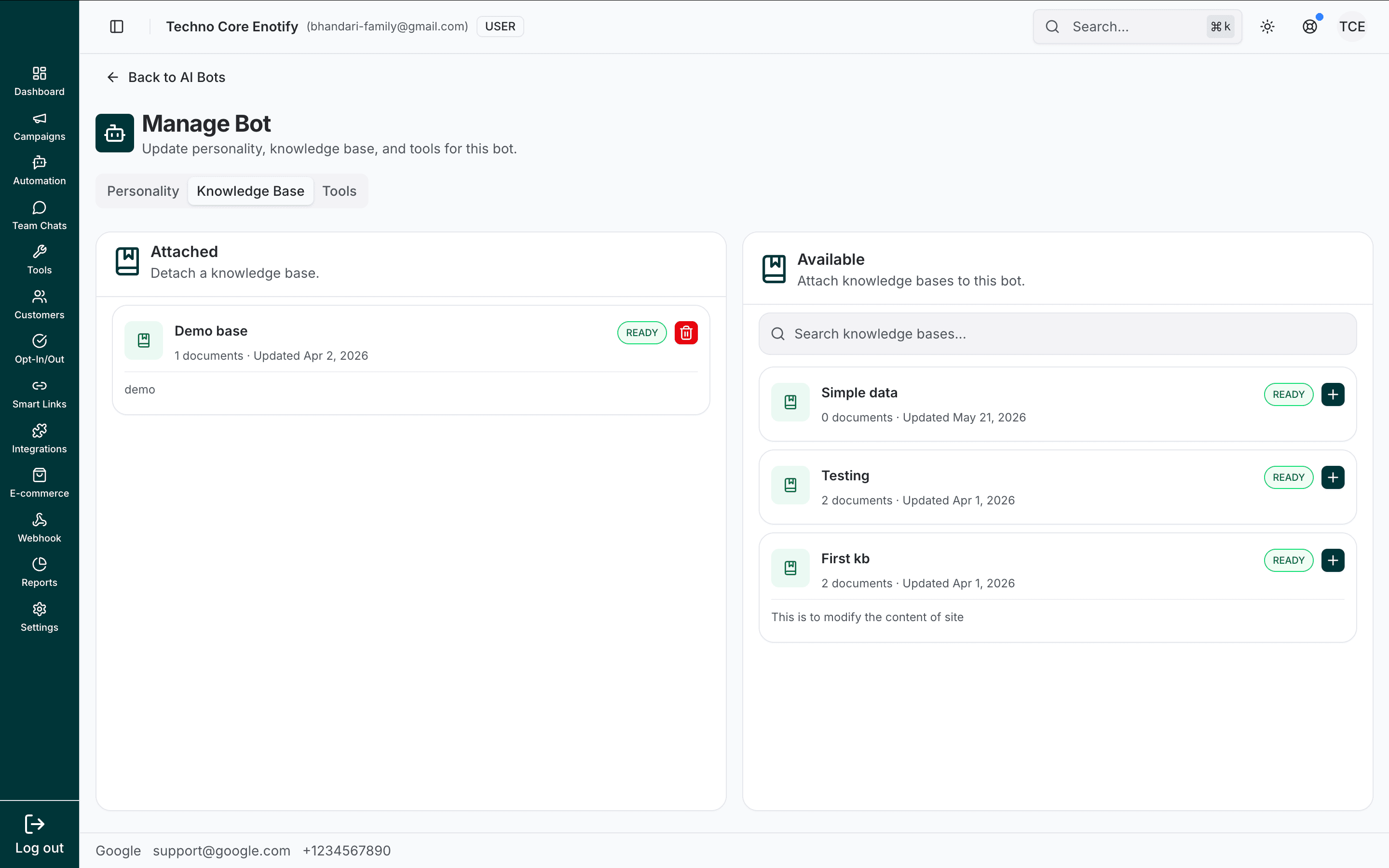
Two panels: Attached (the knowledge bases this bot answers from) and Available (every other knowledge base on your account). Use the + to attach a knowledge base and the trash icon to detach one. Detaching never deletes the knowledge base itself — it just stops this bot using it.
Tools
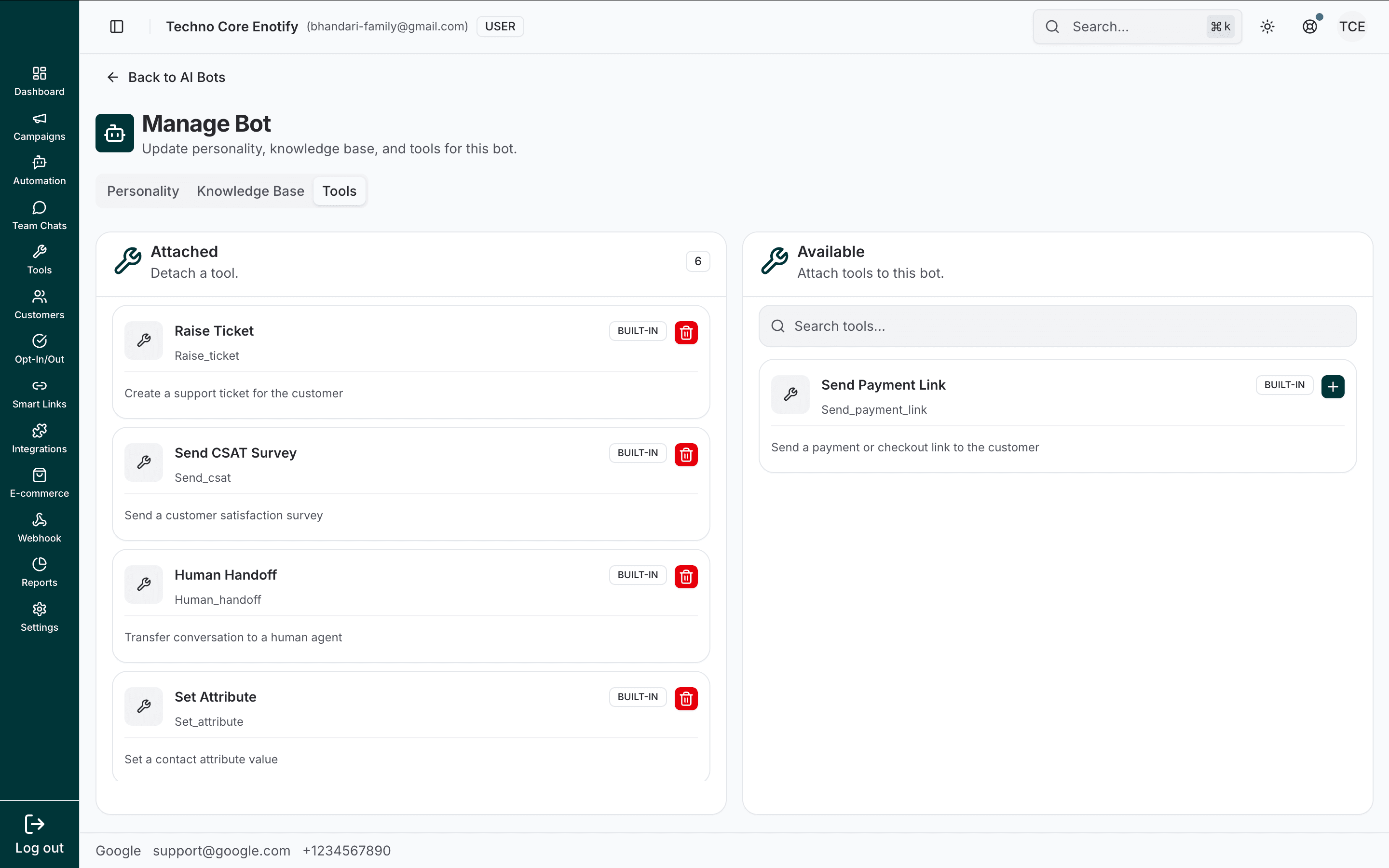
The same two-panel layout for tools: Attached tools the bot can call, and Available tools you can add with +. Remove a tool with the trash icon.
Toggle a bot Active to let it answer customers, or Inactive to take it offline without deleting it.
Delete a bot
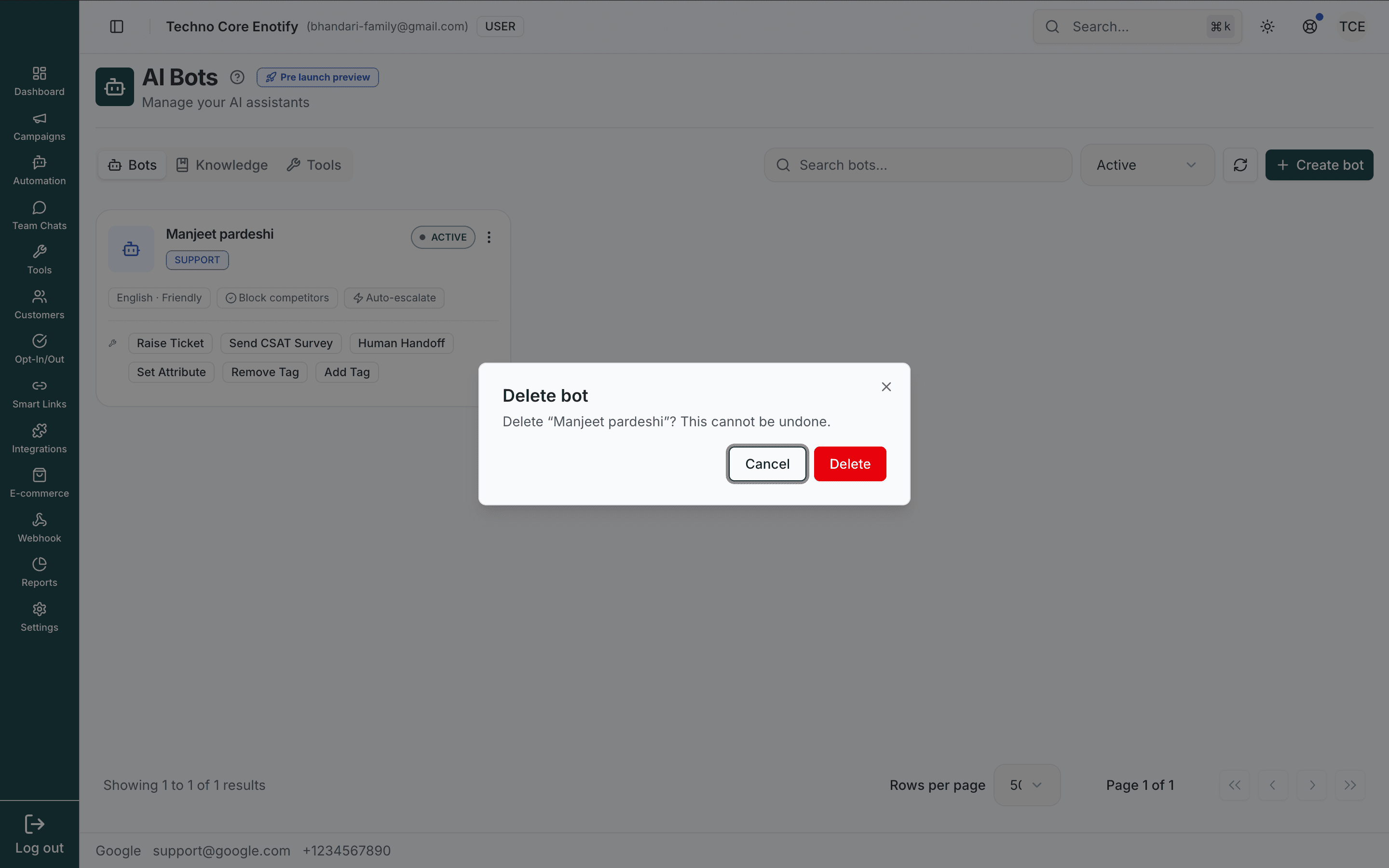
From a bot card's ⋮ menu, choose Delete. A confirmation dialog appears first.
Deletion is permanent
Deleting a bot removes its personality, tool attachments, and configuration. This cannot be undone. Its knowledge bases are not deleted and remain available to other bots.
Knowledge bases
A knowledge base is the set of documents your bots answer from. They are managed centrally on the Knowledge tab and attached to any number of bots, so the same content can power several assistants.
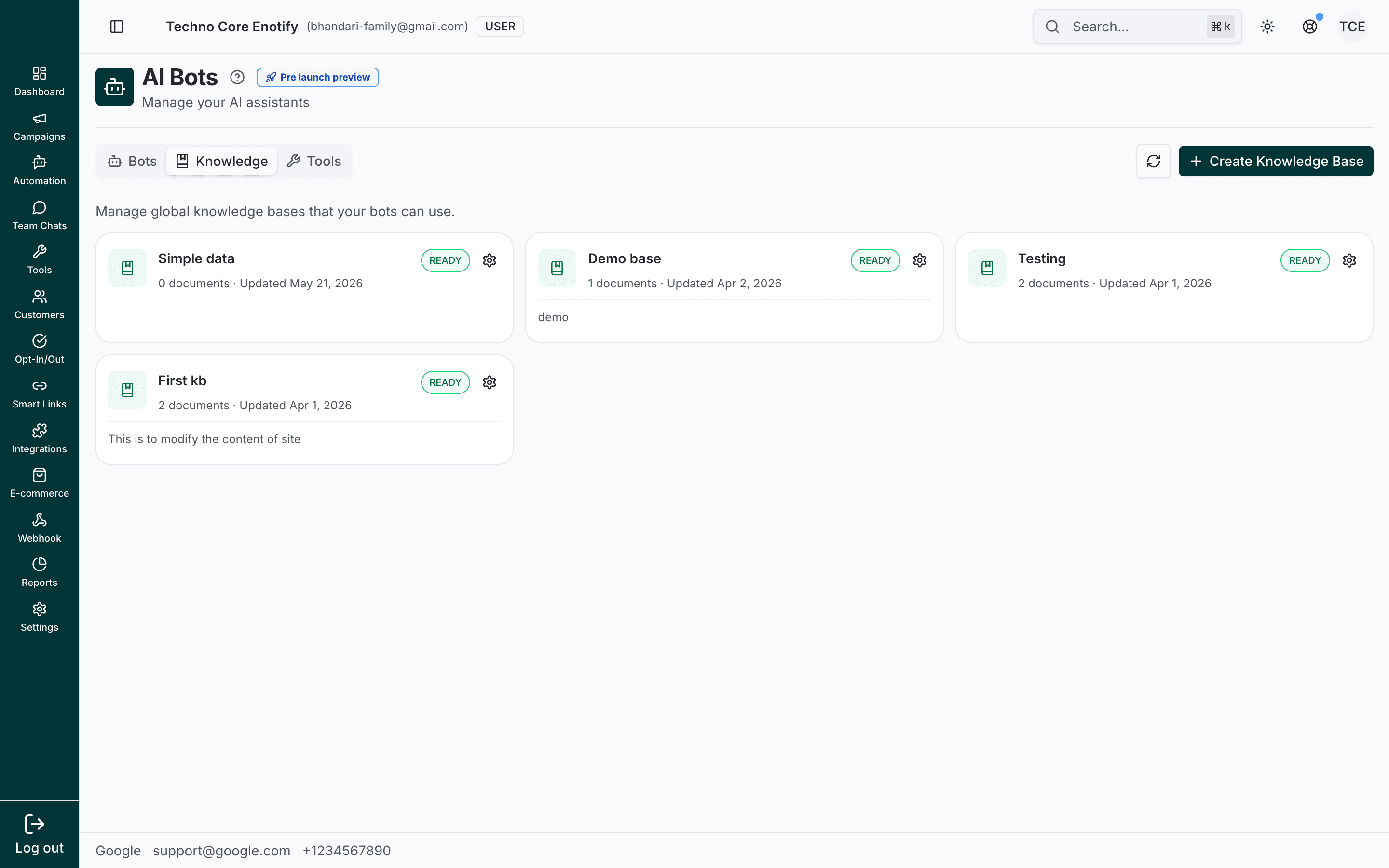
Create a knowledge base
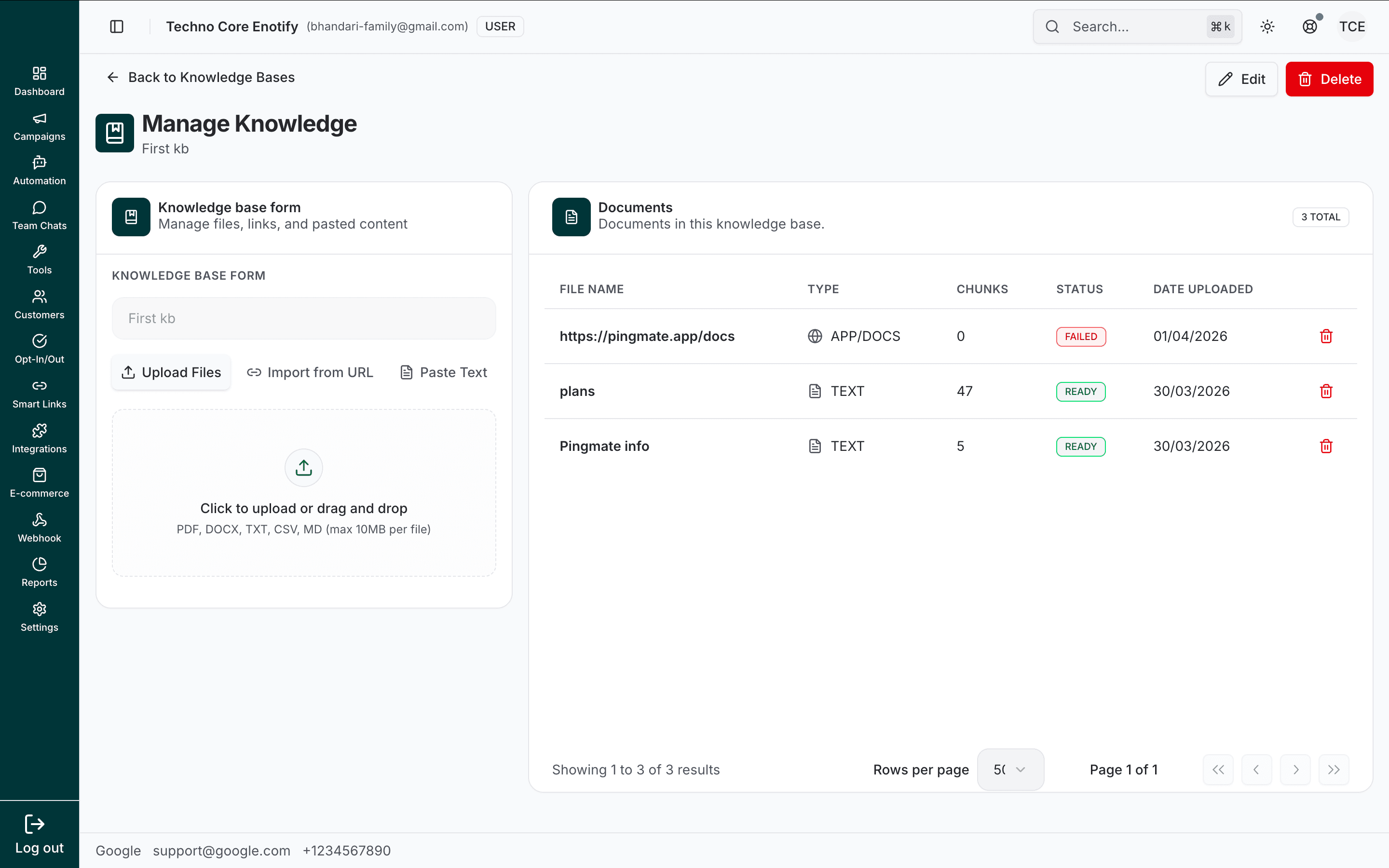
Click Create Knowledge Base, give it a Name and an optional Description, then continue to its edit screen.
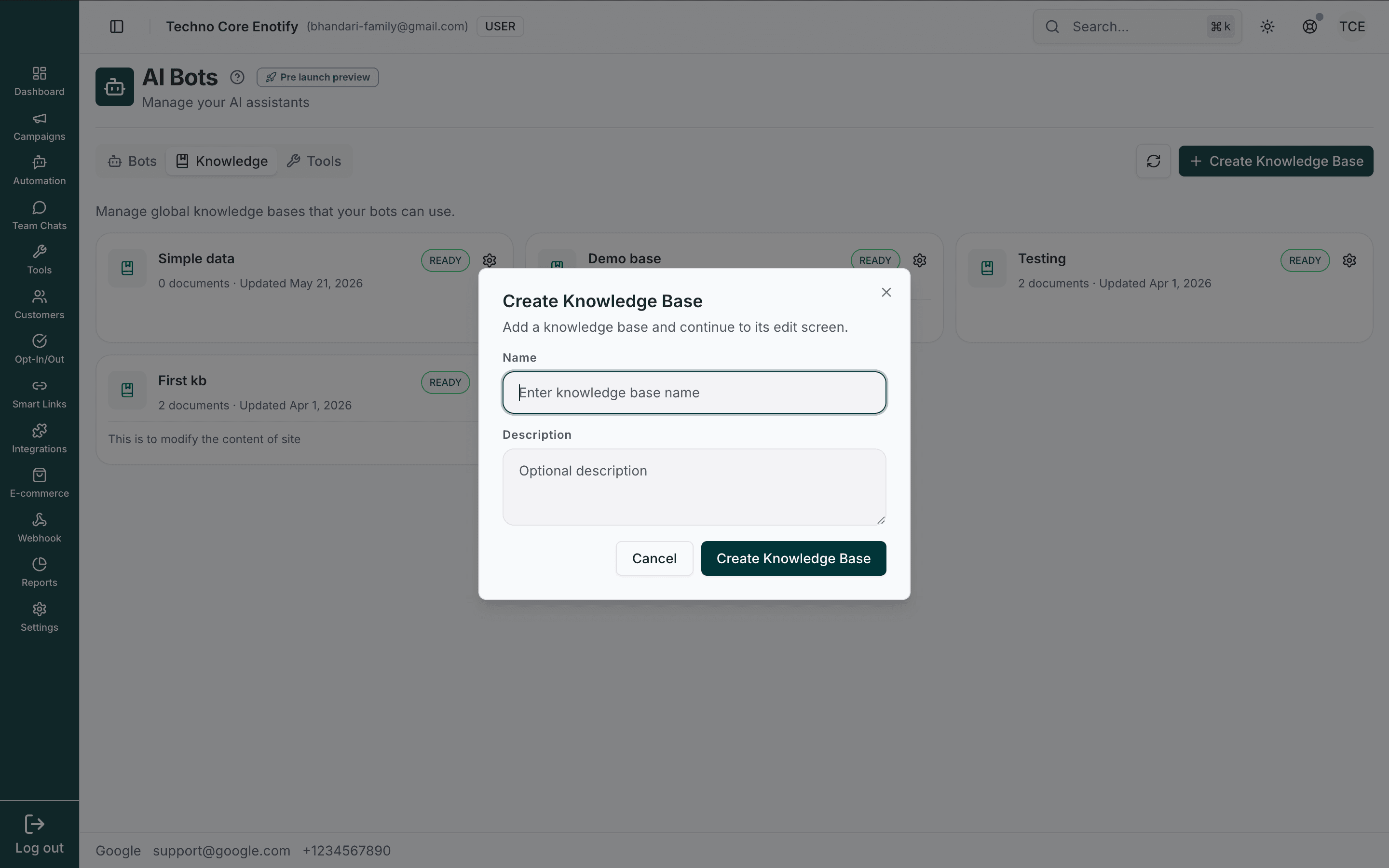
Add documents
On a knowledge base's Manage Knowledge screen, the left panel ingests content three ways and the right panel lists what is indexed.
| Method | What it accepts |
|---|---|
| Upload Files | PDF, DOCX, TXT, CSV, or MD files, up to 10MB each |
| Import from URL | A web page the platform fetches and reads |
| Paste Text | A title and free-text content you type or paste |
Each source is split into chunks the model can search. The documents table lists every source with its file name, type (e.g. TEXT, APP/DOCS for a fetched page), chunk count, status, and upload date. Remove a source with its trash icon.
| Status | Meaning |
|---|---|
| Processing | The document is being read and chunked |
| Ready | Indexed and available to bots |
| Failed | Ingestion failed — remove and re-add the source |
Keep knowledge focused
Add the documents a customer would actually ask about: product specs, policies, FAQs, shipping and returns. Stale or irrelevant content makes answers worse, not better.
Edit or delete a knowledge base
Use Edit (top right of Manage Knowledge) to rename it or change its description.
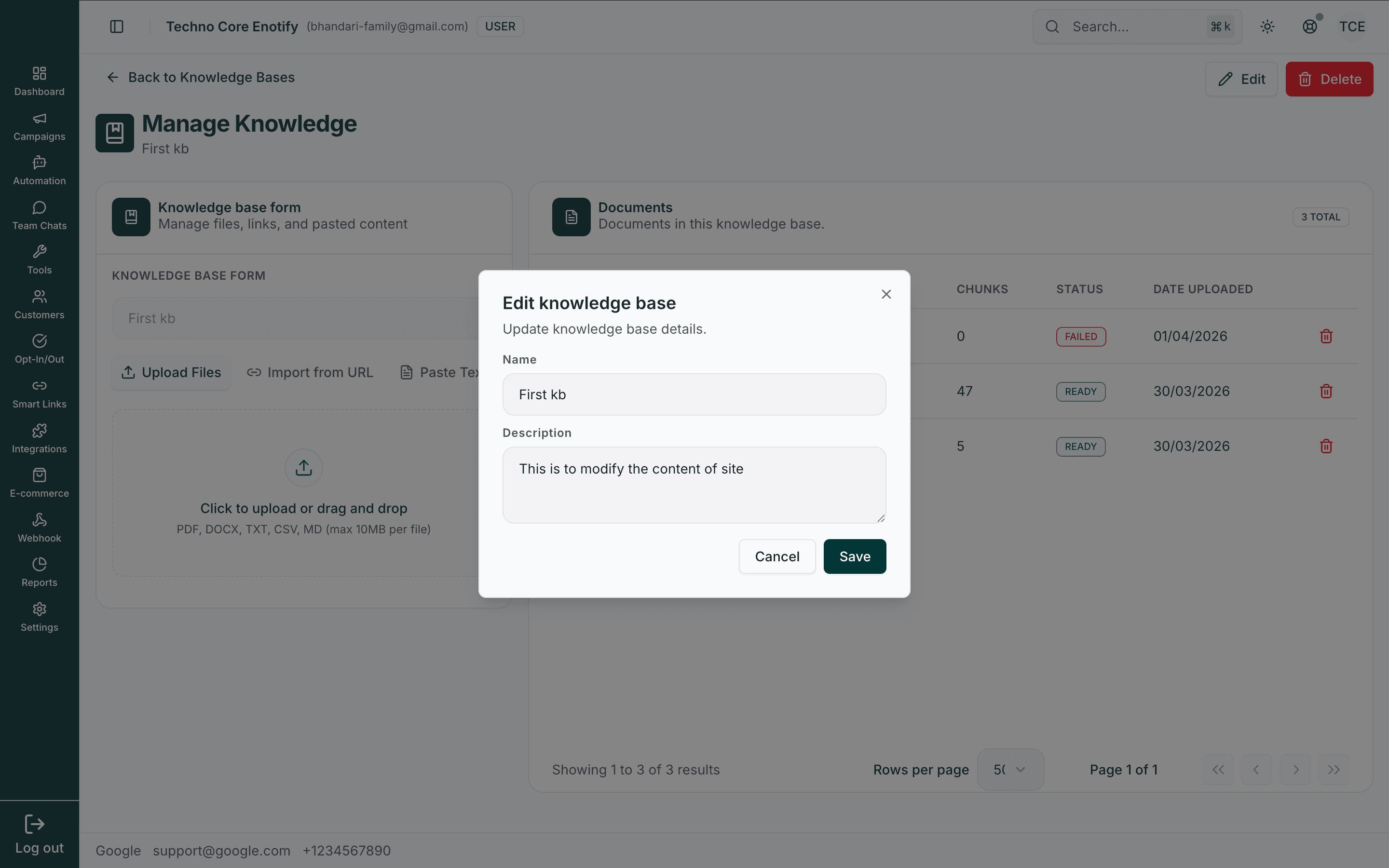
Use Delete to remove it. A confirmation dialog appears first.
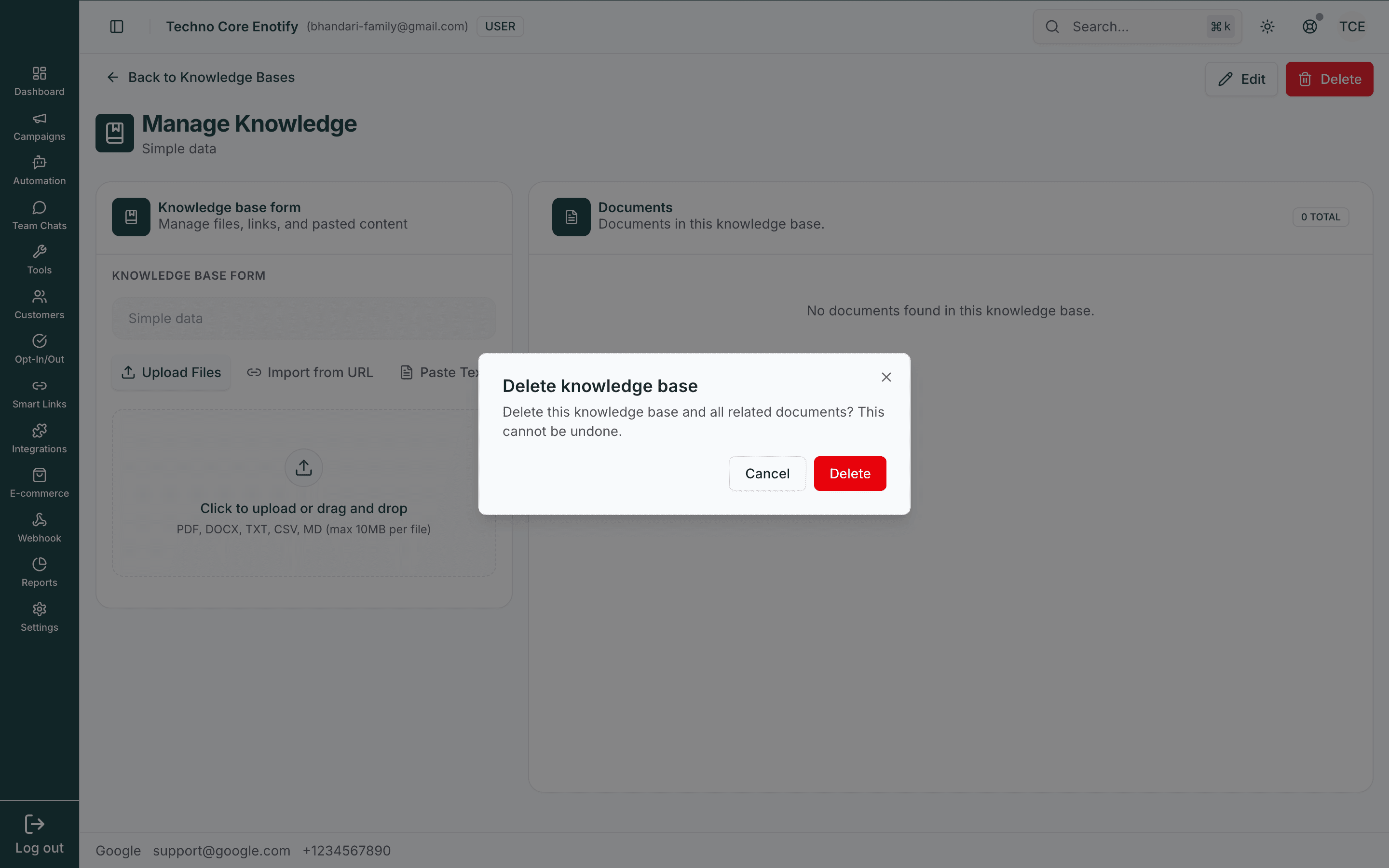
Deletion is permanent
Deleting a knowledge base removes it and all of its documents, and detaches it from every bot that used it. This cannot be undone.
Tools
Tools let a bot do more than talk — raise a ticket, send a payment link, run a survey, tag a contact, or hand off to a human. The Tools tab reviews every tool that can be attached to bots; attach them per bot from Manage Bot → Tools.
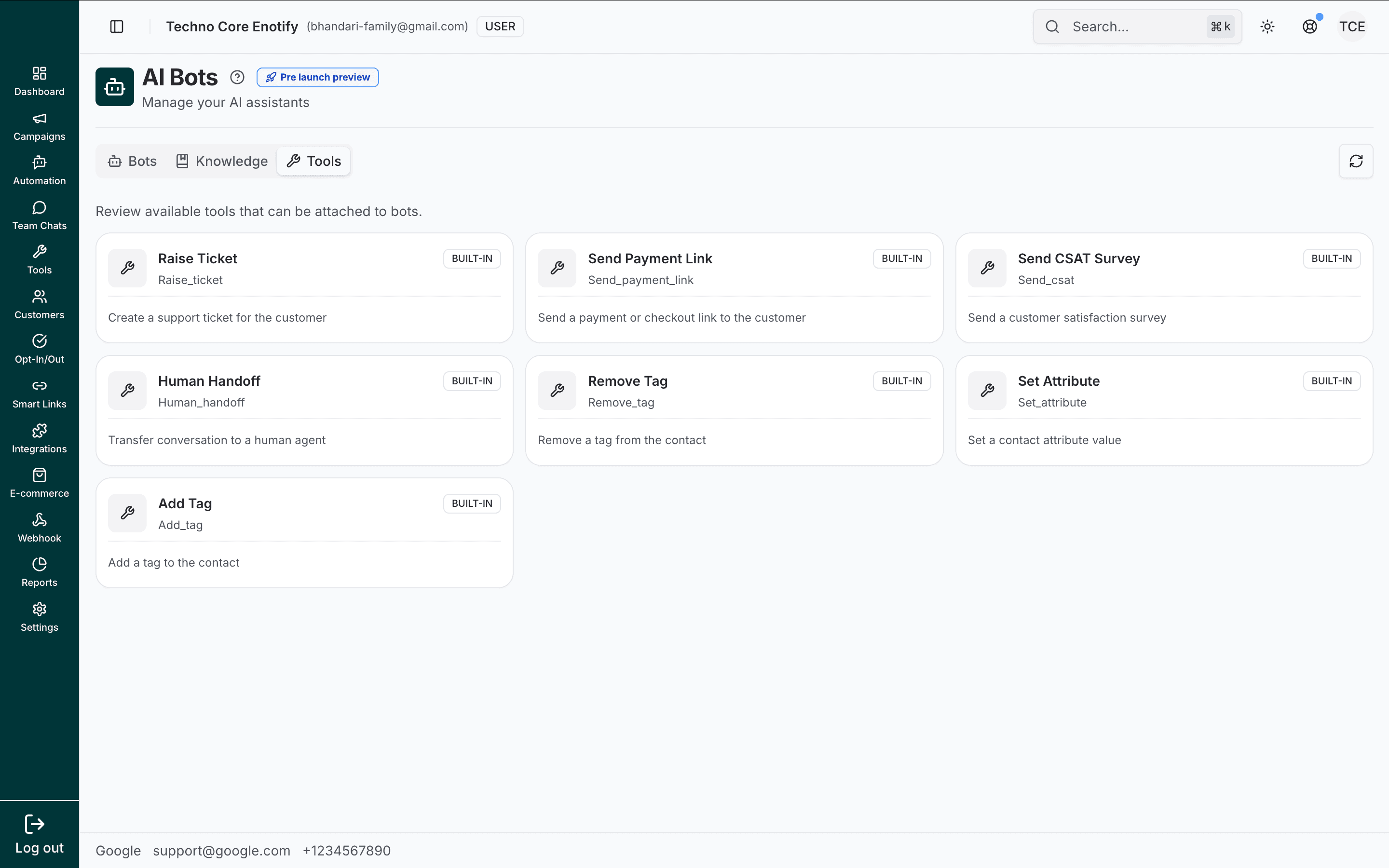
| Tool | What it does |
|---|---|
| Raise Ticket | Create a support ticket for the customer |
| Send Payment Link | Send a payment or checkout link to the customer |
| Send CSAT Survey | Send a customer satisfaction survey |
| Human Handoff | Transfer the conversation to a human agent |
| Remove Tag | Remove a tag from the contact |
| Set Attribute | Set a contact attribute value |
| Add Tag | Add a tag to the contact |
Each tool is marked Built-in. A bot calls a tool when the conversation calls for it — for example, raising a ticket when a customer reports a problem, or handing off when it can't help.
Best practices
Troubleshooting
How is this guide?