


Delivery Report
View message-level delivery logs with filters, status tracking, trigger/source insight, and export support.
Delivery Report gives you a row-by-row log of outgoing message activity from flows like Chatbot, System, Team_chat, Api, and Broadcast triggers. You can filter the dataset, inspect status progression, and export for analysis.
In the app: Dashboard → Reports → Delivery Report
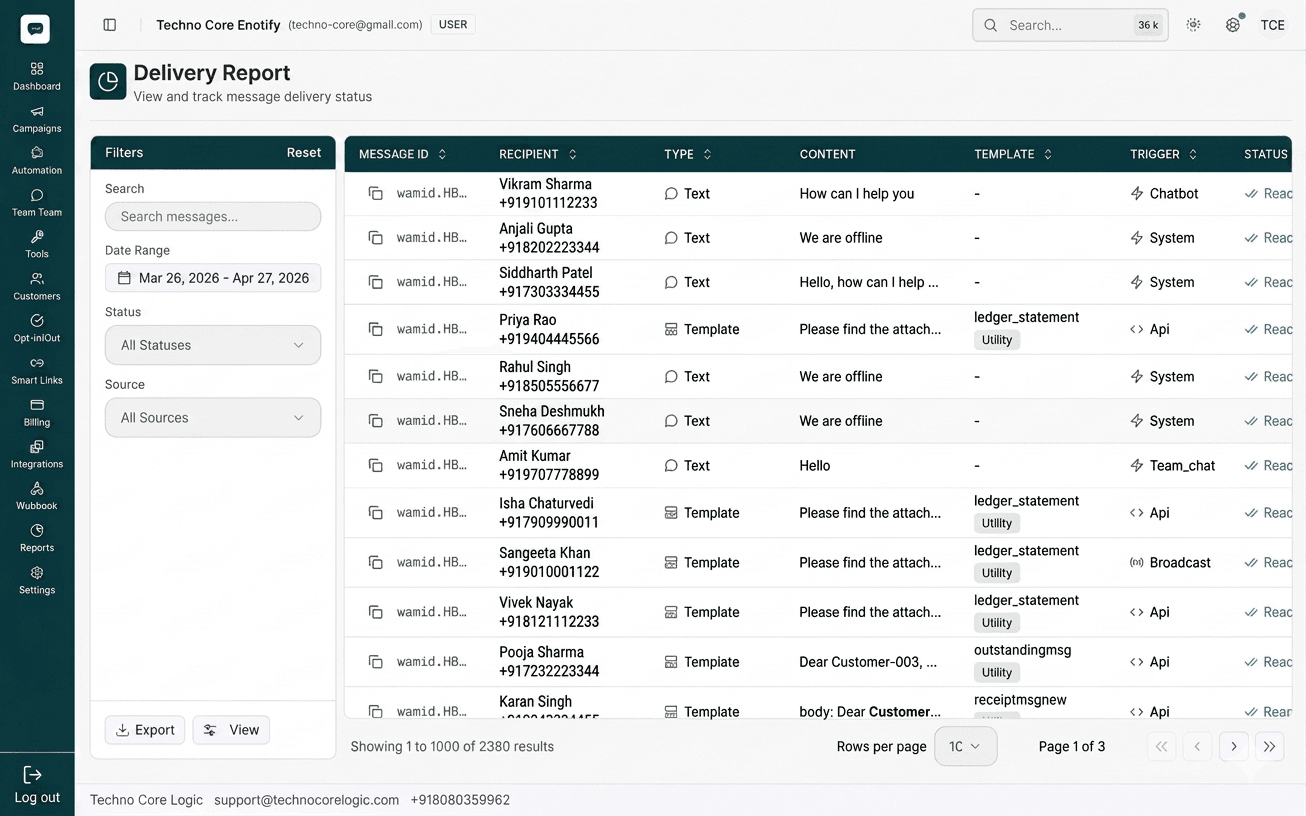
What you see on screen
The page is split into two parts:
- Left filter panel
- Search box (
Search messages...) - Date range picker
- Status dropdown (for example
All Statuses) - Source dropdown (for example
All Sources) Resetaction- Footer actions:
ExportandView
- Search box (
- Main data grid
- Paginated table with sortable columns
- Row-level message details and timestamps
- Bottom controls: total result count, rows-per-page selector, page navigation
View 1: message identity + content
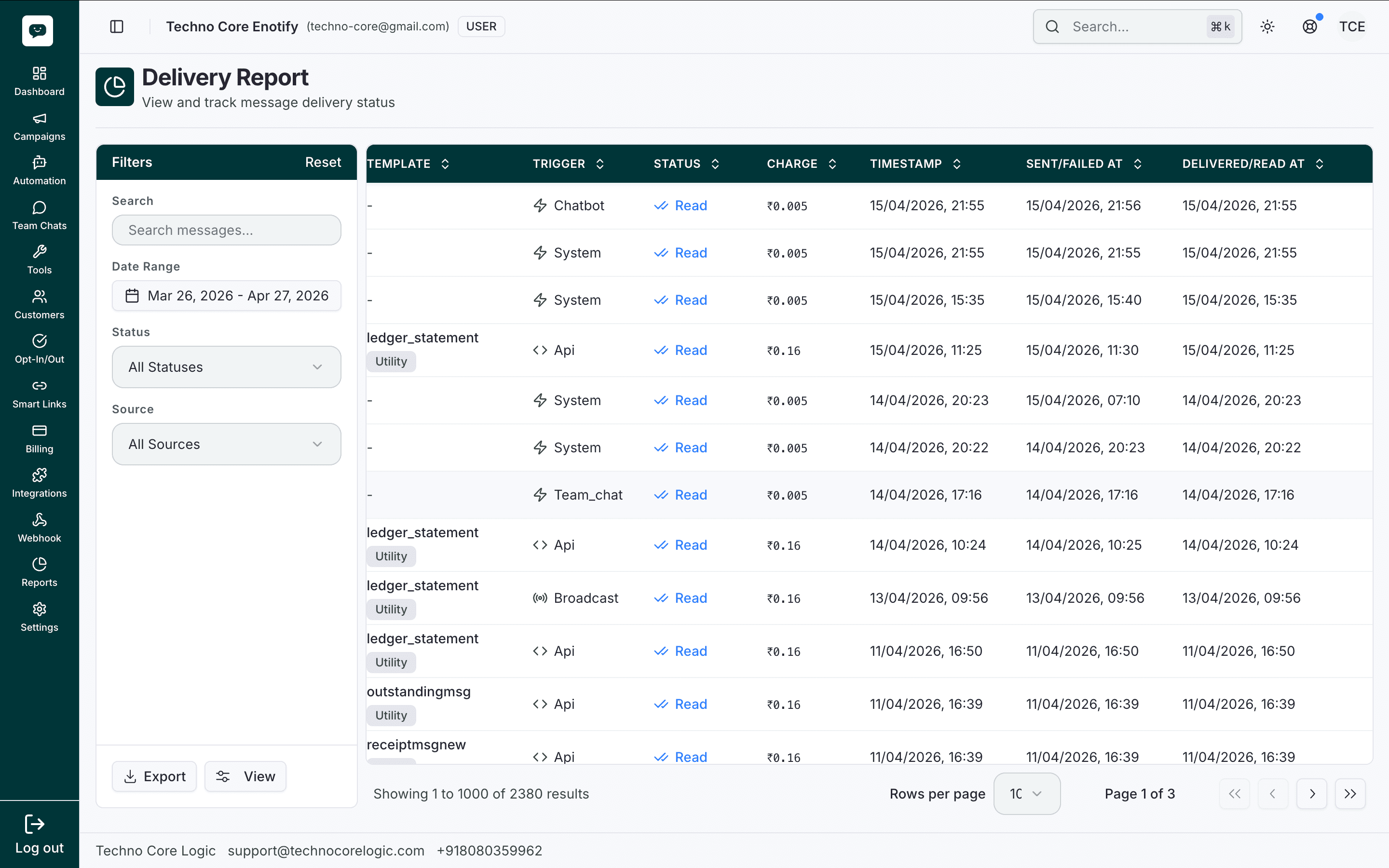
Depending on horizontal scroll and selected grid position, you will see columns like:
| Column | What it indicates |
|---|---|
| MESSAGE ID | Unique message reference |
| RECIPIENT | Contact name + phone number |
| TYPE | Message type (Text, Template, etc.) |
| CONTENT | Sent message body preview |
| TEMPLATE | Template name/category (when applicable) |
| TRIGGER | Source path such as Chatbot, System, Team_chat, Api, Broadcast |
| STATUS | Latest delivery state (Read visible in sample) |
| CHARGE | Per-message cost value |
| TIMESTAMP | Logged event time |
| SENT/FAILED AT | Send or fail timestamp |
| DELIVERED/READ AT | Delivery/read timestamp |
Filter usage
Use the left panel first, then inspect the table:
- Set Date Range to the period you want to audit.
- Narrow by Status (for example only failed or only read).
- Narrow by Source to isolate one trigger channel.
- Use Search for specific recipient/content/message IDs.
- Click Reset to clear all filters quickly.
Export and pagination
- Export downloads the filtered dataset for offline reporting.
- View opens/refreshes filtered results in the grid.
- Bottom bar shows:
- current range (example:
Showing 1 to 1000 of 2380 results) - rows-per-page selector
- current page and navigation controls
- current range (example:
Best Practices
How is this guide?