


Onboarding
Connect your WhatsApp Business Account — Normal vs Coexistence onboarding, step-by-step setup, requirements, and troubleshooting.
Before you can send campaigns or automate conversations, you need to connect your WhatsApp Business Account (WABA). This page is split into Before Onboarding (recharge, plan, then connecting your number via Normal or Coexistence) and After Onboarding (edit your business profile and start messaging).
In the app: Dashboard → Connect to WhatsApp (shown when no number is linked)
Before Onboarding
Complete these steps first, then connect your WhatsApp number.
Get your wallet recharged
Your reseller will recharge your wallet with credits. Contact them if you haven't received a recharge yet. You need balance before you can activate a plan and connect WhatsApp.
Activate your plan
Go to Billing and activate a plan so you can send messages and use WhatsApp features. Your plan and wallet balance determine your messaging capacity.
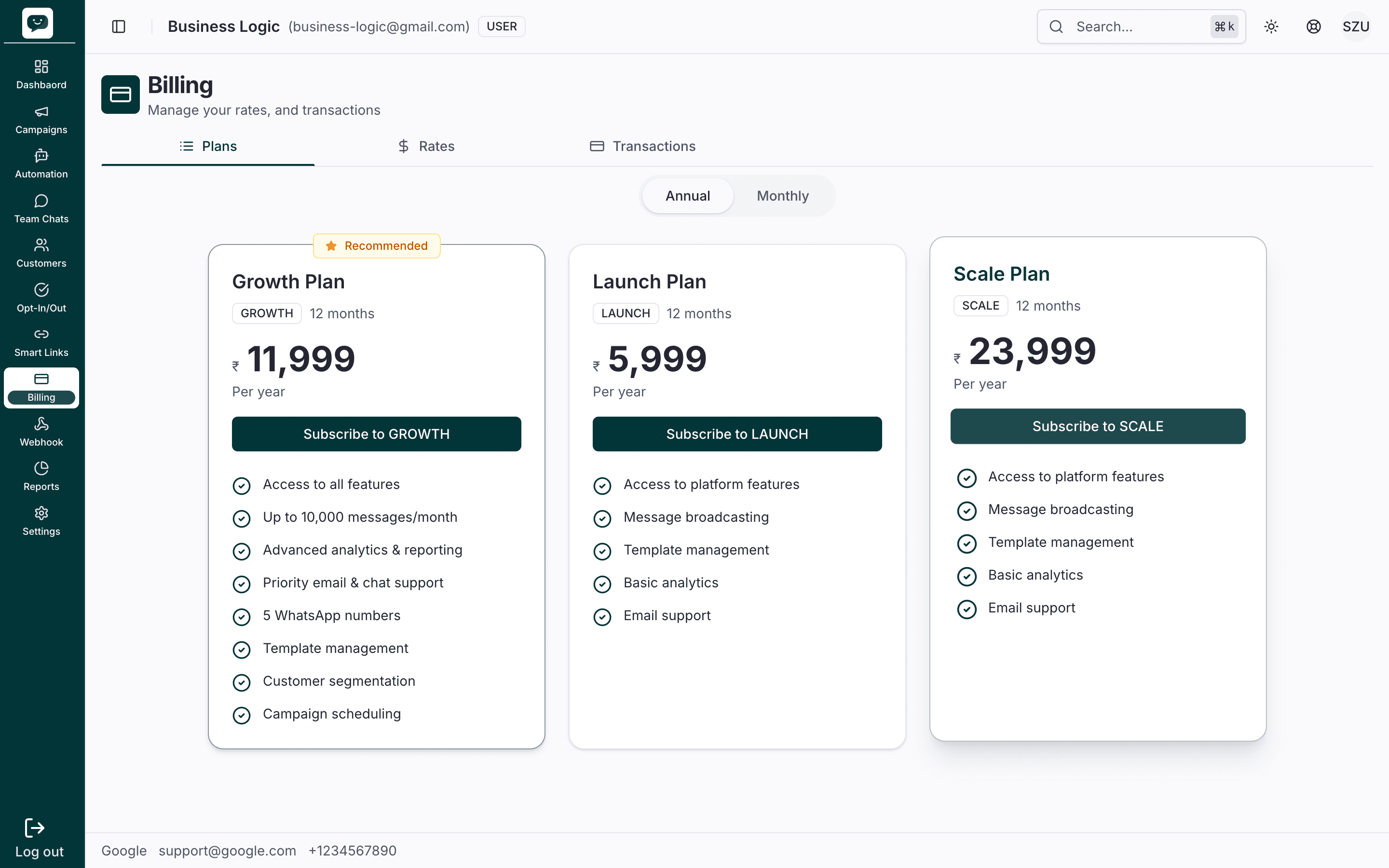
Which Onboarding Type Should I Choose?
The platform supports two ways to connect your number. Pick the one that fits your situation:
Normal Onboarding (via Facebook/Meta)
Best for businesses starting fresh with WhatsApp Business API or those with a dedicated number not currently on WhatsApp.
- How it works: You go through the Facebook/Meta signup flow, grant permissions, and link a number that isn't registered on WhatsApp yet.
- Who it's for: Larger teams, businesses with a spare phone number, or anyone who wants a clean setup.
- Key benefit: Simple, fast, and no conflicts with existing WhatsApp usage.
Good to know
If your number is already registered on WhatsApp (personal or business), you'll need to delete the WhatsApp account on that number first, or choose Coexistence instead.
Coexistence Onboarding (via WhatsApp Business App)
Best for businesses that want to keep using the same number on the WhatsApp mobile app while also connecting it to the platform.
- How it works: You go through the WhatsApp Business App onboarding flow. Your number stays active on the mobile app and gains API access through the platform.
- Who it's for: Small teams, solo operators, or businesses migrating gradually from manual WhatsApp to automation.
- Key benefit: Zero downtime — your existing chats and number stay active.
Important limitation
Do not send promotional messages from the WhatsApp mobile app when using Coexistence. All marketing campaigns must go through (via the API). Sending promotions from the mobile app can lead to your number being banned by Meta.
Side-by-Side Comparison
| Aspect | Normal | Coexistence |
|---|---|---|
| Connection path | Facebook / Meta | WhatsApp Business App |
| Number requirement | Must not be on WhatsApp | Can be your existing WhatsApp number |
| Setup complexity | Simple — minimal steps | More involved — approval process |
| Downtime during setup | None (new number) | None (number stays active) |
| Use mobile app simultaneously | No | Yes |
| Best for | Large teams, dedicated numbers | Small teams, gradual migration |
| Risk | Low | Medium — ban risk if promoting from mobile app |
| Recommended for new users | Yes | Only if you must keep existing number |
Normal Onboarding — Step by Step
Open the Connect WABA screen
Log in to the dashboard. If no WhatsApp number is connected, you'll see a "Connect to WhatsApp" prompt. Click it to open the onboarding modal.
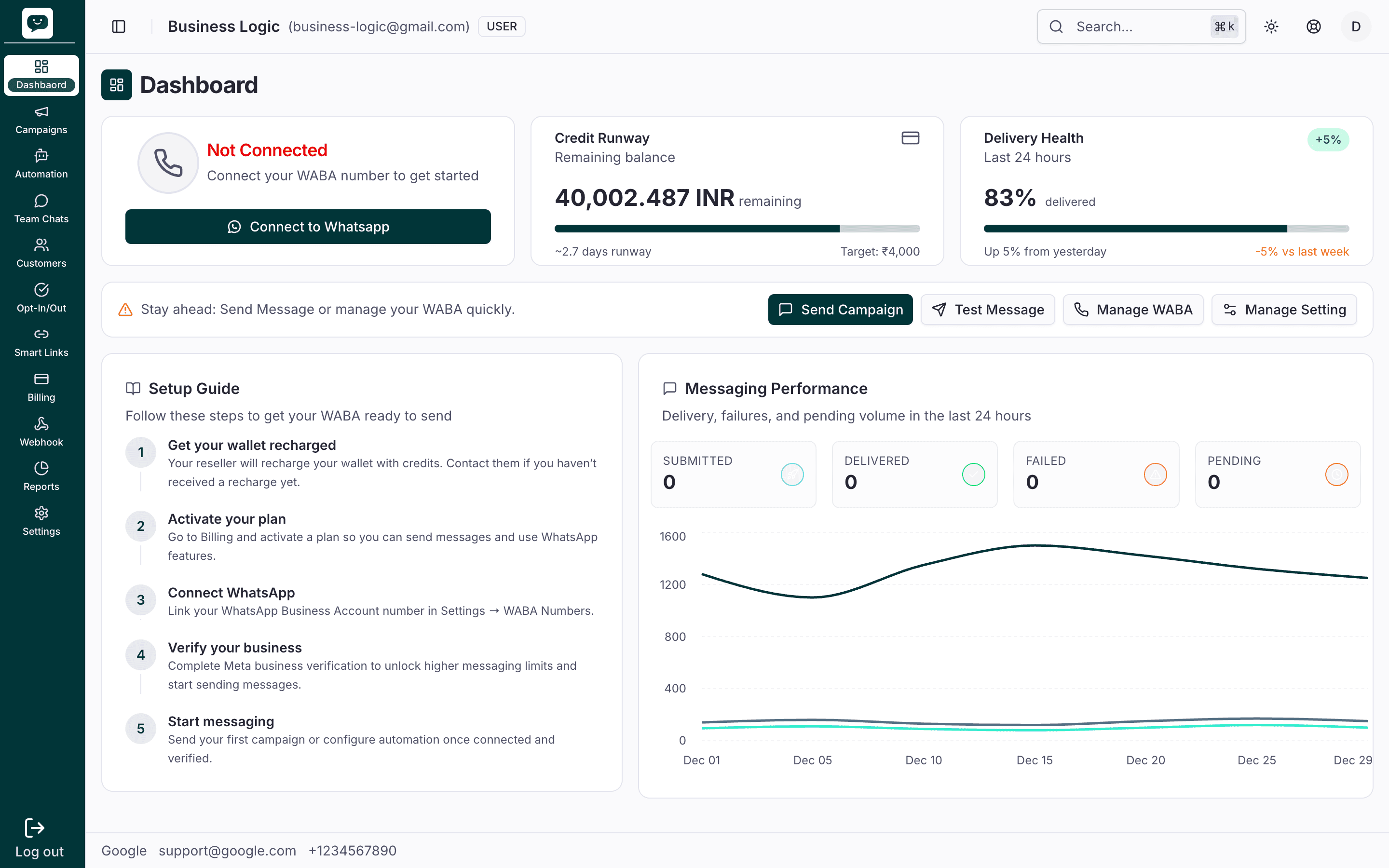
Use the Connect to WhatsApp button on your dashboard to begin linking your number. This screen appears when no WABA is connected yet.
Select Normal Onboarding
In the onboarding modal, you'll see two options. Choose "Normal Onboarding" (the Facebook/Meta option).
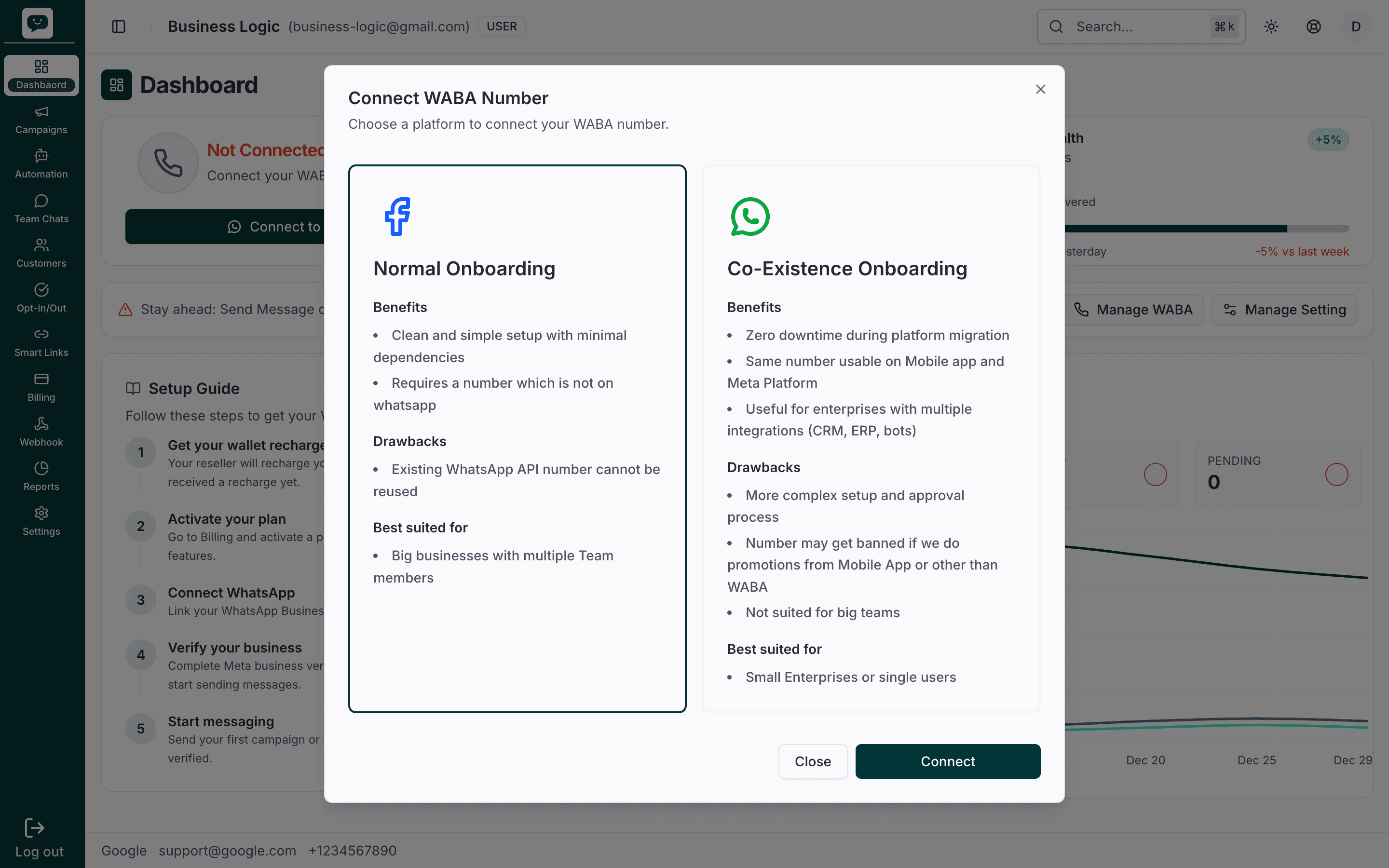
Pick Normal Onboarding if your number is not already on WhatsApp. The flow will continue via Facebook/Meta in the next step.
Click Connect
Click the Connect button. This opens an embedded iframe with the Facebook/Meta signup flow.
Popup blocker?
If nothing happens when you click Connect, check that your browser isn't blocking popups or iframes. Disable your popup blocker for the PingMate domain and try again.
After you click Connect, a new window or iframe loads the Meta/Facebook flow. Keep popups allowed for this site.
Sign in with Facebook and grant permissions
Log in to the Facebook account that owns (or will own) your Meta Business Account. You'll be asked to grant the following permissions:
whatsapp_business_management— Manage your WABA settingswhatsapp_business_messaging— Send and receive messagesbusiness_management— Access your Meta Business Account
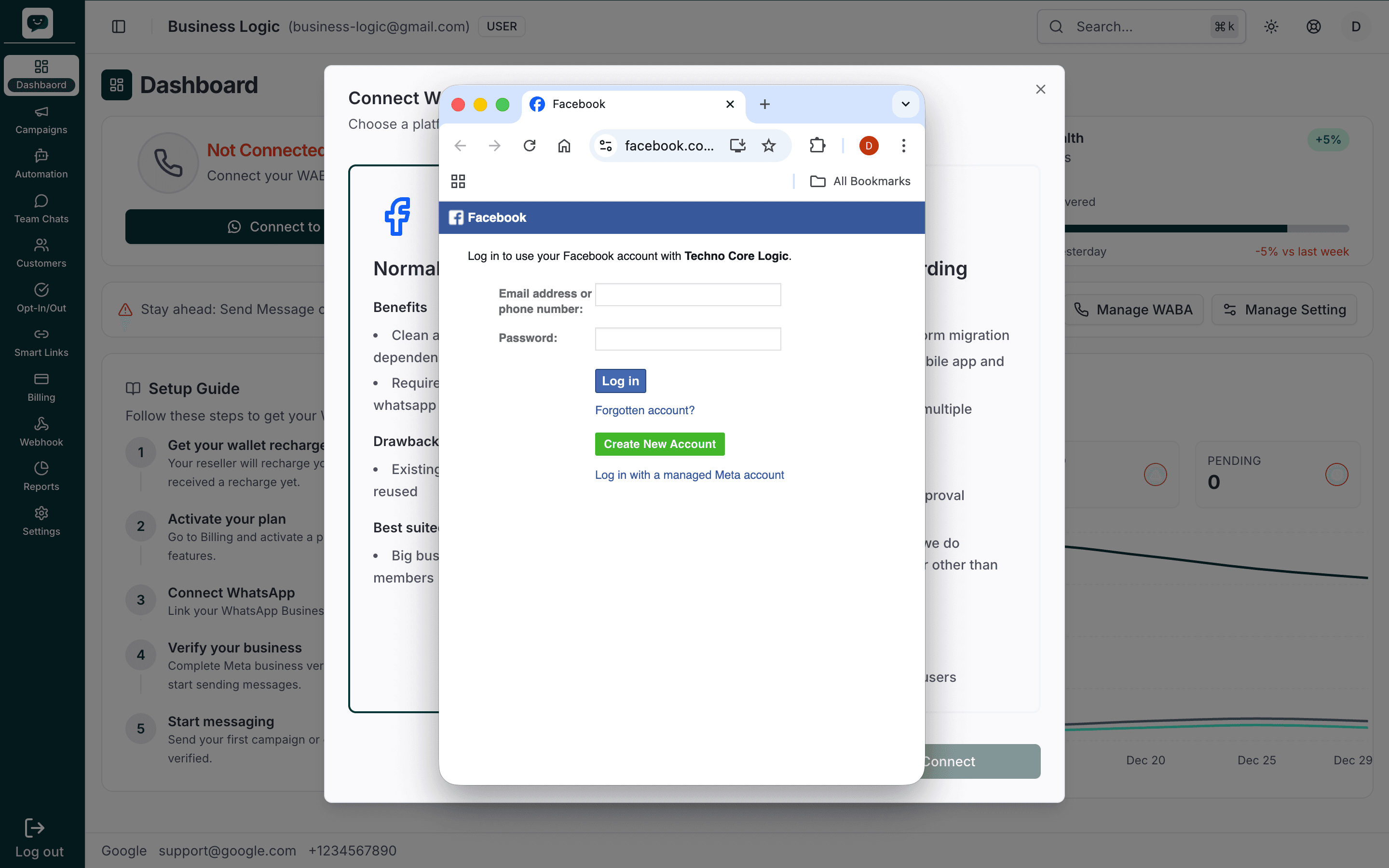
Sign in with the Facebook account that has (or will have) access to your Meta Business Account. Accept all requested permissions so the linking can complete.
Don't skip any permissions
All permissions are required. If you deselect any, the linking will fail and you'll need to start over.
Follow the procedure on screen
Meta will guide you through the next screens. Follow the procedure displayed on the screen—you may be asked to select a business, add a phone number, or confirm your Meta Business Account. Complete each prompt as shown.
Do not close the window. If your number is already on WhatsApp, delete that account first (WhatsApp → Settings → Account → Delete my account), then continue.
Select the business asset/portfolio and create WhatsApp Business Account
On the Meta screen, first select your business asset or portfolio (the Meta Business Account or asset you want to use). Then, under WhatsApp Business Account, choose the option Create a WhatsApp Business Account to set up a new WABA linked to your business.
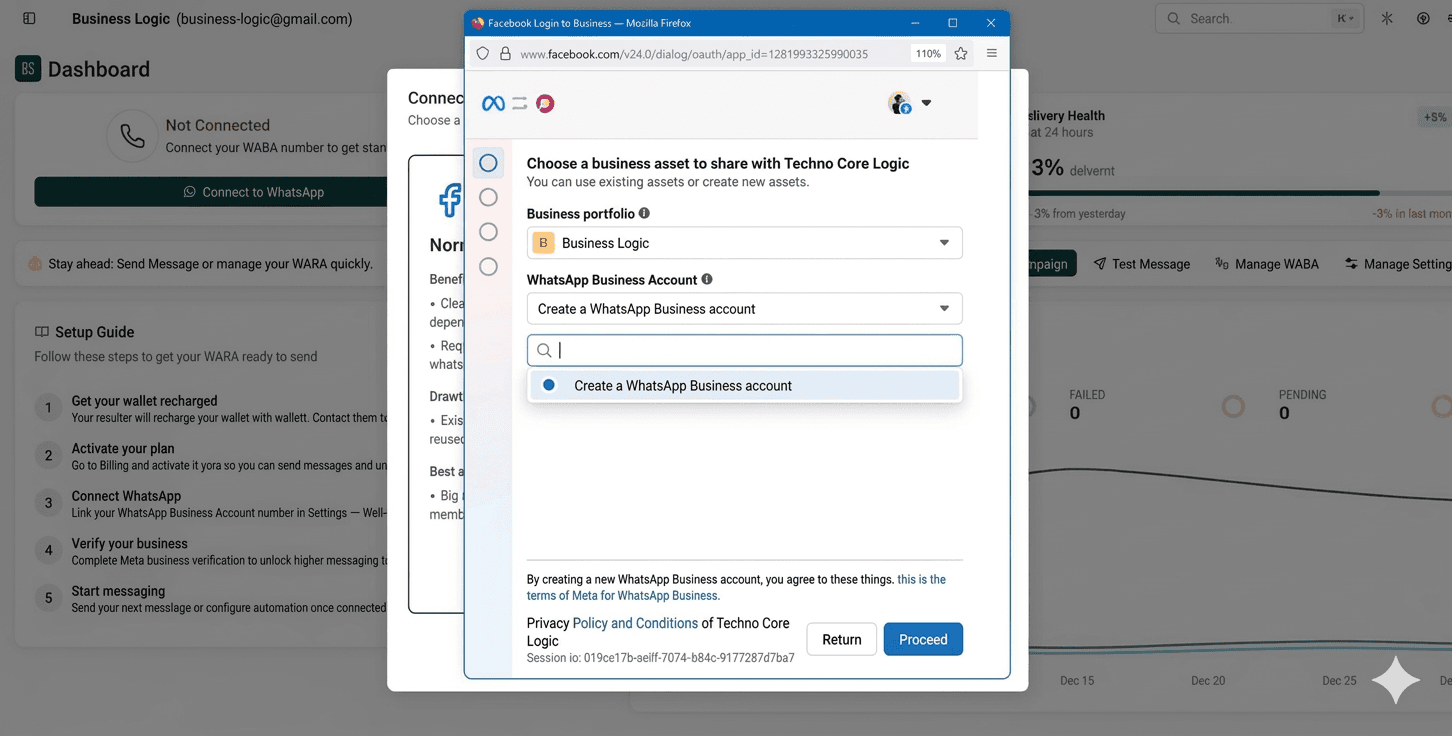
If you already have a WhatsApp Business Account, you can select it instead. Choosing “Create a WhatsApp Business Account” is for new setups. Ensure you have the right permissions on the selected business asset.
Enter business information for new assets
Meta shows the "Enter Business Information for New Assets" screen. Fill in or confirm your business details. Any new change will only affect the new assets.
- Name — Your business or display name (e.g. your company name).
- Category — Choose the category that best describes your business (e.g. Education, Retail, Professional Services).
- Country — Select your business country (e.g. India).
- Website — Your business website URL.
- Time zone — Select your business time zone (e.g. Asia/Kolkata).
You can use Show more options if you need to add more details. Review the Privacy Policy and Conditions link if shown, then click Proceed to continue.
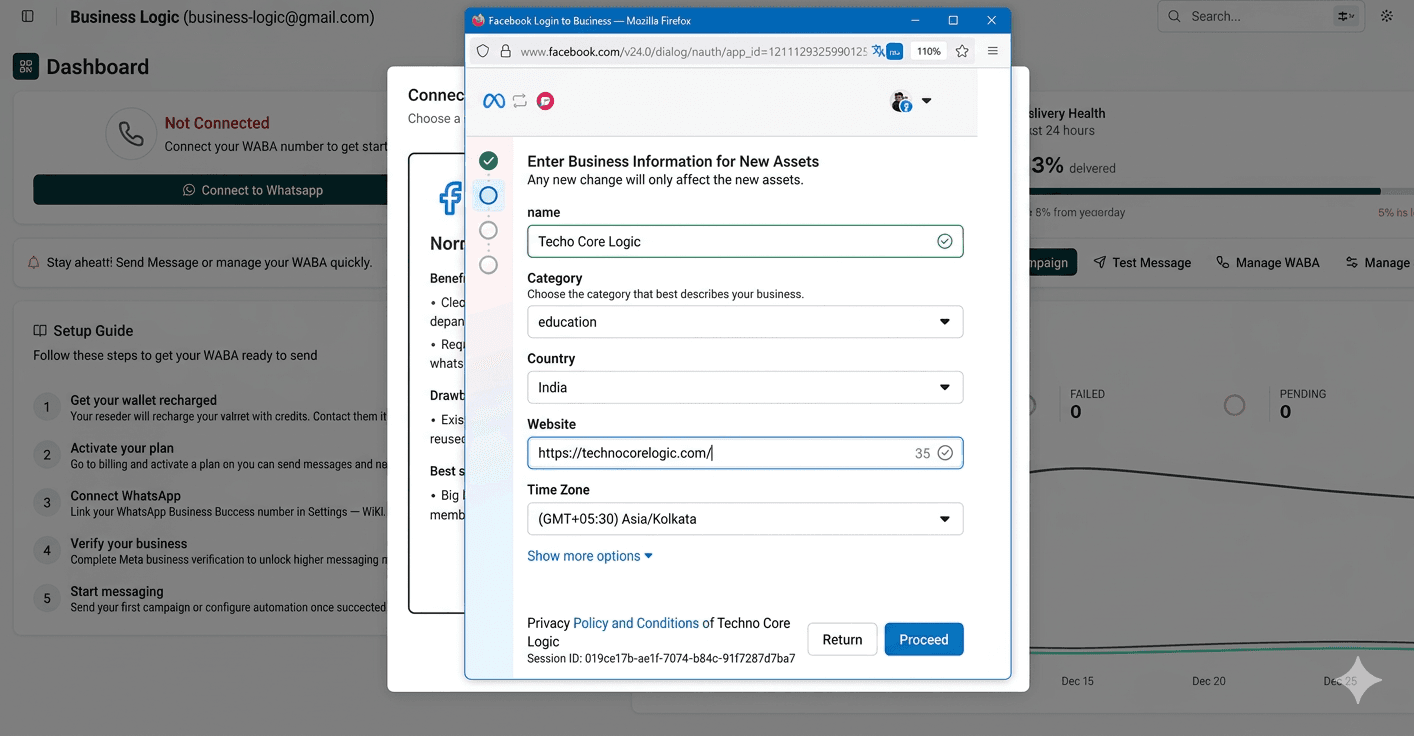
Ensure the information matches your Meta Business Account. Click Proceed when done to move to the next step.
Add and verify your WhatsApp mobile number
On the "Add your WhatsApp mobile number" screen, choose how you want to show your identity when sending messages. Select "Add a new number" (verification is necessary) to link a new phone number.
- Phone number — Select the country code (e.g. US +1) and enter your number. You will receive a code to verify this number.
- The name shown on WhatsApp Business — Enter the business or display name that customers will see (e.g. your company name). This name and your business should follow WhatsApp Business guidelines.
- Choose how to verify your number — Select SMS or Phone call. Use a phone call if you have a landline.
Review the Privacy Policy and Conditions link if shown, then click Proceed to receive the verification code.
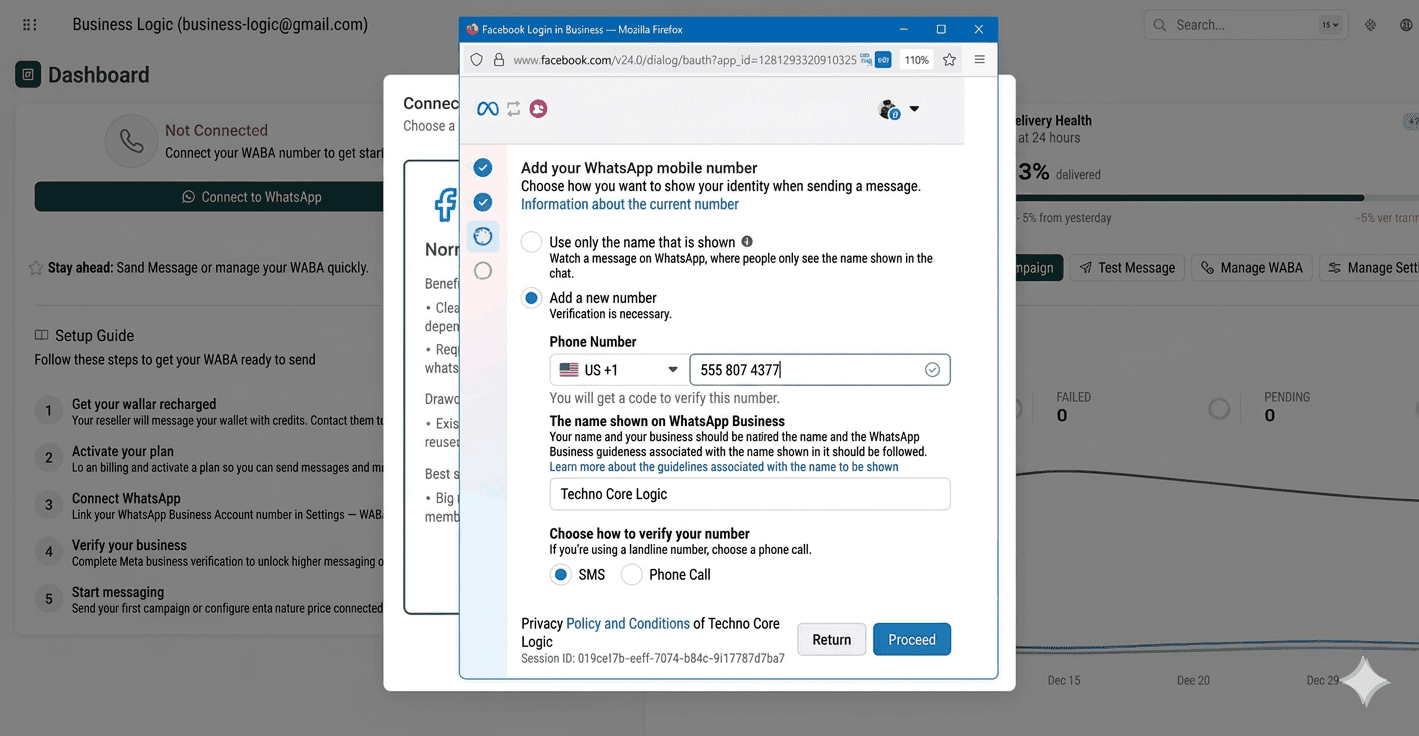
The number must not be registered on WhatsApp yet. You will get a 6-digit code in the next step.
Verify your phone number
Meta has sent a verification code to the number you entered. Enter the 6-digit code in the verification code fields to verify your number.
If you did not receive the code, you can request a new code after the countdown (e.g. 45 seconds) or change the verification method (SMS or phone call). When the code is entered, click Proceed to continue.
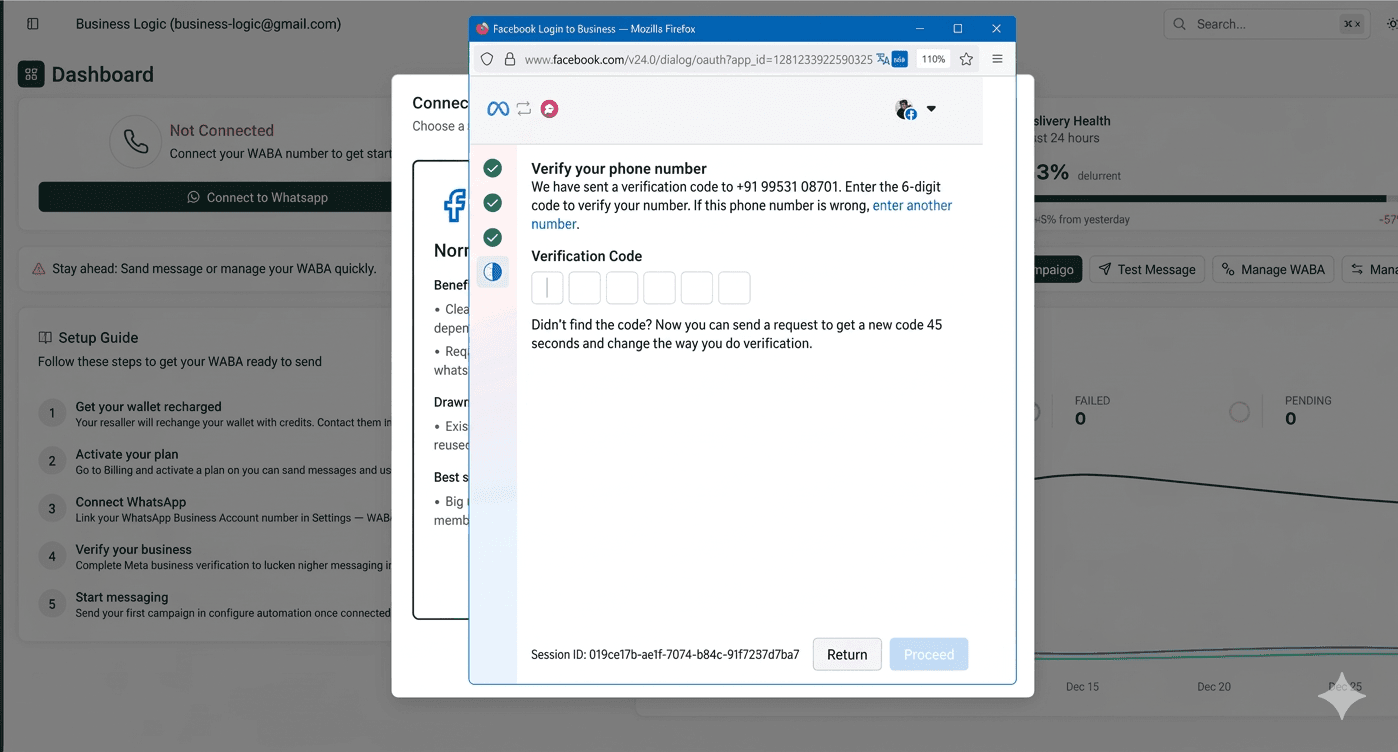
Check your phone or SMS for the code. Do not close the window until you have entered the code and proceeded.
Review and confirm permissions
Meta shows "Review what you will share with [app name]". Here you see what the application will be able to access and do with your WhatsApp Business Account.
- Manage your WhatsApp account
- Manage and access chats in WhatsApp
- Log events on behalf of your WhatsApp Business account and send those events to Meta
By confirming, you grant the app access to the information you share; Meta will record when the app accesses it. Review the details, then click Confirm to continue linking your number.
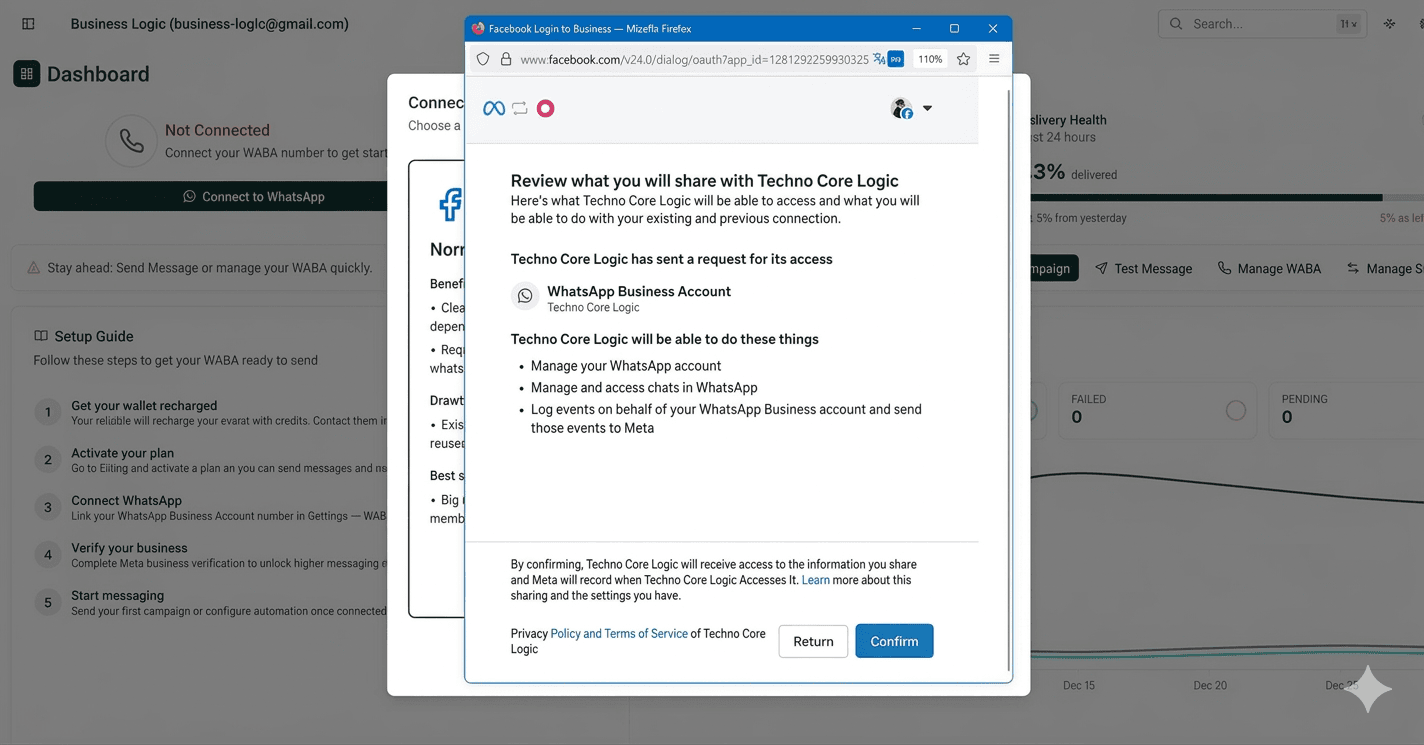
After you confirm, the Meta flow completes and your dashboard will show your connected WABA.
Connection complete
The Meta flow finishes and your dashboard shows your connected WABA. You may see a Congratulations! message: your WhatsApp Business Account is ready and you can start sending messages and campaigns.
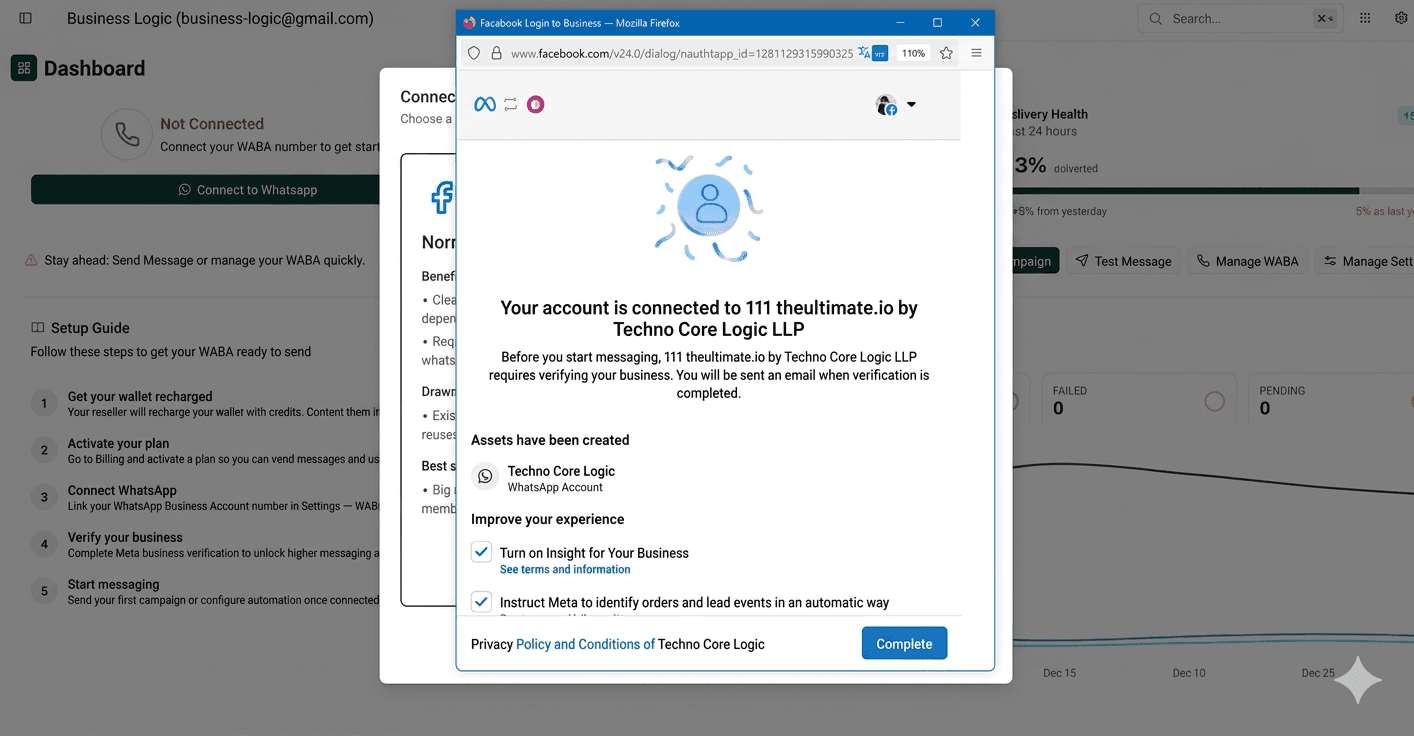
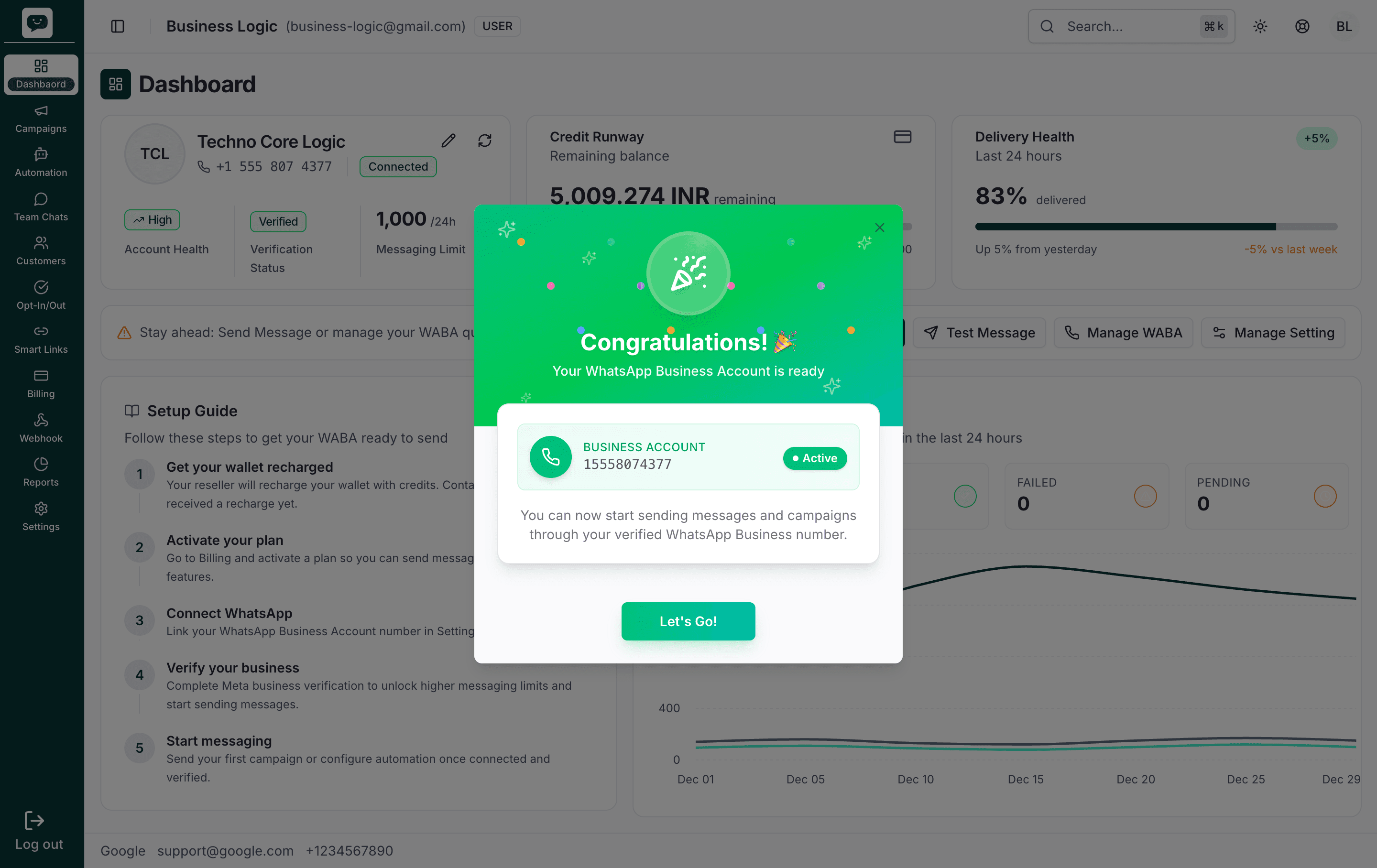
Your number is now linked to PingMate. Tap Let's Go! to dismiss the congratulations dialog. You can then edit your business profile and start messaging.
Coexistence Onboarding — Step by Step
Select Coexistence Onboarding
In the onboarding modal, choose "Co-Existence Onboarding" (the WhatsApp option).
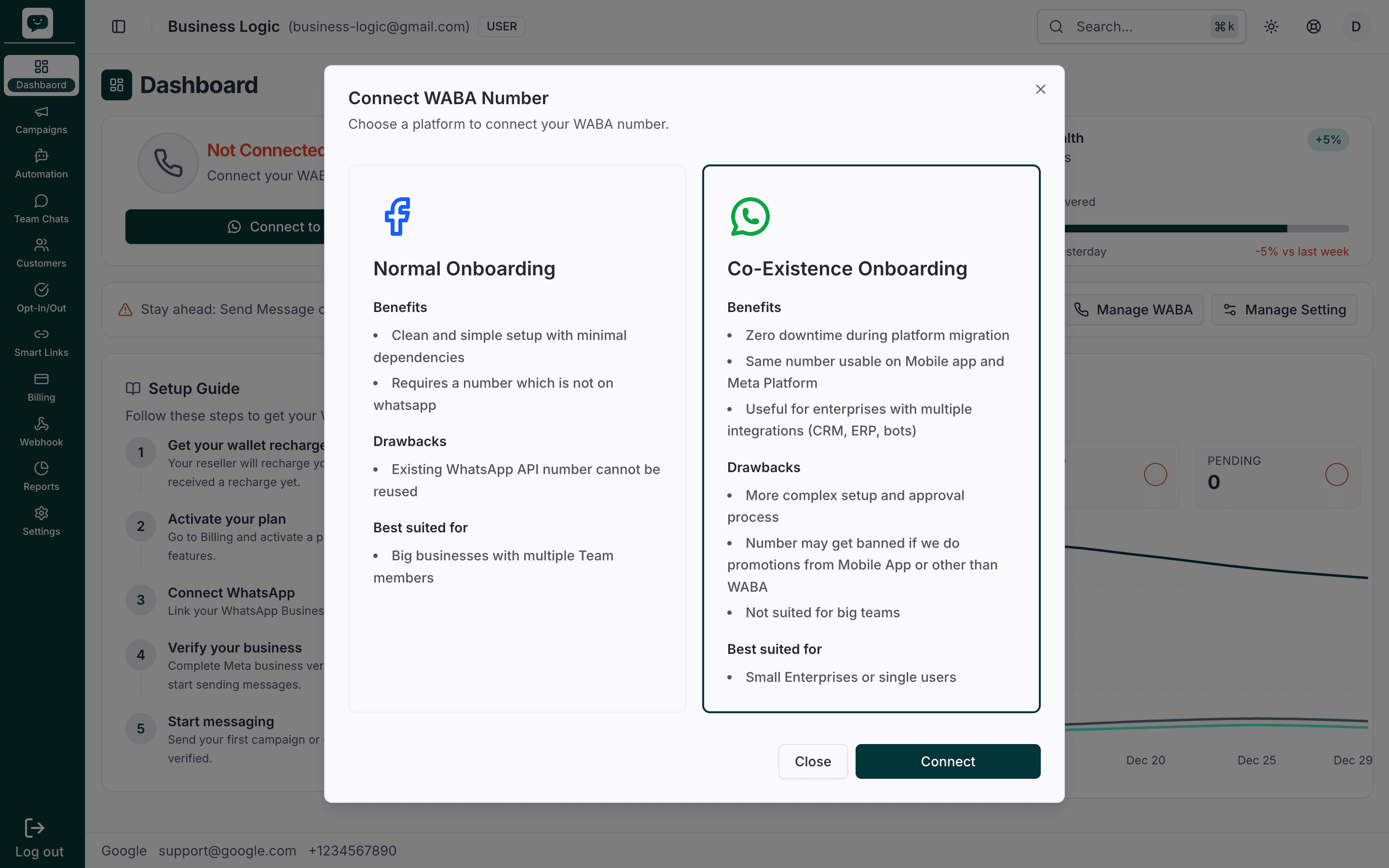
Click Connect
Click Connect to open the WhatsApp Business App onboarding flow in an embedded iframe.
Popup blocker?
Same as Normal — make sure popups and iframes aren't blocked for the dashboard domain.
After you click Connect, a new window or iframe loads the Meta/Facebook flow. Keep popups allowed for this site.
Sign in with Facebook and grant permissions
Log in to the Facebook account that owns (or will own) your Meta Business Account. You'll be asked to grant the following permissions:
whatsapp_business_management— Manage your WABA settingswhatsapp_business_messaging— Send and receive messagesbusiness_management— Access your Meta Business Account
Don't skip any permissions
All permissions are required. If you deselect any, the linking will fail and you'll need to start over.
Follow the procedure on screen
Meta will guide you through the next screens. Follow the procedure displayed on the screen. Complete each prompt as shown.
Do not close the window. For Coexistence, you will later connect your existing WhatsApp number.
Select the business assets and connect a WhatsApp Business app
On the Meta screen, select the business assets to share with the app. You can use existing assets or create new ones.
- Under Business portfolio, select your business (e.g. your Meta Business Account).
- Under WhatsApp Business account, choose Connect a WhatsApp Business app (not "Create a WhatsApp Business account") so you can link your existing number that is already on WhatsApp.
Review the Privacy Policy and Terms if shown, then click Next to continue.
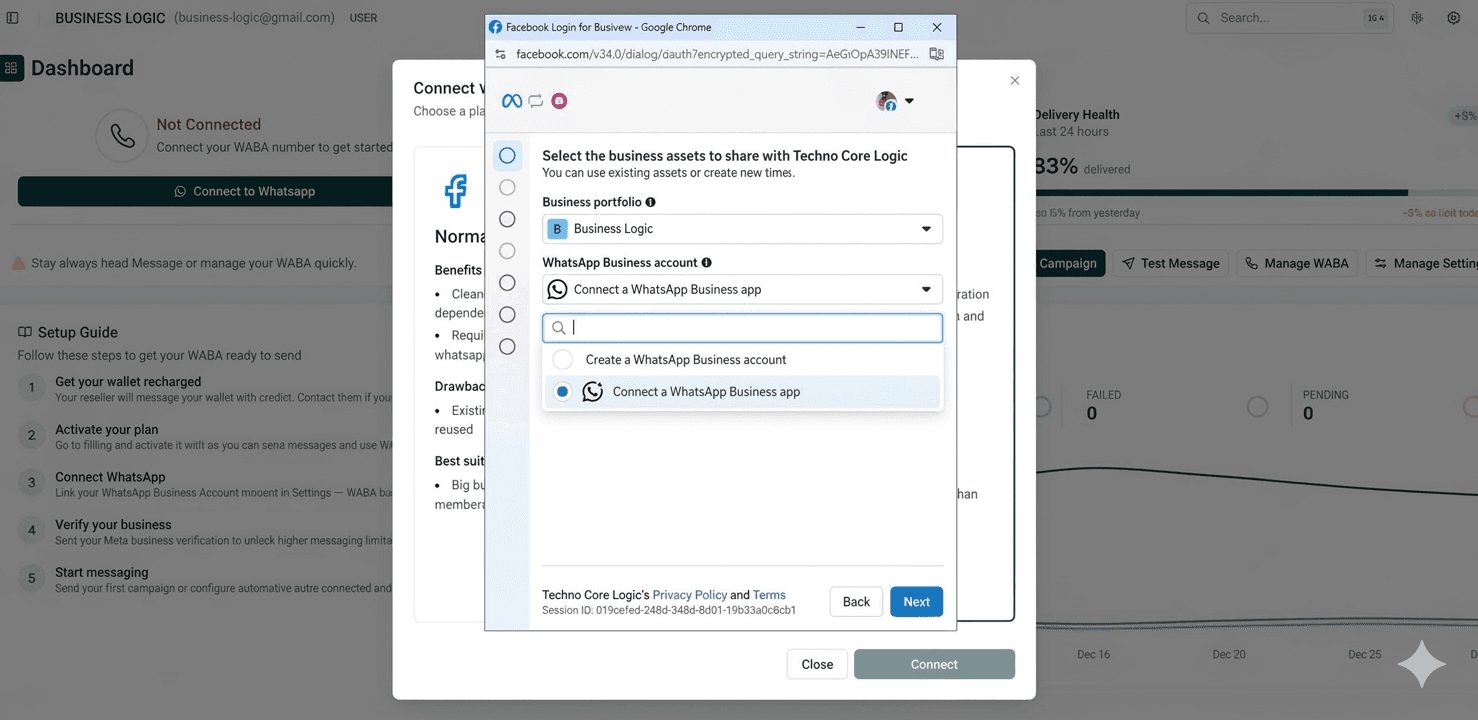
For Coexistence you must select "Connect a WhatsApp Business app" to use your existing WhatsApp number.
Enter your WhatsApp Business phone number
Select a country and enter the phone number of the WhatsApp Business account you want to connect. This is the number that is already on the WhatsApp Business app on your phone.
You may see the option to Add a new WhatsApp number or use an existing one; for Coexistence, you are connecting the number already registered on WhatsApp. If you haven't added your WhatsApp Business app number to your business portfolio, you may need to verify it to continue.
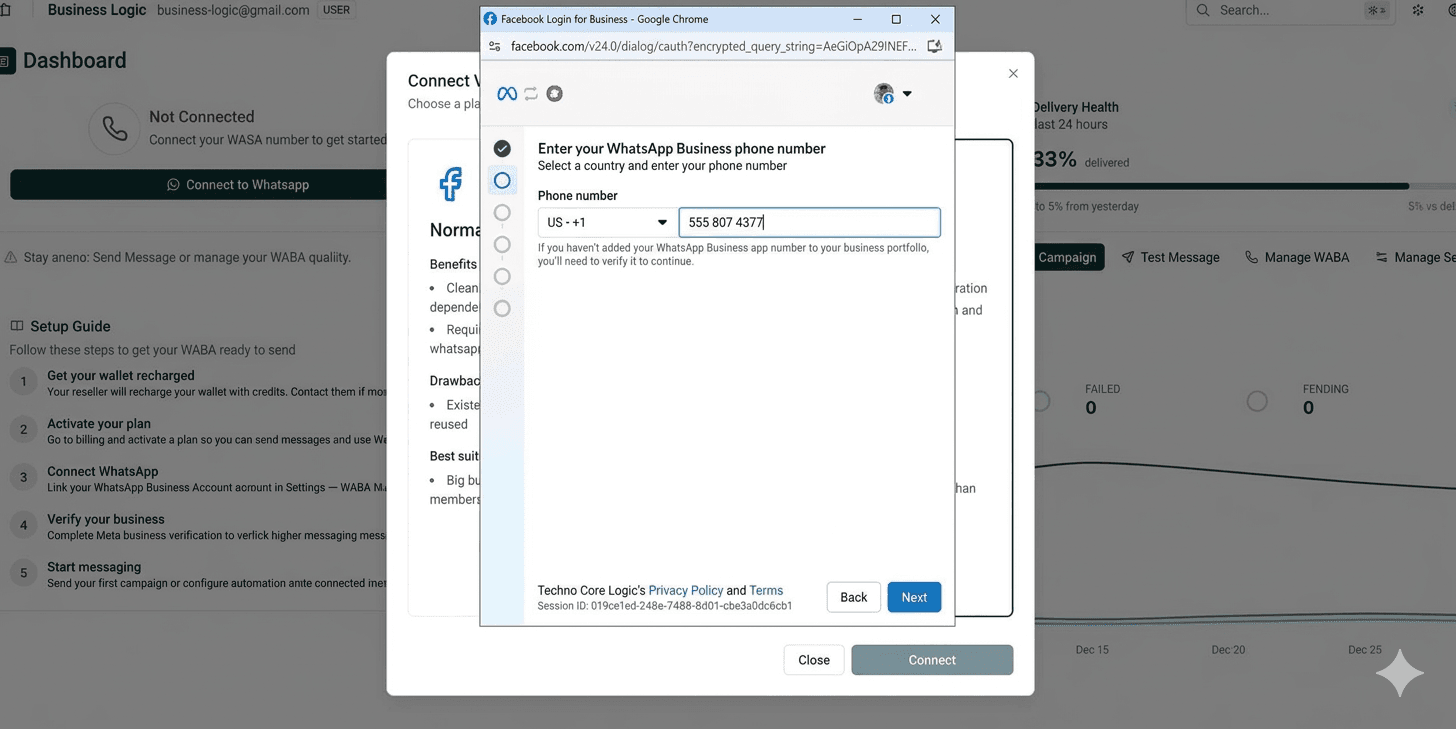
Click Next after entering the number.
Connect your existing WhatsApp Business app
Meta explains what will be shared: account information such as your phone number, contacts, chats and chat history may be shared with the app. Individual chats will be managed using a secure service from Meta, and customers will be notified about this privacy change.
Review the information. Choose Add a new WhatsApp number or Connect your existing WhatsApp Business app as applicable, then click Next.
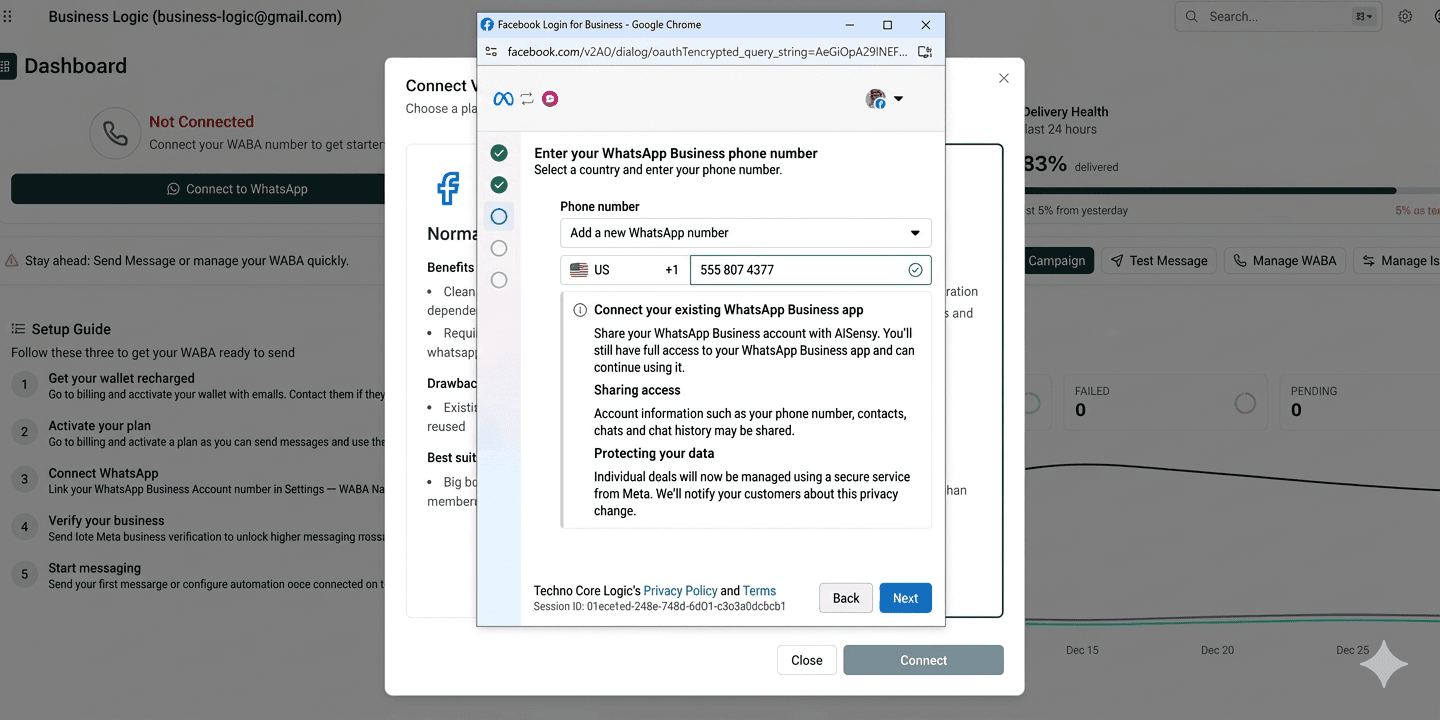
Your existing WhatsApp Business app will stay active; the same number will work on both the app and PingMate.
Scan the QR code with the WhatsApp Business app
Use the WhatsApp Business app on your phone to scan the QR code shown on the screen. This links your existing account to the API.
Start the process: Look for a message from the official Facebook business account and tap Connect. If you don't see that message, open Menu or Settings, then Account in the WhatsApp Business app to find the connection option.
After scanning, click Next in the browser to continue.
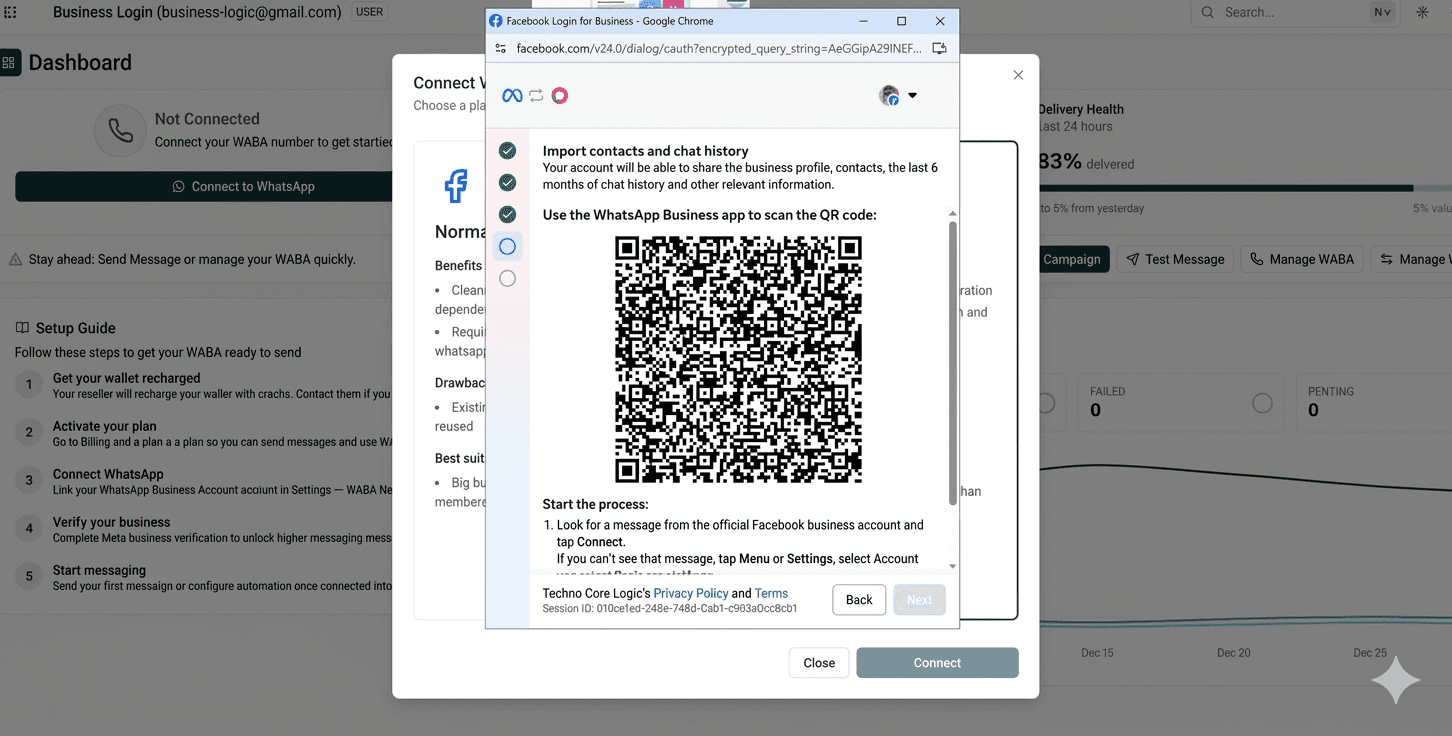
Keep the WhatsApp Business app open and ensure you have an active internet connection on your phone.
Review and confirm permissions
Meta shows "Review what you will share with [app name]". Here you see what the application will be able to access and do with your WhatsApp Business Account.
- Manage your WhatsApp account
- Manage and access chats in WhatsApp
- Log events on behalf of your WhatsApp Business account and send those events to Meta
By confirming, you grant the app access to the information you share; Meta will record when the app accesses it. Review the details, then click Confirm to continue linking your number.
After you confirm, the Meta flow completes and your dashboard will show your connected WABA.
Connection complete
The Meta flow finishes and your dashboard shows your connected WABA. You may see a Congratulations! message: your WhatsApp Business Account is ready and you can start sending messages and campaigns.
Your number is now linked to PingMate. Tap Let's Go! to dismiss the congratulations dialog. You can then edit your business profile and start messaging.
Remember the golden rule (Coexistence)
All promotional and marketing messages must be sent through PingMate, not the WhatsApp mobile app. Using the mobile app for promotions while in Coexistence mode can result in your number being banned by Meta.
After Onboarding
Your number is connected. Complete these two steps to finish setup and start sending messages.
Edit Business Profile
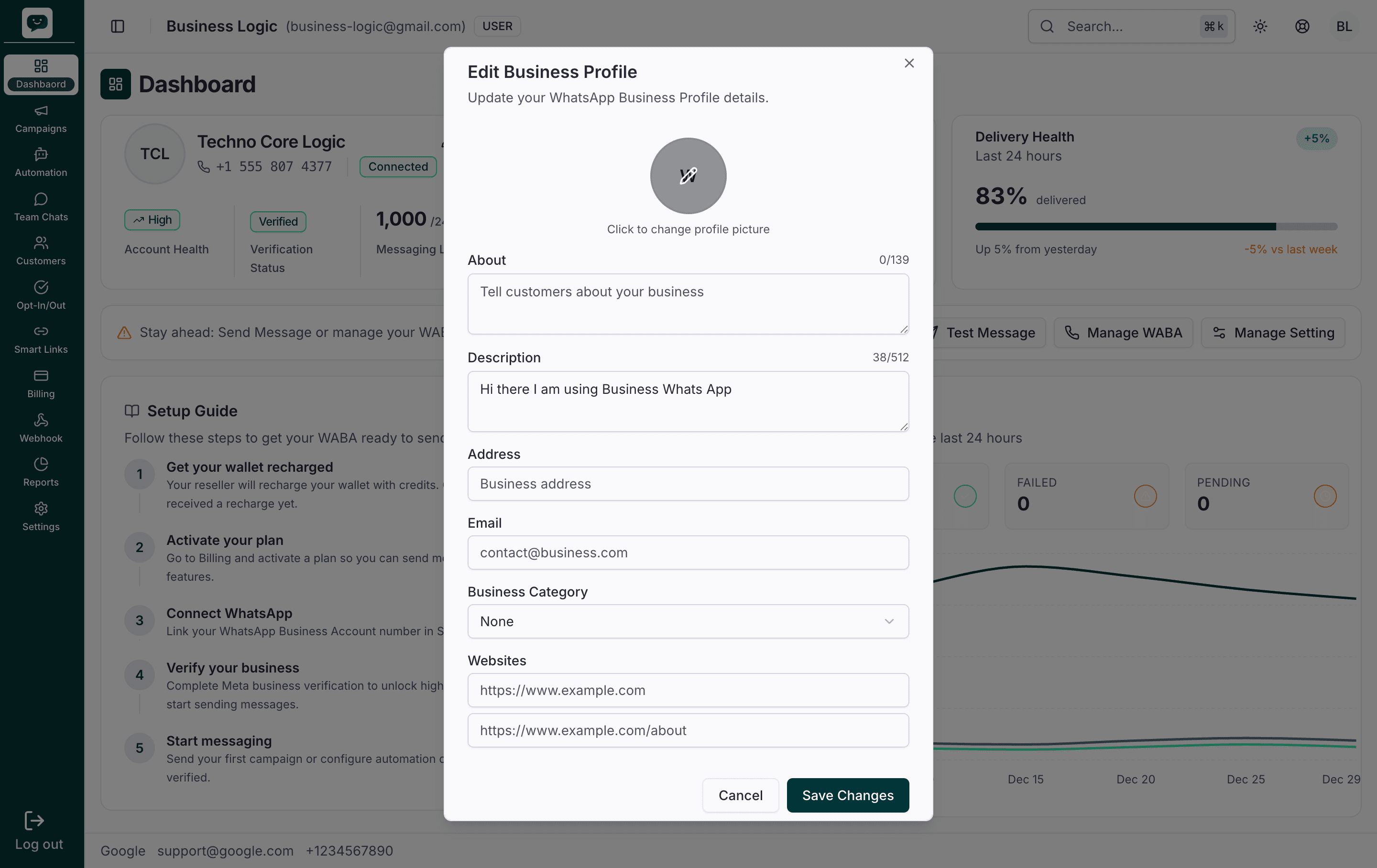
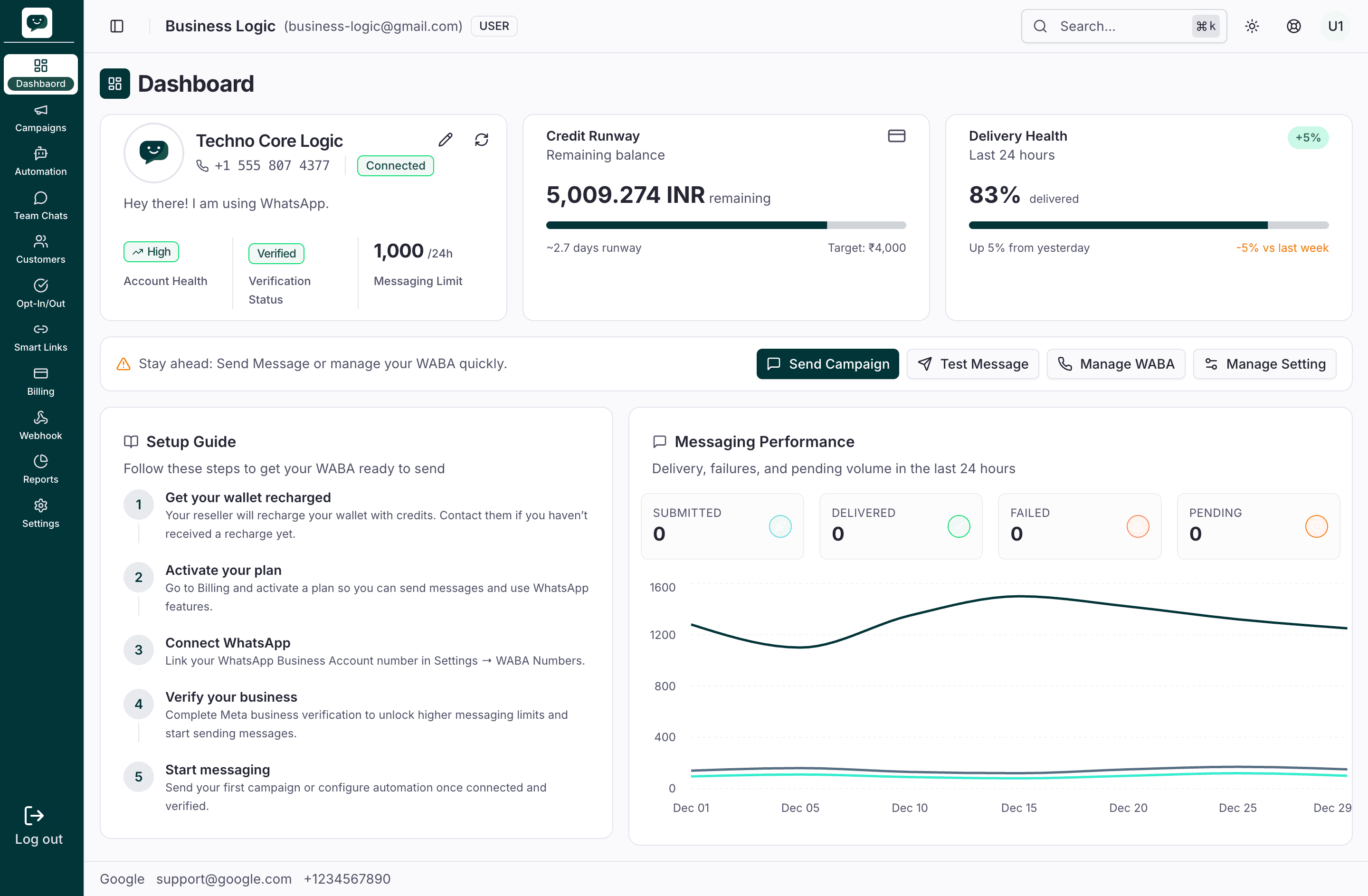
Set up your WhatsApp Business Profile so customers see your business name, description, and contact details. On the dashboard, open your WABA card and click Edit Business Profile (or the profile pencil icon) to open the Edit Business Profile dialog.
You can set:
- Profile picture — JPEG or PNG (click the avatar to change)
- About — Short tagline (max 139 characters), shown under your name in WhatsApp
- Description — Longer business description (max 512 characters)
- Address — Business address (max 256 characters)
- Email — Contact email (max 128 characters)
- Business Category — e.g. Retail, Restaurant, Professional Services
- Websites — Up to two URLs (max 256 characters each)
Save your changes; they sync to WhatsApp and appear when customers view your profile. Use Sync Business Profile on the WABA card to refresh profile data from WhatsApp if you changed it elsewhere.
Start messaging
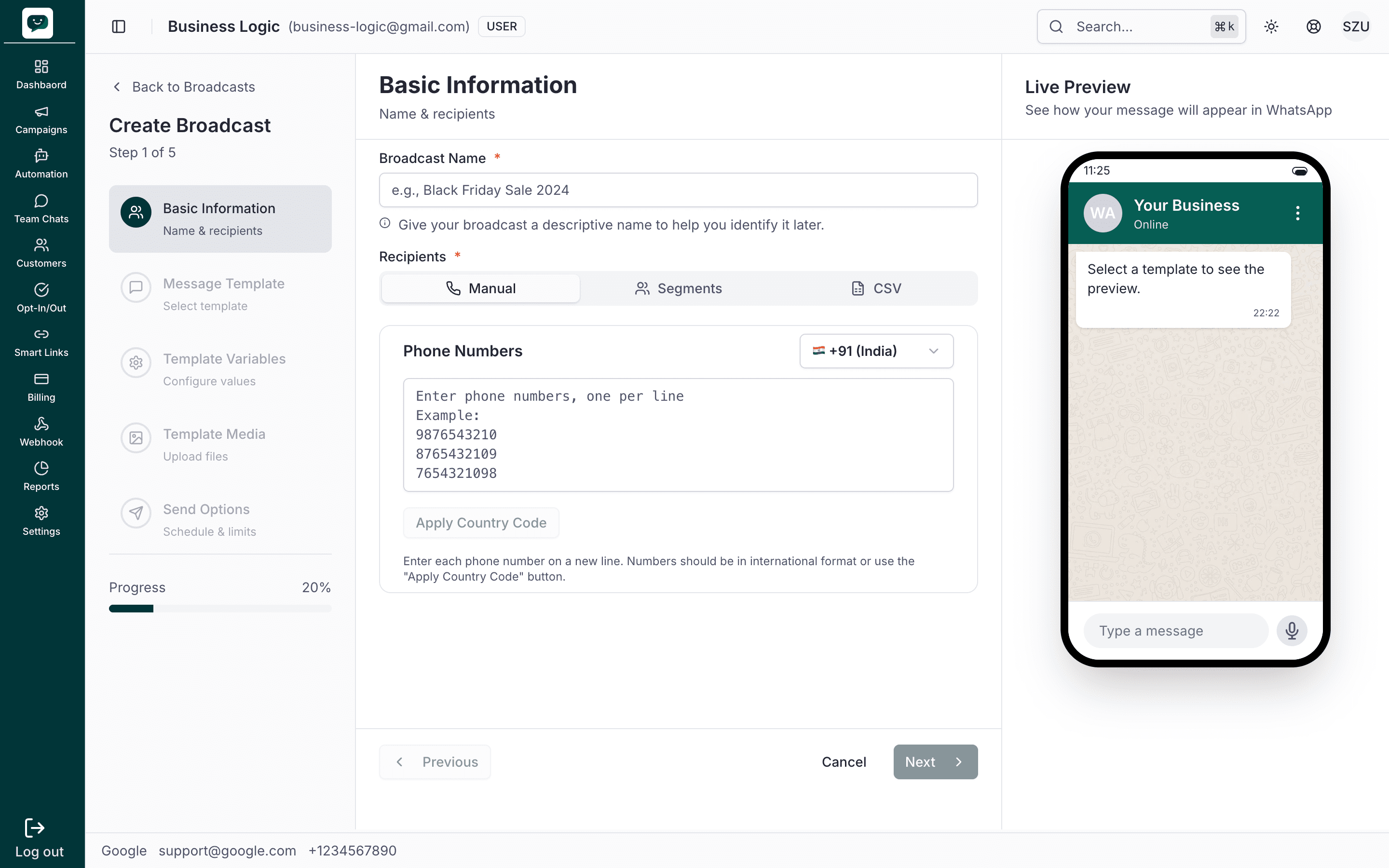
You're ready to go. Choose your starting point:
- Campaigns — Send a broadcast to multiple customers
- Chatbot — Set up automated replies for incoming messages
- Team Chats — Start responding to customers in your inbox
Requirements Checklist
Make sure you have everything ready before starting:
| Requirement | Normal | Coexistence |
|---|---|---|
| Meta Business Account (Facebook Business) | Required | Required |
| Phone number not on WhatsApp | Required | Not needed |
| Existing WhatsApp number | Not needed | Required |
| Access to receive SMS/call on the number | Required | Required |
| Browser with popups/iframes allowed | Required | Required |
| Facebook account with admin access to Meta Business | Required | Required |
Troubleshooting
Running into issues? Expand the relevant section below:
Frequently Asked Questions
How is this guide?