


Segments
Build reusable customer segments for targeted campaigns — static lists and dynamic attribute filters, member management, CSV import, and editing.
Segments are reusable groups of customers you can target in a Campaign instead of entering numbers or uploading a CSV every time. Build a segment once, then reach it again and again — and let dynamic segments keep themselves up to date as your customer list changes.
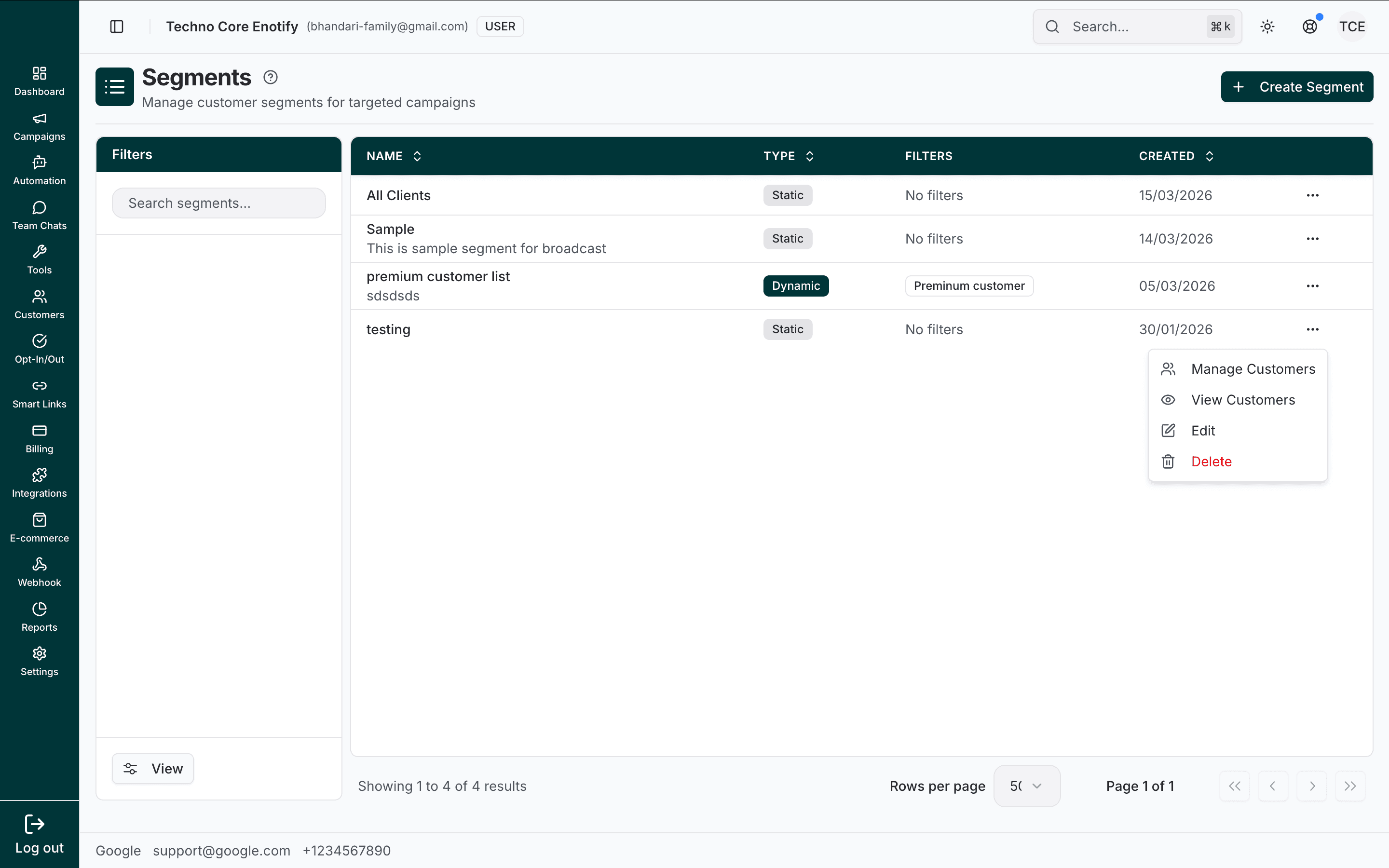
In the app: Dashboard → Campaigns → Segments
Static vs dynamic segments
The Type of a segment decides how its membership is maintained. This is the most important choice you make.
| Type | How membership works | Use it for |
|---|---|---|
| Static | A fixed list of customers you add by hand or import from a CSV. Members only change when you change them | One-off lists, imported audiences, manually curated groups |
| Dynamic | Membership is computed from attribute filters. Customers join and leave automatically as their data changes | "Live" audiences like "Premium customers" or "Born this month" |
You can't edit a dynamic segment's members directly
Dynamic segments are driven entirely by their filters. To change who's in one, change its filters — you cannot add or remove individual customers.
The Segments page
The list shows every segment on your account. Use the Filters panel on the left to search by name. Each row shows:
| Column | Meaning |
|---|---|
| Name | The segment name, with its description below |
| Type | Static or Dynamic |
| Filters | A summary of the attribute filters, or No filters |
| Created | When the segment was created |
The ⋯ menu on each row opens Manage Customers, View Customers, Edit, and Delete. Use Create Segment (top right) to add one. Long lists are paginated, with a Rows per page selector at the bottom.
Create a segment
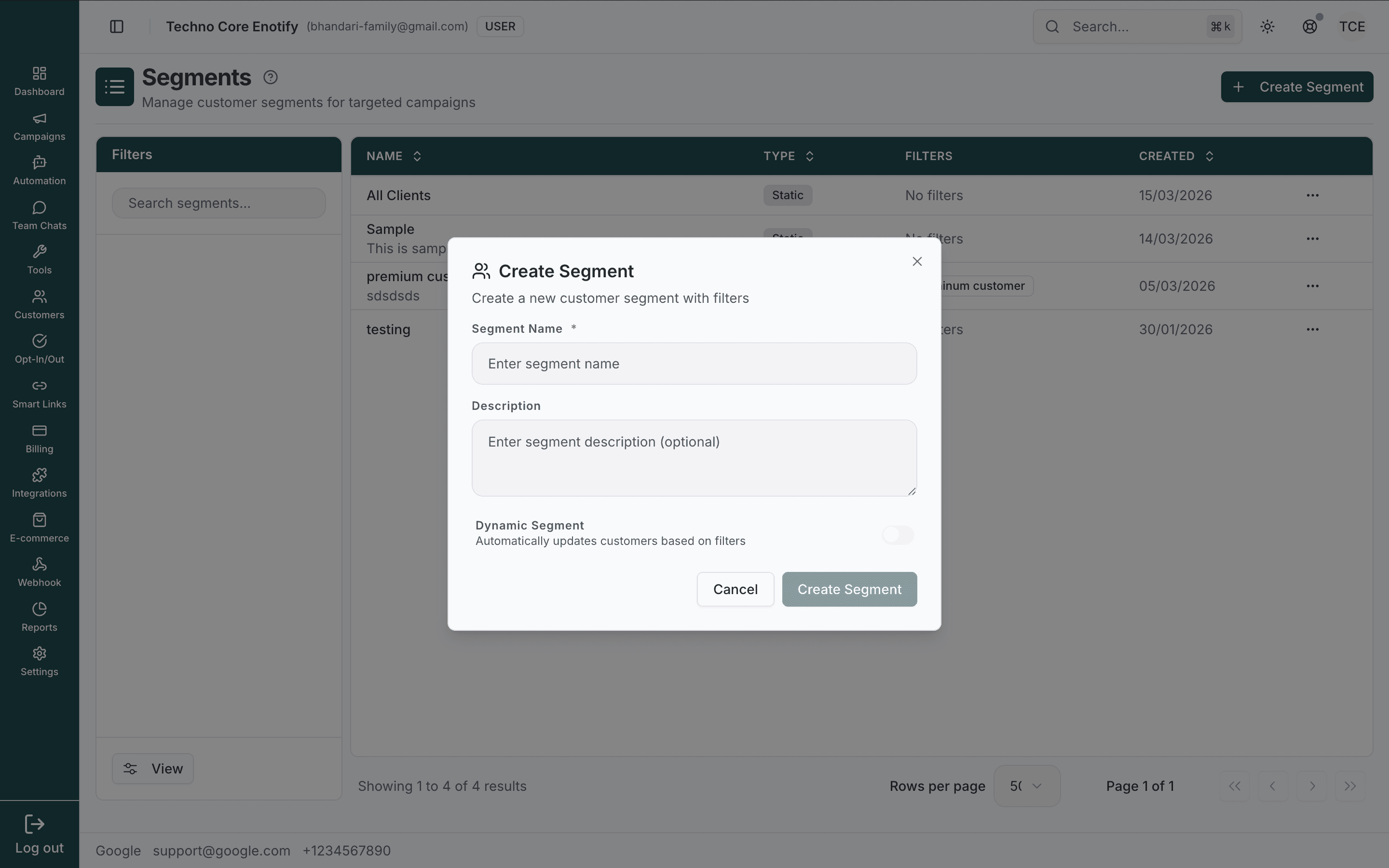
Name the segment
| Field | Notes |
|---|---|
| Segment Name (required) | A clear name, e.g. "Premium customer list" or "Newsletter Subscribers" |
| Description (optional) | A short note on who the segment is for |
Choose static or dynamic
Leave Dynamic Segment off to build a static list you fill in yourself. Switch it on to define attribute filters that keep the segment in sync automatically.
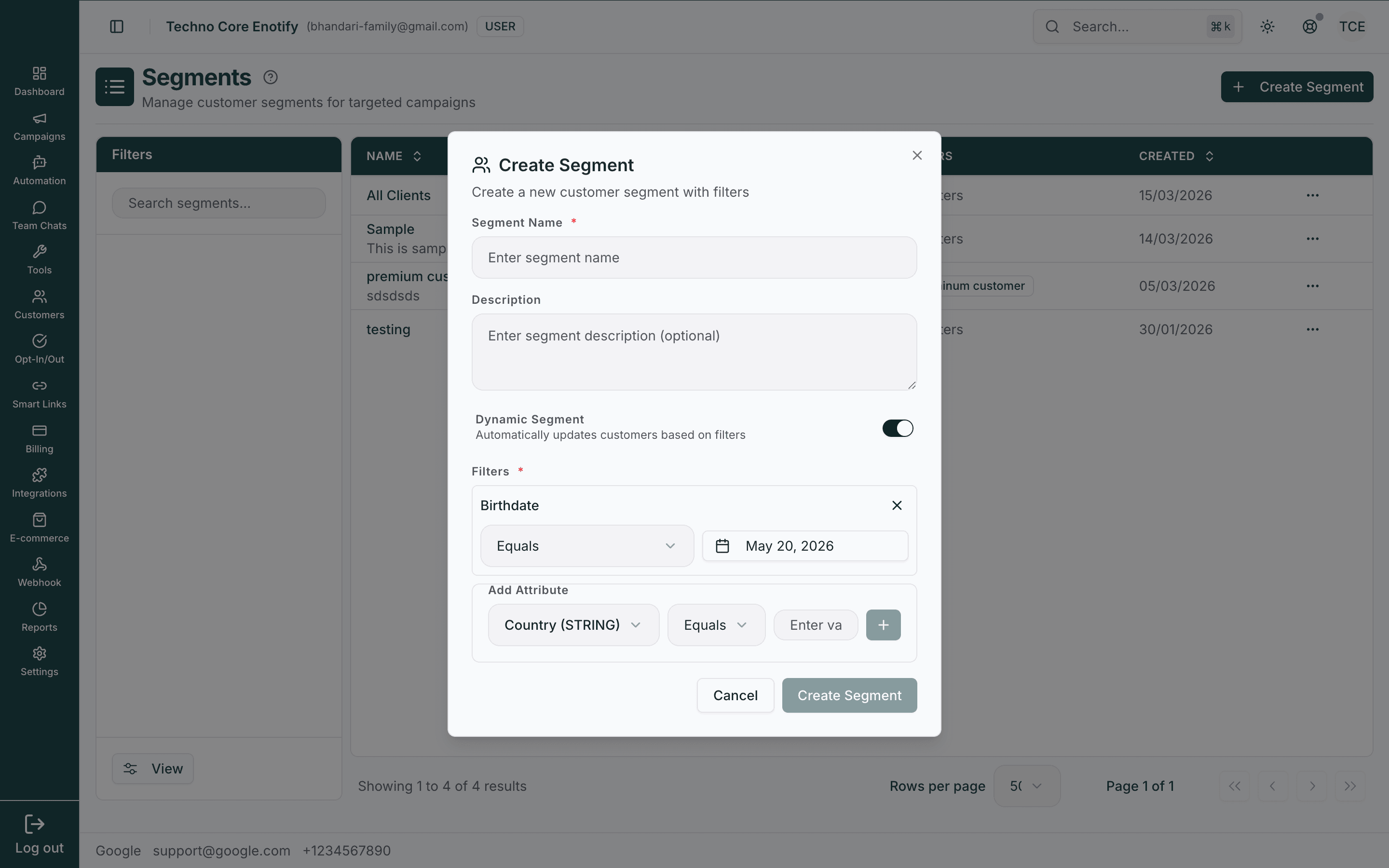
When dynamic, a Filters section appears. Each filter is an attribute, an operator (e.g. Equals), and a value — for example Birthdate equals May 20, 2026, or Premium customer is True. Use Add Attribute to stack more conditions and narrow the audience.
Create the segment
Click Create Segment. It appears in the list, ready to use in campaigns.
Edit a segment
From the ⋯ menu, choose Edit to update a segment's name, description, and filters.
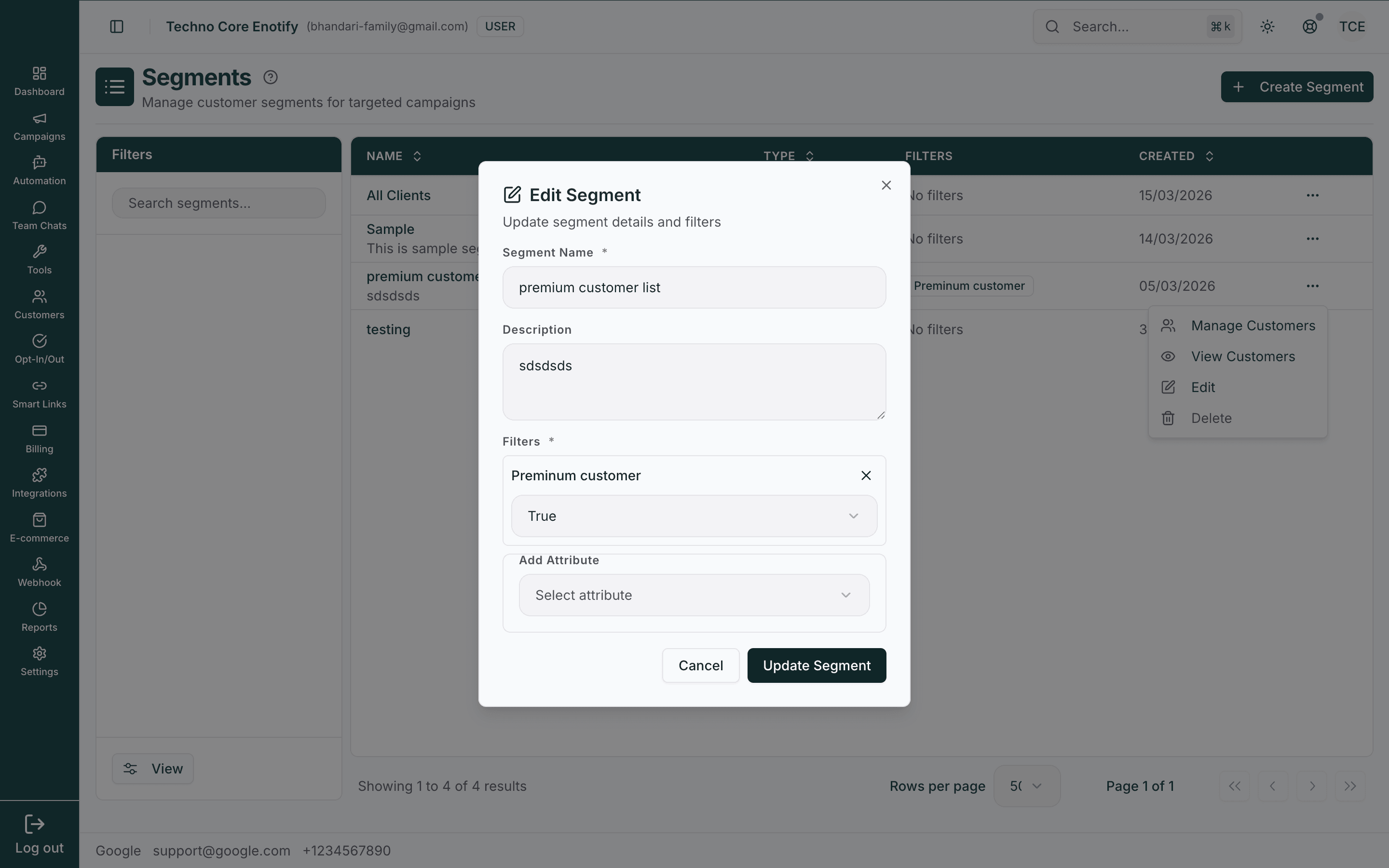
Changing a dynamic segment's filters recomputes its membership immediately, and the next campaign that uses it picks up the new audience. Click Update Segment to save.
View and manage customers
The ⋯ menu gives you two ways into a segment's members.
View Customers
View Customers opens a modal listing everyone currently in the segment, with their opt-out status, attributes, tags, and join date.
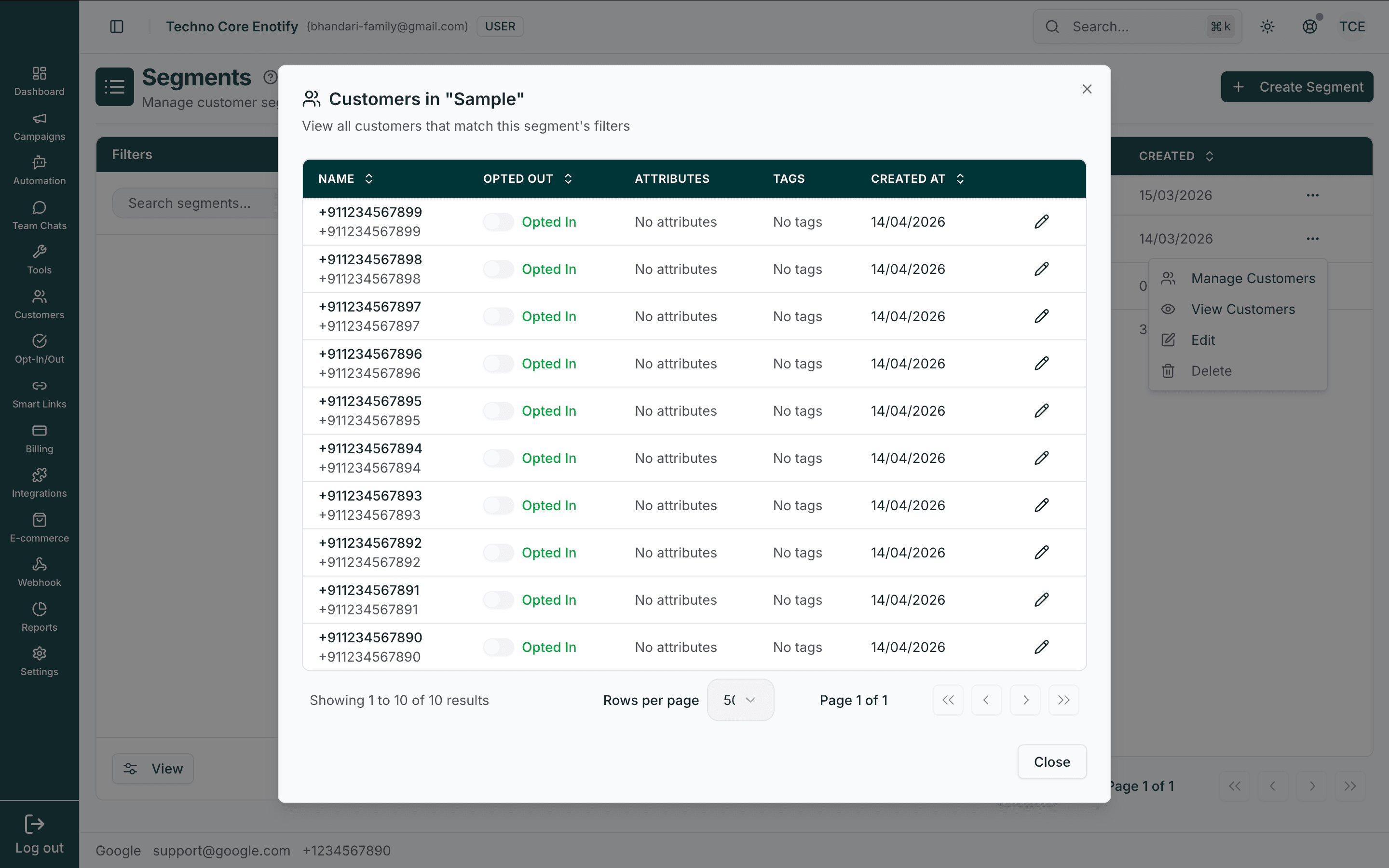
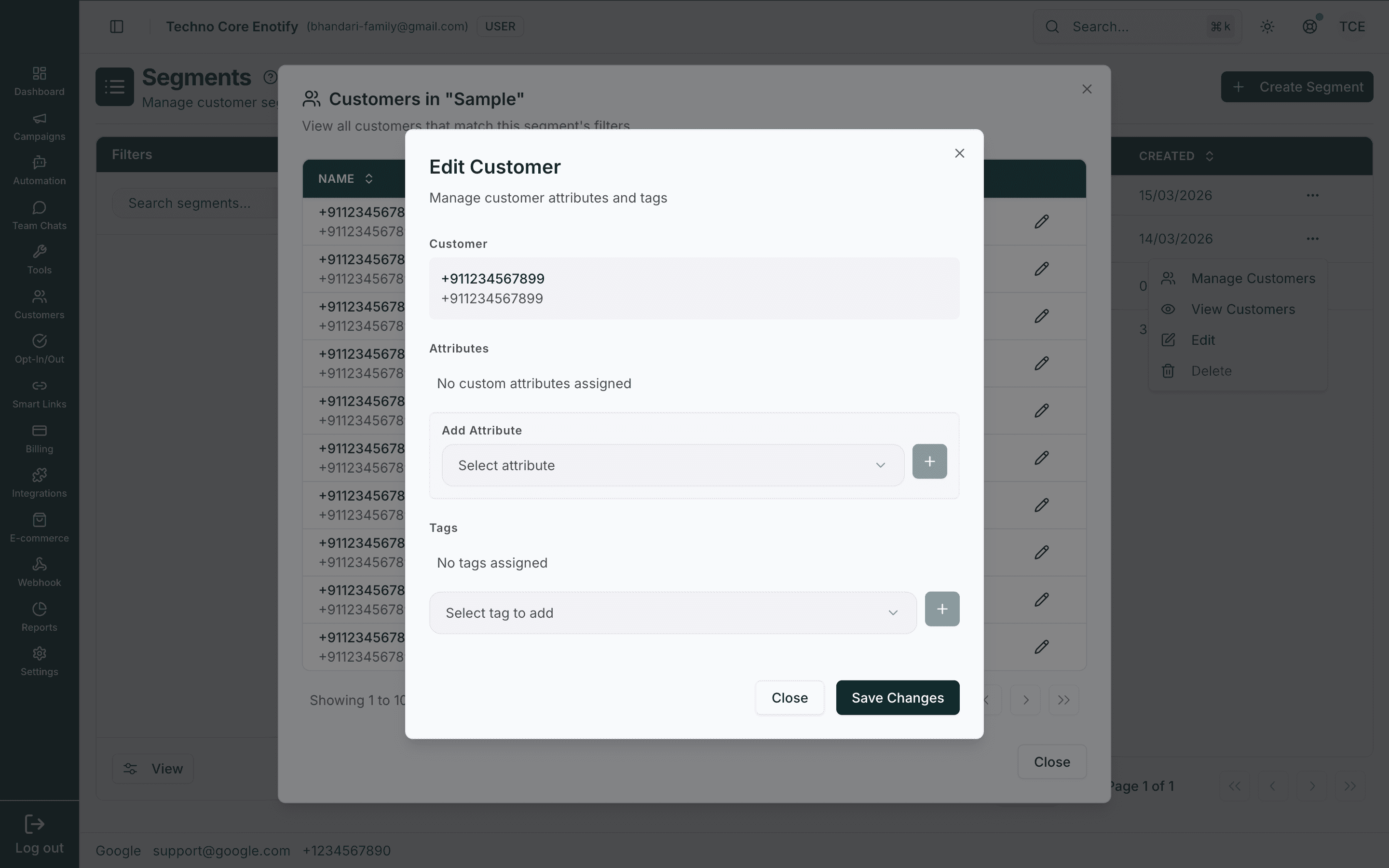
Click the pencil on any row to open Edit Customer, where you can assign attributes and tags to that contact without leaving the segment.
Manage Customers
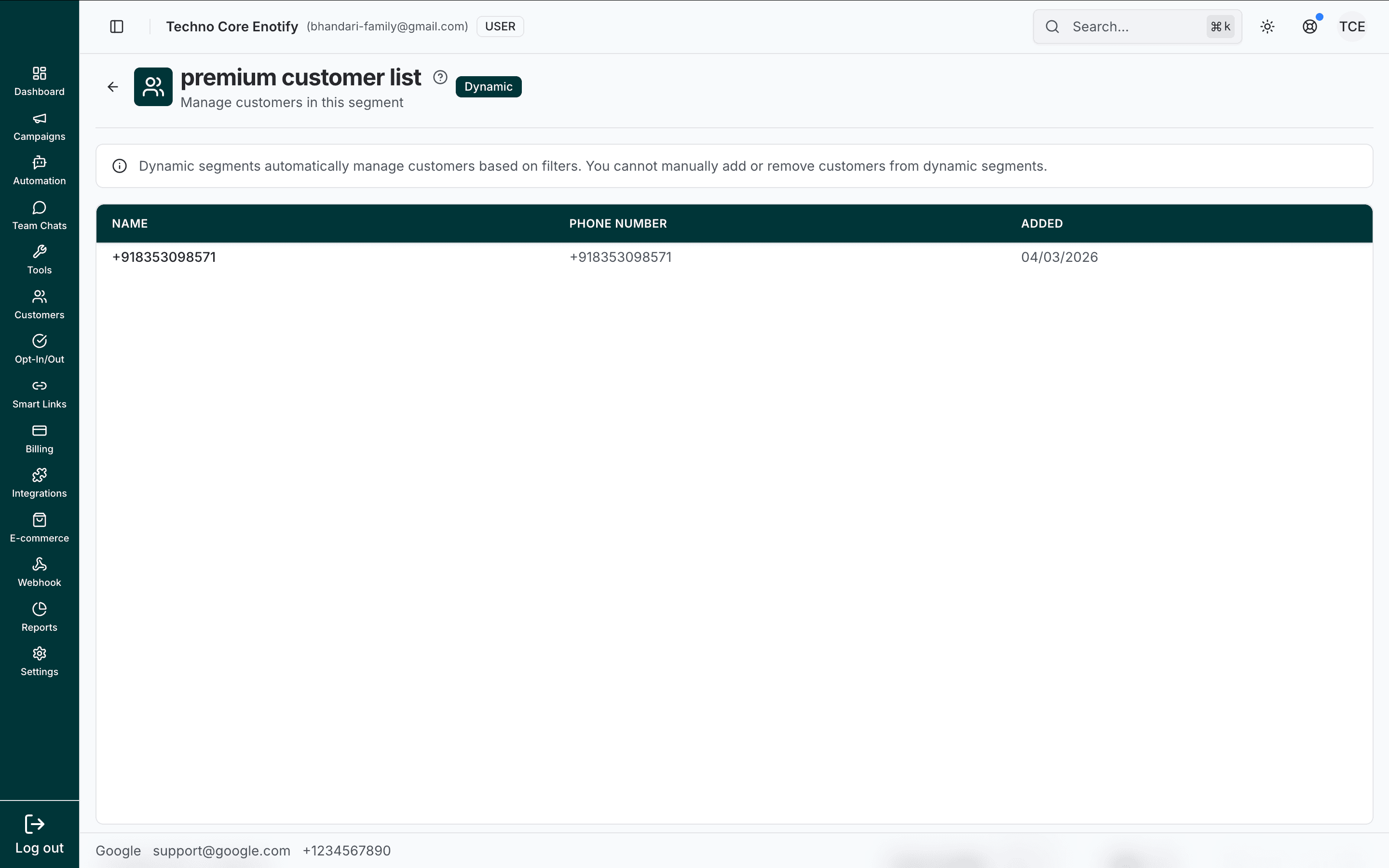
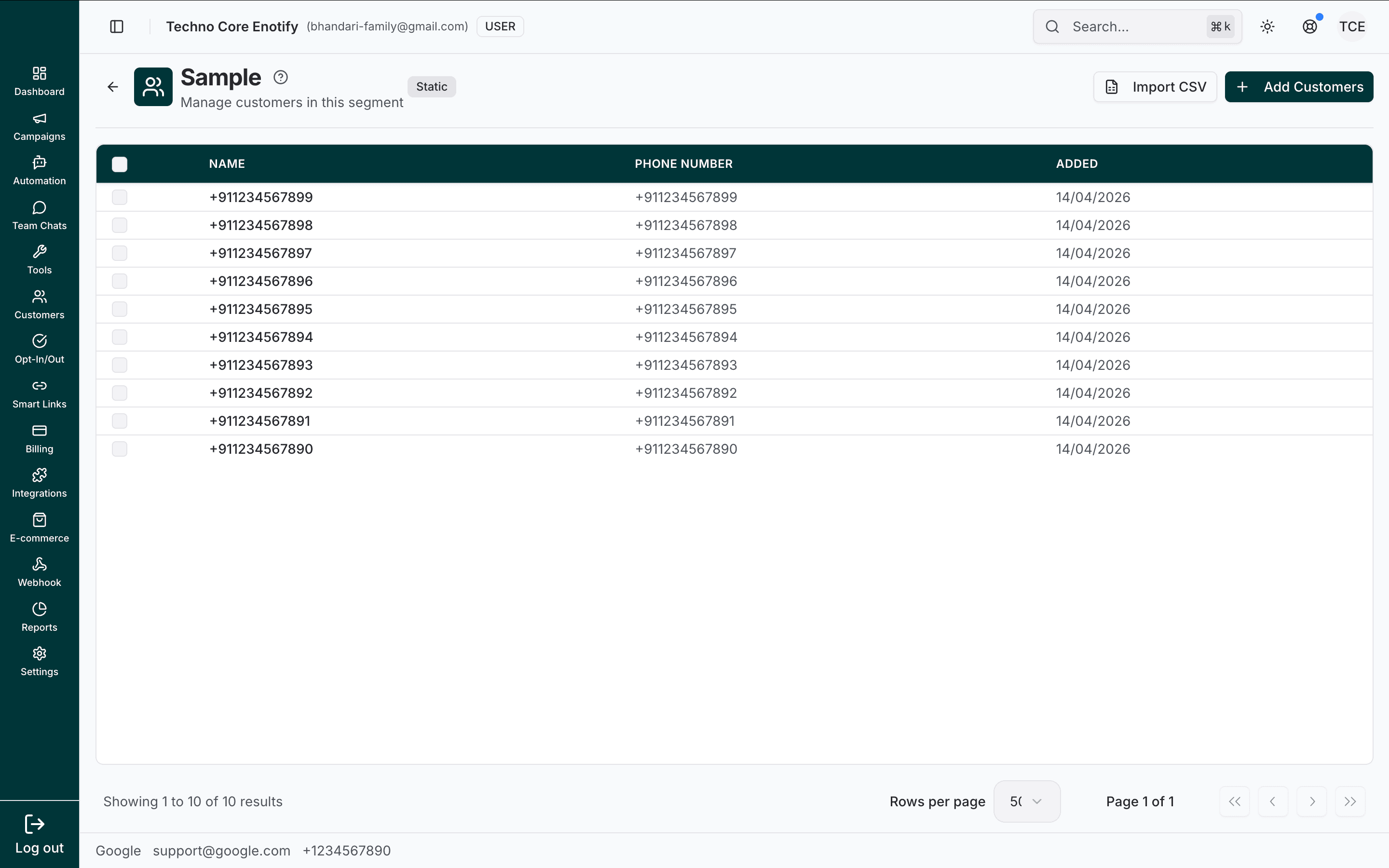
Manage Customers opens a full page for the segment's membership. What you can do depends on the segment type.
For a dynamic segment, the page is read-only — membership is controlled by the filters:
For a static segment, you control the list directly with Add Customers and Import CSV:
Import customers from CSV
Click Import CSV to bulk-add members. Drag in a file (up to 10MB) with at least a phone-number column; a name column is optional.
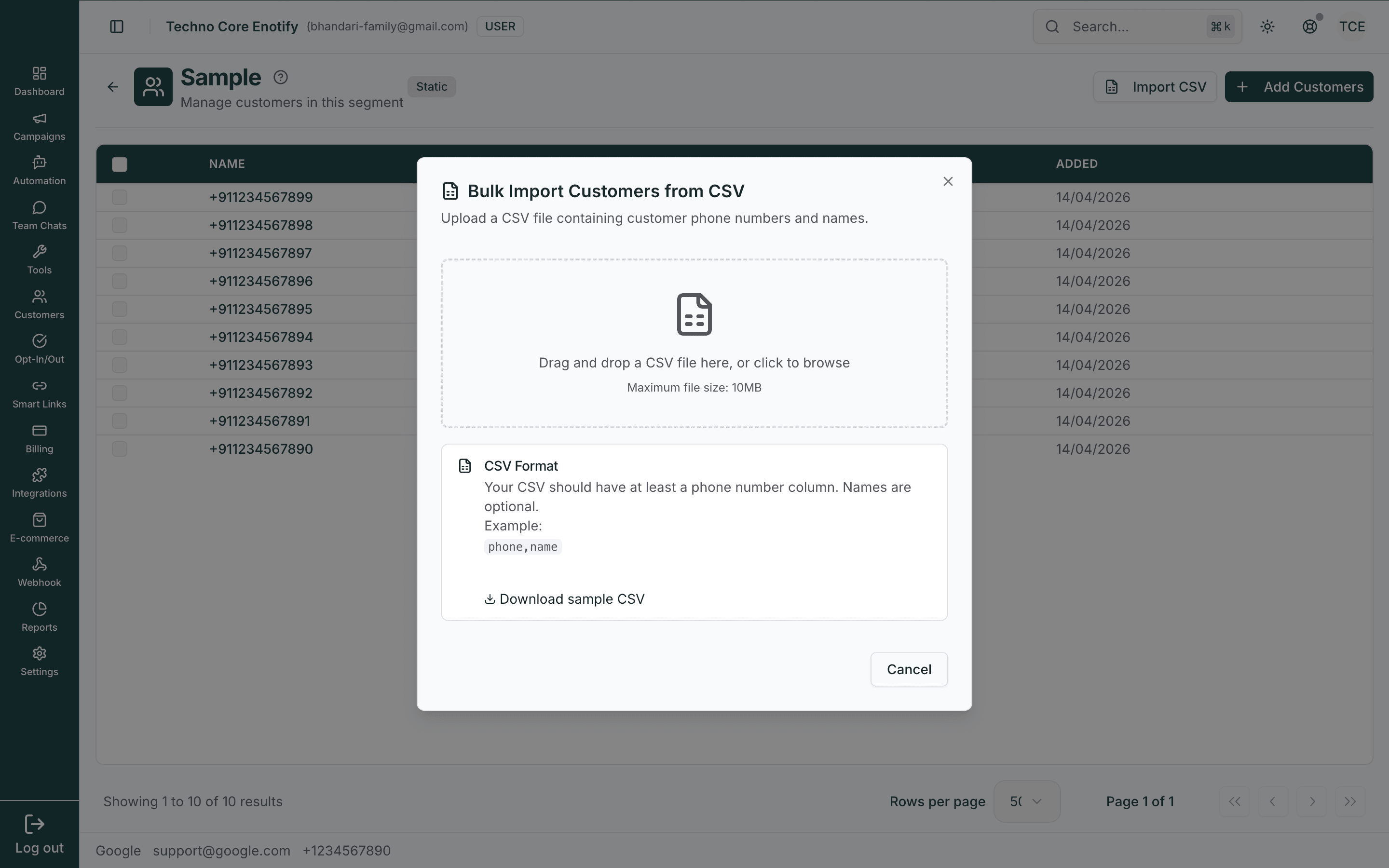
Use Download sample CSV to get the expected format (phone,name).
Add existing customers
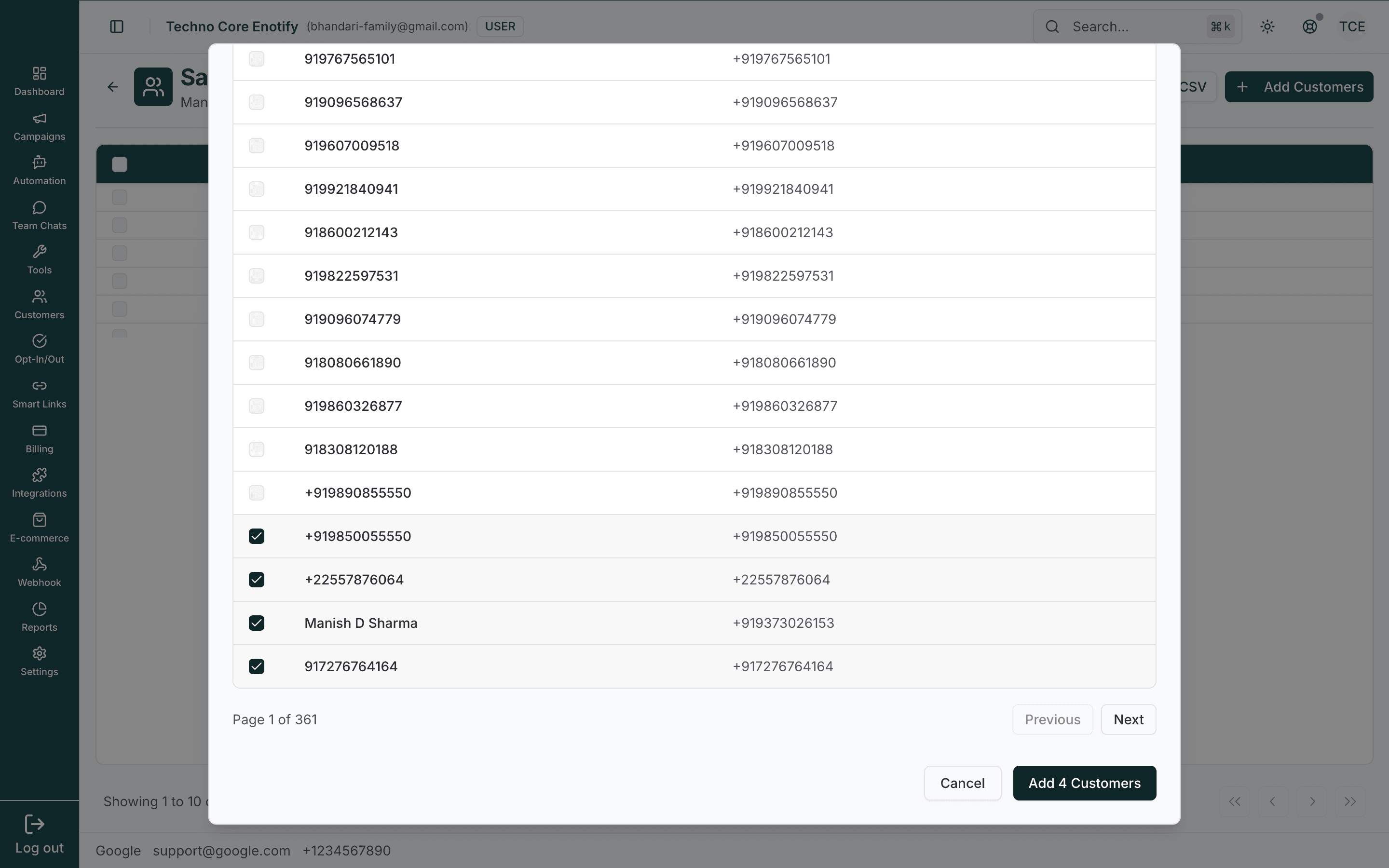
Click Add Customers to pick from contacts already on your account. Only customers not already in the segment are shown.
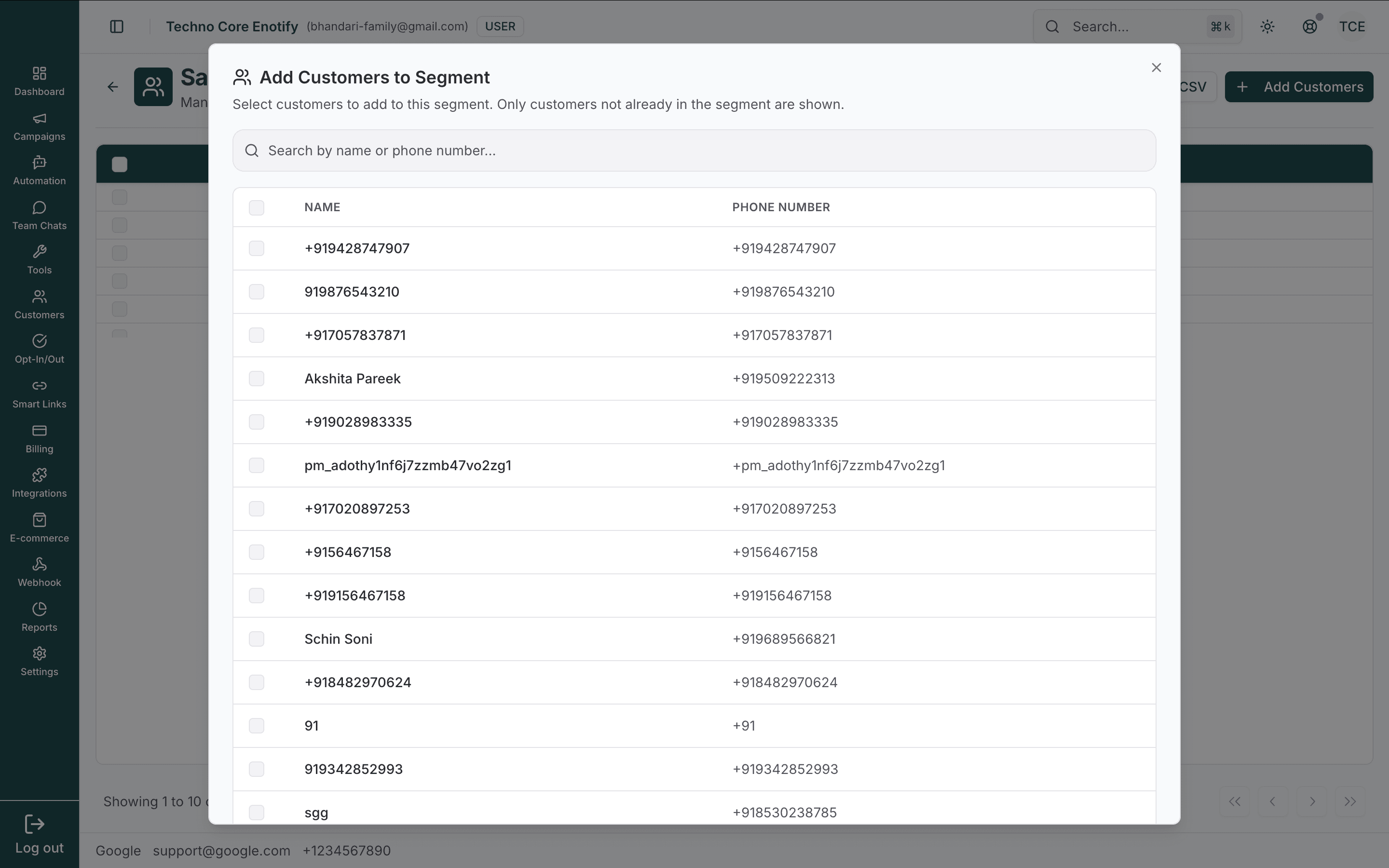
Search by name or phone number, tick the customers to add, and confirm with Add … Customers.
Delete a segment
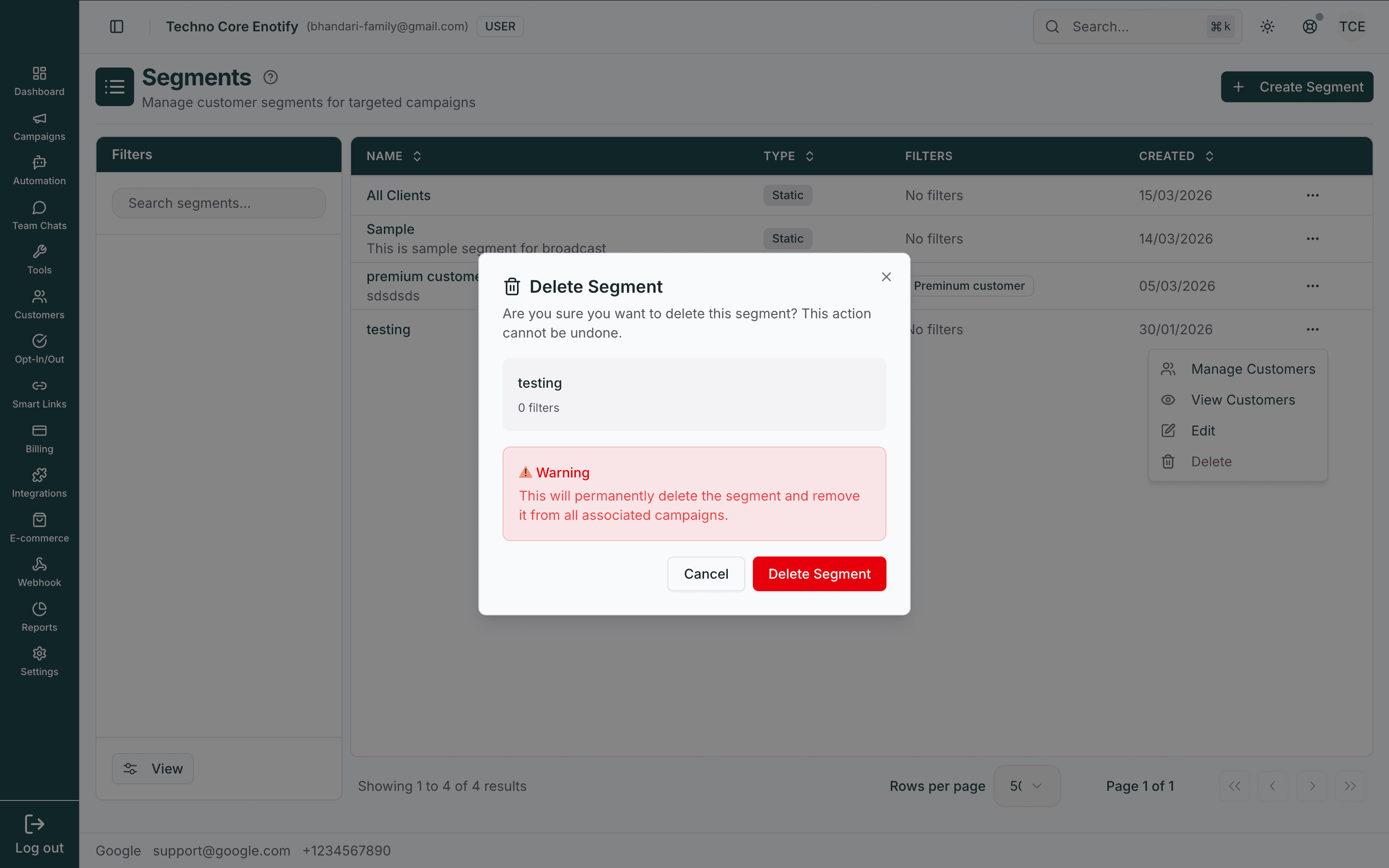
From the ⋯ menu, choose Delete. A confirmation dialog appears first.
Deletion is permanent
Deleting a segment removes it from every campaign it is attached to. This cannot be undone. The customers themselves are not deleted.
Using segments in campaigns
When you create a Campaign, choose Segments as the recipient type in Step 1 and select one or more segments. The campaign sends to everyone in the chosen segments.
Multiple segments are a union
Selecting several segments reaches everyone in any of them. Contacts who appear in more than one segment are automatically deduplicated, so no one is messaged twice.
Best practices
How is this guide?