


User Guide
Get started as a User — campaigns, automation, team chats, and customer management.
Welcome to the User Guide. Everything you need to send WhatsApp campaigns, automate conversations, manage your team inbox, and grow your customer relationships — all from one dashboard.
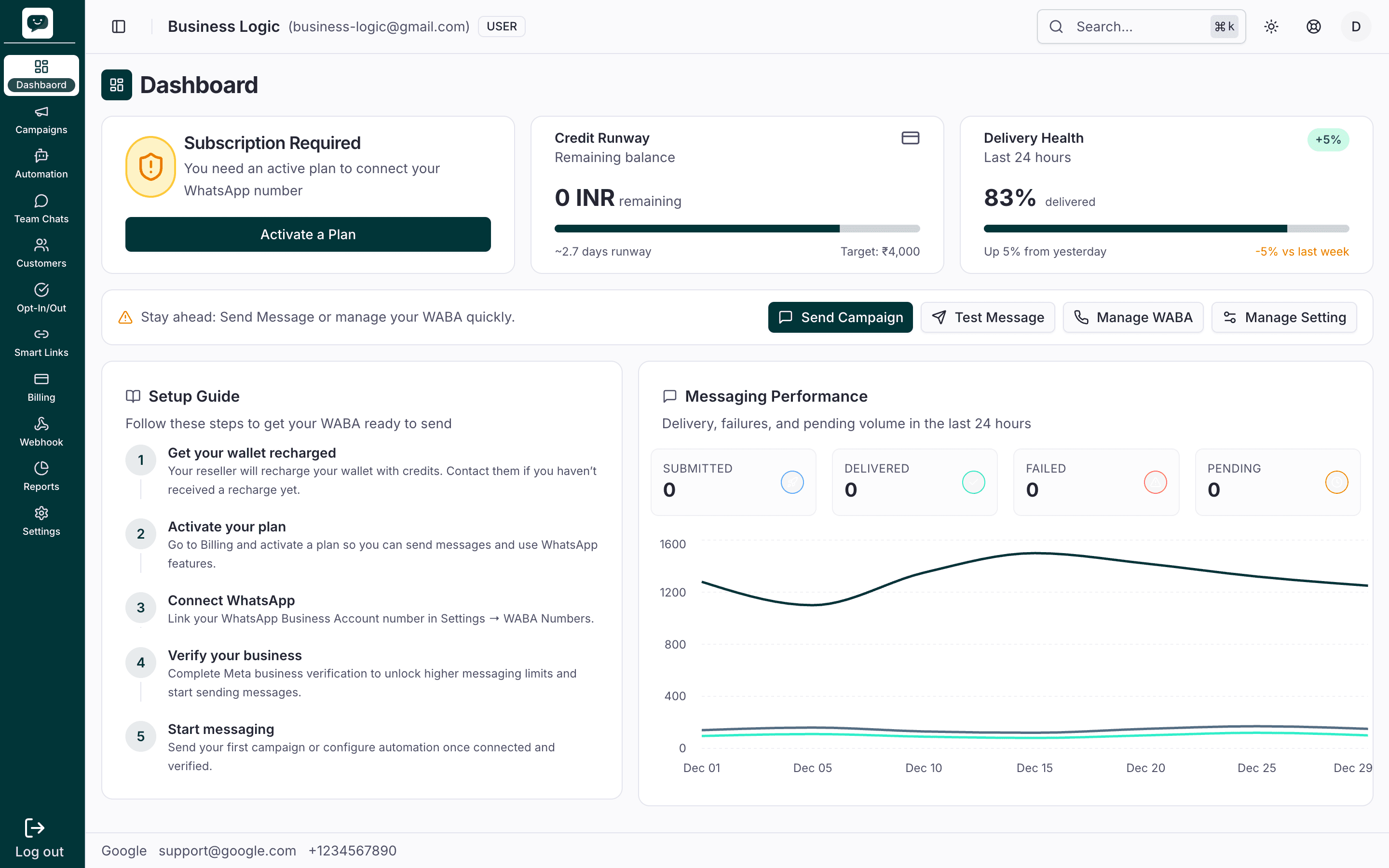
What is this platform?
This is a WhatsApp Business Platform that lets you send marketing campaigns, build chatbot automations, manage team conversations, and track everything with detailed analytics. Whether you're a solo operator or part of a larger team, the platform connects your WhatsApp Business Account (WABA) to a powerful dashboard so you can reach customers at scale while staying compliant with WhatsApp policies.
Getting Started
The Setup Guide on your dashboard (and below) shows the steps in order. Follow them to start sending messages:
Get your wallet recharged
Your reseller will recharge your wallet with credits. Contact them if you haven't received a recharge yet.
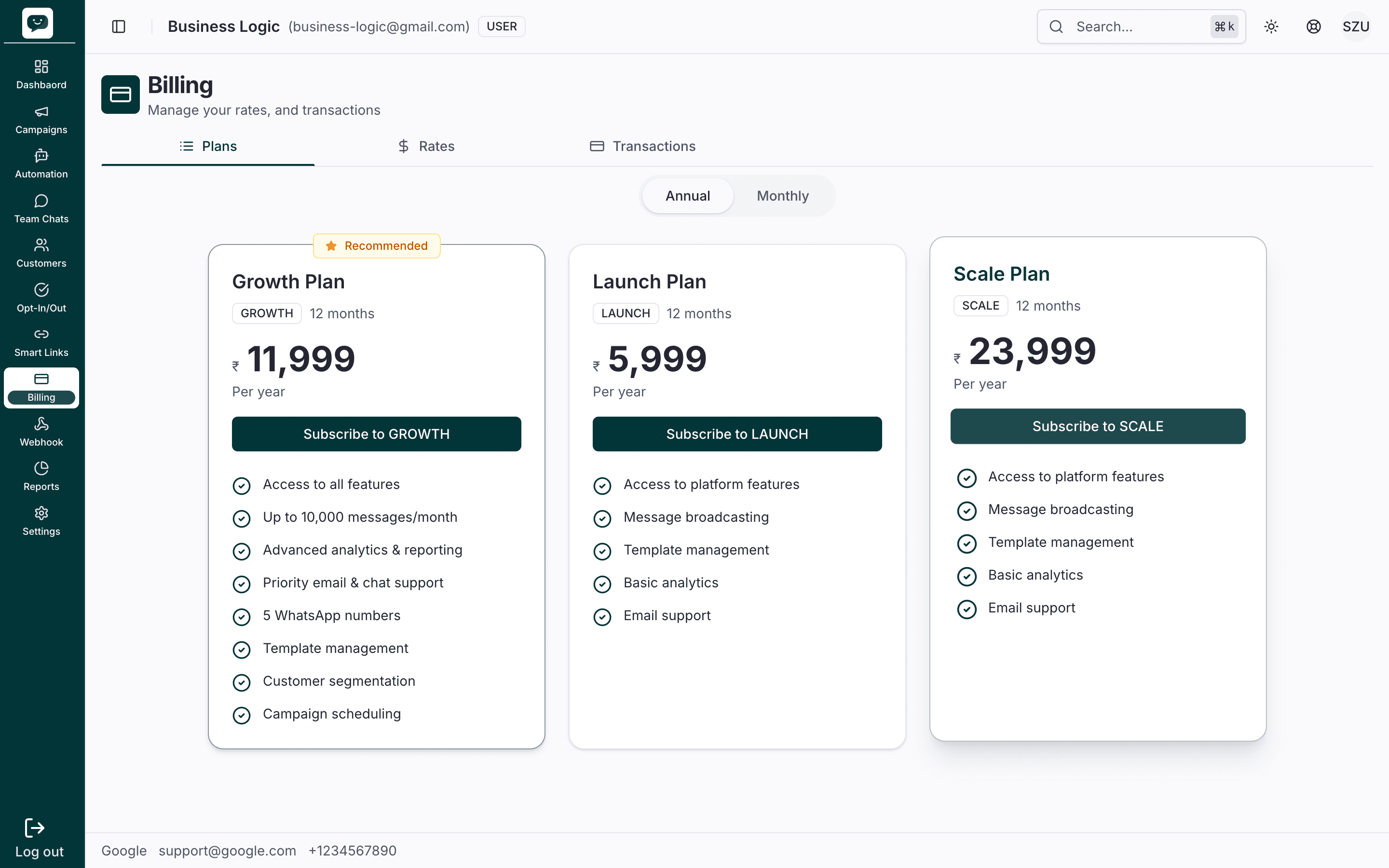
Activate your plan
Go to Billing and activate a plan so you can send messages and use WhatsApp features.
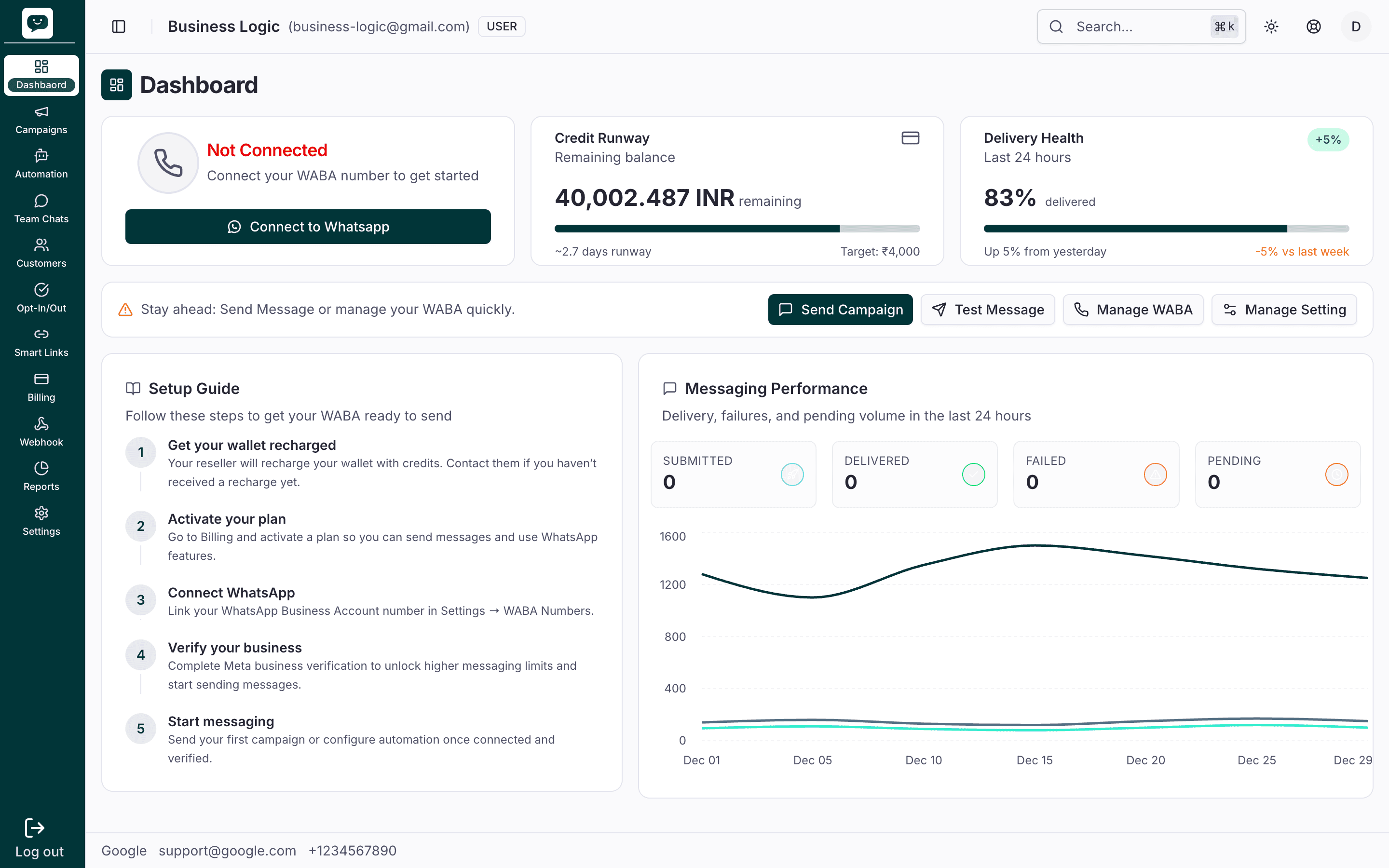
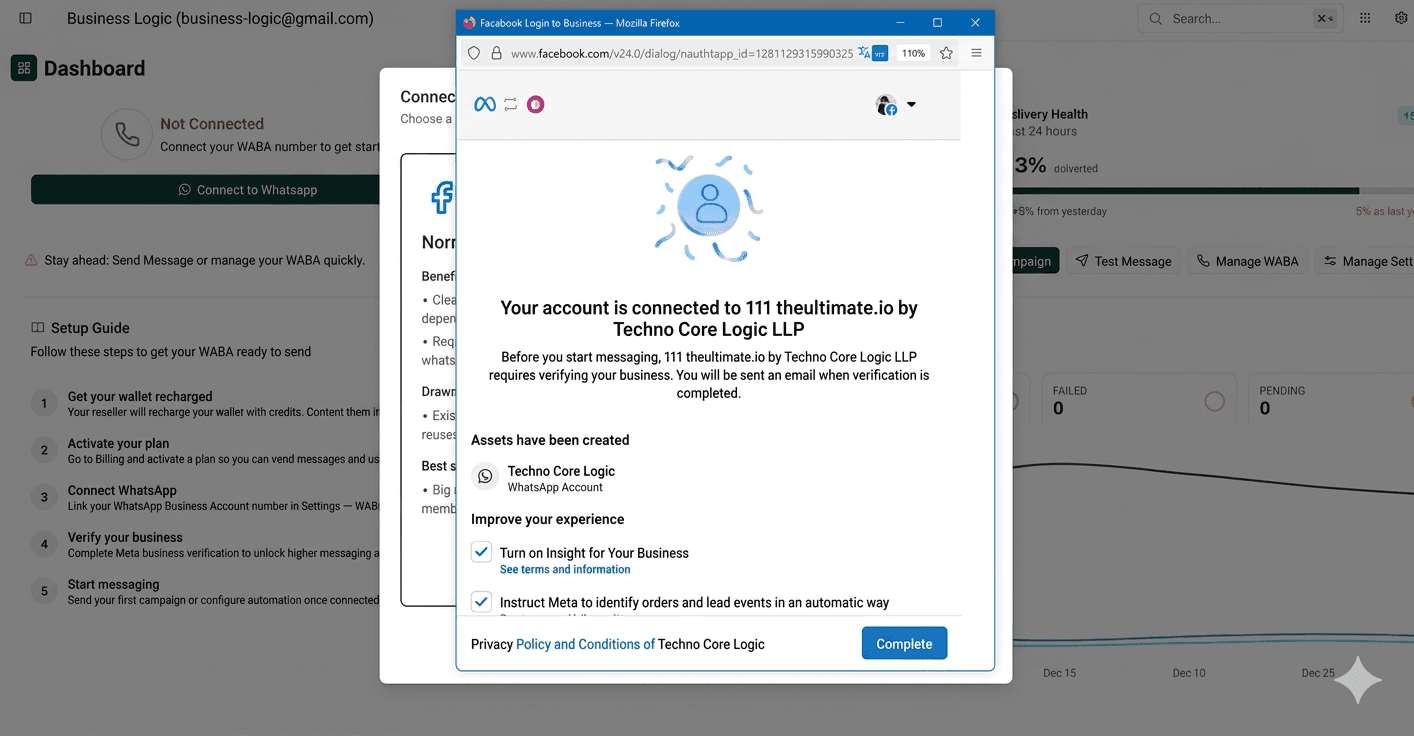
Connect WhatsApp
Link your WhatsApp Business Account number in Settings → WABA Numbers or via the Connect to WhatsApp prompt on the dashboard. You can choose Normal onboarding (fresh number via Facebook/Meta) or Coexistence onboarding (keep your existing number on the mobile app and the platform).
Full walkthrough
Step-by-step instructions for both types are in the Onboarding guide.
Verify your business
Complete Meta business verification to unlock higher messaging limits and start sending messages. You can start this from Settings → WABA or the Meta Business Suite. Unverified accounts are limited to 250 business-initiated conversations per day.
Start messaging
Send your first campaign or configure automation once connected and verified. Go to Campaigns (5-step wizard), set up a Chatbot, or open Team Chats to respond to customers.
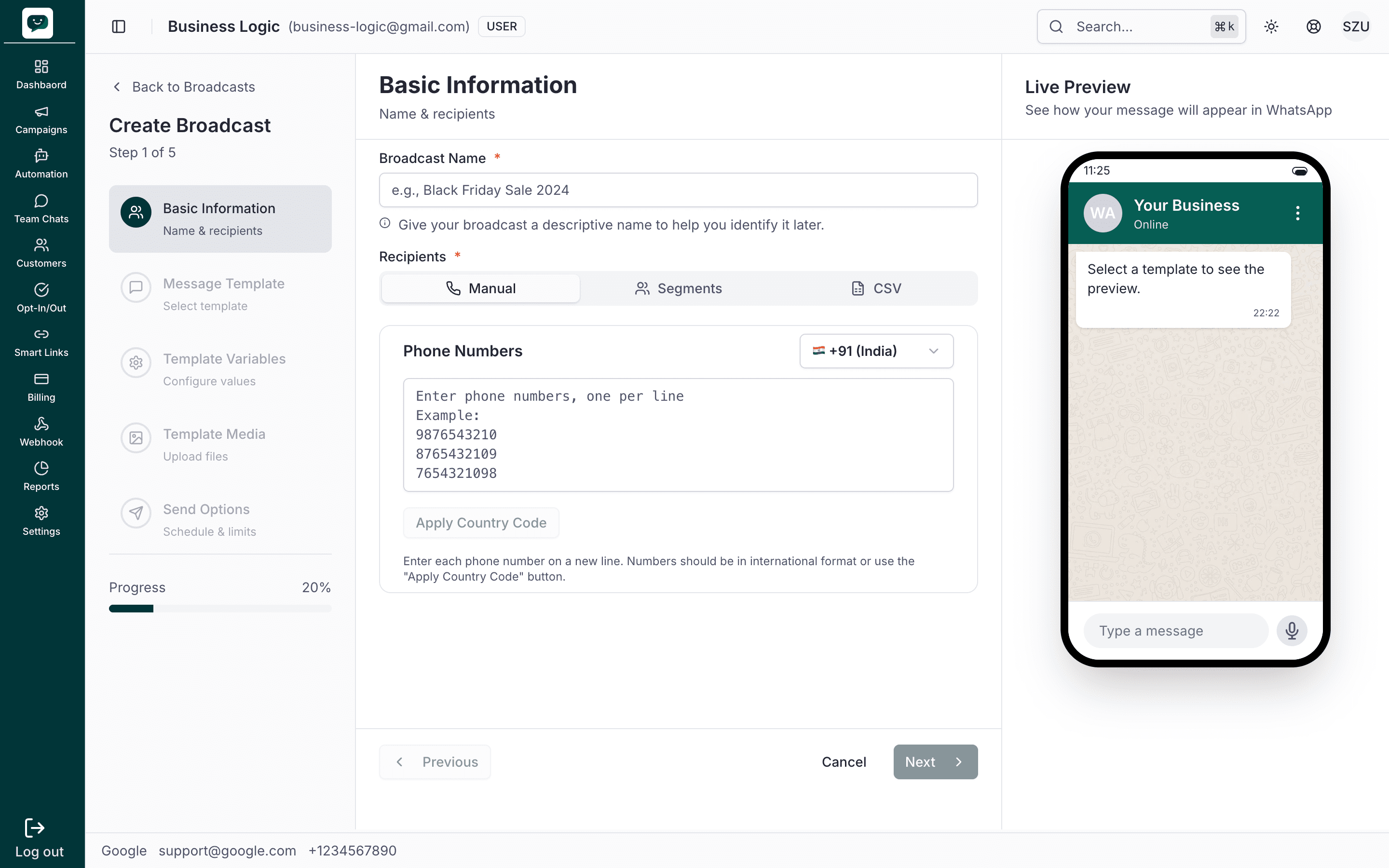
Your Dashboard at a Glance
When you log in, the dashboard gives you an instant snapshot of your account activity:
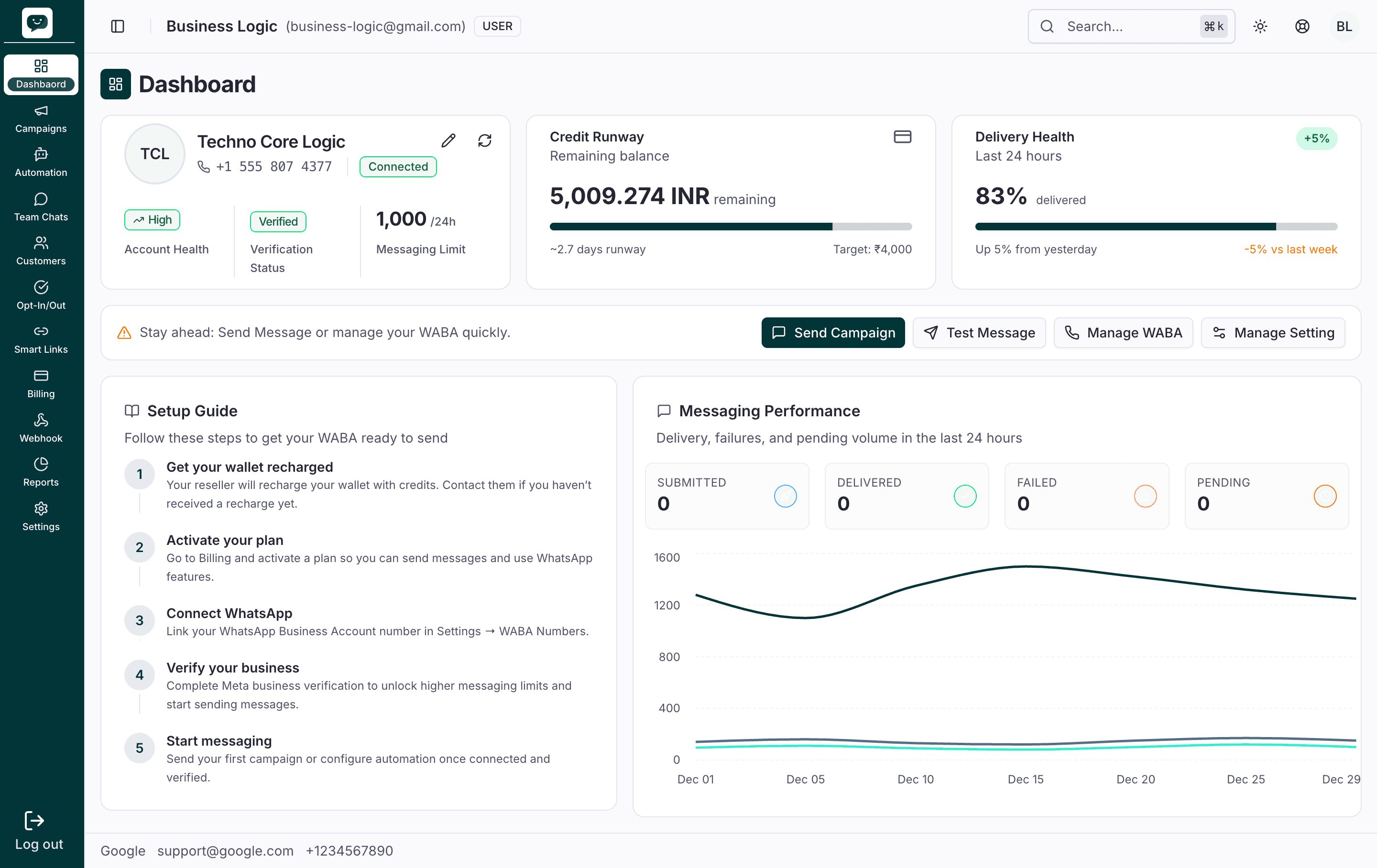
- Stats panel — Messages sent, delivered, read, and failed counts for the current period
- Quick actions — Jump straight to creating a campaign, managing templates, or opening team chats
- Recent conversations — See the latest customer messages and which agents are handling them
- Wallet balance — Your remaining balance (in INR) at a glance so you never run out mid-campaign
Feature Overview
Explore everything the platform offers. Click any card to jump to its documentation.
Campaigns & Messaging
Campaigns
Create and send WhatsApp broadcast campaigns with a guided 5-step flow — pick a template, set your audience, attach media, and send.
Templates
Manage your WhatsApp message templates. Create new ones, sync from Meta, and track approval status across categories.
Media Library
Upload and organize images, videos, and documents. Attach them to campaigns, templates, or chatbot messages.
Segments
Build targeted audience segments based on customer attributes, tags, or imported lists. Use them to send campaigns to the right people.
Automation
Chatbot
Build visual chatbot flows with a drag-and-drop editor. Use message nodes, conditions, webhooks, and ticket creation to automate conversations.
Forms
Create data collection forms and share them with customers. Collect responses, trigger automations, and export submissions.
Communication
Team Chats
Manage all customer conversations in a shared inbox. Assign chats to agents, use quick replies, and collaborate with your team in real time.
Tickets
Track support issues from creation to resolution. Add notes, assign agents, set priorities, and manage tickets across your team.
Customers
View and manage your customer database. Add attributes, apply tags, write notes, and track conversation history per contact.
Opt-In / Opt-Out
Stay compliant with WhatsApp policies. Configure opt-out keywords (e.g., STOP), manage consent, and respect customer preferences.
Calls
Calls Overview
Take and place WhatsApp voice calls on your own phone system. How inbound and outbound work, and what you need before you start.
SIP Trunks
Connect a PBX or SIP provider. Destinations, transport, codecs, authentication, capacity limits, and how to test it all.
Tools & Integrations
Integrations
Connect external systems like Shopify to sync data and trigger WhatsApp automation workflows.
Chat Widget Builder
Customize your WhatsApp website widget and generate an embed code snippet to add on your site.
Smart Links
Create trackable short links for your campaigns and marketing. Monitor clicks, geographic data, and conversion metrics.
Billing
Manage your plan, recharge your wallet, view transaction history, and monitor your usage across campaigns and automation.
Webhooks
Receive real-time message and status events in your own systems. Integrate with your CRM, ERP, or custom backend.
Reports
Delivery Report
Track message delivery status — sent, delivered, read, and failed — with detailed breakdowns and exportable data.
Inbox Report
Monitor conversation volume, response times, agent performance, and resolution metrics across your team inbox.
Schedule Campaign
View and manage scheduled campaigns. Check upcoming sends, pause or cancel scheduled broadcasts, and review past results.
Settings
Profile
Update display name, login email, and password.
OPT-IN
Configure opt-out toggle and keyword handling.
Attributes
Create and maintain structured customer fields.
Tags
Manage tag labels used across customers and chats.
Team Chat
Set read receipts, messages, and working hours.
Skillsets
Organize agent skills and assignment groups.
API Keys
Create, edit, and revoke integration keys.
Agents
Add and manage agent accounts and statuses.
Notifications
Control alert categories and delivery preferences.
Quick Start Paths
Already know what you want to do? Pick your path:
Send Campaigns
Goal: Send a WhatsApp broadcast to your customers.
- Create a template — Go to Templates and create a message template. Submit it for Meta approval (takes up to 24 hours).
- Launch your campaign — Go to Campaigns, follow the 5-step wizard, and hit send. Track results in Delivery Report.
Automate Responses
Goal: Set up an automated chatbot to handle incoming messages.
- Design your flow — Go to Chatbot and create a new bot. Use the visual editor to add message nodes, questions, and conditions.
- Set up variables — Define variables to capture customer responses (name, email, order number, etc.) and use them in conditional logic.
- Activate — Test your flow, then activate it. Incoming messages matching your trigger will be handled automatically.
Manage Support
Goal: Handle customer conversations with your team.
- Set up agents — Go to Settings and add team members as Agents with appropriate skillsets.
- Open Team Chats — Go to Team Chats to see incoming conversations. Assign chats to agents manually or let skill-based routing handle it.
- Track with Tickets — Create Tickets from conversations for issues that need follow-up. Monitor resolution in Inbox Report.
Key Concepts
New to WhatsApp Business messaging? Here are the terms you'll see throughout the docs:
- WABA (WhatsApp Business Account) — Your official WhatsApp Business Account registered with Meta. You connect it during onboarding. One WABA can have multiple numbers, but each number can only be connected to one platform at a time (unless using Coexistence mode).
- Templates — Pre-approved message formats required by WhatsApp for initiating conversations. Learn more in Templates.
- Segments — Groups of customers filtered by attributes, tags, or imported lists for targeted Campaigns.
- Wallet & Billing — Messaging usage is charged from your wallet based on plan rates. Manage this in Billing.
- Agents — Team members who handle Team Chats and Tickets, optionally via skillsets in Settings.
- Chatbot Nodes — Building blocks in Chatbot flows (Message, Question, Condition, Webhook, Ticket).
- Opt-In / Opt-Out — Consent and unsubscribe controls using keyword-based policy handling. See Opt-In / Opt-Out.
Navigation
The sidebar on the left matches the menu structure in the web app. Use it to jump directly to any feature's documentation, or follow the Getting Started path above to set up your account step by step.
How is this guide?