


Tickets
Track customer support issues from creation to resolution — statuses, priorities, assignees, notes, activity history, and analytics.
Tickets track customer issues that need structured follow-up beyond a single chat reply — bug reports, refund requests, feature inquiries. Each ticket carries a status, priority, customer, assignees, tags, internal notes, and a full activity history.
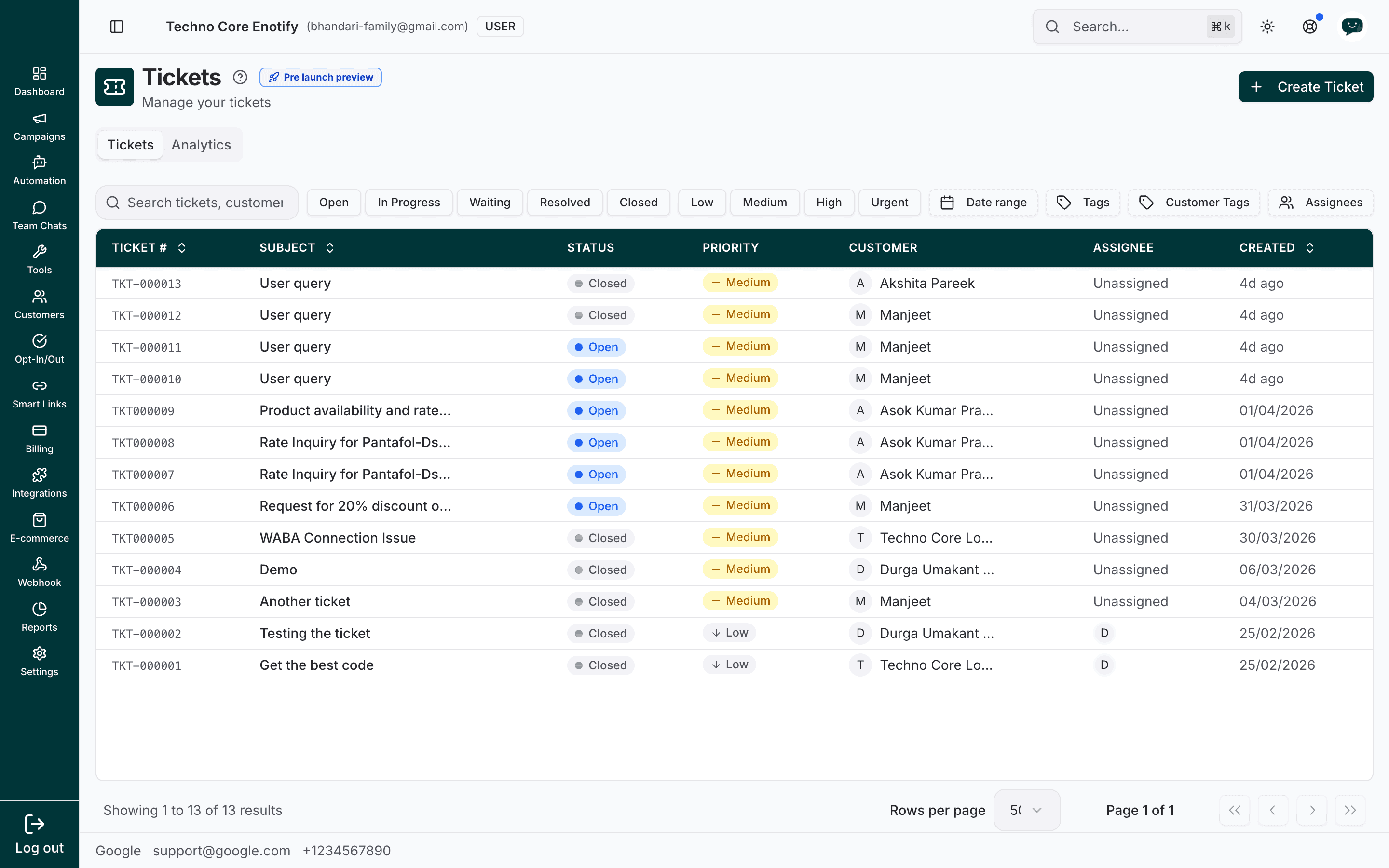
In the app: Dashboard → Tickets
Pre-launch preview
Tickets are marked Pre launch preview. Behaviour may change before general availability.
The Tickets page
The Tickets tab lists every ticket on your account. Each row shows:
| Column | Meaning |
|---|---|
| Ticket # | The unique identifier, e.g. TKT-000013 |
| Subject | A short description of the issue |
| Status | Where the ticket is in its lifecycle |
| Priority | How urgent the ticket is |
| Customer | The customer the ticket belongs to |
| Assignee | The agent working it, or Unassigned |
| Created | When the ticket was raised |
Filtering
The filter bar narrows the list:
- Search by ticket number, subject, or customer
- Status — Open, In Progress, Waiting, Resolved, Closed
- Priority — Low, Medium, High, Urgent
- Date range, Tags, Customer Tags, and Assignees
Statuses and priorities
A ticket moves through five statuses:
| Status | Meaning |
|---|---|
| Open | Raised, not yet being worked on |
| In Progress | An agent is actively working on it |
| Waiting | Blocked, usually waiting on the customer or a third party |
| Resolved | The issue is fixed, pending confirmation or closure |
| Closed | Finished and archived |
Priority is one of Low, Medium, High, or Urgent, with Medium as the default.
Create a ticket
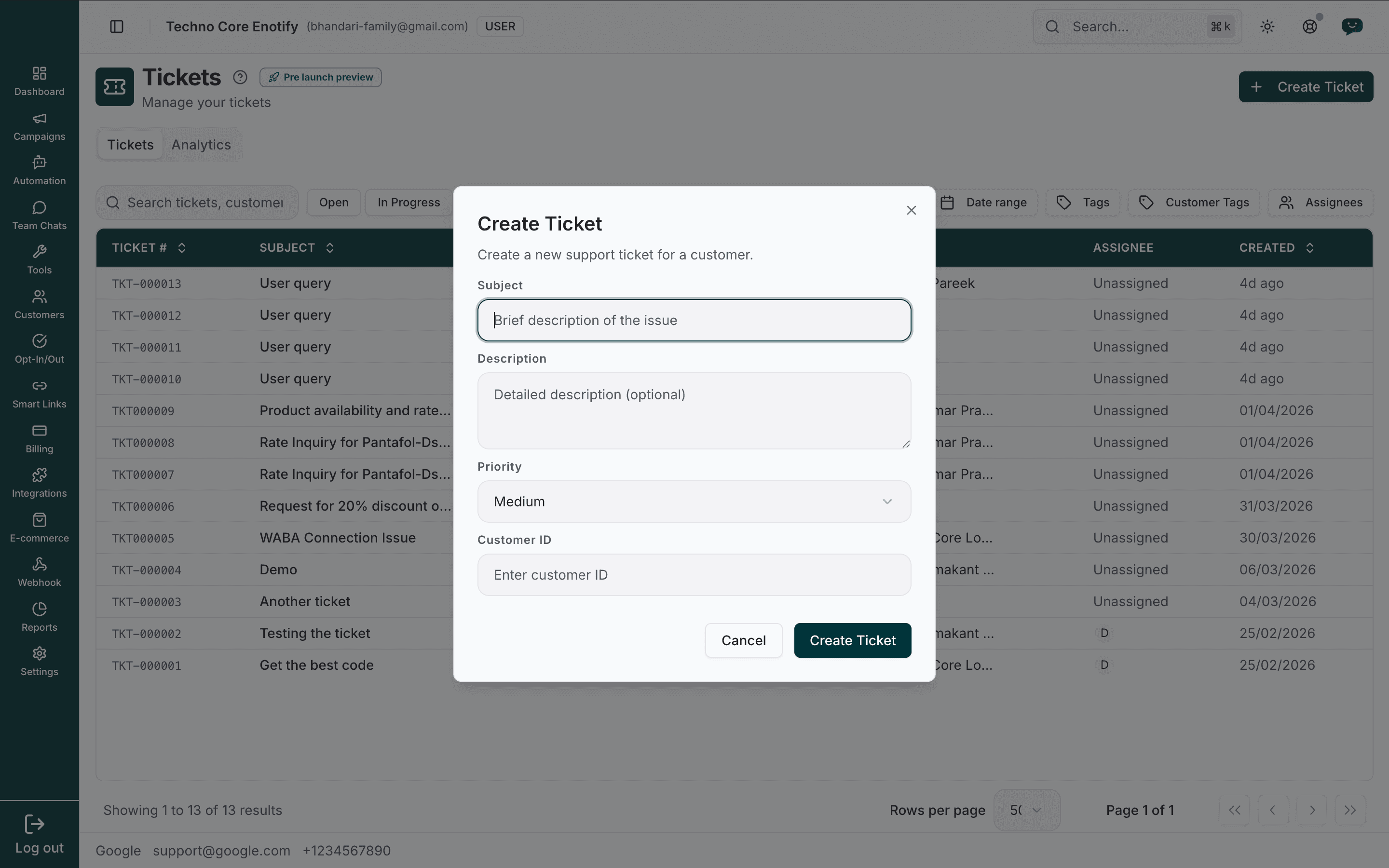
Fill in the ticket details
| Field | Notes |
|---|---|
| Subject (required) | A brief description of the issue |
| Description (optional) | Fuller detail and context |
| Priority | Low, Medium, High, or Urgent. Defaults to Medium |
| Customer ID | The ID of the customer the ticket is for |
Create the ticket
Click Create Ticket. It appears in the list as Open, ready to be assigned and worked.
Working a ticket
Click any row to open the ticket panel. It has three tabs: Detail, Notes, and Activity.
Detail
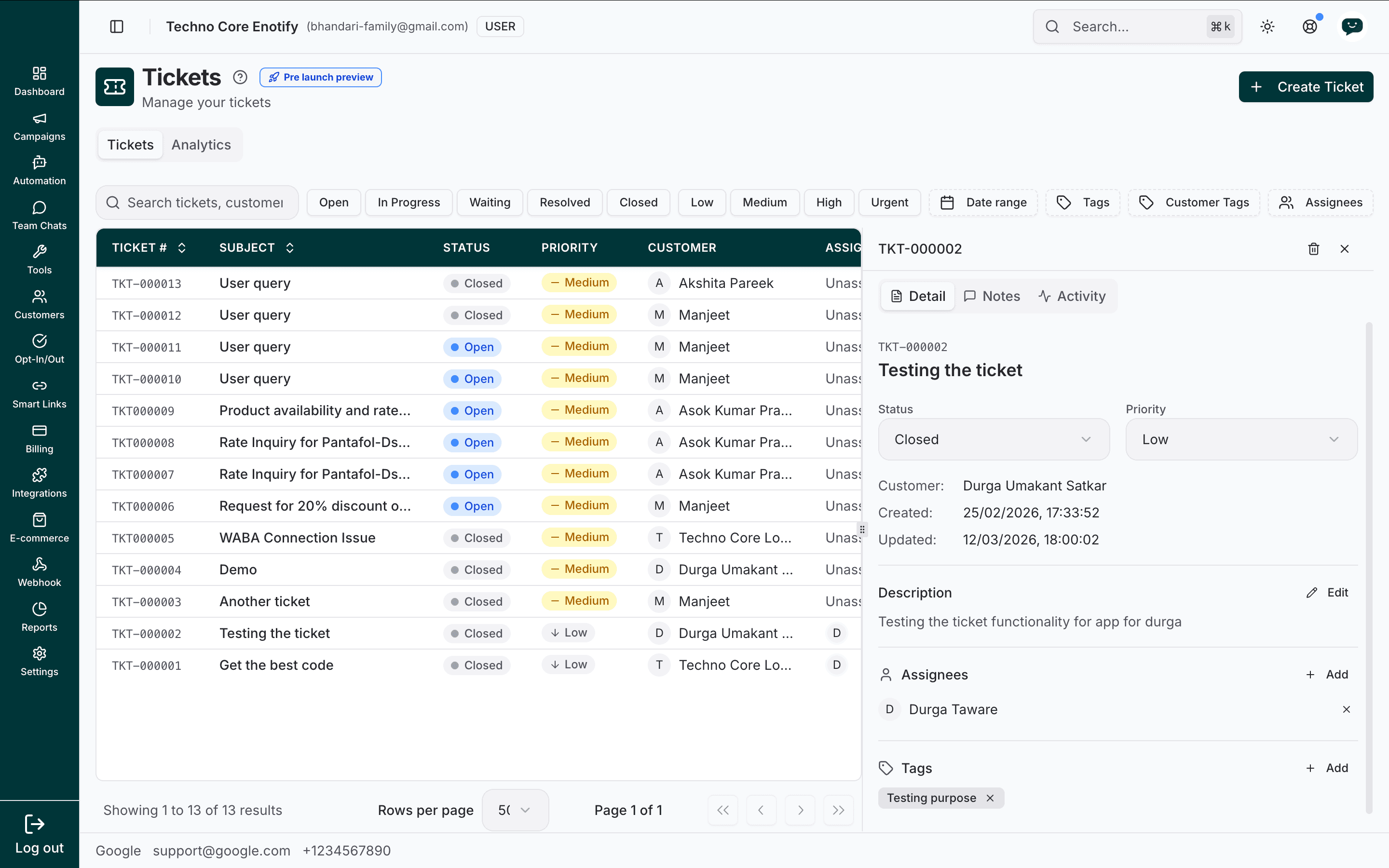
The Detail tab is where you manage the ticket:
- Status and Priority — change either from its dropdown
- Customer, Created, and Updated — reference information
- Description — edit with the Edit control
- Assignees — use + Add to assign one or more agents
- Tags — use + Add to categorise the ticket
Notes
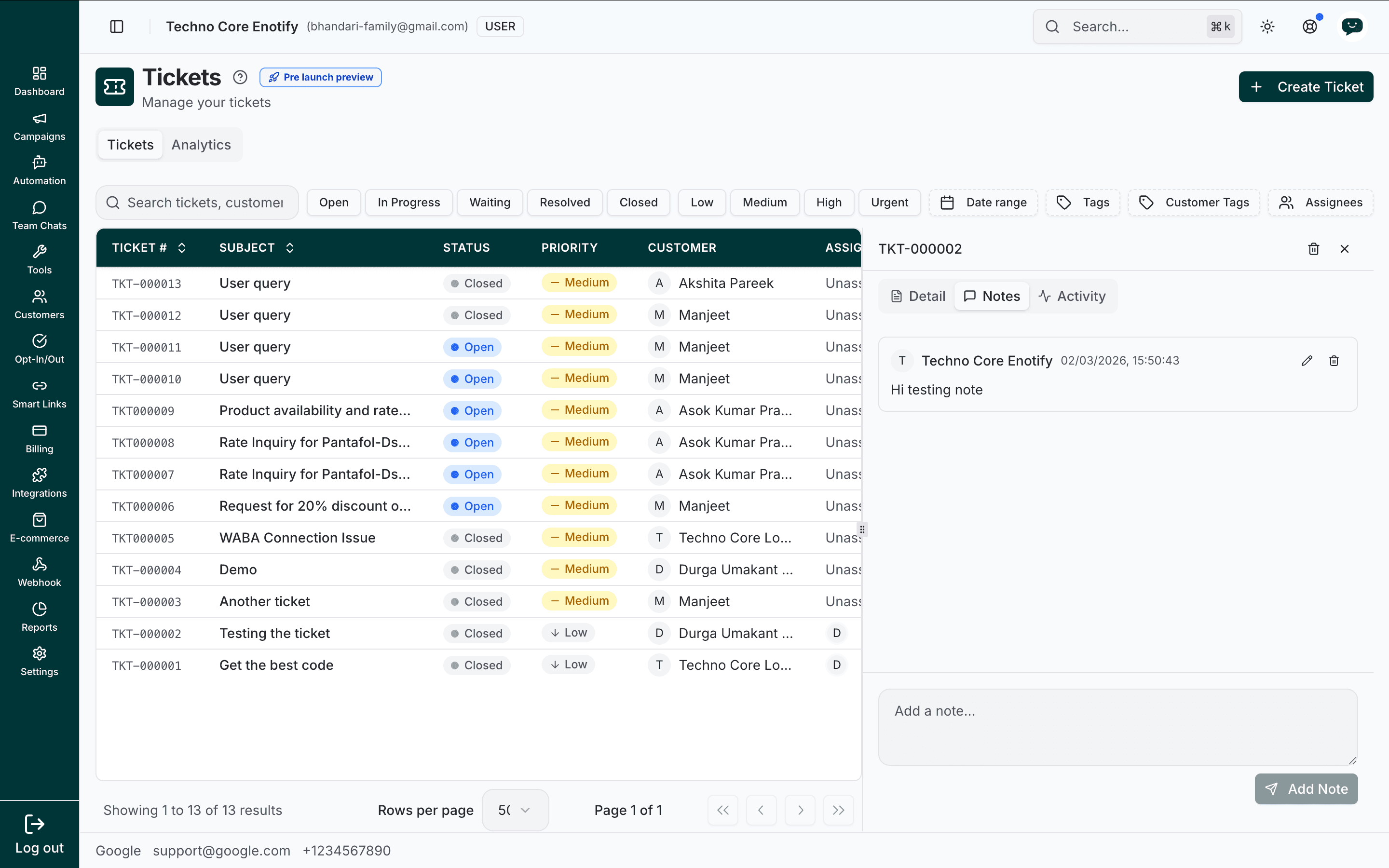
Notes are internal context for your team — investigation findings, handoff details, next steps. Type in the Add a note box and click Add Note. Existing notes can be edited or deleted. Customers never see notes.
Activity
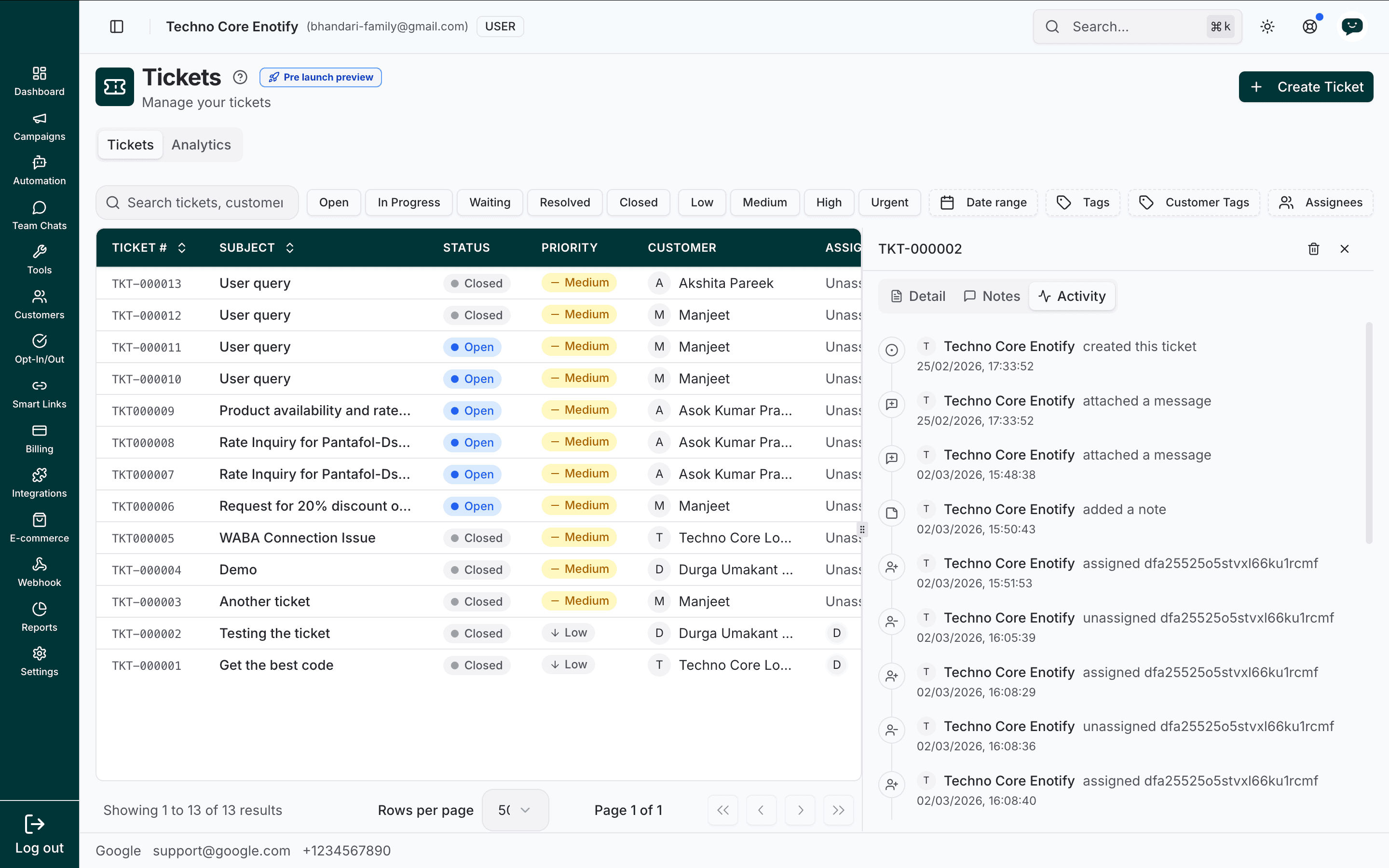
The Activity tab is an automatic audit trail. It records every change — ticket created, message attached, note added, agent assigned or unassigned, status changed — each stamped with who and when.
Ticket analytics
The Analytics tab summarises ticket performance across a chosen period.
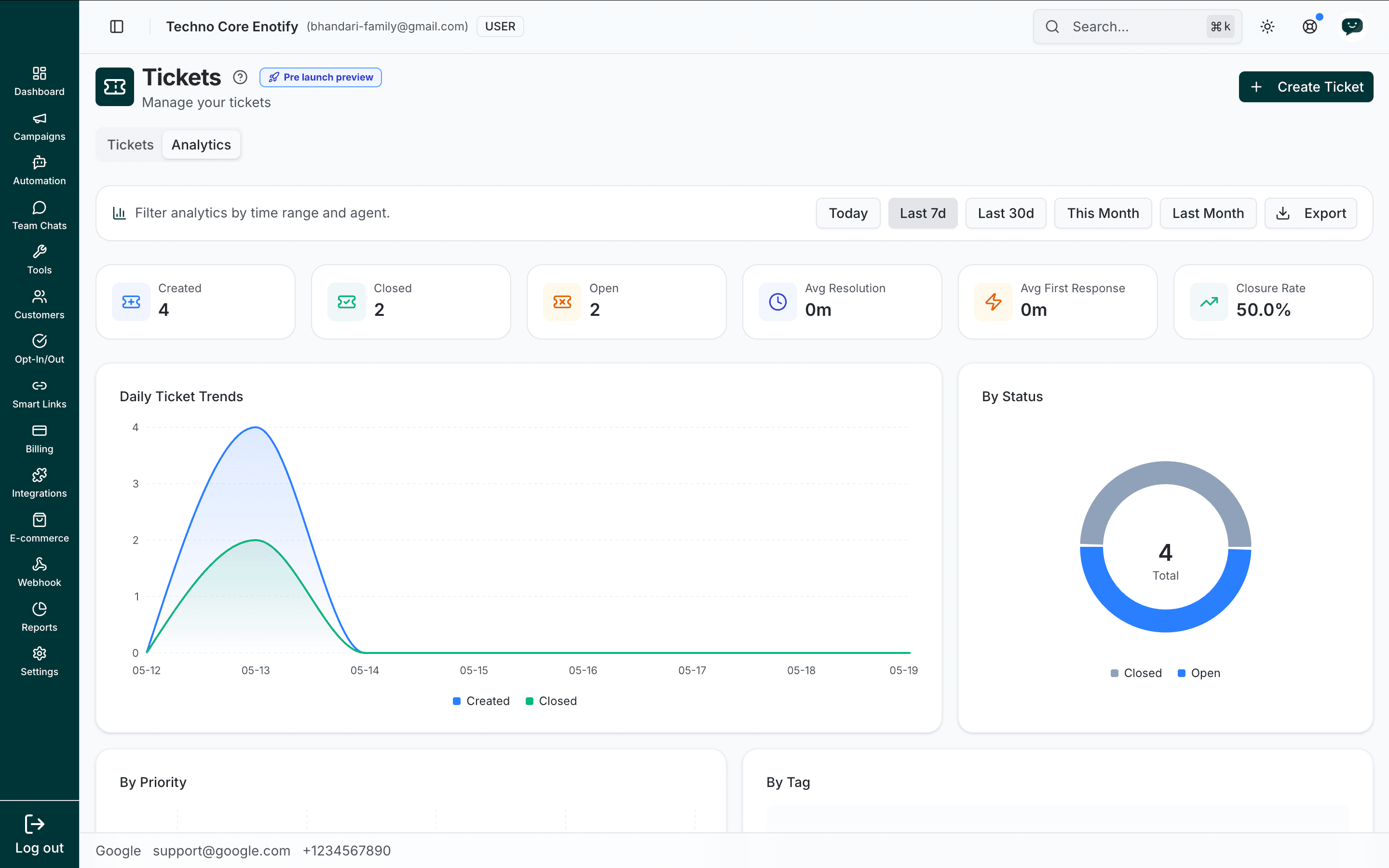
Use the filter bar to pick a range — Today, Last 7d, Last 30d, This Month, Last Month — and Export the data. The summary cards report:
| Metric | Meaning |
|---|---|
| Created | Tickets raised in the period |
| Closed | Tickets closed in the period |
| Open | Tickets still open |
| Avg Resolution | Average time from creation to resolution |
| Avg First Response | Average time to the first agent response |
| Closure Rate | Share of tickets closed |
Below the cards, charts break the data down further:
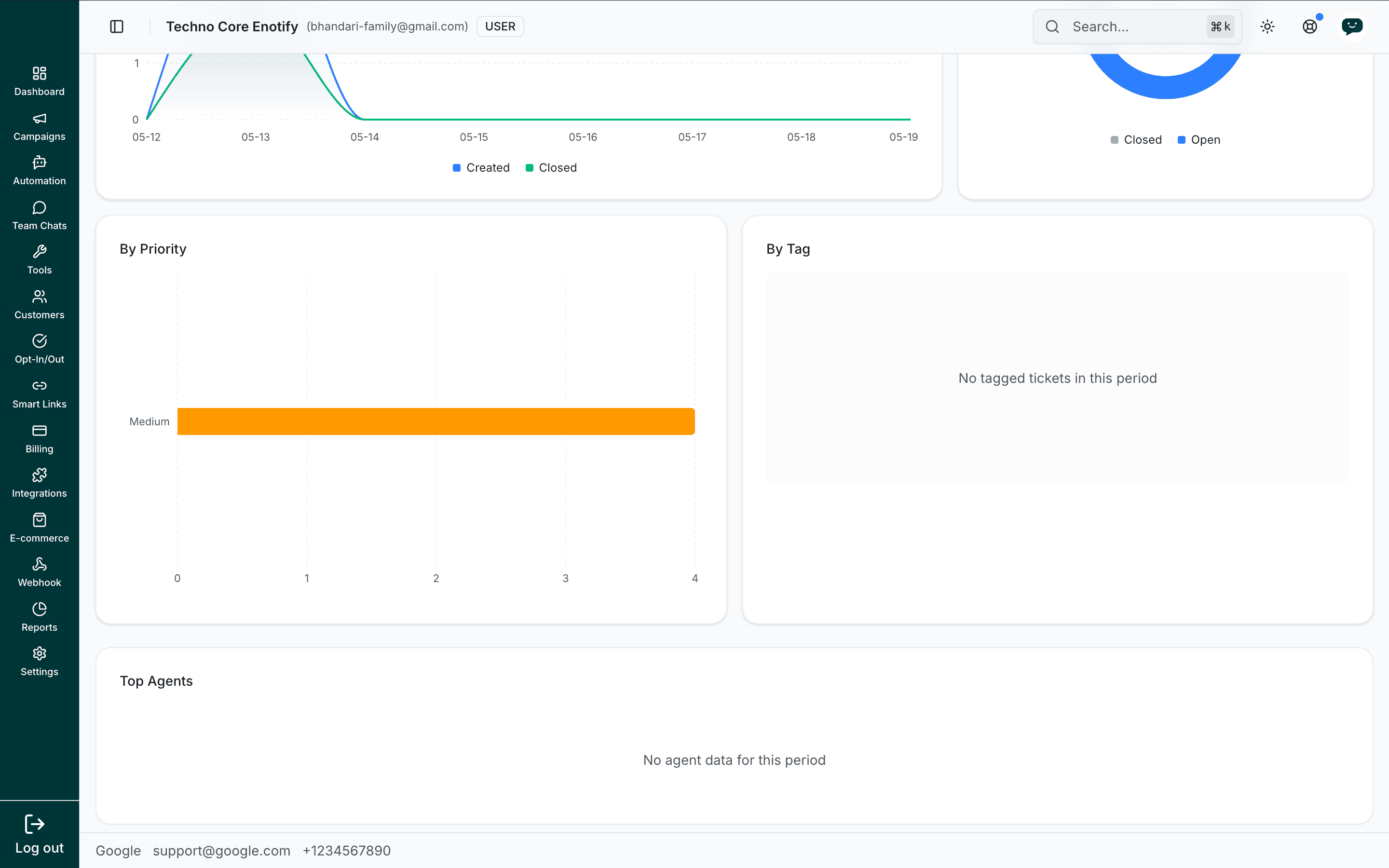
- Daily Ticket Trends — created vs. closed over time
- By Status and By Priority — distribution across statuses and priorities
- By Tag — volume per tag
- Top Agents — agents ranked by tickets handled
Future enhancements
The following are planned for Tickets and not yet available:
- CSAT scoring — a customer satisfaction score per agent, surfaced in the per-agent analytics breakdown alongside resolution and response times.
Pre-launch preview
Tickets are in pre-launch preview, so capabilities are still expanding. Watch the Changelog for releases.
Best practices
How is this guide?