


Campaigns
Create and send WhatsApp broadcast campaigns — step-by-step guide, audience targeting, scheduling, and delivery tracking.
Send WhatsApp broadcast messages to your customers at scale. Campaigns let you pick an approved template, target a specific audience, personalize variables, attach media, and choose when to send — all through a guided 5-step wizard.
In the app: Dashboard → Campaigns
Creating a Campaign
The campaign wizard walks you through five steps:
Step 1: Basic Information
Step 1 is Basic Information – Name & recipients (Step 1 of 5). You set the Broadcast name and choose how to add Recipients via three tabs: Manual, Segments, or CSV. A Live Preview panel on the right shows how the message will look in WhatsApp. Below are the four ways this step can look, each with a short explanation.
Recipients via Segments
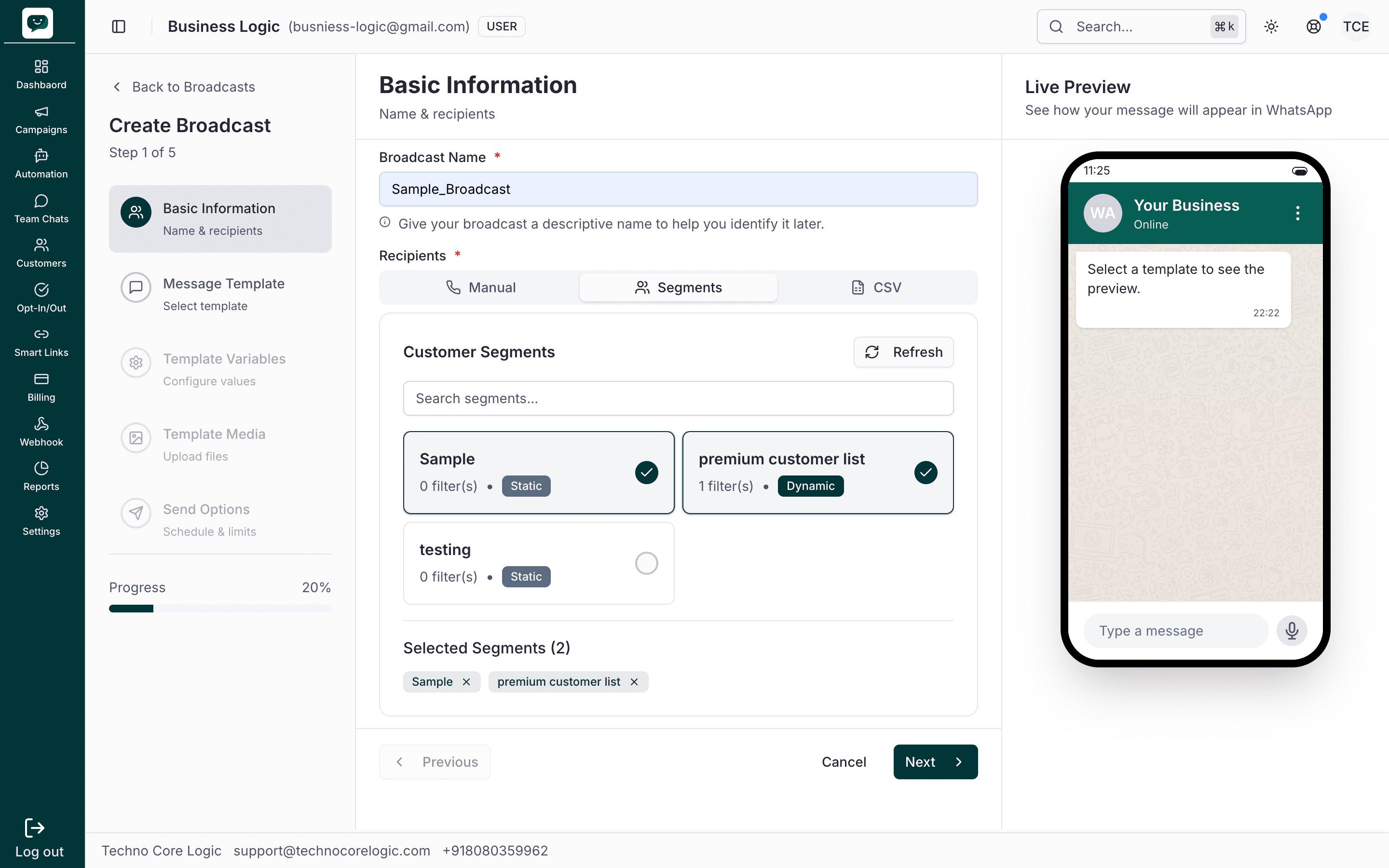
With the Segments tab selected, you see the Broadcast Name field (e.g. "Sample_Broadcast") and a Search segments... box with a Refresh button. Segment cards list your segments (e.g. "Sample", "premium customer list", "testing") with filter count and type (Static/Dynamic). Tick the segments you want; selected ones appear as removable tags under Selected Segments. The right-hand Live Preview shows a WhatsApp-style phone; it will show the template once you pick one in Step 2.
Recipients via CSV – Upload
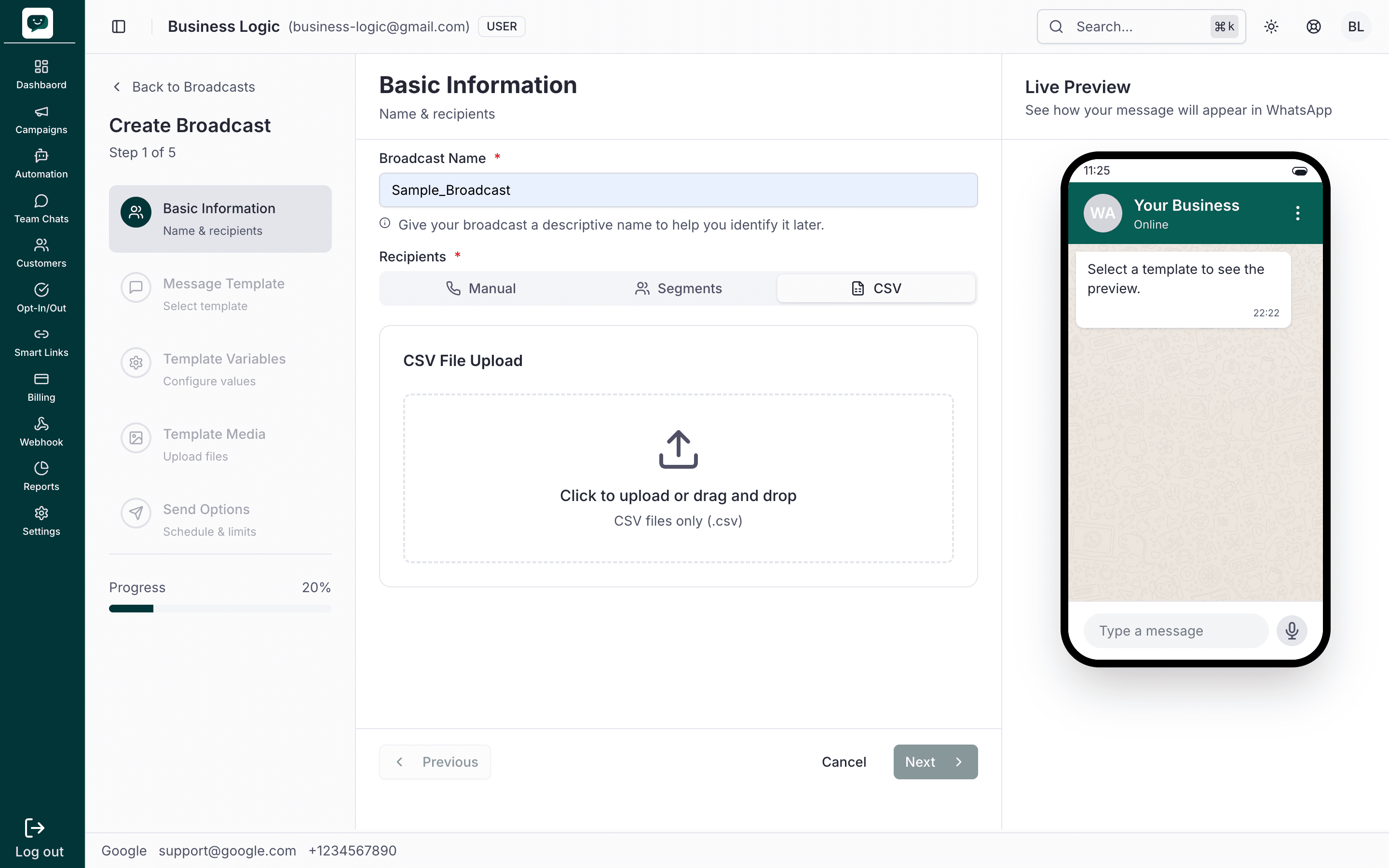
With the CSV tab selected, a large upload area appears: Click to upload or drag and drop, with CSV files only (.csv). Enter your Broadcast Name as usual, then upload a CSV that contains at least a column of phone numbers; you can add extra columns (e.g. Name, Salutation, Amount) to use as template variables later.
Recipients via CSV – After upload
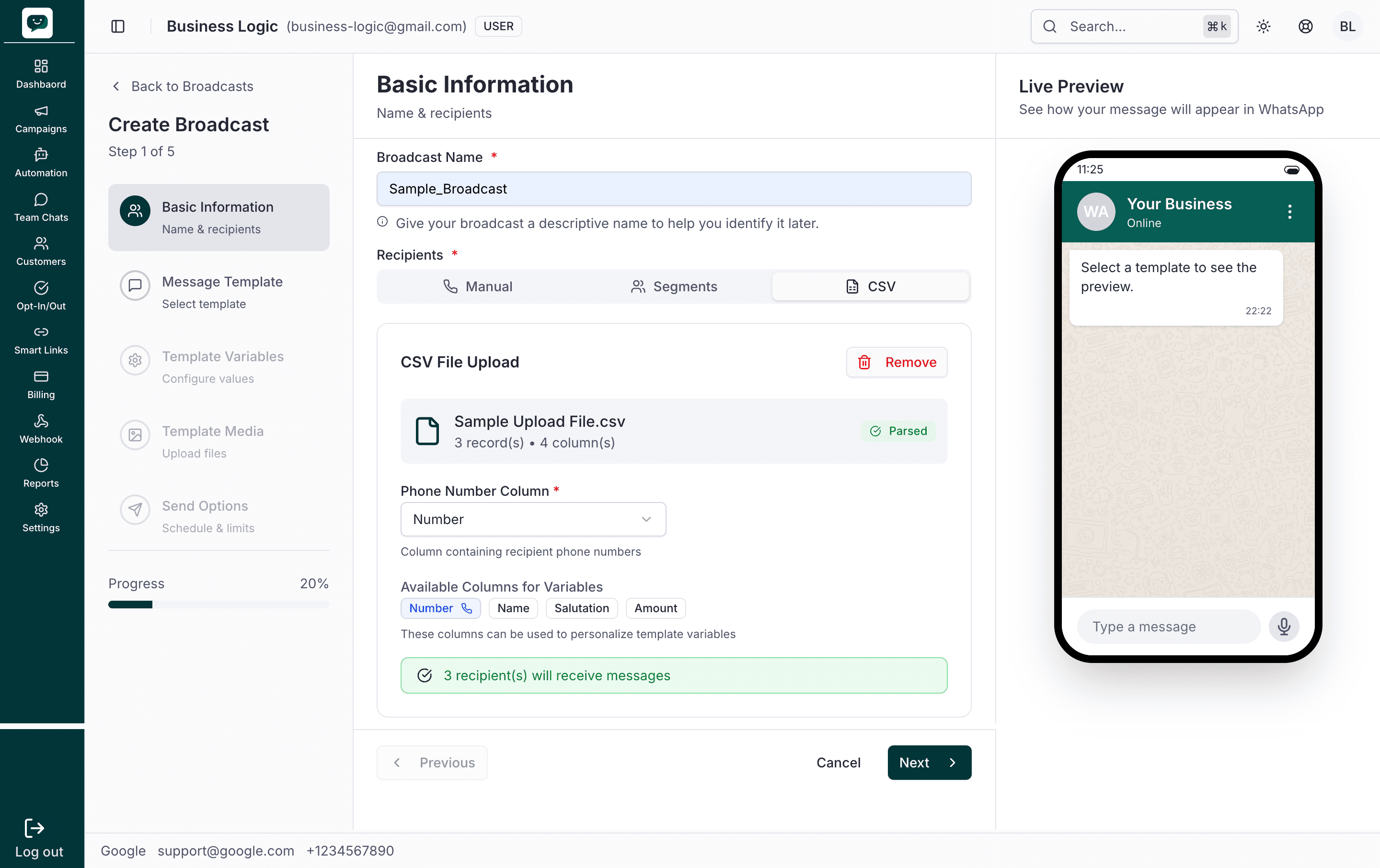
After a CSV is uploaded, the file is parsed and you see the filename (e.g. "Sample Upload File.csv"), record(s) and column(s) count, and a Parsed confirmation. Choose the Phone Number Column in the dropdown (e.g. "Number") — that column must contain recipient phone numbers. Available Columns for Variables lists all columns (e.g. Number, Name, Salutation, Amount); you can map these to template variables in Step 3. A green line confirms how many recipients will receive messages (e.g. "3 recipient(s)").
Recipients via Manual
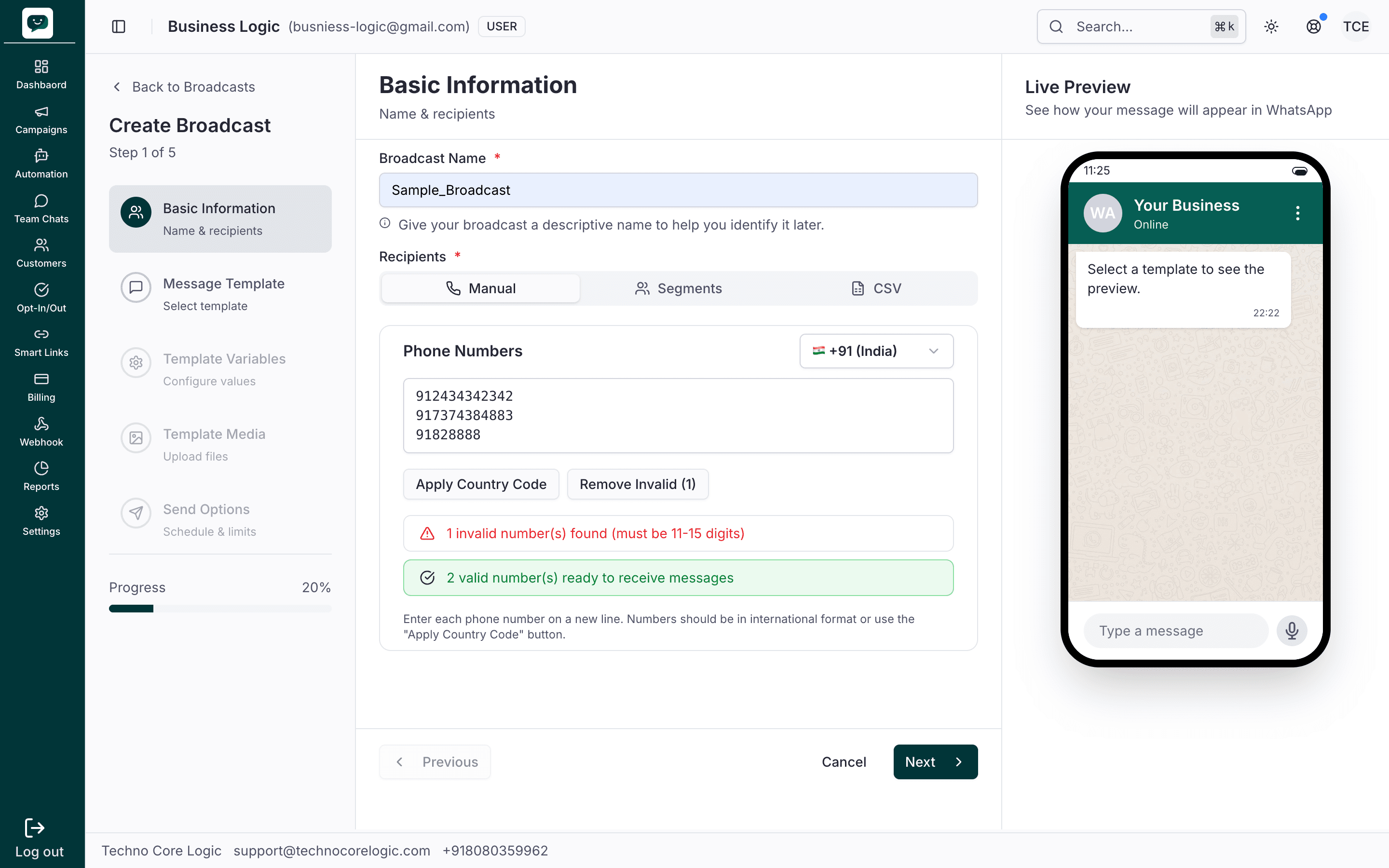
With the Manual tab selected, you get a Phone Numbers text area — enter one number per line (with or without country code). Use the Country Code dropdown (e.g. +91 India) and Apply Country Code to add the code to lines that don’t have it. Remove Invalid (1) appears when some numbers fail validation (must be 11–15 digits); use it to strip bad rows. The UI shows how many numbers are invalid and how many are valid and ready to receive messages before you click Next.
Tip
Use Segments for recurring campaigns (e.g., weekly newsletters) so you don't re-upload contacts every time. Segments update automatically as new contacts match your criteria.
Step 2: Message Template
Step 2 is Message Template – Select template (Step 2 of 5, progress 40%). You pick the WhatsApp template for the campaign. Only Approved templates are listed. Below are the two main views: the template list and a template selected with Live Preview.
Template list
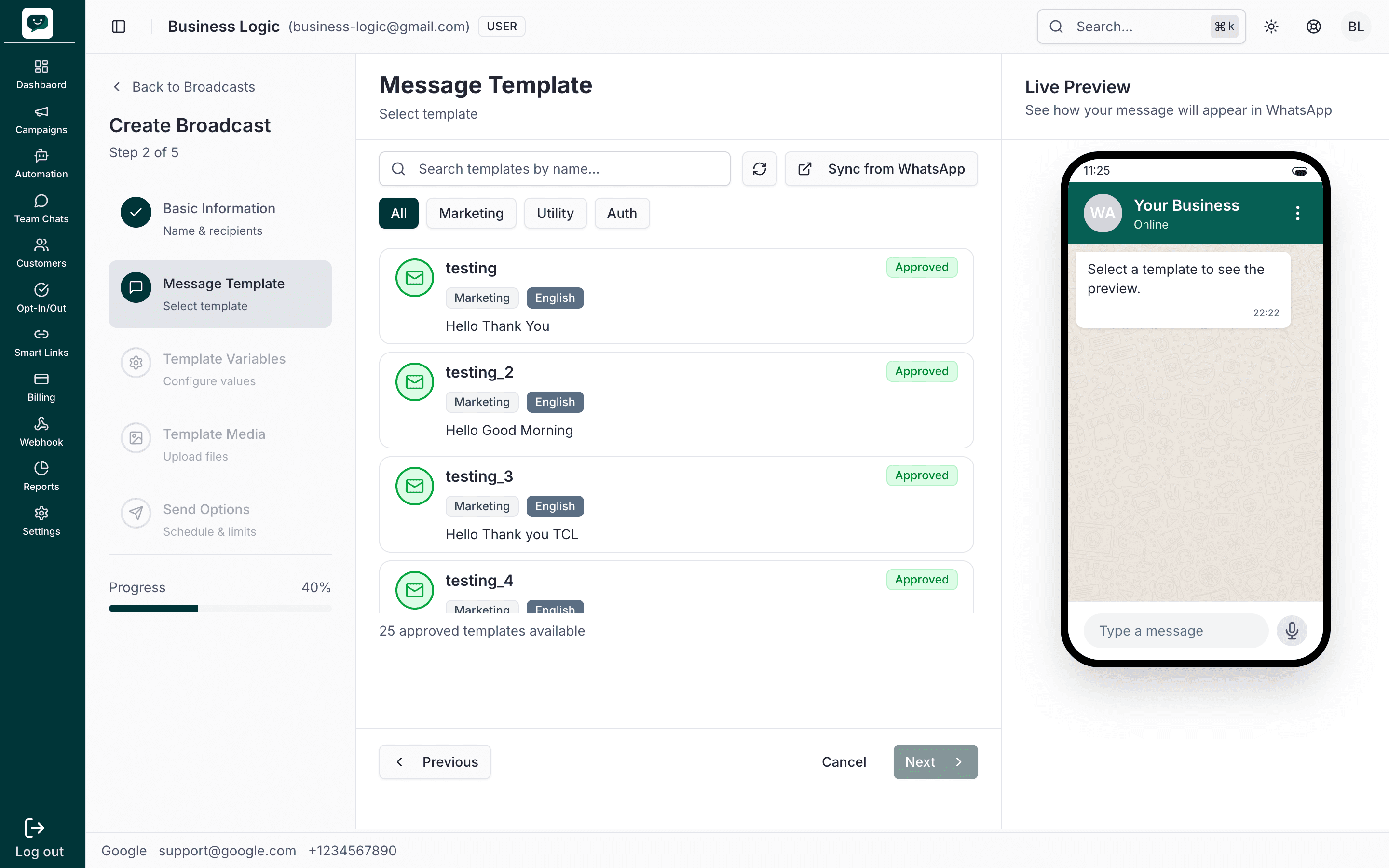
You see Search templates by name..., a refresh icon, and Sync from WhatsApp to load the latest templates. Filter by category with the tabs All, Marketing, Utility, and Auth. The list shows template cards with name (e.g. testing, testing_2), category (e.g. Marketing), language (e.g. English), and a short message preview. Each card has an Approved badge. The bottom line shows how many approved templates are available (e.g. "25 approved templates available"). Click a card to select it.
Template selected
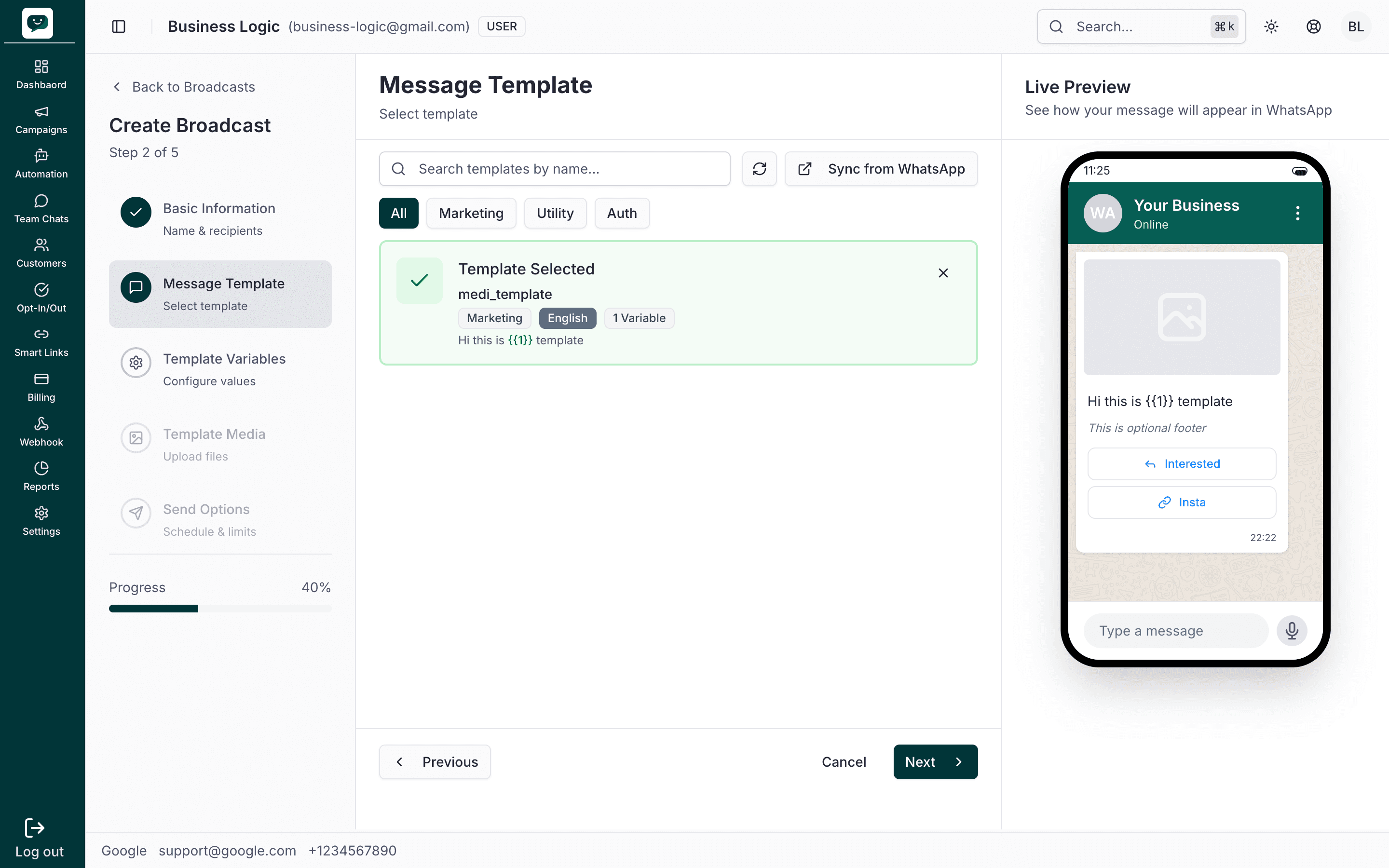
After you select a template, a Template Selected card appears with the template name (e.g. medi_template), tags for category (Marketing), language (English), and variable count (e.g. 1 Variable). The body text is shown with placeholders (e.g. "Hi this is (1) template"). Use the × on the card to clear the selection. The Live Preview on the right shows how the message will look in WhatsApp: header area (e.g. image placeholder), body text, optional footer, and buttons (e.g. "Interested", "Insta"). Click Next when ready.
No variable template
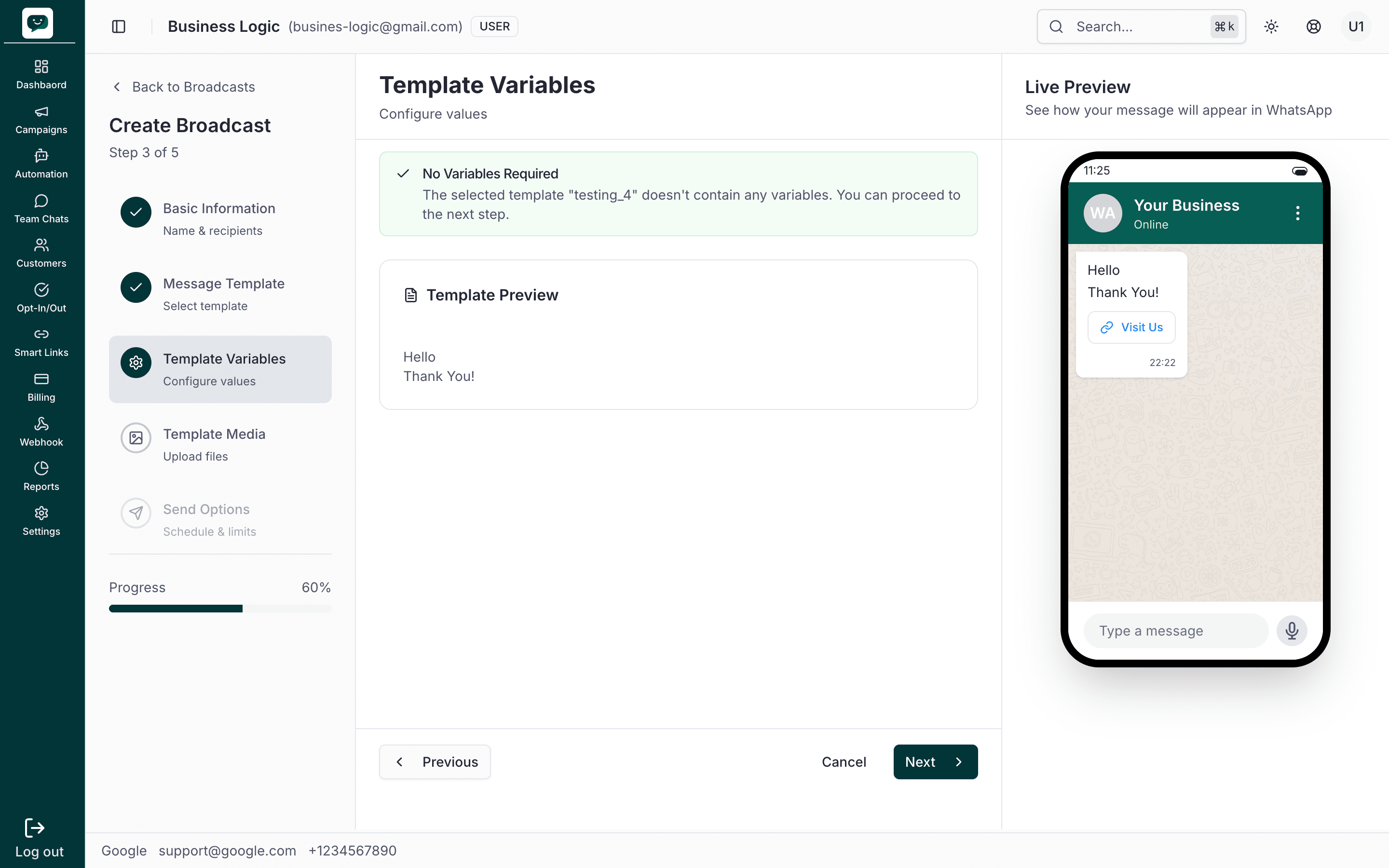
If you select a template that has no variables (e.g. testing_4 with a simple "Hello Thank You!" message), the next step (Template Variables) will show No Variables Required. A green message states: "The selected template 'testing_4' doesn't contain any variables. You can proceed to the next step." A Template Preview card shows the static message (e.g. "Hello Thank You!"), and the Live Preview shows the same text plus any buttons (e.g. "Visit Us"). No variable fields appear — just click Next to go to Template Media.
No approved templates?
You need at least one approved template to create a campaign. Go to Templates to create and submit one for Meta approval first. Approval typically takes minutes to 24 hours.
Step 3: Template Variables
Step 3 is Template Variables – Configure values (Step 3 of 5, progress 60%). You fill in the values for each placeholder in your template. The screen shows the template name and how many variables are configured (e.g. 2/2 filled). The options depend on how you added recipients: manual (static values), CSV (column mapping), or Segments (attribute mapping). If your template has no variables, you'll see No Variables Required and can skip ahead. Below are all cases with their screens.
Manual variable mapping – variables empty
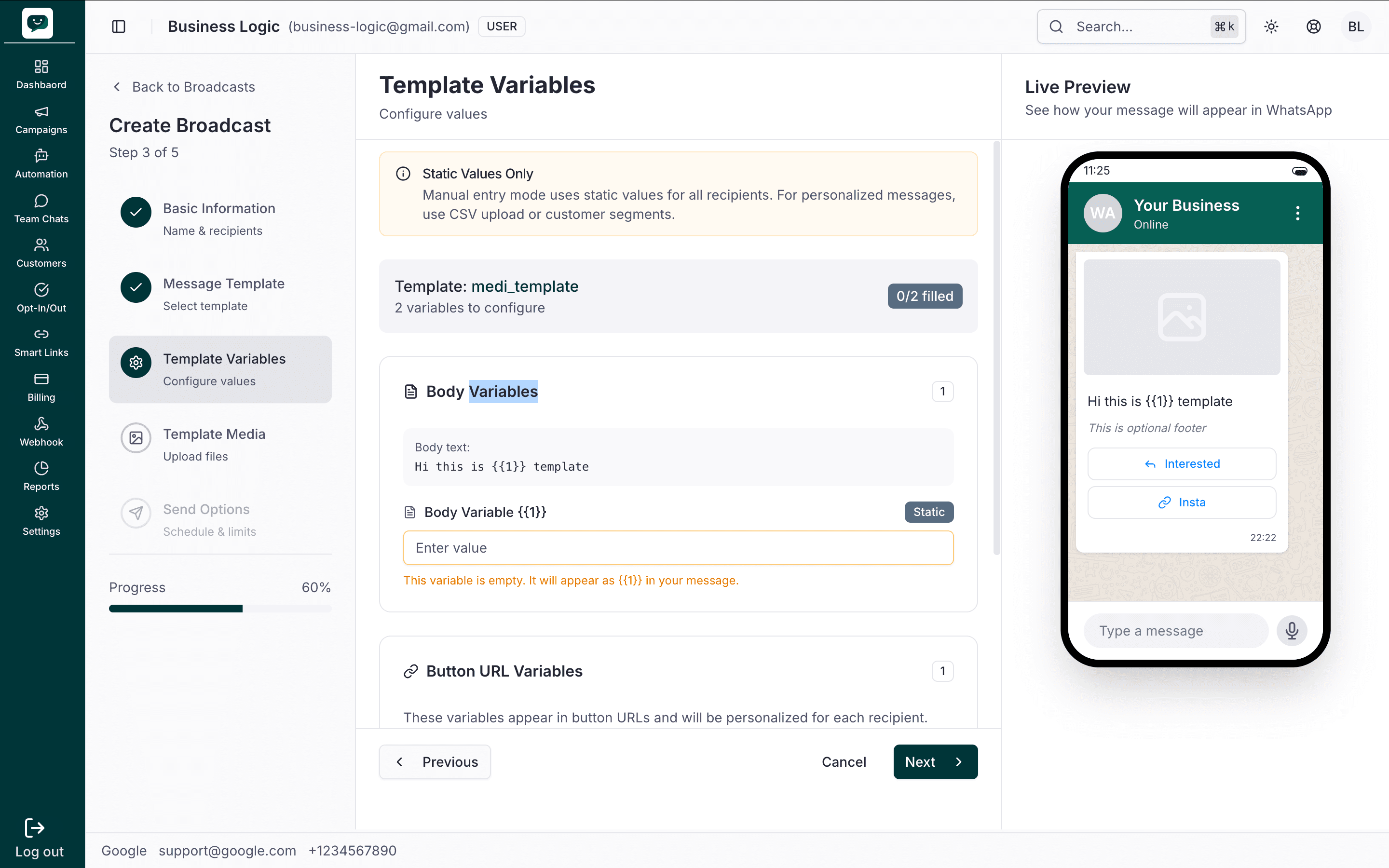
For manual recipients, an orange Static Values Only notice explains that one value will apply to all recipients; for personalized messages you’d use CSV or segments. The Template section (e.g. medi_template) shows 2 variables to configure and 0/2 filled. Under Body Variables you see the body text and an empty field for Body Variable (1) — an orange message warns that the variable is empty and will appear as a placeholder in the message. Button URL Variables appears below for any button URLs in the template. Fill each field to update the Live Preview on the right.
Manual variable mapping – variables filled
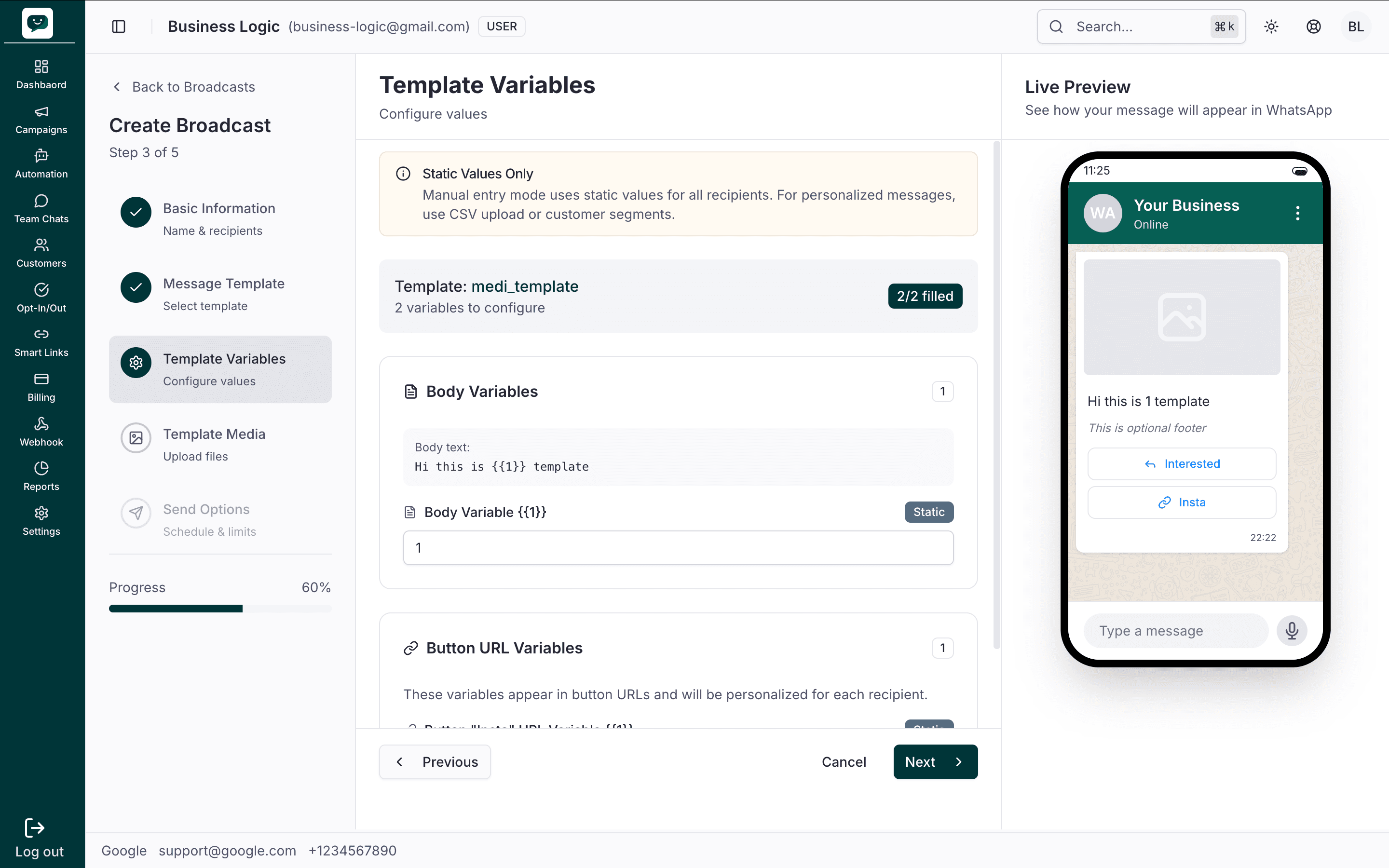
Once you enter a value (e.g. "1") in Body Variable (1) and any button URL variables, the badge shows 2/2 filled. The Live Preview updates: the message bubble shows the replaced text (e.g. "Hi this is 1 template") instead of the placeholder, with the footer and buttons unchanged. You can proceed to the next step.
Segment variable mapping
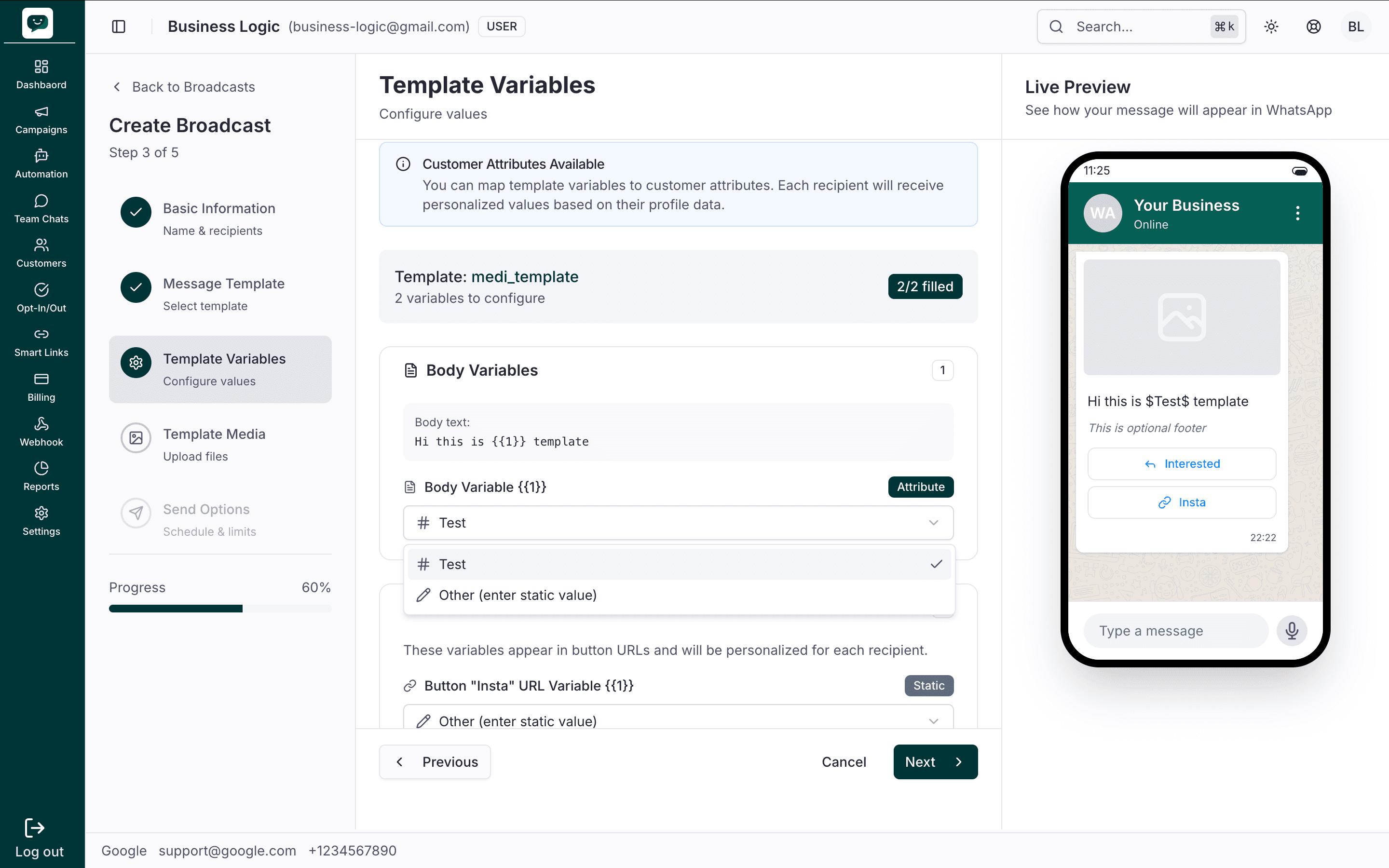
For Segment recipients, a blue Customer Attributes Available notice explains you can map variables to customer attributes so each recipient gets personalized content from their profile. The Body Variable dropdown lets you pick an attribute (e.g. # Test) or Other (enter static value). Button URL Variables (e.g. for the "Insta" button) can be set to Static or a custom value. The Live Preview shows sample personalized text (e.g. "Hi this is template") so you can confirm before continuing.
CSV mapping variable – column selection
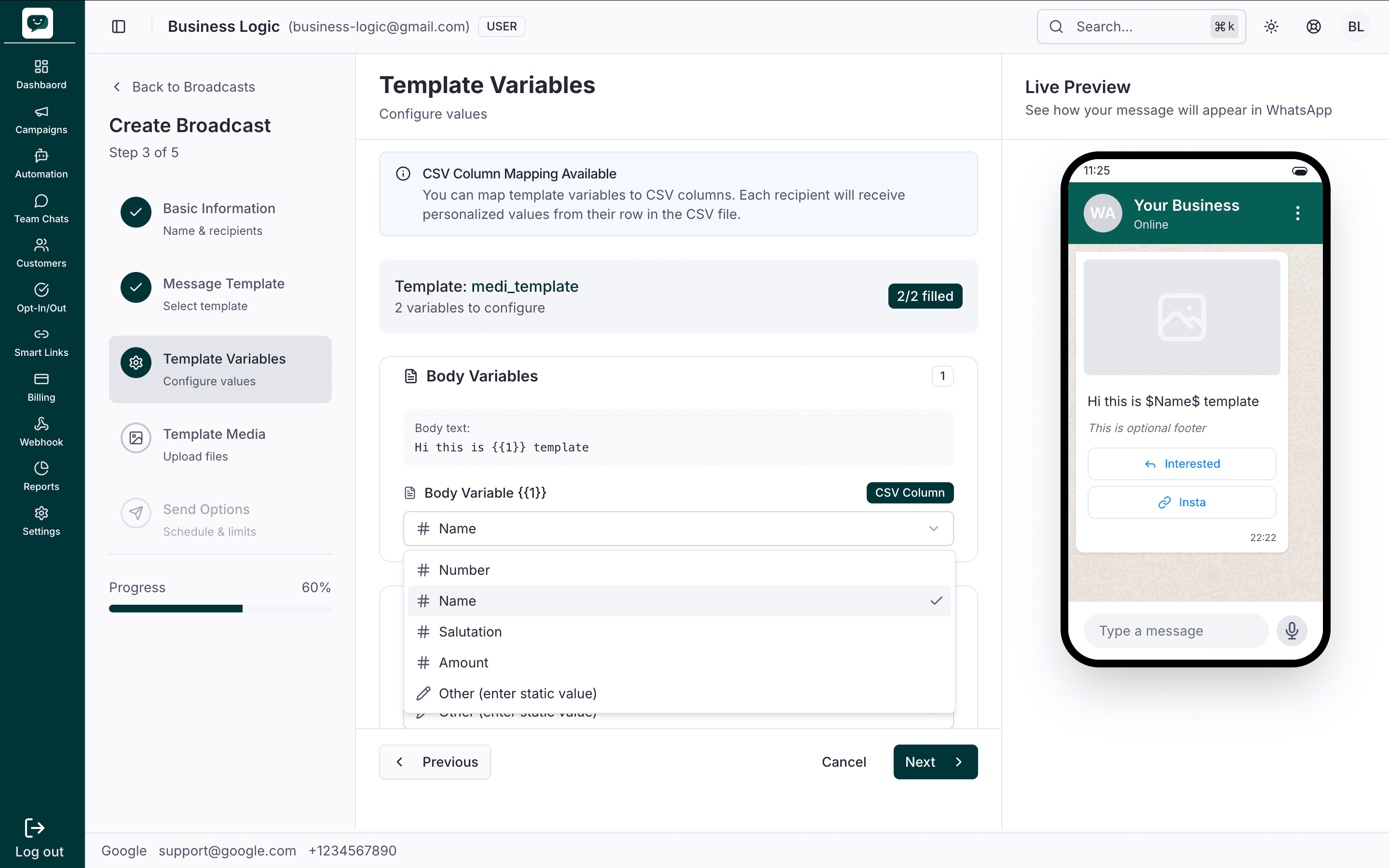
For CSV recipients, a blue CSV Column Mapping Available notice explains you can map template variables to CSV columns so each recipient gets values from their row. The Template card (e.g. medi_template) shows 2 variables to configure and 2/2 filled. Under Body Variables, Body Variable (1) has a CSV Column badge and a dropdown listing your CSV columns (e.g. # Name, # Number, # Salutation, # Amount) and Other (enter static value). Choose the column that should fill this variable (e.g. # Name). The Live Preview shows the mapped value (e.g. "") in the message.
CSV mapping variable – body and button URL
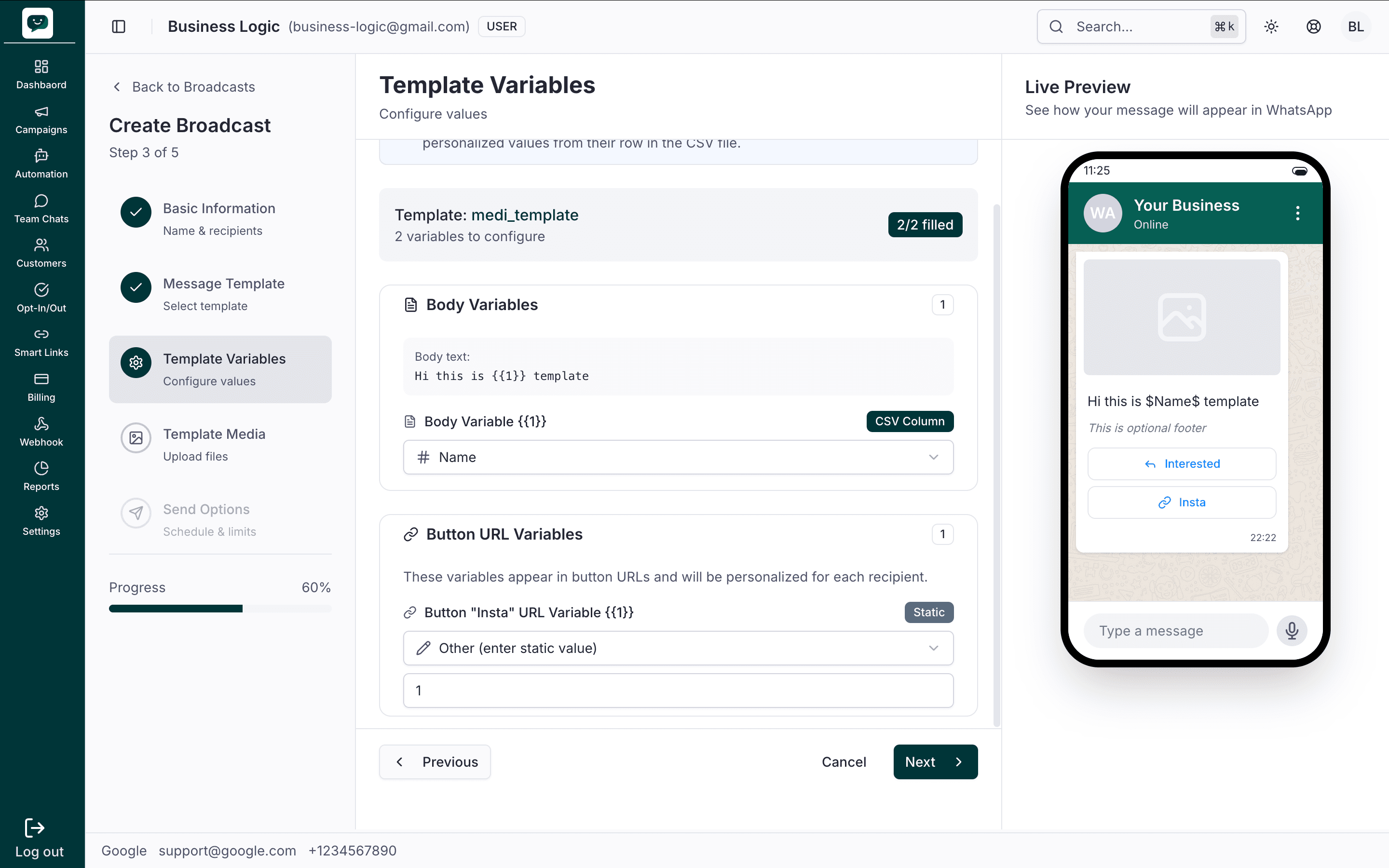
With CSV column mapping, the Body Variable is set to a column (e.g. # Name) and the Button URL Variable (e.g. for "Insta") can be Static or Other (enter static value) with a fixed value (e.g. "1"). The Live Preview shows "Hi this is template" and the footer and buttons. All variables are personalized from the CSV except those you set to a static value.
No variables required
If the template you selected has no variables (e.g. testing_4), Step 3 shows a green No Variables Required message: "The selected template 'testing_4' doesn't contain any variables. You can proceed to the next step." A Template Preview card displays the static message (e.g. "Hello Thank You!"). The Live Preview shows the same text and any buttons (e.g. "Visit Us"). No variable fields are shown — click Next to go to Template Media.
Named-variable templates
If the template was created with named variables, Step 3 shows one row per variable name instead of one per numbered slot. For example, vendor_name appears once even if the template uses it twice. Map each name to a CSV column, a customer attribute, or a static value, just like numbered variables. System variables such as customer.name, customer.phone and date.today fill in automatically for each recipient, so they have no row. A custom variable you leave empty uses its saved fallback value.
Personalization example
If your template says "Hi {{1}}, your order {{2}} has shipped!", map {{1}} to the contact's name attribute and {{2}} to the order ID column in your CSV.
Step 4: Template Media
Step 4 is Template Media – Upload files (Step 4 of 5, progress 80%). If your template has a header image, video, or document, you attach the file here. For carousel templates, you add media per card. If the template is text-only, the step shows No Media Required and you can skip ahead. Below are the views: upload and library, media selected, no media required, and carousel template media.
Upload and Select from Library
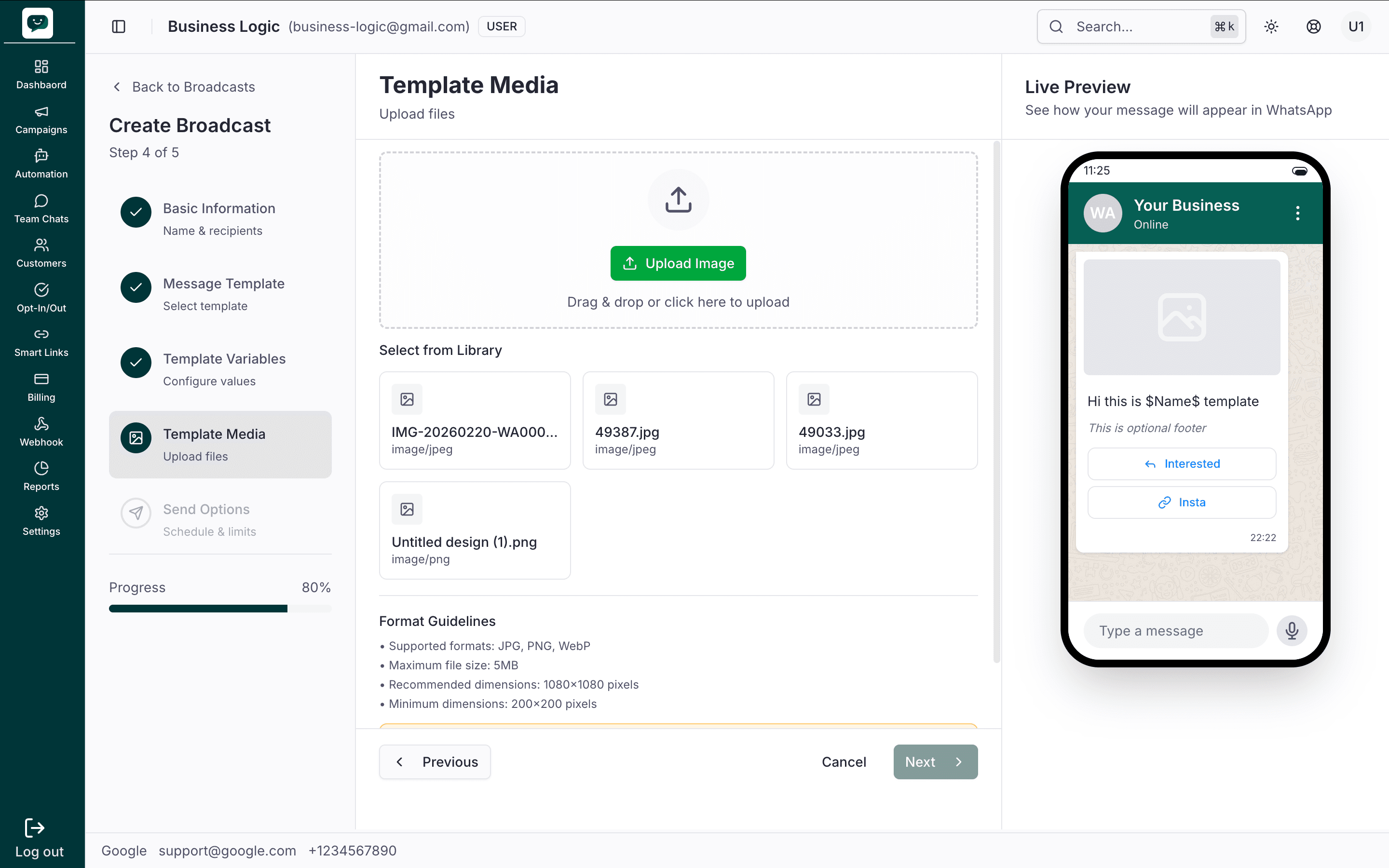
When the template needs media, you see a large Upload Image button and a drag-and-drop area: Drag & drop or click here to upload. Below that, Select from Library shows a grid of existing files from your Media Library (filename and type, e.g. image/jpeg, image/png). Format guidelines are listed: supported formats JPG, PNG, WebP; max 5 MB; recommended 1080×1080 px; minimum 200×200 px. Choose a file by uploading or clicking one in the library.
Media selected
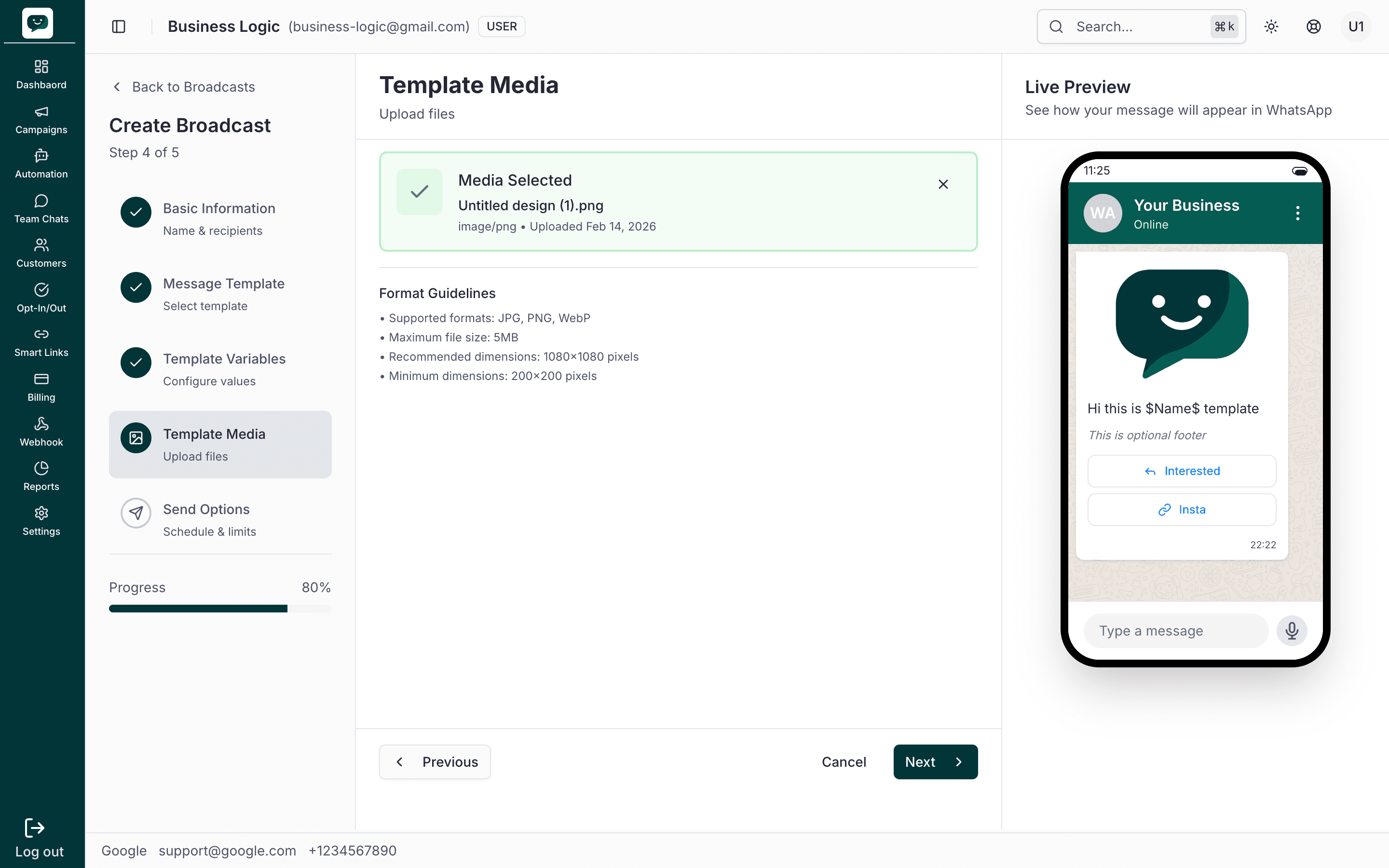
After you pick a file, a green Media Selected card appears with the filename (e.g. "Untitled design (1).png"), file type, and upload date. Use the × to remove it and pick another. The Live Preview on the right shows the message with your image in the header, plus body text, footer, and buttons. The same format guidelines are shown below. Click Next to continue.
No media required (text-only template)
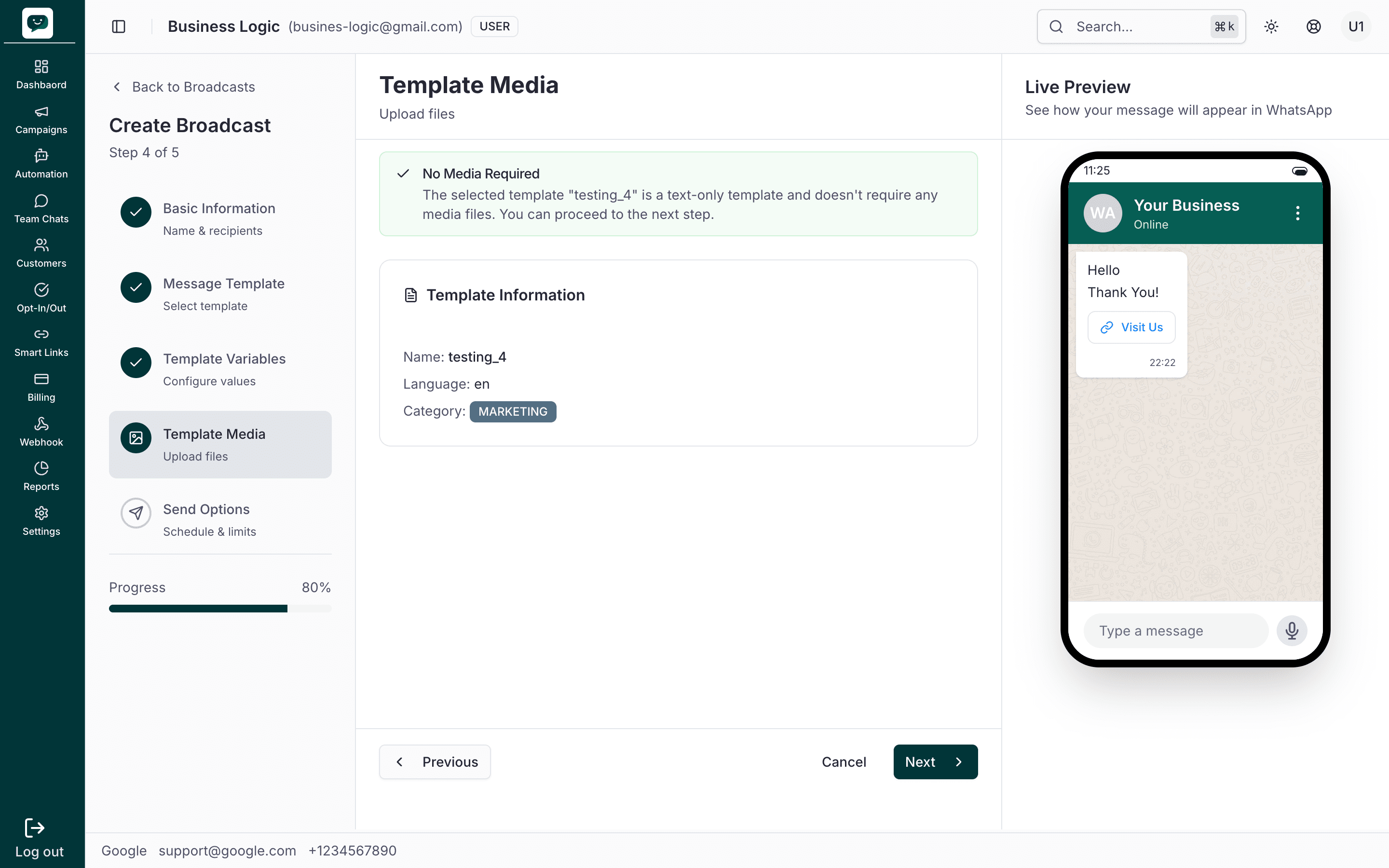
If the selected template has no media (e.g. testing_4), a green No Media Required message appears: the template is text-only and you can proceed to the next step. A Template Information card may show the template name, language (en), and category (e.g. MARKETING). The Live Preview shows the text message and any buttons (e.g. "Visit Us"). No upload or library is shown.
Carousel template media – card selection
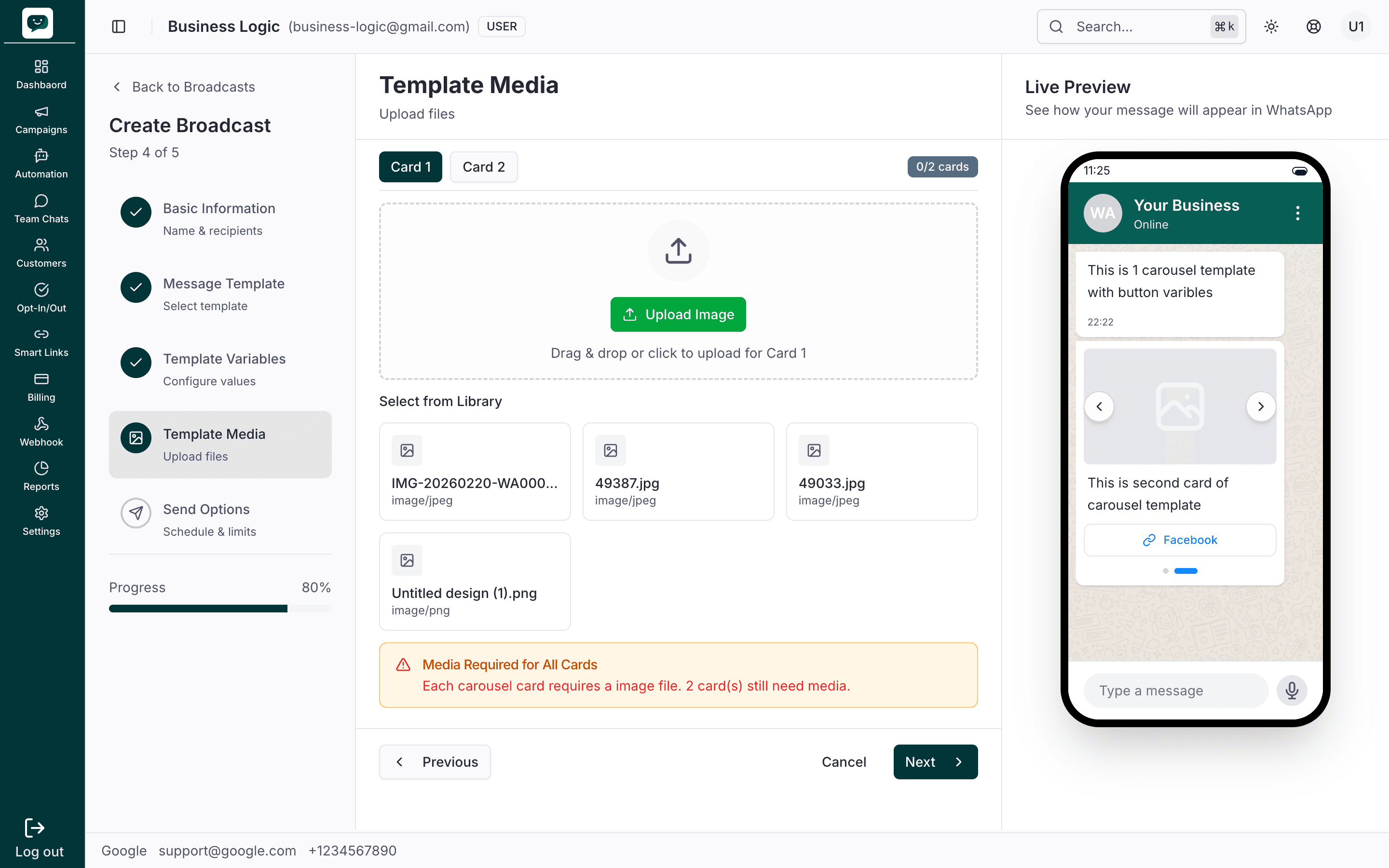
For carousel templates, Step 4 shows one tab per card (e.g. Card 1, Card 2) with a counter like 1/2 cards. Select a card tab to add or change its media. When a card has media, a green Card 1 Media Selected (or Card 2) box appears with the filename (e.g. "Untitled design (1).png") and type (image/png); use the × to remove it. An orange Media Required for All Cards message reminds you that each carousel card needs an image — e.g. "1 card(s) still need media" until all cards have a file. The Live Preview shows the carousel with the first card (image, title, subtitle, button) and dots/arrows for other cards.
Carousel template media – preview
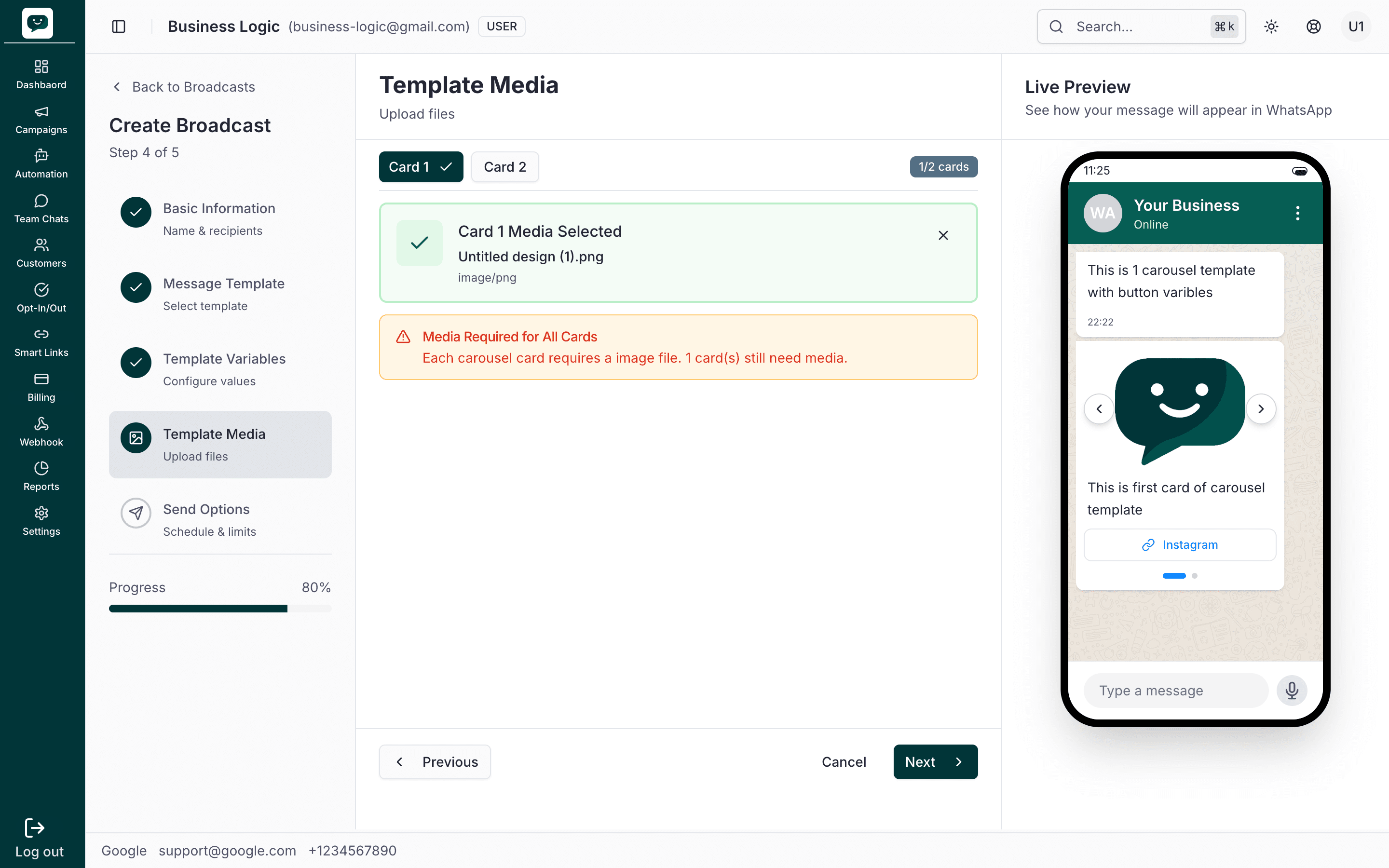
The Live Preview for a carousel shows the intro text (e.g. "This is 1 carousel template with button variables"), then the first carousel card: image (e.g. smiley icon), text "This is first card of carousel template", and a link button (e.g. "Instagram"). Dots and left/right arrows indicate multiple cards. Add media for each card using the Card 1, Card 2, … tabs until the warning is gone, then click Next.
| Media type | Supported formats | Max size |
|---|---|---|
| Image | JPG, PNG, WebP | 5 MB |
| Video | MP4 | 16 MB |
| Document | 100 MB |
Size matters
Files exceeding WhatsApp's limits will fail at send time. Check your file before proceeding.
Step 5: Send Options
Step 5 is Send Options – Schedule & limits (Step 5 of 5, progress 100%). You choose when to send and optional limits. At the top, summary cards show Recipients, Messages, Est. Duration, and Send Type. Below are the four views: Send Now, Schedule, throttling and limits, and full summary with scheduled date.
Send Now
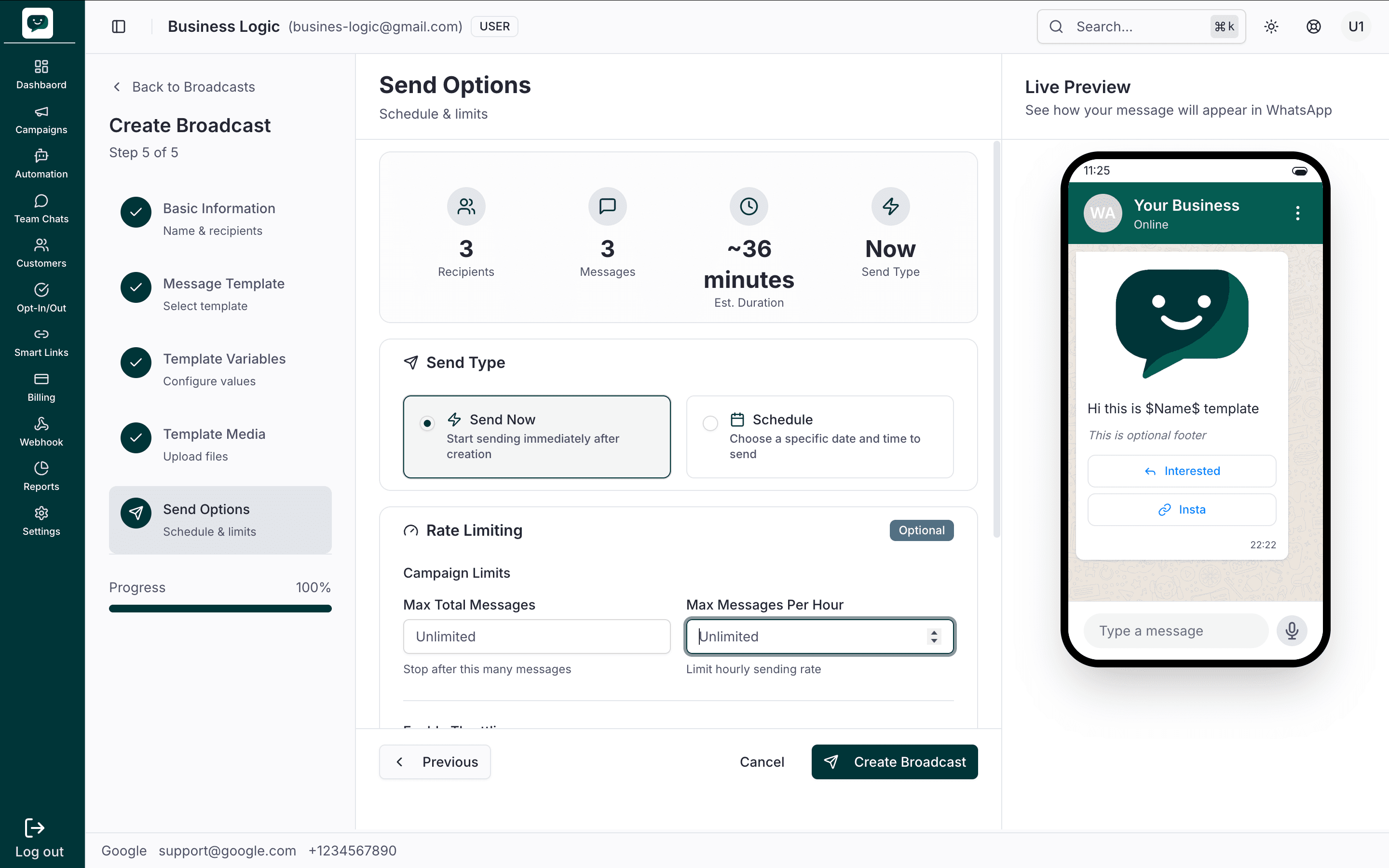
With Send Now selected, the summary shows 3 Recipients, 3 Messages, ~36 minutes Est. Duration, and Now as Send Type. The Campaign Limits section (optional) has Max Total Messages (e.g. "Stop after this many messages") and Max Messages Per Hour (e.g. "Limit hourly sending rate"), both set to Unlimited by default. At the bottom, < Previous, Cancel, and the green Create Broadcast button let you go back, cancel, or start sending immediately.
Schedule
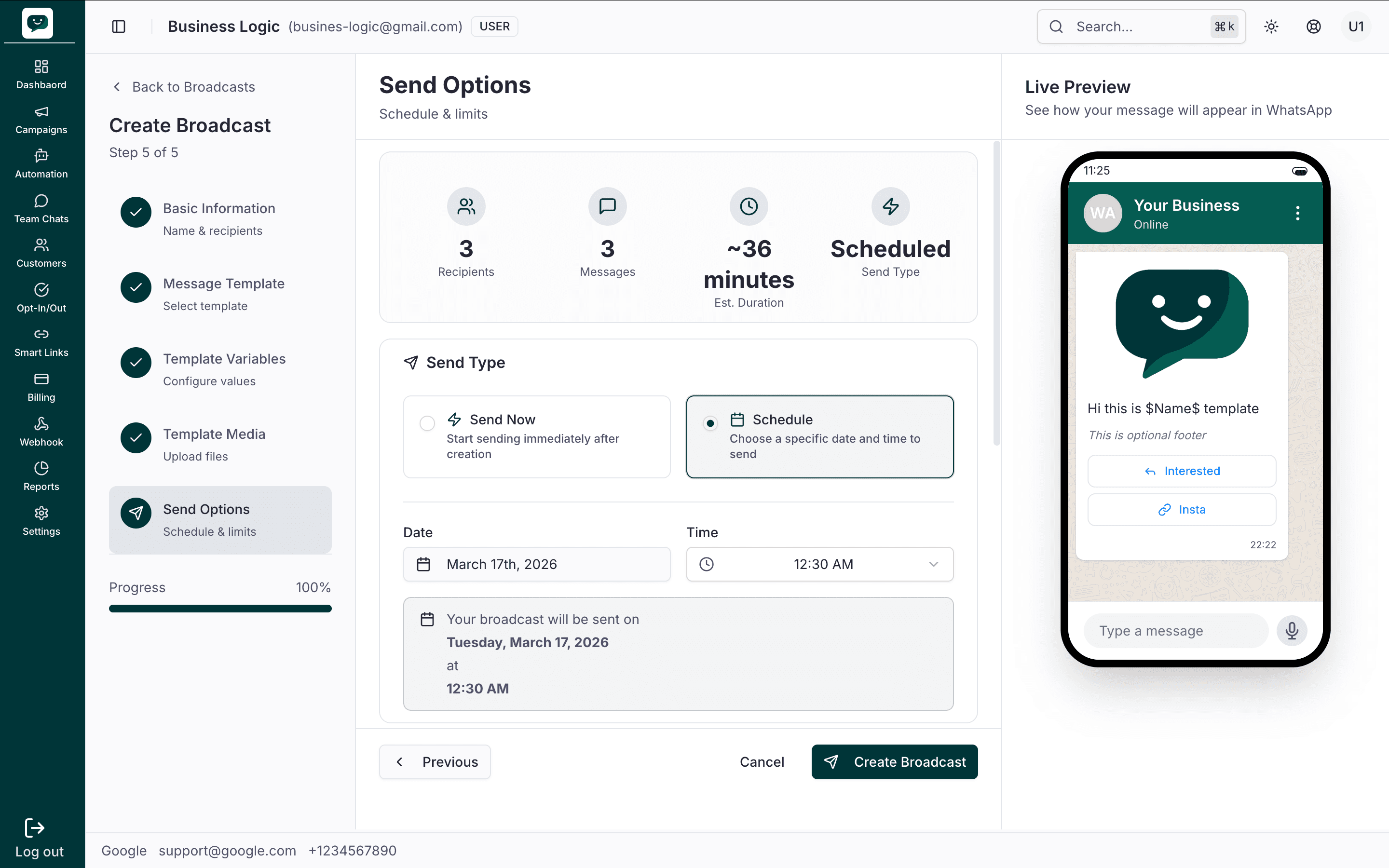
With Schedule selected, you get Date (e.g. March 17th, 2026) and Time (e.g. 12:30 AM) pickers. A confirmation line appears: "Your broadcast will be sent on Tuesday, March 17, 2026 at 12:30 AM." The summary cards at the top show Scheduled as Send Type. Set the date and time, then click Create Broadcast to queue the campaign; it will send automatically at the chosen time.
Throttling and limits
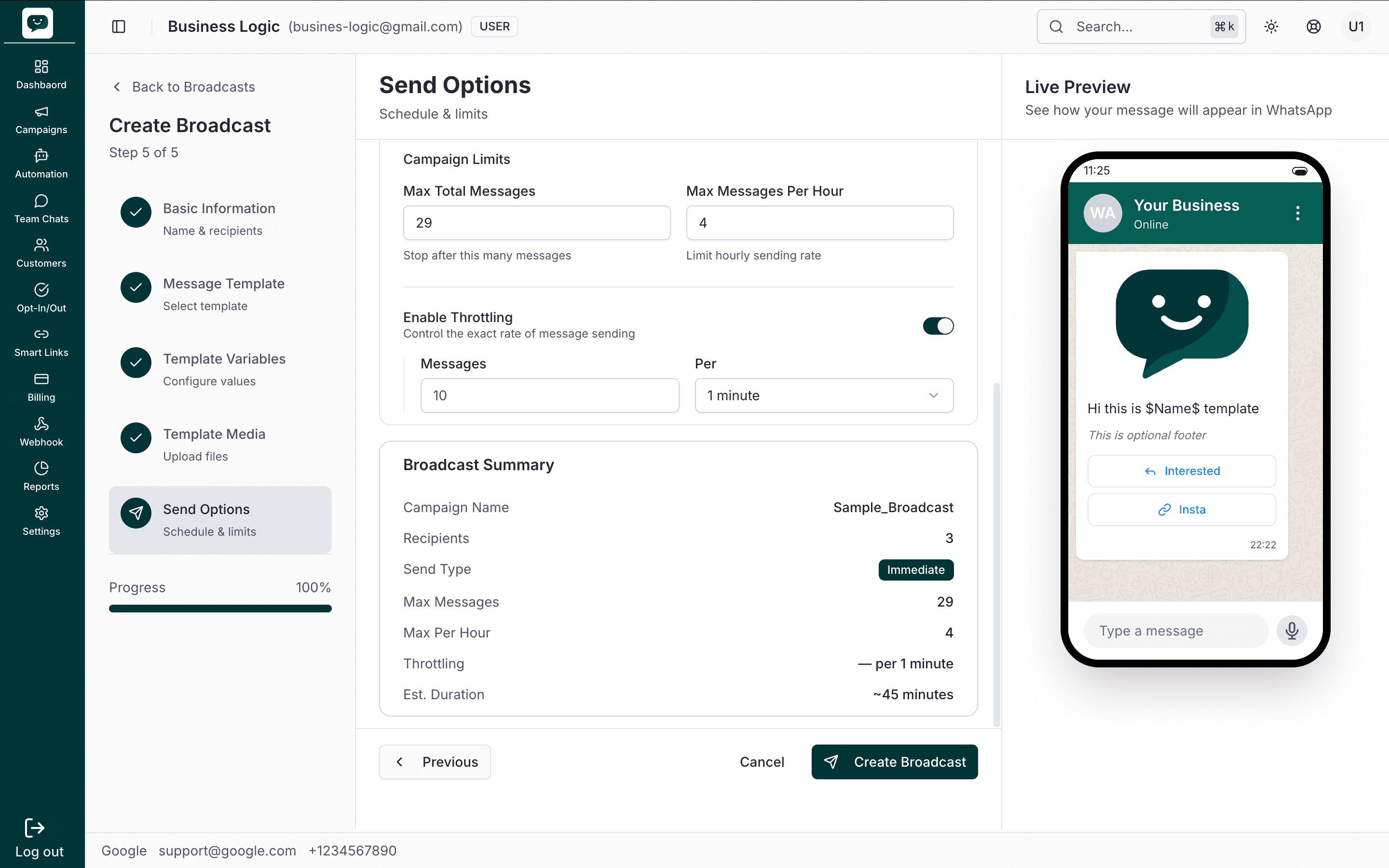
In the optional Campaign Limits section you can set Max Total Messages (e.g. 29 — "Stop after this many messages") and Max Messages Per Hour (e.g. 4 — "Limit hourly sending rate"). Enable Throttling lets you control the exact rate: e.g. 10 messages Per 1 minute. When throttling is on, the Broadcast Summary shows campaign name (e.g. Sample_Broadcast), Recipients (3), Send Type (Immediate or Scheduled), Max Messages, Max Per Hour, Throttling rate, and Est. Duration (e.g. ~45 minutes).
Full summary (scheduled with limits)
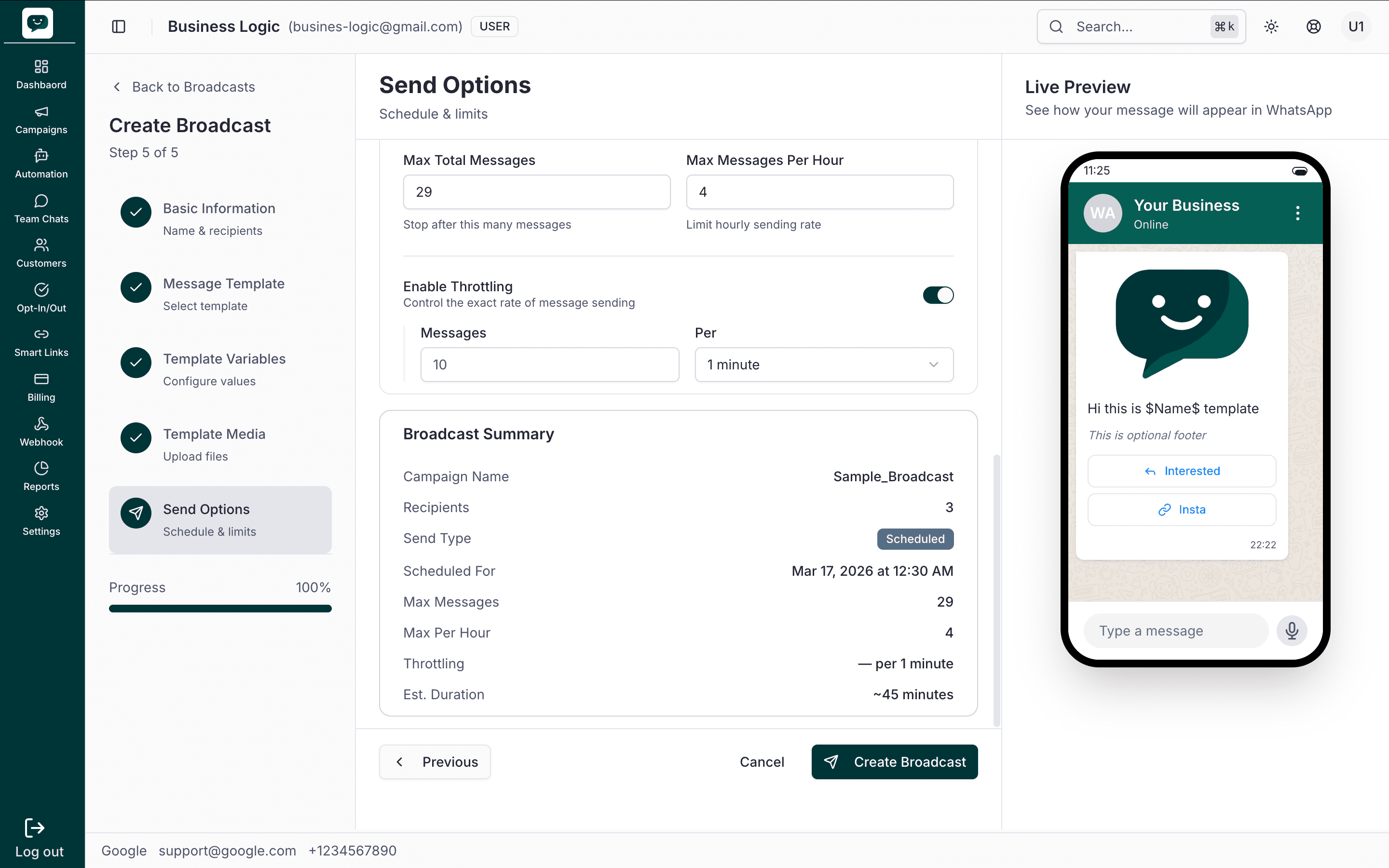
The Broadcast Summary card lists all choices: Campaign Name, Recipients, Send Type (e.g. Scheduled in a pill), Scheduled For (e.g. Mar 17, 2026 at 12:30 AM), Max Messages, Max Per Hour, Throttling (e.g. per 1 minute), and Est. Duration (e.g. ~45 minutes). Review everything, then click Create Broadcast to submit. Use < Previous to change a step or Cancel to abandon.
Scheduling tip
Schedule campaigns for when your audience is most active. Avoid late nights and early mornings — messages sent at the right time get higher read rates. After clicking Create Broadcast, scheduled campaigns appear in Schedule Campaign until they run.
After submitting, you can track delivery in real time from the Delivery Report.
Campaign Statuses
| Status | Meaning |
|---|---|
| Draft | Campaign is saved but not submitted yet |
| Scheduled | Campaign is queued to send at the scheduled time |
| Sending | Campaign is actively being delivered |
| Completed | All messages have been processed |
| Paused | Campaign was paused manually (resume or cancel from the list) |
| Cancelled | Campaign was cancelled before completion |
| Failed | Campaign could not be sent (check error details) |
Best Practices
Troubleshooting
API campaigns
Template messages sent through the API can also show up here as a campaign. Pass a campaign_id with the send. It can be any string you like, such as an order batch, a date, or your own campaign key. The first send with a new id creates the campaign, and every later send with the same id joins it. You get the same reporting as a dashboard campaign: sent, delivered, read and failed counts, button replies, the recipient list, and failure reasons.
{
  "to": "919876543210",
  "campaign_id": "diwali-2026",
  "campaign_name": "Diwali offers",
  "message": {
    "message_type": "template",
    "template_name": "diwali_offer",
    "template_language": "en_US",
    "body_variables": ["John"]
  }
}- Name:
campaign_nameis used when the campaign is created. Without it, the campaign is called Custom campaign. - Templates only: a campaign is locked to the template and WhatsApp number of its first send. Sending another template under the same id is rejected. Use a new
campaign_idfor it. - Bulk and GET sends: pass
campaign_idon the bulk endpoint, orcampaignId/campaignNameon the GET endpoint. - In the list: API campaigns carry an API badge, and the search box also matches their
campaign_id. They stay open, so there is no cancel or retry. Re-send failed messages from your own system. - Billing: each message is charged when it is sent, the same as any API send. Nothing is charged upfront.
- Webhooks:
message.reportevents for these messages includecampaign_id. See Webhooks.
How is this guide?