


Inbox Report
View incoming message logs with sender, type, content, timestamp, filters, and export controls.
Inbox Report is a message-level log of incoming traffic to your account. It helps you audit who sent what, which message type was received, when it arrived, and how to filter/export records for operations or compliance review.
In the app: Dashboard → Reports → Inbox Report
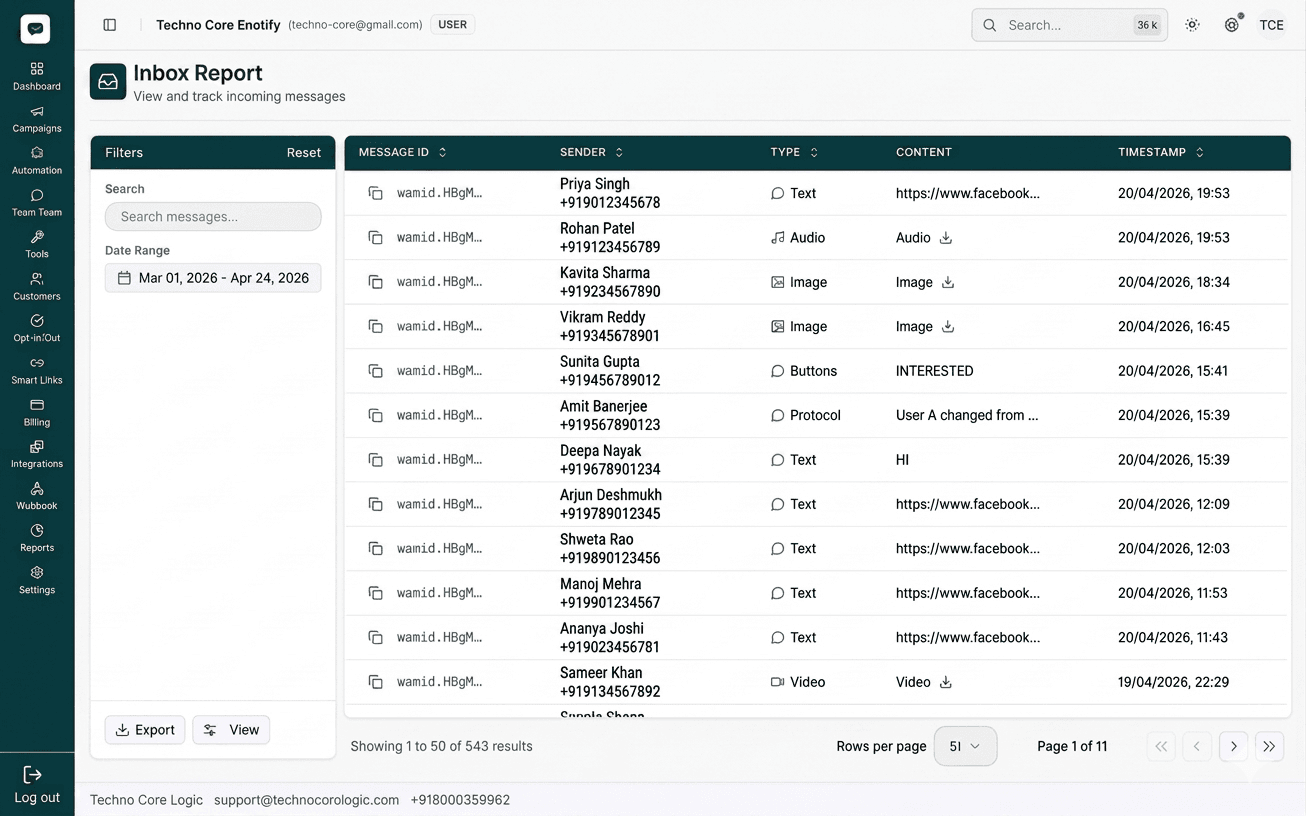
Screen layout
The report has two primary sections:
- Left filter panel
- Search (
Search messages...) - Date range selector
Resetfilter action- Footer actions:
ExportandView
- Search (
- Main message table
- Sortable headers
- Incoming message rows
- Bottom pagination with result count, rows-per-page selector, and page navigation
Table columns shown
From the screenshot, the visible columns are:
| Column | What it indicates |
|---|---|
| MESSAGE ID | Unique incoming message reference |
| SENDER | Contact name and phone number |
| TYPE | Message format (Text, Audio, Image, Buttons, Protocol, Video, etc.) |
| CONTENT | Message body or media label/preview |
| TIMESTAMP | Received date and time |
Notes from the UI
- You can see media entries (Audio/Image/Video) and text entries in one stream.
- Button/protocol events are also logged as message rows.
- IDs are copy-friendly and useful when matching with API or support traces.
Filtering
Use the left panel in this order:
- Search by message text snippet, sender, or part of a message ID.
- Set a Date Range to narrow the audit window.
- Use Reset when you want to clear all applied filters.
- Click View to load the filtered rows.
Export and paging
- Export downloads the currently filtered inbox dataset.
- Footer area shows:
- total matched rows (example in screenshot:
Showing 1 to 50 of 543 results) - Rows per page selector
- current page and navigation arrows
- total matched rows (example in screenshot:
Best Practices
How is this guide?