


Billing
Manage your plan, feature add-ons, and message rates — compare plans, track feature usage, view per-country pricing, and read your transaction ledger.
Billing is where you manage your plan, see what each feature is costing you, and review every charge. It is organised into four tabs: Plans, Usage / Add-ons, Rates, and Transactions.
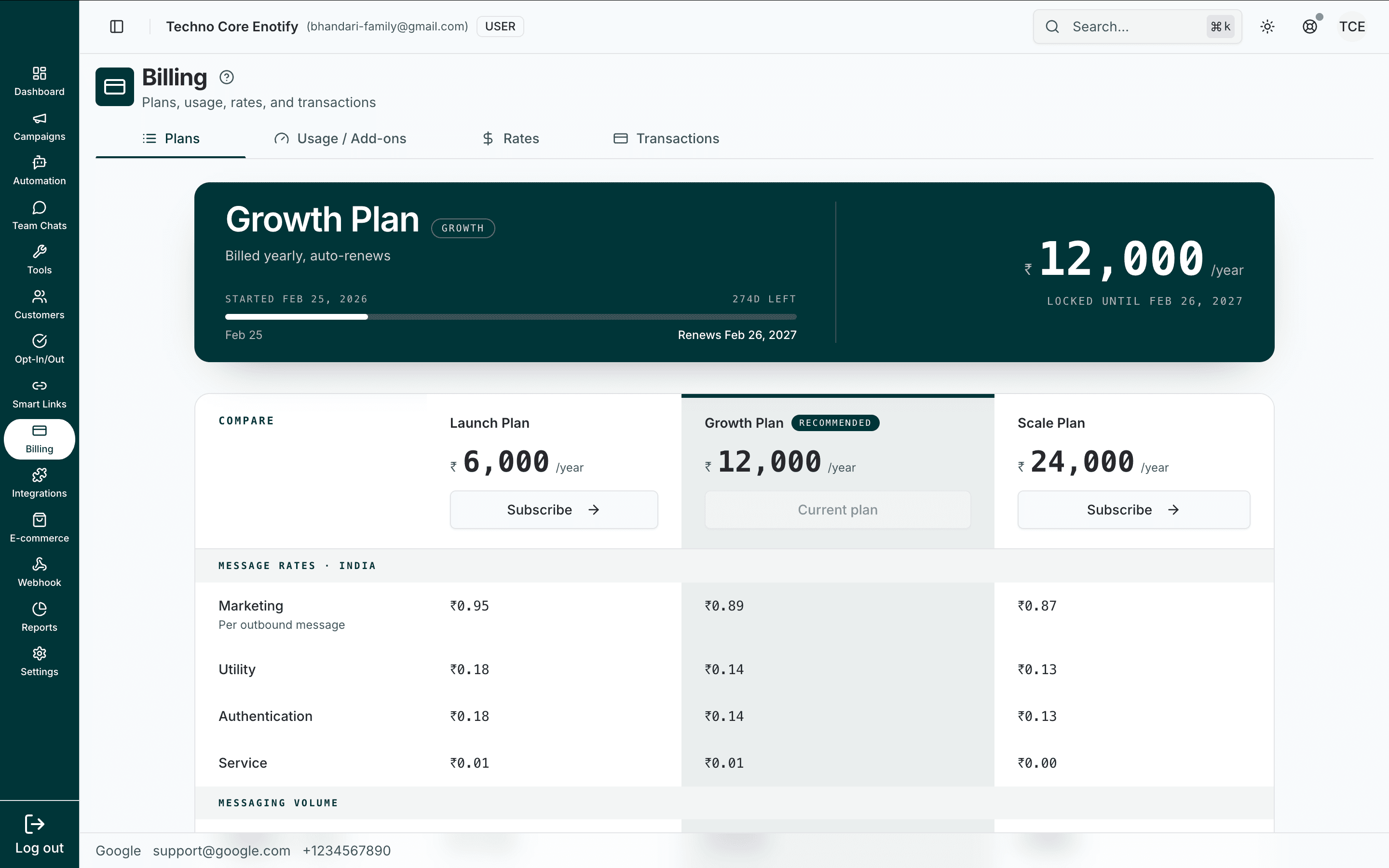
In the app: Dashboard → Billing
Plans
The Plans tab shows your current subscription and lets you compare it against the others. The card at the top summarises the plan you're on — its name, billing cycle, renewal date, annual price, and how much of the term is left.
| On the plan card | What it tells you |
|---|---|
| Plan name | Your current plan (e.g. Growth Plan) |
| Billing | The cycle, e.g. Billed yearly, auto-renews |
| Term progress | Days elapsed and days left, with the renewal date |
| Price | The annual cost, and the date your price is locked until |
Below the card, the Compare table lines up every plan side by side, with your current plan marked. Each plan shows its annual price and a Subscribe button (your own plan reads Current plan), then breaks down what differs:
| Row | What it compares |
|---|---|
| Message rates | Per-outbound-message price by category — Marketing, Utility, Authentication, and Service — for your country |
| Messaging volume | Included volume and feature allowances |
Rates fall as you move up
Higher plans charge less per message. If you send at volume, the lower per-message rate on a bigger plan can outweigh its higher subscription cost.
Usage / Add-ons
The Usage / Add-ons tab shows what you're using against your plan's allowances, and lets you top up.
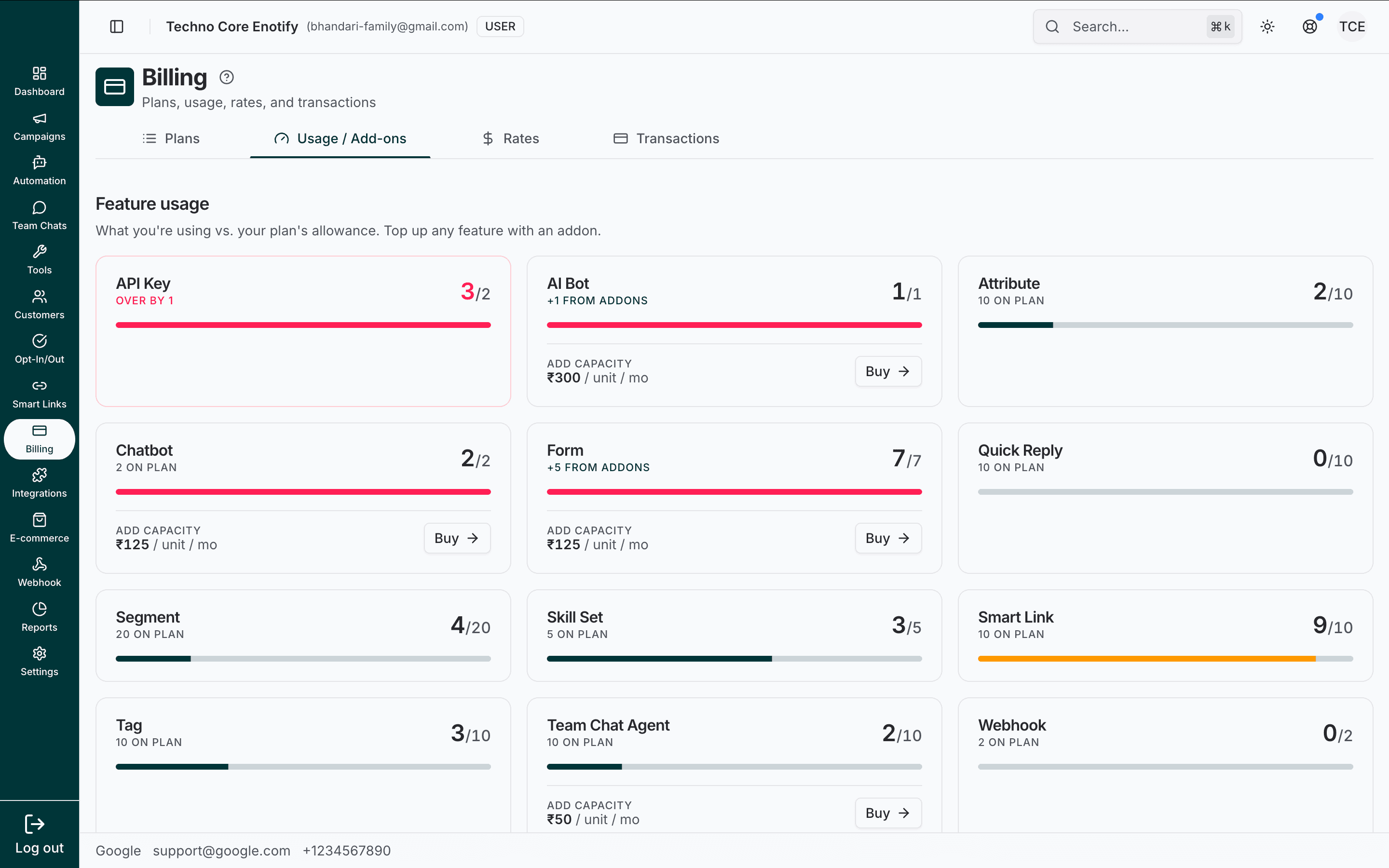
Feature usage
Each card tracks one feature as used / allowed, with a bar that turns amber as you approach the limit and red once you reach or exceed it. For example, Smart Link 9/10 is near its cap, while API Key 3/2 reads Over by 1.
Where a feature can be topped up, the card shows an Add capacity price (e.g. ₹125 / unit / mo) and a Buy button. Buying capacity raises that feature's allowance; the card then notes the extra, such as +5 from addons.
Feature add-ons
Scroll down for add-ons that switch whole capabilities on. Each shows its monthly price and an Enable button, or an Enabled badge if it's already active.
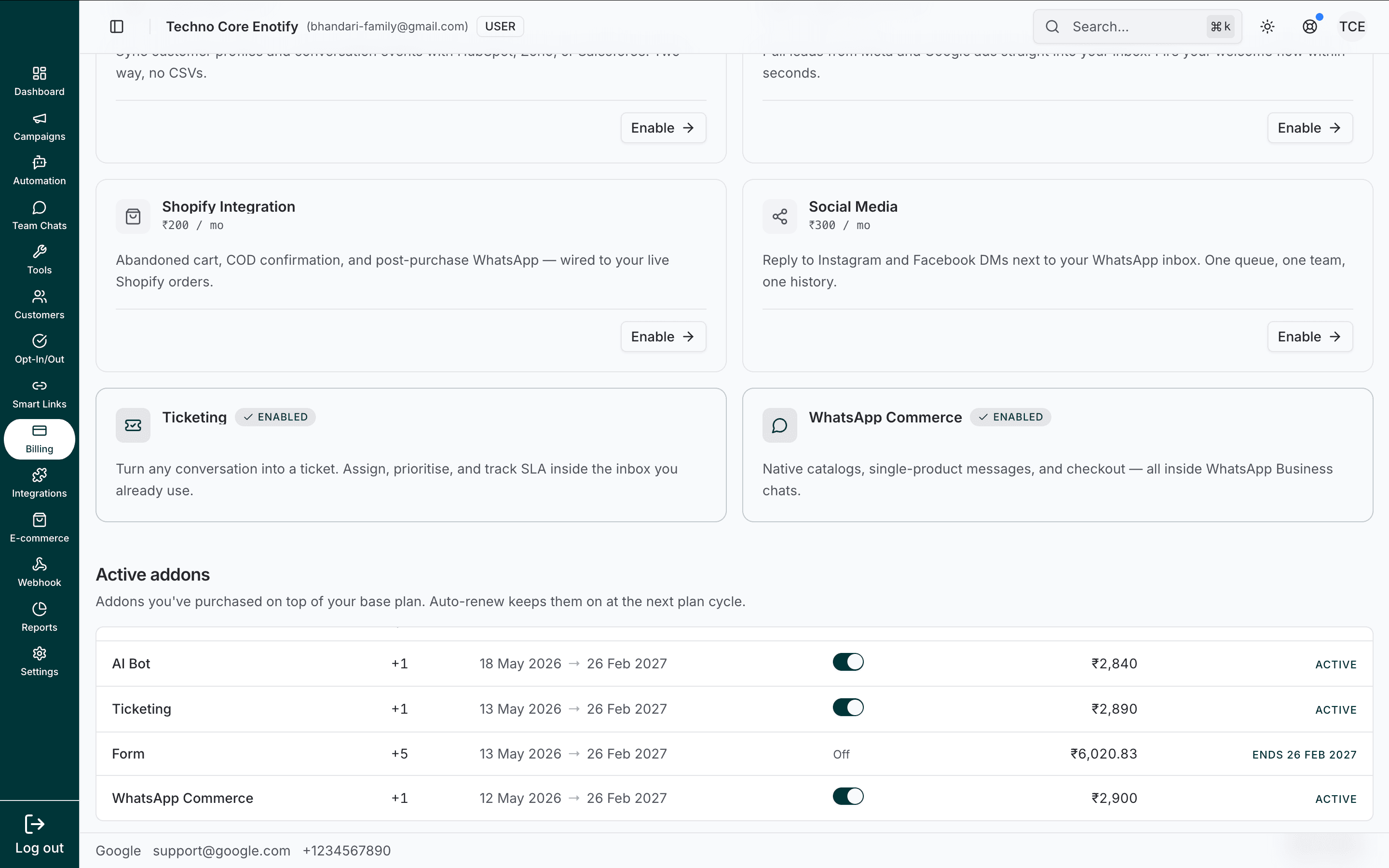
Examples include CRM sync, lead-ad capture, Shopify Integration, Social Media (Instagram and Facebook DMs), Ticketing, and WhatsApp Commerce.
Active add-ons
The Active addons table at the bottom lists everything you've bought on top of your base plan:
| Column | What it shows |
|---|---|
| Add-on | The feature and the quantity added (e.g. +5) |
| Term | The active date range |
| Auto-renew | A toggle — on keeps the add-on at the next plan cycle; off lets it lapse, shown as Ends … |
| Price | The add-on's cost |
| Status | Active, or Ends … when auto-renew is off |
Rates
The Rates tab is the full per-country price list. Use the Filters panel to search by country. Columns cover each message category — Marketing, Utility, Authentication, and RCS.
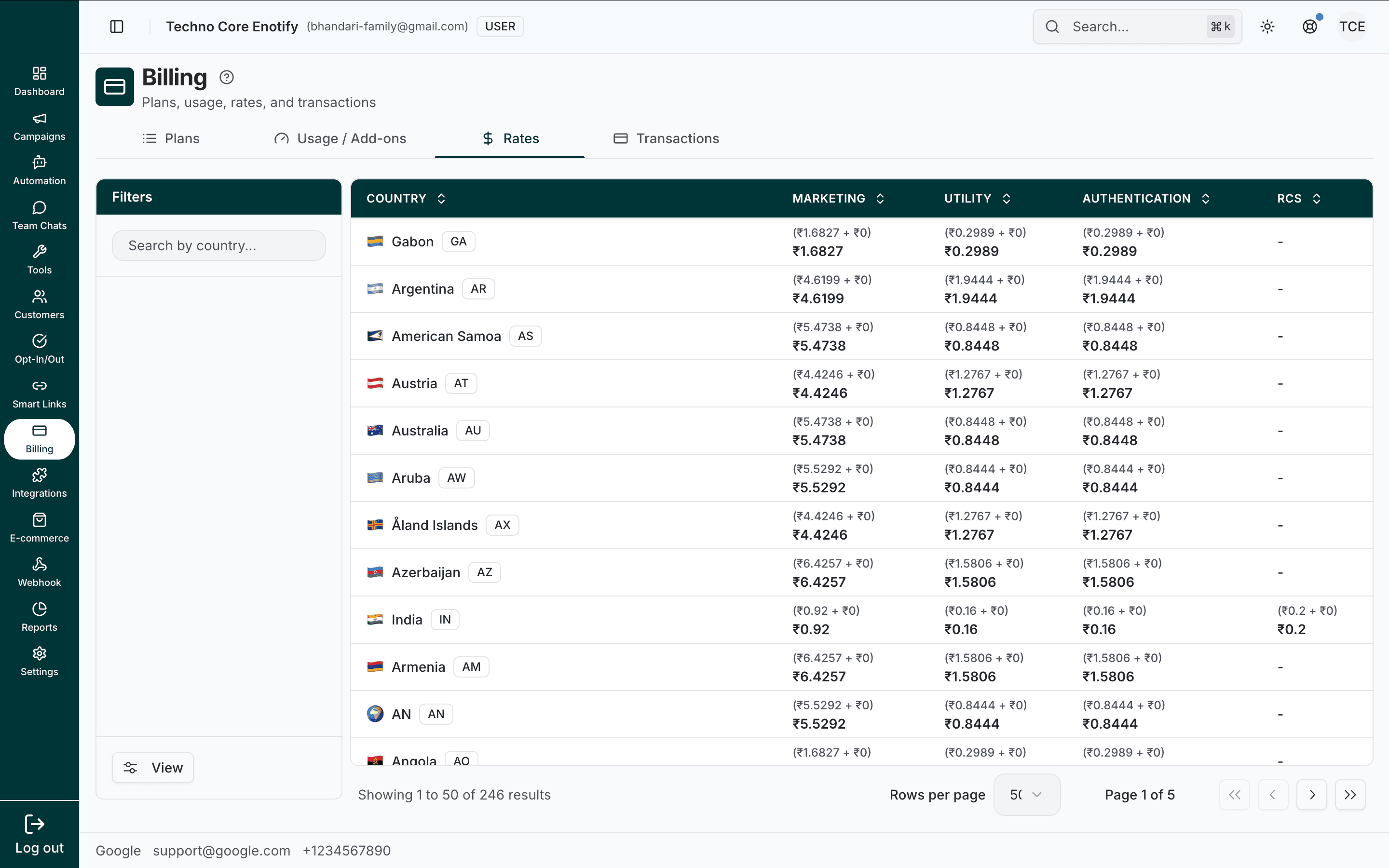
Each cell shows how the price is built up: the base WhatsApp rate, plus your reseller's margin, equal to the effective per-message rate you pay. A dash means the category isn't priced for that country.
Category drives cost
Marketing messages cost the most; Utility, Authentication, and Service cost less. Choosing the right category when you build a Template is the single biggest lever on your messaging spend.
Transactions
The Transactions tab is your complete ledger — every charge, recharge, and adjustment against your wallet.
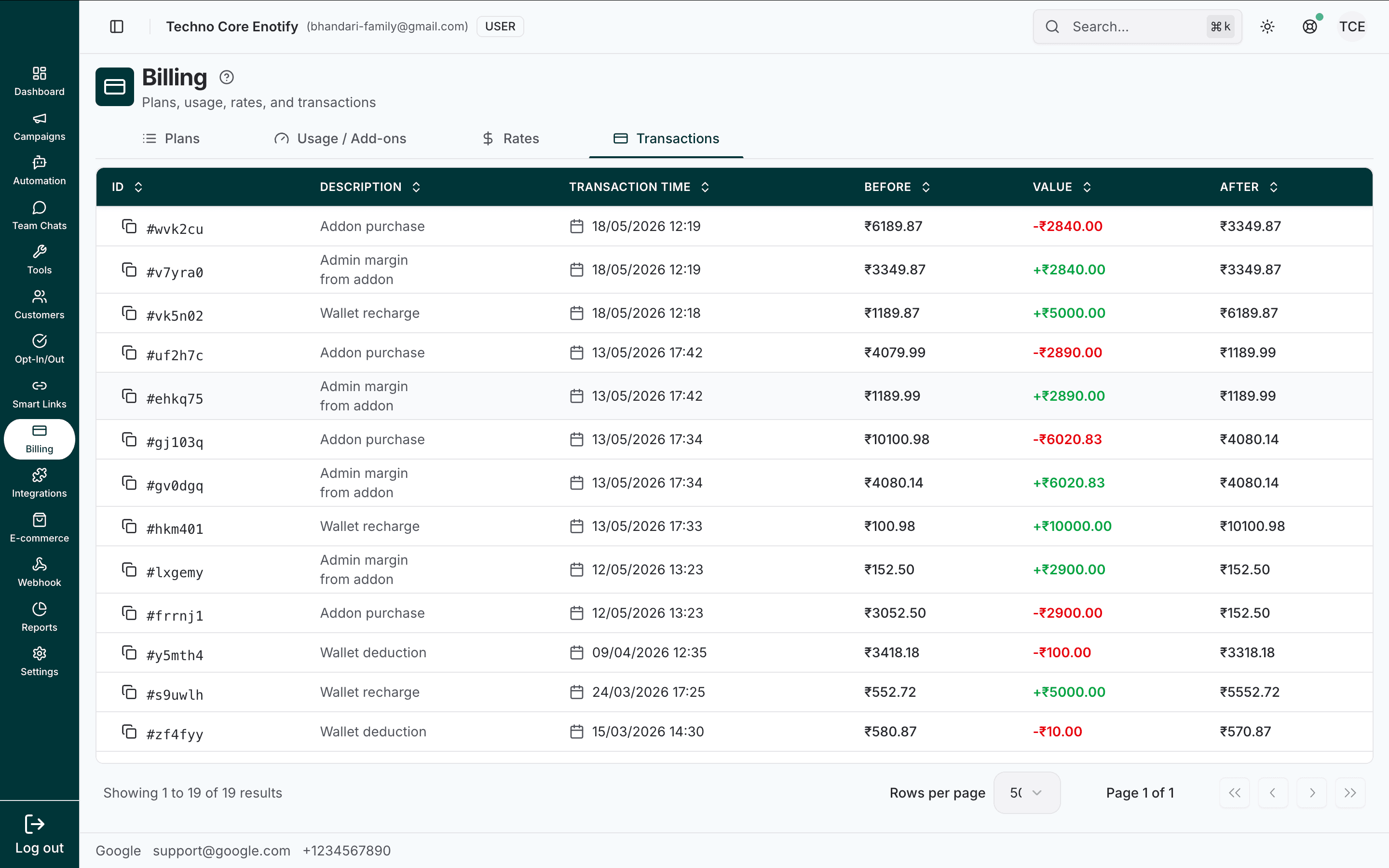
| Column | What it shows |
|---|---|
| ID | The transaction's unique reference |
| Description | What it was for — Wallet recharge, Wallet deduction, Addon purchase, Admin margin from addon |
| Transaction time | When it happened |
| Before | Wallet balance before the transaction |
| Value | The amount, green for money in (recharges) and red for money out (deductions and purchases) |
| After | Wallet balance after the transaction |
Reading the ledger top to bottom shows exactly how your balance moved and why. Use it for expense tracking, reconciling recharges against receipts, and seeing what each campaign or add-on actually cost.
Best practices
How is this guide?