


Opt-In / Opt-Out
Manage customer consent for WhatsApp messaging — the opt-out toggle, keyword-based opt-out, and compliance best practices.
WhatsApp requires that businesses honour customer messaging consent. The Opt-In/Opt-Out page lets you see and manage each customer's opt-out state, and configure keywords that let customers opt out themselves by replying.
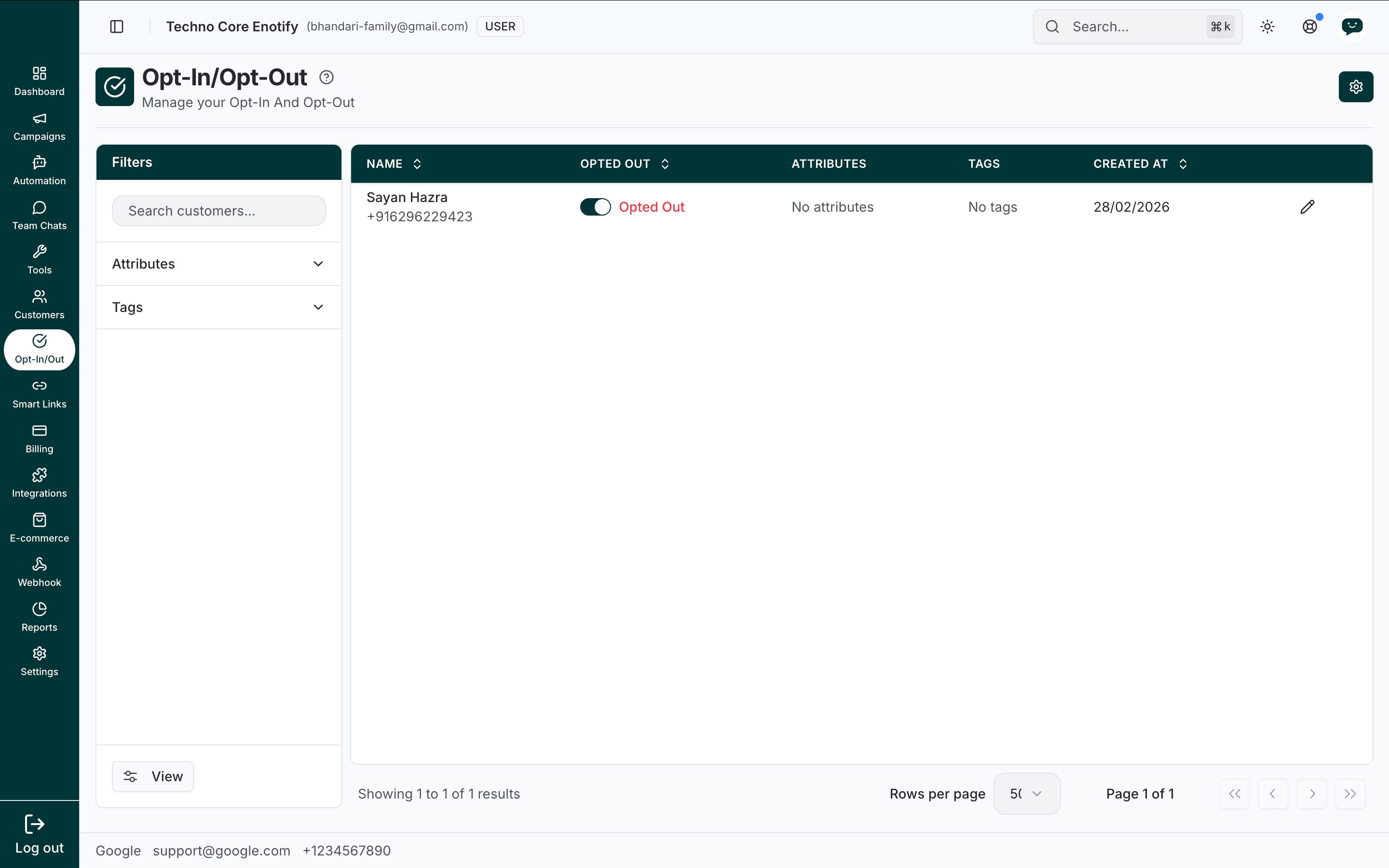
In the app: Dashboard → Opt-In/Out
Why consent matters
Messaging customers who have opted out can lead to:
- Your number being flagged or banned by WhatsApp/Meta
- Quality rating drops that reduce your daily messaging limits
- Legal exposure depending on your jurisdiction (GDPR, TCPA, and similar)
The platform tracks an opt-out state for every customer and can enforce opt-out keywords automatically.
The Opt-In/Opt-Out page
The page lists customers alongside their consent state. Each row shows the customer's name and number, the Opted Out toggle, their attributes and tags, and when they were created.
The Opted Out column is a toggle:
- Opted In — the customer may receive marketing messages
- Opted Out — consent revoked; exclude them from marketing
Toggle it directly on the row to change a customer's state. Use the Filters panel on the left — search, Attributes, and Tags — to find specific contacts.
Only opt in customers with genuine consent
Mark a customer as opted in only when you have real proof of consent. Importing a purchased list and flipping everyone to opted in violates WhatsApp policy and risks a ban.
Keyword-based opt-out
Open the settings (gear) icon on the Opt-In/Opt-Out page to configure keywords that let customers opt out by replying.
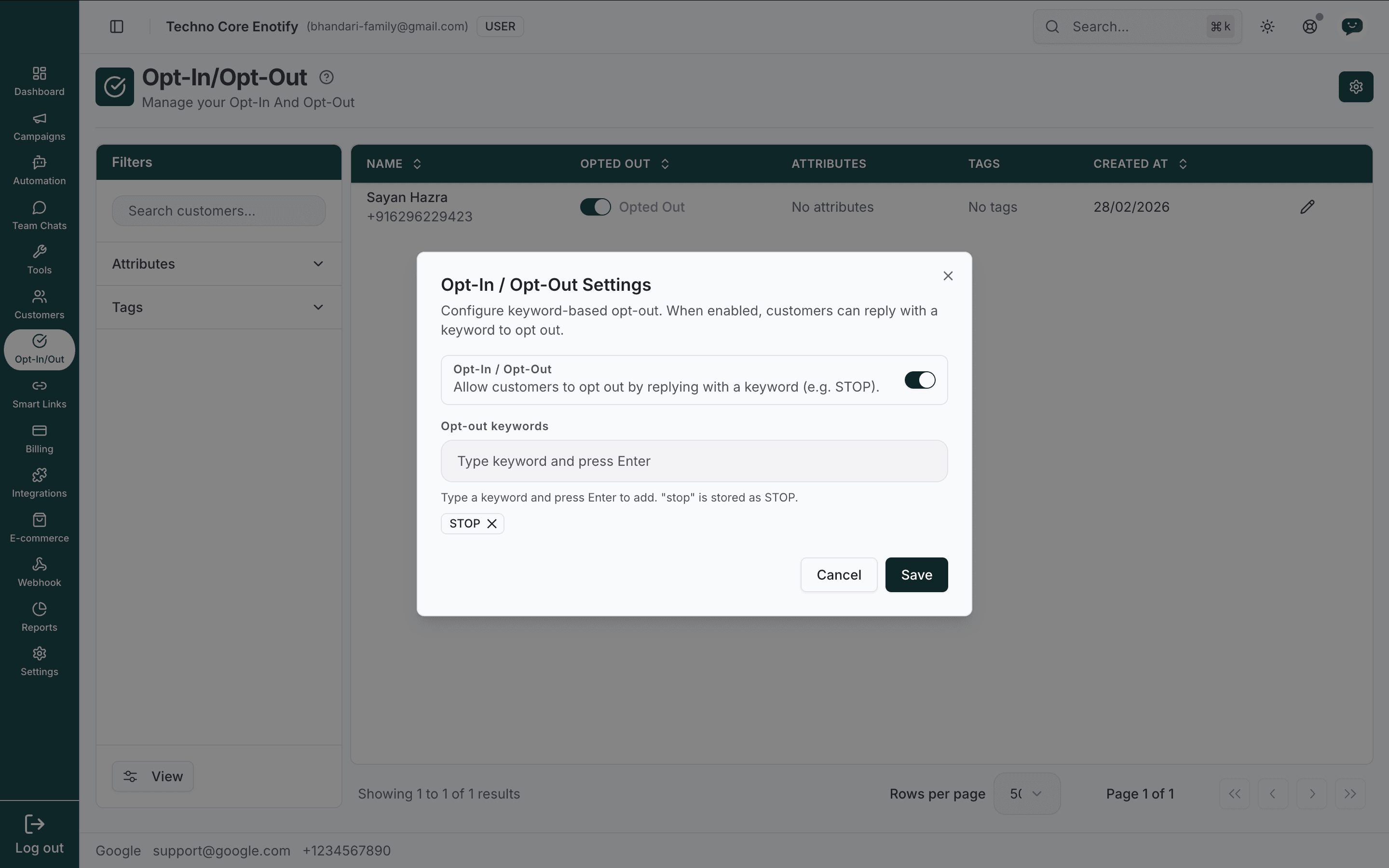
| Setting | What it does |
|---|---|
| Opt-In / Opt-Out | Master toggle. When enabled, customers can opt out by replying with a keyword |
| Opt-out keywords | The words that trigger an opt-out. Type a keyword and press Enter to add it |
Keywords are normalised to uppercase — typing stop stores it as STOP — so matching is case-insensitive. STOP is configured by default. Click Save to apply.
How it works
- A customer replies with a configured keyword, for example
STOP - The platform flips that customer to Opted Out
- They are excluded from future marketing campaigns
Opt-out applies to marketing
Opted-out customers can still receive Utility and Authentication templates such as order confirmations and OTP codes. Opt-out covers marketing and promotional messages.
Editing a customer
Click the pencil icon on any row to open the Edit Customer dialog, where you can manage that customer's attributes and tags. The dialog is the same one used on the Customers page.
Using consent in campaigns
Best practices
How is this guide?