


Templates
Create and manage WhatsApp message templates — types, categories, variables, approval process, and best practices.
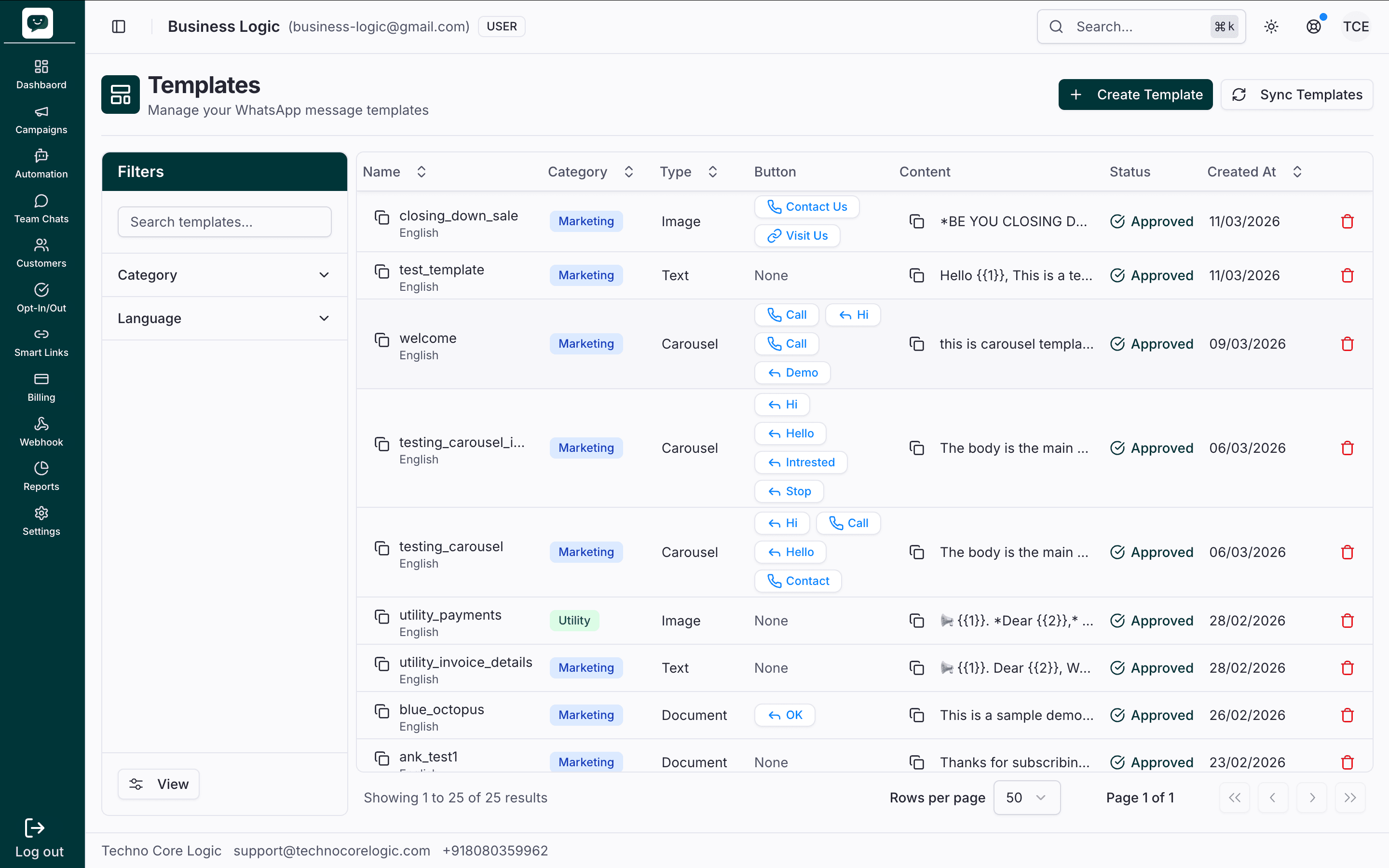
In the app: Dashboard → Campaigns → Templates
Why Templates?
WhatsApp has a 24-hour messaging window rule: you can only send free-form messages to a customer within 24 hours of their last message. To start a new conversation (or re-engage after 24 hours), you must use an approved template. This ensures businesses follow WhatsApp's quality and anti-spam guidelines.
Template Types
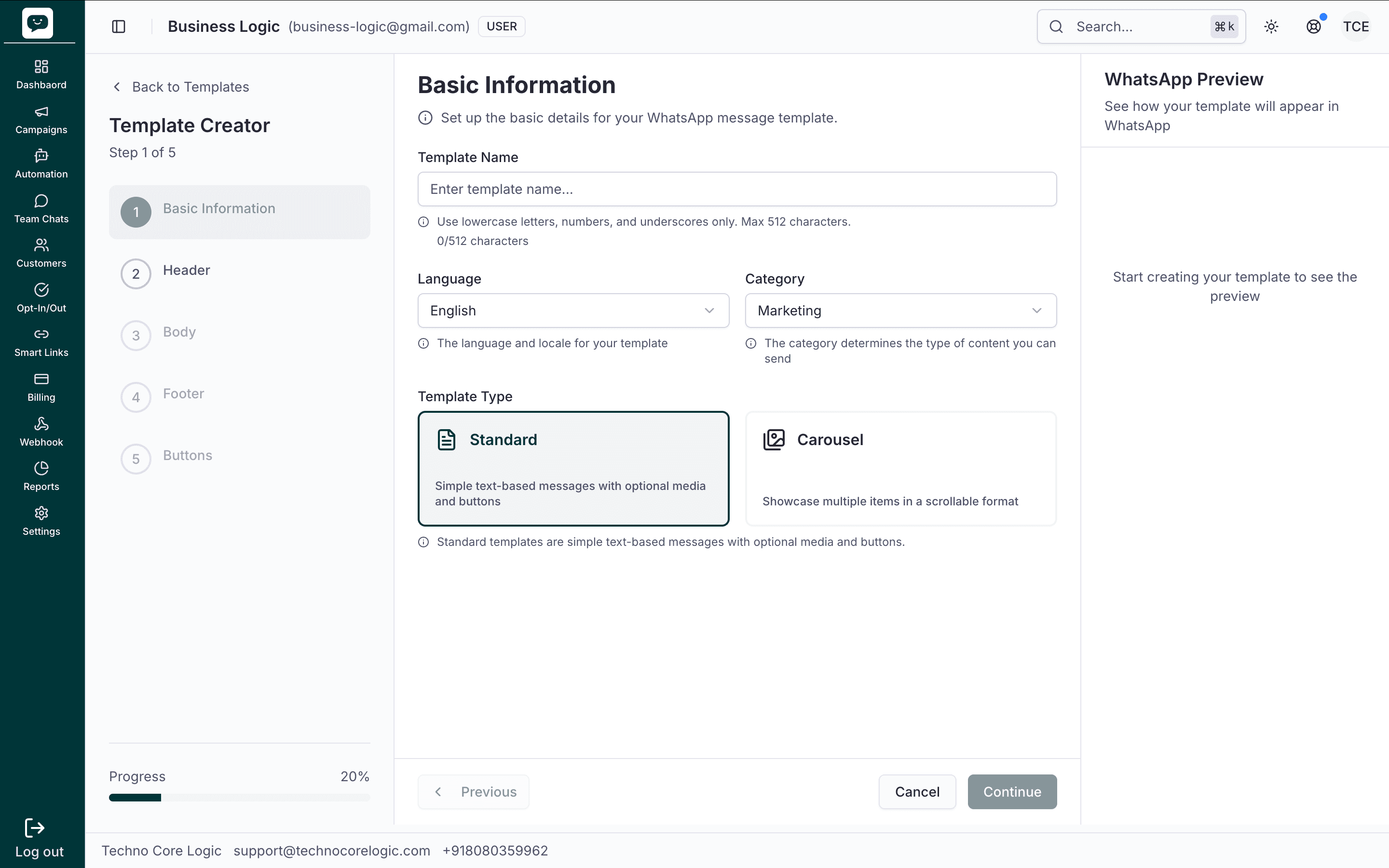
Standard Templates
The most common type. Used for text messages, notifications, promotions, and transactional updates.
Structure:
| Component | Required | Options |
|---|---|---|
| Header | Optional | None, Text, Image, Video, Document, or Location |
| Body | Required | Main message text with optional variables |
| Footer | Optional | Short text (e.g., "Reply STOP to unsubscribe") |
| Buttons | Optional | Quick Reply, URL (with optional variable), or Call — up to 3 buttons |
Carousel Templates
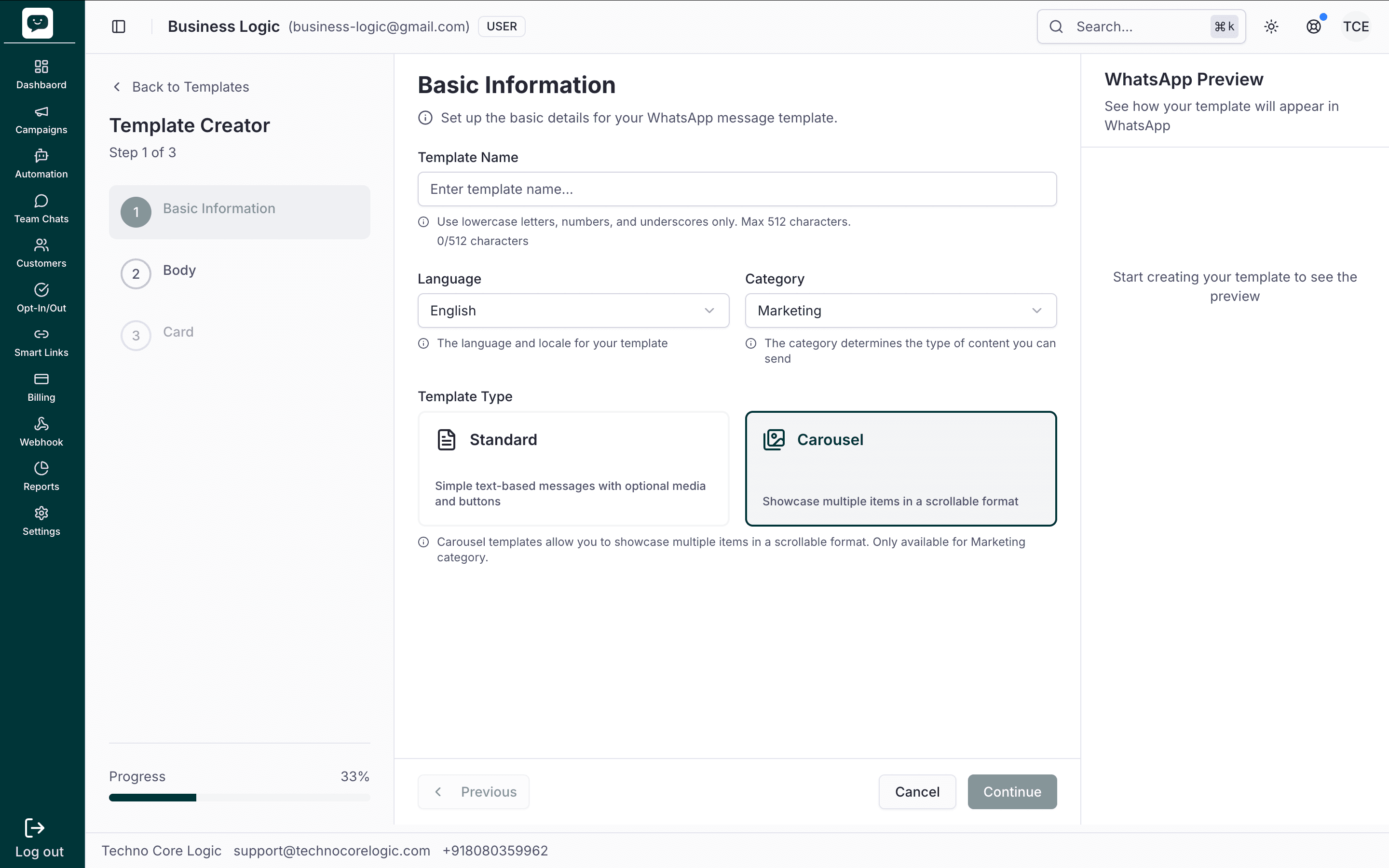
Multi-card templates for showcasing products, offers, or options. Only available for the Marketing category.
Structure:
| Component | Required | Options |
|---|---|---|
| Body | Required | Introductory text shown above the cards |
| Cards | Required | 2–10 cards, each with image, title, subtitle, and button |
Each card acts like a swipeable product tile in WhatsApp. Great for catalogs, menu items, or feature comparisons.
Template Categories
Choose the right category when creating a template — it affects approval rules and pricing:
| Category | Use for | Examples |
|---|---|---|
| Marketing | Promotions, offers, re-engagement | "Flash sale this weekend!", "We miss you — here's 20% off" |
| Utility | Transactional, account updates | "Your order #{{1}} has shipped", "Payment received: ₹{{1}}" |
| Authentication | OTP, verification codes | "Your verification code is {{1}}" |
Category impacts cost
Marketing templates typically cost more per message than Utility or Authentication templates. Choose the right category to optimize your messaging spend.
Creating a Standard Template
Steps: Basic Information → Header → Body → Footer → Buttons → Submit for Approval.
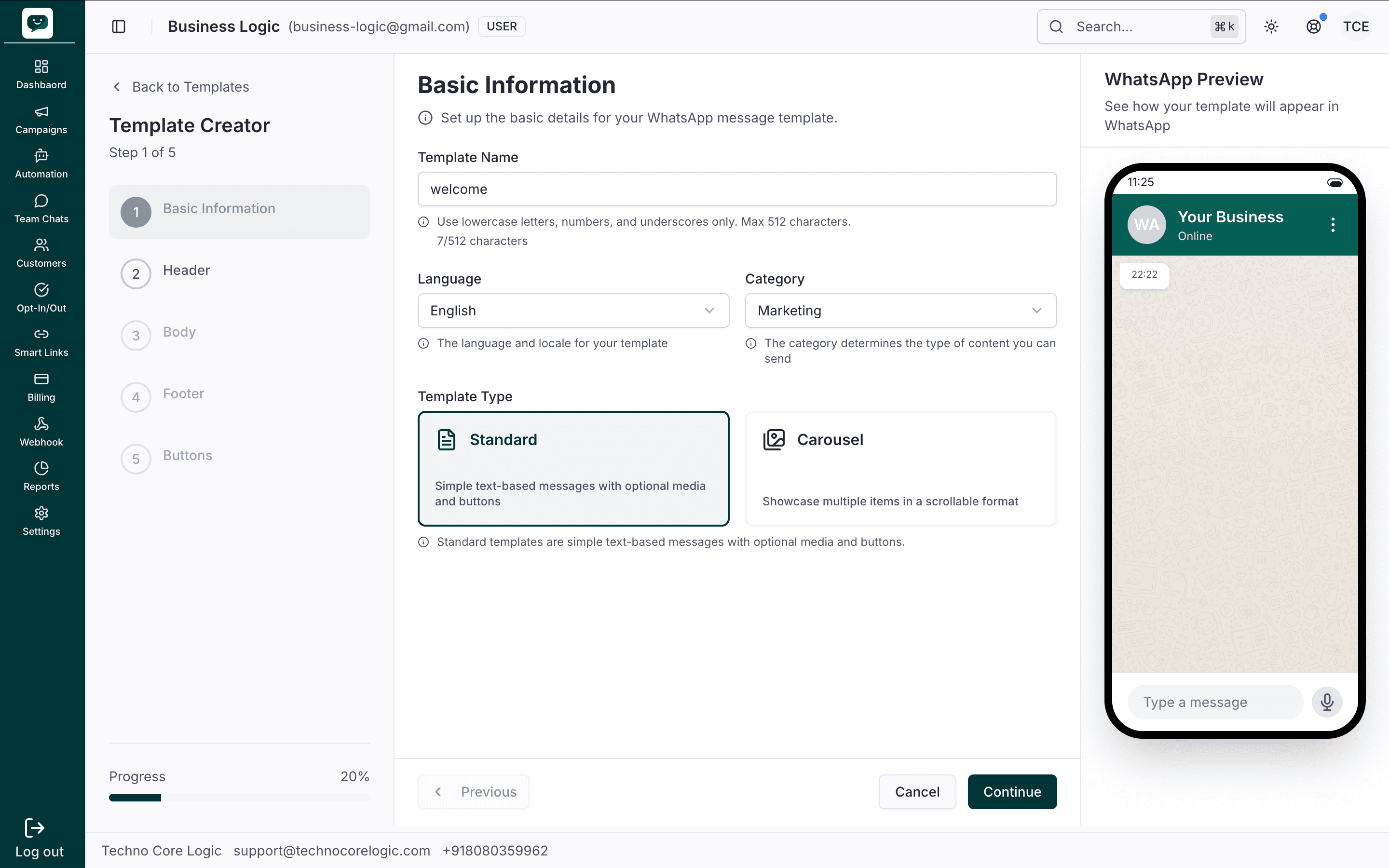
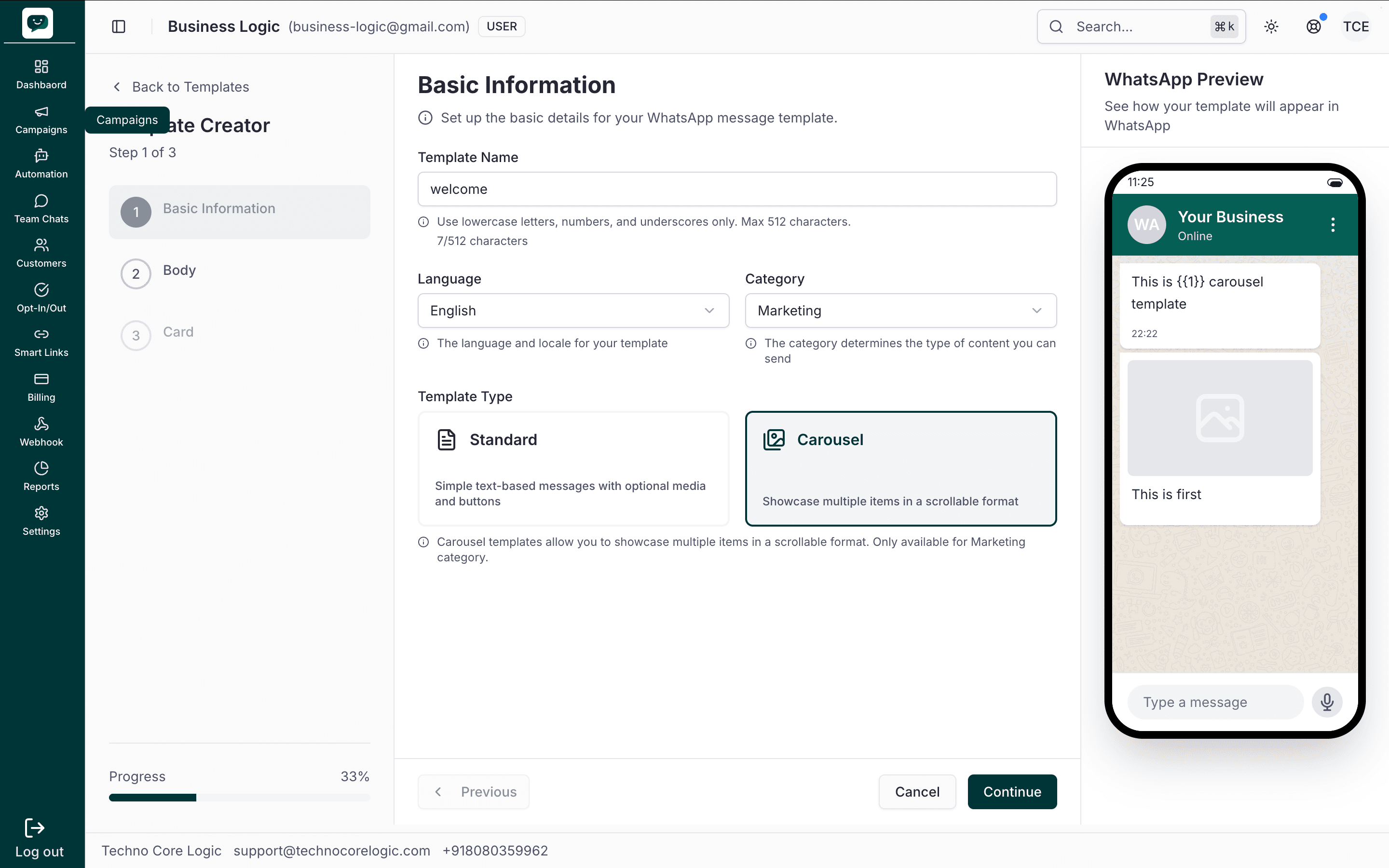
Basic Information
- Name — Lowercase letters, numbers, and underscores only (e.g.,
welcome_message,order_shipped). Cannot be changed after creation. - Language — The language of your template. You can create the same template in multiple languages.
- Category — Marketing, Utility, or Authentication.
- Template type — Standard or Carousel (Carousel only when category is Marketing).
Meta official rules & validations (Basic Information):
| Field | Meta rule | Important |
|---|---|---|
| Name | Lowercase letters, numbers, underscores only; no spaces or special characters | Max 512 characters. Name cannot be changed after creation. |
| Language | Must match the language of the template content | Required. Same template can exist in multiple languages. |
| Category | Marketing, Utility, or Authentication | Required. Determines approval criteria and pricing. Carousel only with Marketing. |
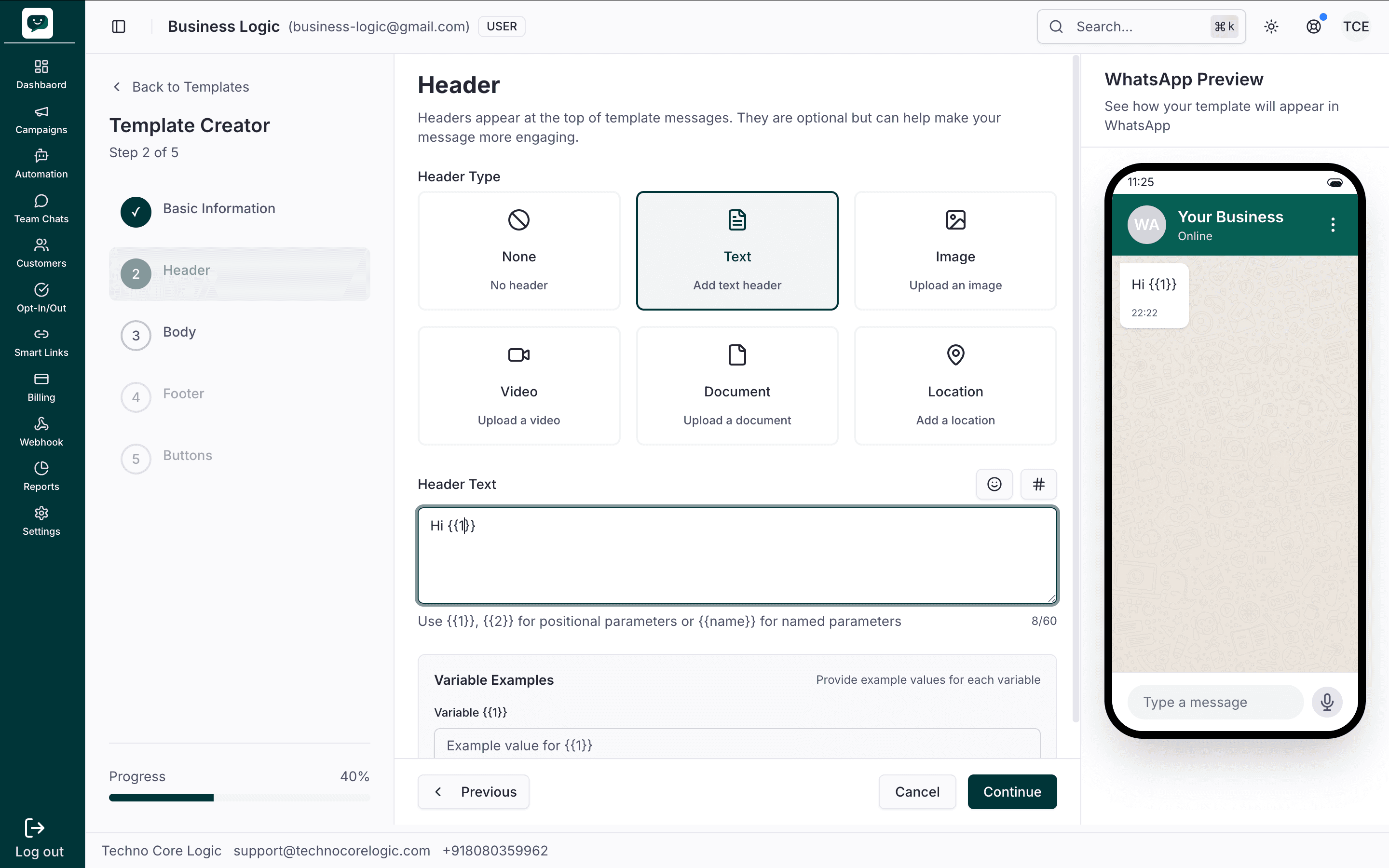
Header (optional)
Choose the header type:
- None — No header
- Text — A short text headline (supports variables)
- Image / Video / Document — A media file from your Media Library or uploaded directly
- Location — A map pin (latitude/longitude, optional name and address)
Meta official rules & validations (Header):
| Header type | Meta rule | Important |
|---|---|---|
| Text | Max 60 characters | Supports exactly 1 variable. No duplicate variables. Provide sample value for variable — required for Meta review. |
| Image / Video / Document | File chosen at send time | Image max 5 MB; Video max 16 MB; Document max 100 MB (WhatsApp limits). |
| Location | Latitude and longitude | Optional name and address. Supported for Utility and Marketing. |
From Meta
Variables cannot be at the very start or end of text. Variable numbers must be sequential. No wa.me or direct WhatsApp links in template content.
Body
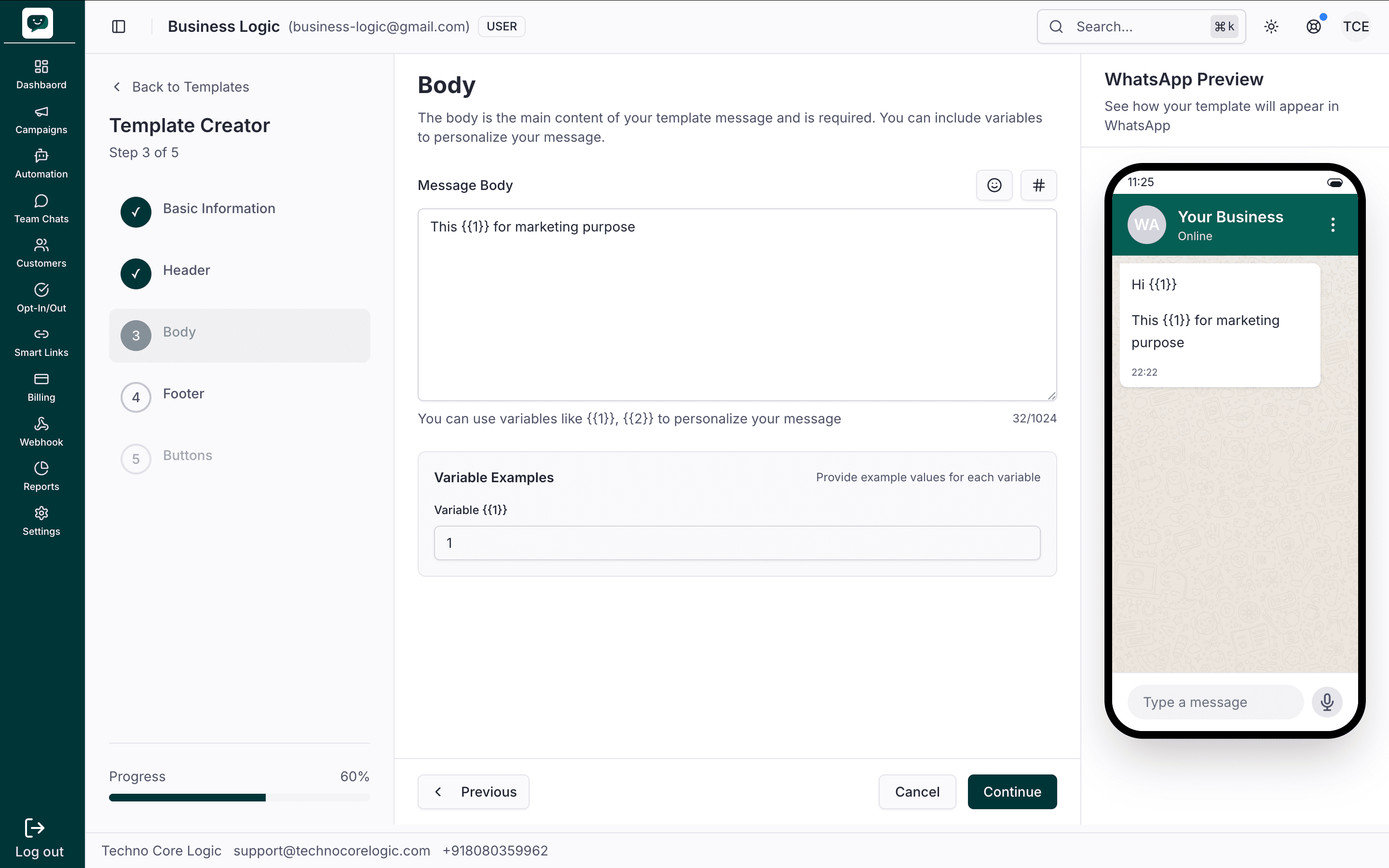
Write your main message text. Use variables for personalization:
- Variables use the format
{{1}},{{2}}, etc. (positional) - You must provide sample values for each variable — Meta uses these during the review process
- Keep the body clear, professional, and within WhatsApp's character limits
Meta official rules & validations (Body):
| Meta rule | Detail |
|---|---|
| Required | Body is the only required component in a template. |
| Max length | 1024 characters. |
| Variables | Use {{1}}, {{2}}, etc. No duplicate variables; numbers must be sequential. Variables cannot be adjacent (e.g. not {{1}}{{2}} with nothing between). |
| Formatting | No newlines, tabs, or more than four consecutive spaces in a row (per Meta guidelines). |
| Sample values | You must provide example values for every variable — Meta uses these during review. |
Variable best practice
Use meaningful sample values (e.g., "John" for a name variable, "₹1,500" for an amount) rather than generic placeholders. Good samples help Meta understand your template's intent and speed up approval.
Named variables
Instead of numbers, you can insert readable placeholders such as {{name}} or {{customer.name}}. Click Named variable next to the field. Then pick one of your saved variables, a system variable, or a customer attribute, or create a new variable on the spot. A name can repeat: Hello {{name}}, I'm {{vendor_name}}. Regards, {{vendor_name}} is valid, and both {{vendor_name}} slots get the same value when sent. Sample values fill in from each variable's saved sample.
A template uses either numbered or named placeholders, not both. Meta still receives a normal numbered template, so review works as usual. See Named Variables for the full list and how values are filled.
Footer (optional)
Add a short footer text. Common uses:
- Opt-out instruction: "Reply STOP to unsubscribe"
- Branding: "Sent via YourBrand"
- Disclaimer text
Meta official rules & validations (Footer):
| Meta rule | Detail |
|---|---|
| Optional | Footer can be omitted. |
| Max length | 60 characters. |
| Content | Text only — no variables allowed in footer. Use for opt-out text (e.g. "Reply STOP to unsubscribe"), branding, or disclaimers. |
Buttons (optional)
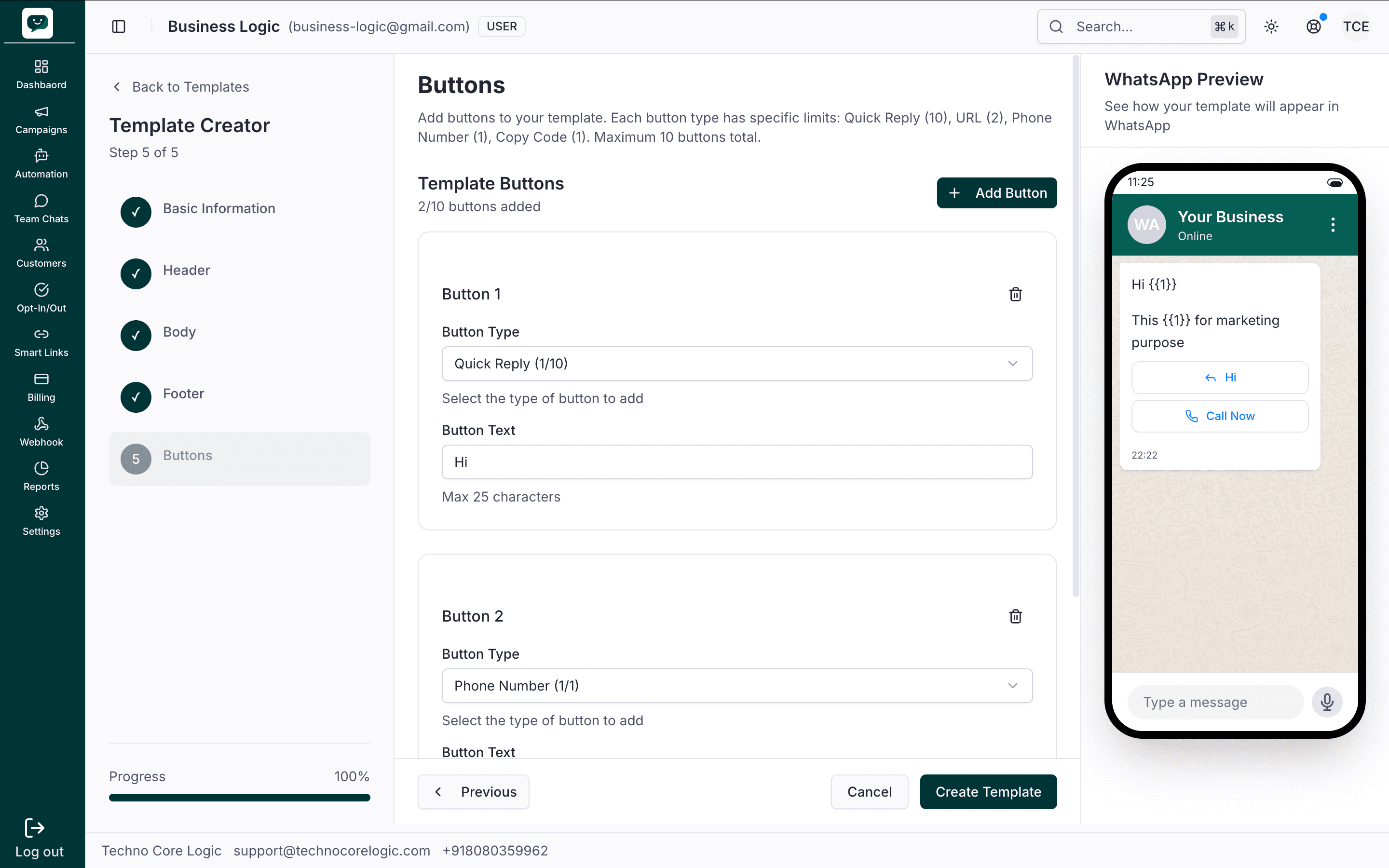
Add up to 10 buttons total, with type limits: Quick Reply (max 10), URL (max 2), Phone Number (max 1), Copy Code (max 1).
| Button type | What it does | Example |
|---|---|---|
| Quick Reply | Customer taps to send a preset reply | "Yes, I'm interested", "No thanks" |
| URL | Opens a link (supports variables in the URL) | "View order: https://example.com/order/{{1}}" |
| Phone Number | Opens the phone dialer with a preset number | "Call support: +91-XXXXXXXXXX" |
| Copy Code | Copies a code to clipboard | "Copy code" |
Meta official rules & validations (Buttons):
| Meta rule | Detail |
|---|---|
| Button text | Required. Max 25 characters per button. |
| URL | Required for URL buttons. No duplicate variables in URL; provide sample values for each URL variable. No direct wa.me links. |
| Phone | Required for Call buttons. Full number with country code. |
| Limits | Quick Reply (up to 10), URL (up to 2), Phone Number (1), Copy Code (1). Max 10 buttons total. Templates with 4+ buttons may have limited desktop display. |
Submit for Approval
Review your template preview and submit. Meta reviews the template and responds with one of:
- Approved — Ready to use in campaigns and chatbots
- Rejected — Includes a rejection reason. Edit and resubmit.
- Pending — Still under review
Creating a Carousel Template
Carousel steps: Basic Information → Body → Card (Header + Cards). Carousel is only available when Category is Marketing.
Basic Information (Carousel)
Same fields as Standard. Template type must be Carousel; Category must be Marketing. Name, language, and category are required.
Meta official rules & validations (Carousel — Basic Information):
| Meta rule | Detail |
|---|---|
| Template type | Carousel is only available when Category = Marketing. |
| Category | Must be Marketing for carousel templates. |
Body (Carousel)
Introductory text shown above the carousel cards. This is the main message body; cards appear below it.
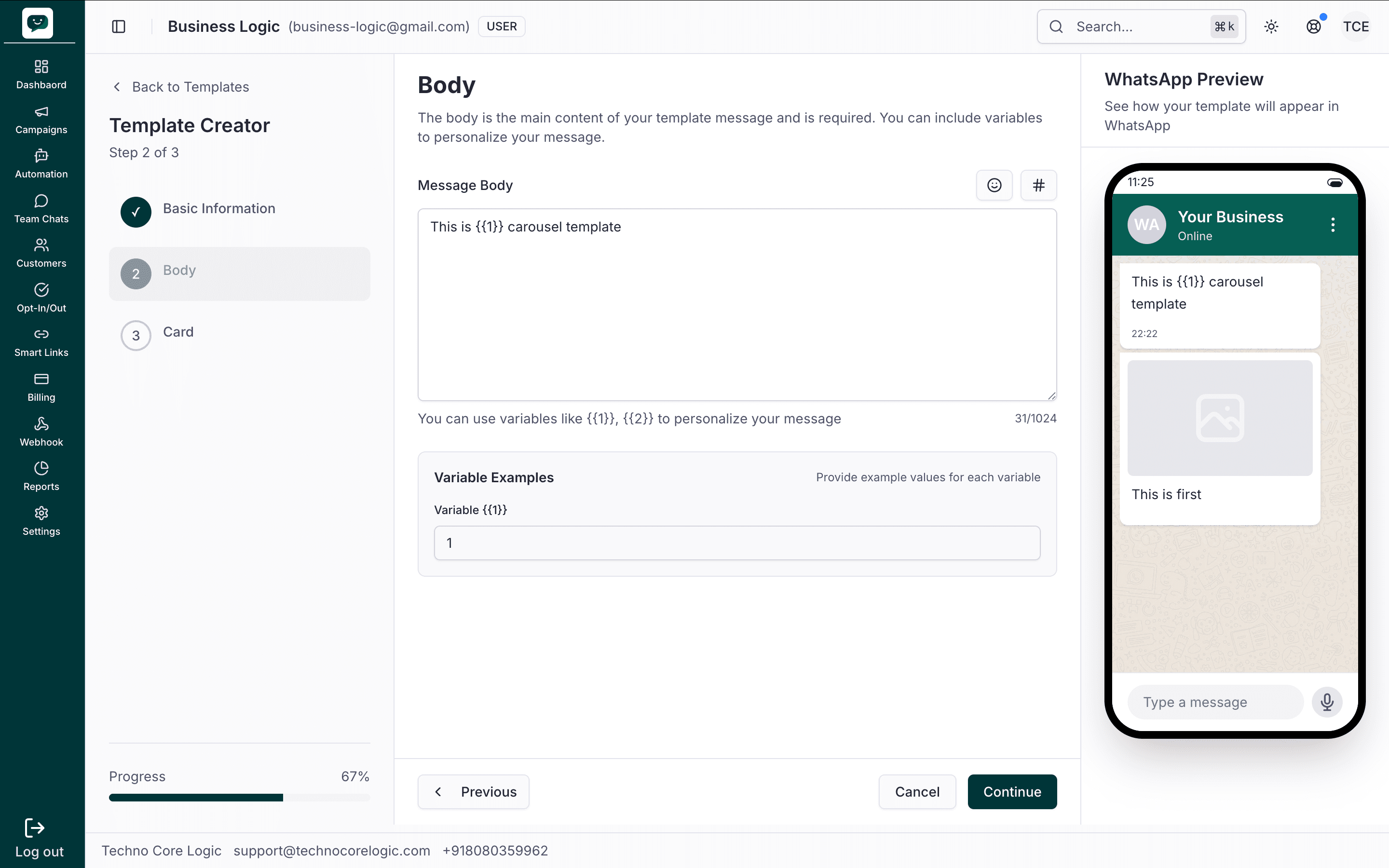
Meta official rules & validations (Carousel — Body):
| Meta rule | Detail |
|---|---|
| Required | Introductory body text is required; it appears above the carousel cards. |
| Max length | 1024 characters. |
| Variables | No duplicate variables; sequential numbering; provide sample values for each variable for Meta review. |
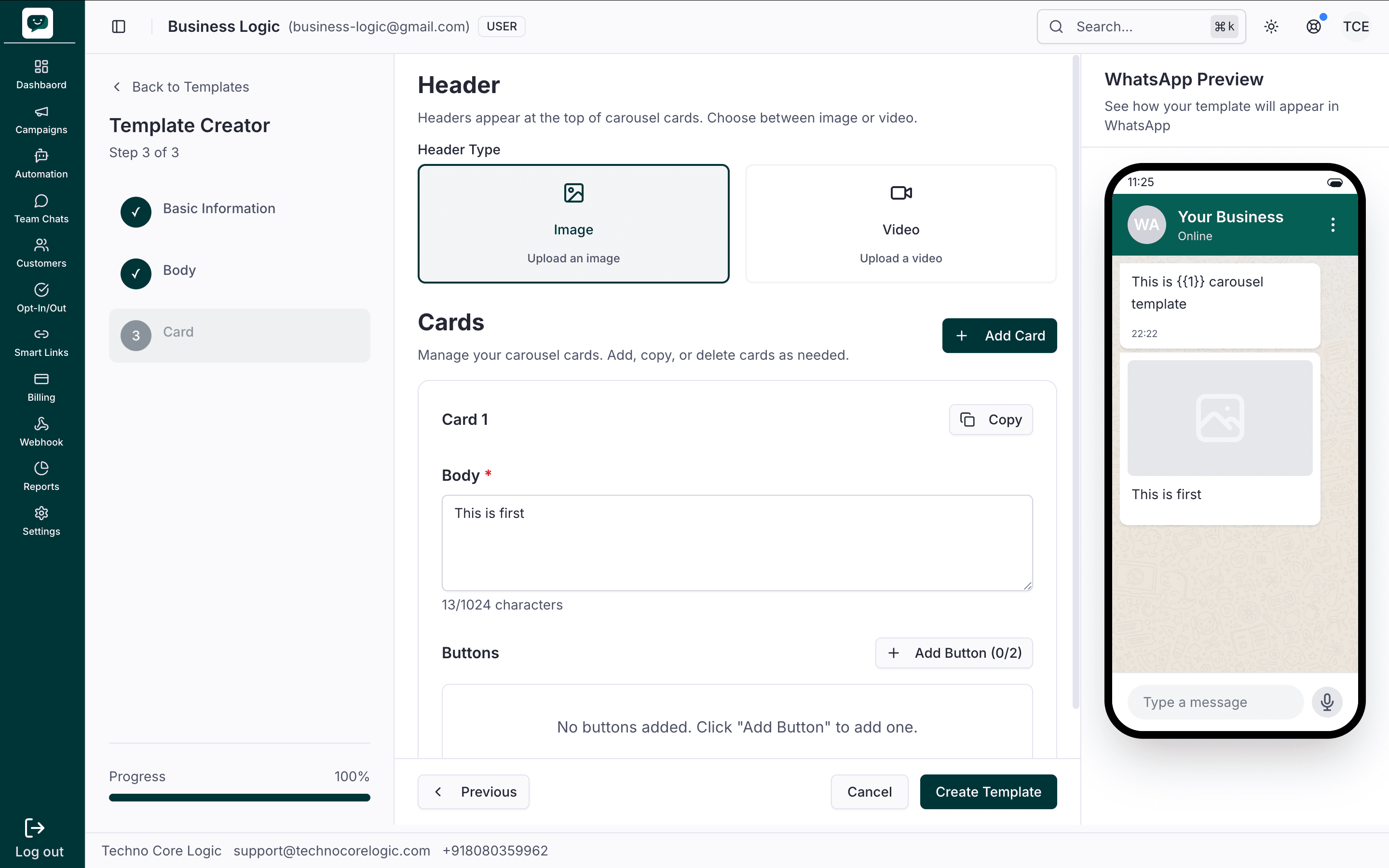
Card (Header + Cards)
- Header (per card) — Image or Video only. Optional. Same choice applies to all cards.
- Cards — Add 2–10 cards. Each card has:
- Body — Required text (max 1024 characters).
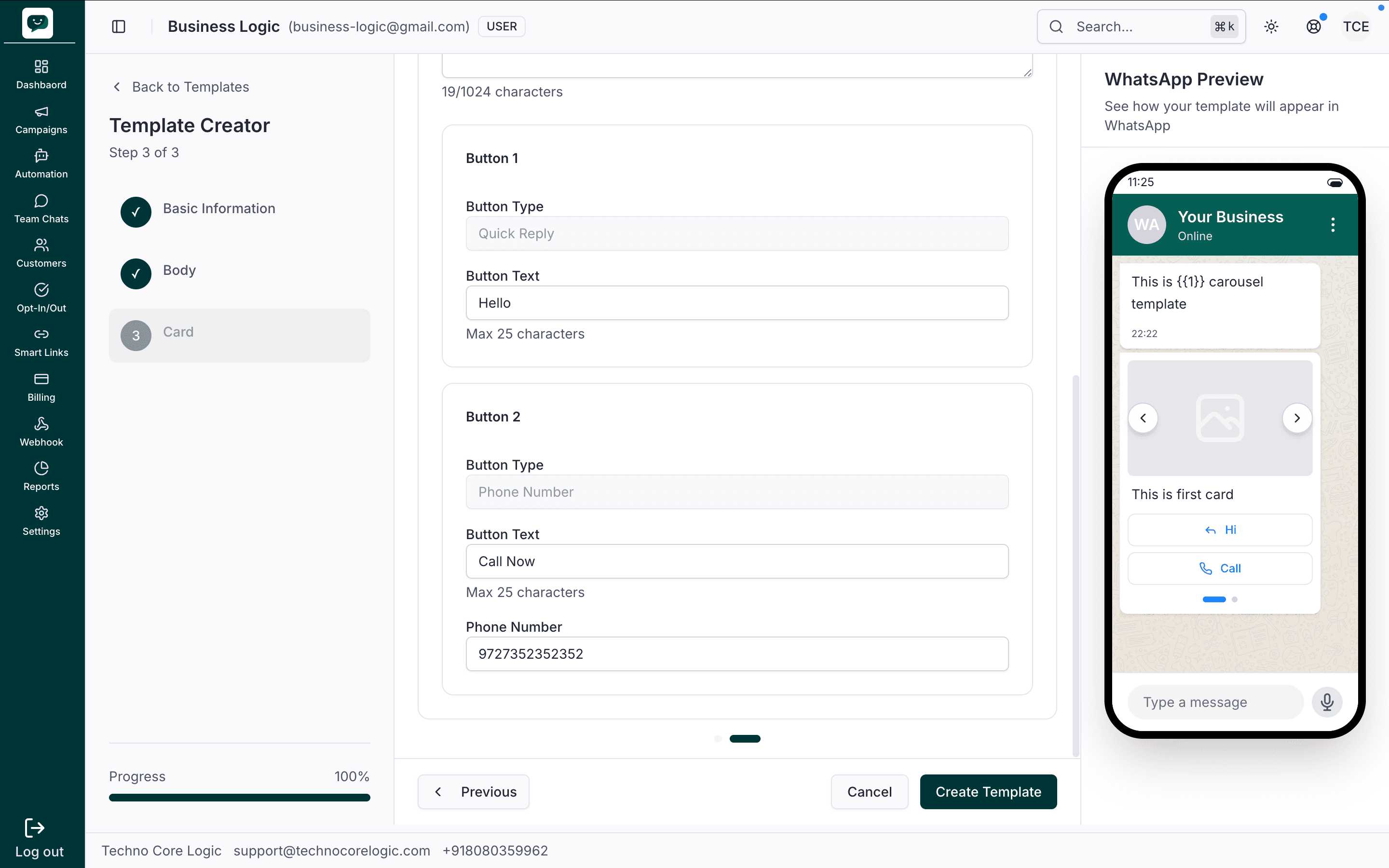
- Buttons — At least one button per card; max 2 buttons per card. Types: Quick Reply, URL, Phone Number. Button structure (types) is set on the first card and mirrored to all other cards; only labels and URLs/phone numbers differ per card.
Use Add Card to create cards, Copy to duplicate a card, and Previous/Next or the dots to switch between cards.
Meta official rules & validations (Carousel — Card):
| Meta rule | Detail |
|---|---|
| Header | Optional. Image or Video only; same type for all cards. Image: PNG/JPEG; Video: MP4. All cards use the same header type. |
| Number of cards | 2–10 cards per carousel (Meta requirement). |
| Card body | Required per card. Max 1024 characters per card body. |
| Buttons | At least 1, max 2 buttons per card. Types: Quick Reply, URL, Phone Number. All cards must have the same button structure (same types in same order). |
| Button text | Required. Max 25 characters per button. |
| URL | If button type is URL: URL required; provide sample values for any variables in the URL. |
| Phone | If button type is Phone Number: full number with country code required. |
Carousel button structure (Meta)
The first card defines which button types exist. All other cards get the same button types; you only change label, URL, or phone number per card. Content must comply with WhatsApp Business and Commerce policies.
Submit for Approval (Carousel)
Review the WhatsApp preview and click Create Template. Meta will approve, reject, or leave the template pending. All carousel templates must be approved by WhatsApp before use.
Approval Process
| Stage | Typical timing | What to do |
|---|---|---|
| Submitted | Instant | Wait for Meta review |
| Under review | Minutes to 24 hours | No action needed |
| Approved | — | Template is ready to use |
| Rejected | — | Read the rejection reason, edit, and resubmit |
Common rejection reasons
- Unclear variable usage — Sample values don't make sense or are missing
- Policy violation — Content violates WhatsApp Commerce or Business policies
- Wrong category — Template classified as Utility but contains promotional content
- Formatting issues — Special characters, excessive caps, or misleading buttons
Syncing Templates from Meta
If you've created templates directly in the Meta Business Suite, you can sync them into the platform:
- Go to Templates and click Sync Templates
- The platform fetches all templates from your WABA
- Synced templates appear in your list with their current approval status
This is useful when migrating from another provider or when templates were created outside the platform.
Naming Conventions
Consistent naming helps you find templates quickly as your library grows:
| Convention | Example |
|---|---|
purpose_audience | welcome_new_customers |
category_name | marketing_flash_sale |
flow_step | onboarding_step1_greeting |
Remember
Template names are permanent — you can't rename them after creation. Pick a clear, descriptive name upfront.
Best Practices
How is this guide?