


Forms
Build data-collection forms with the visual builder — question types, conditional logic, chatbot and standalone sharing, submissions, and result visualisation.
Forms collect structured data from your customers. Build a form once with the visual builder, then send it inside a Chatbot flow or share it as a standalone link. Every submission lands in one place, ready to view as a table or as charts.
In the app: Dashboard → Automation → Forms
Pre-launch preview
Forms are marked Pre launch preview. Behaviour may change before general availability.
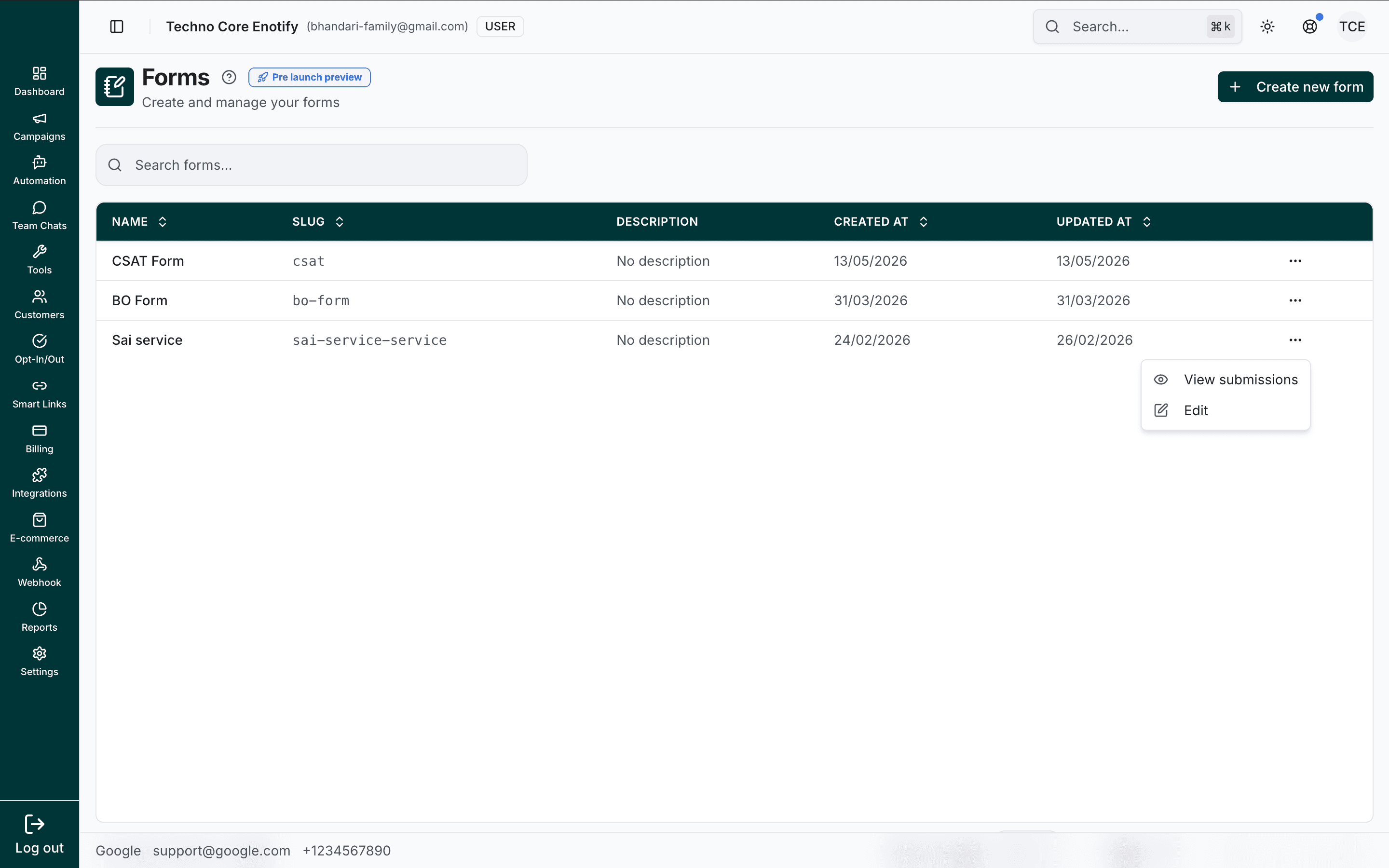
The Forms page
The list shows every form on your account. Use the search bar to filter by name. Each row shows:
| Column | Meaning |
|---|---|
| Name | The form's display name |
| Slug | The URL-friendly identifier used in the standalone link |
| Description | An optional summary, or No description |
| Created At | When the form was created |
| Updated At | When the form was last edited |
The ⋯ menu on each row opens View submissions and Edit. Use Create new form (top right) to start a new one.
Create a form
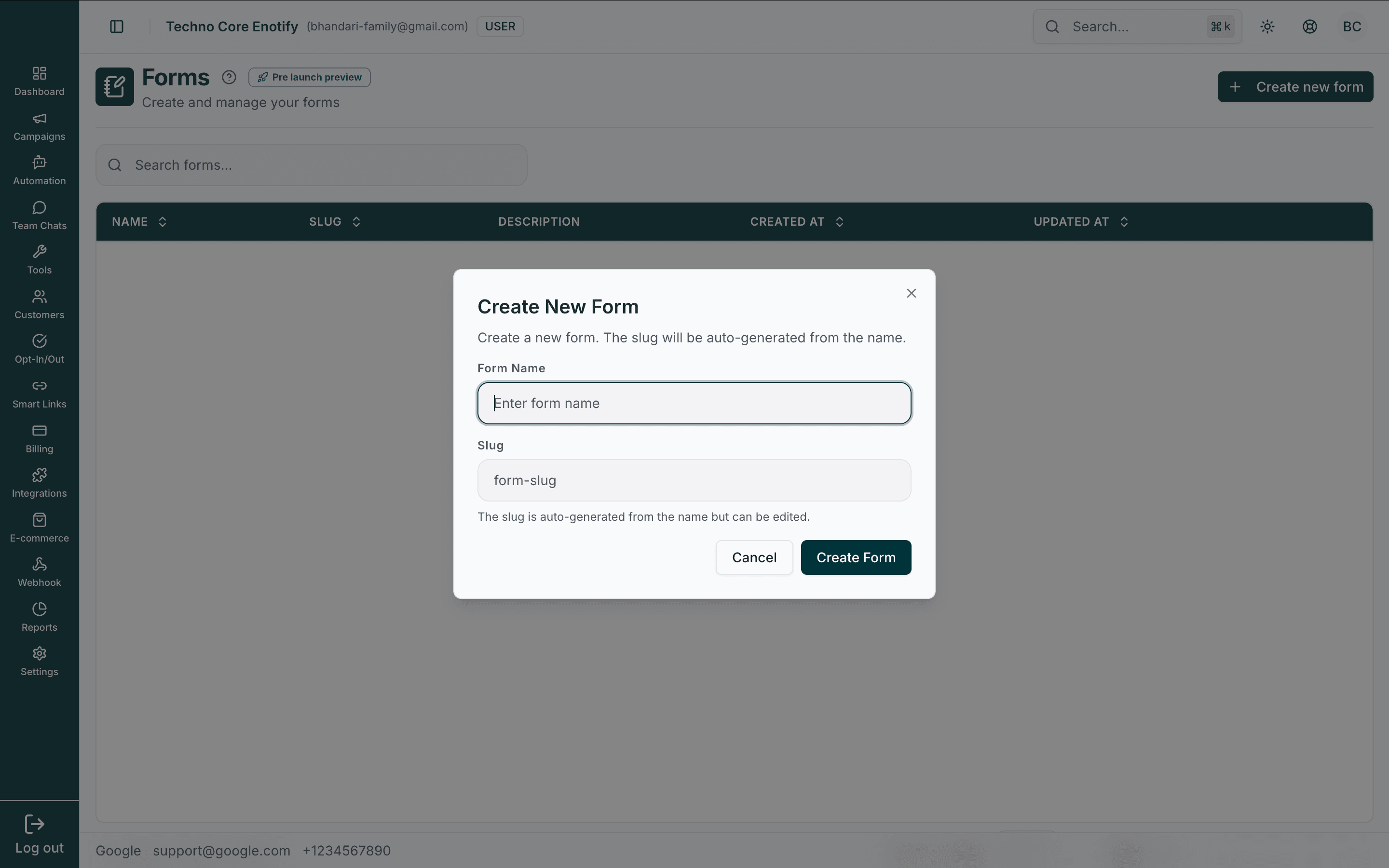
Name the form
| Field | Notes |
|---|---|
| Form Name (required) | A descriptive name, e.g. "CSAT Form" or "Lead Capture" |
| Slug | The URL-friendly identifier. Auto-generated from the name, but you can edit it. Used in the standalone form link |
Click Create Form. You are taken straight into the builder.
The form builder
The builder has three tabs: Designer, Preview, and Logic.
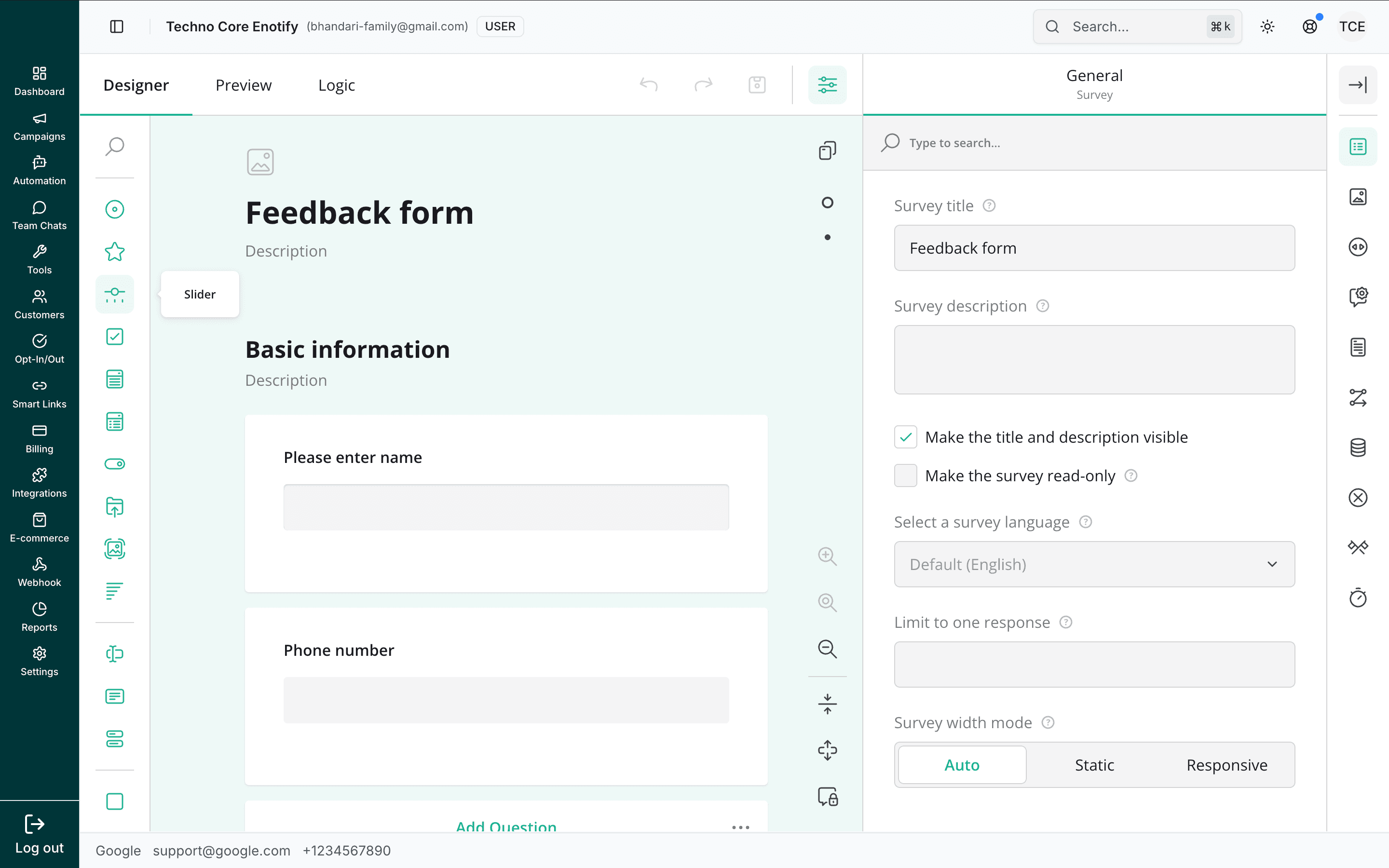
| Area | What it does |
|---|---|
| Toolbox (left) | Drag question types onto the canvas |
| Canvas (centre) | Your form — add, reorder, and edit questions and pages |
| Properties (right) | Settings for the selected question, or the survey itself |
The header carries undo / redo and a layout toggle. The properties panel opens on General when nothing is selected, where you set the survey-level options:
- Survey title and Survey description
- Make the title and description visible
- Make the survey read-only
- Select a survey language (default: English)
- Limit to one response
- Survey width mode — Auto, Static, or Responsive
Add questions
Drag a question type from the toolbox onto the canvas. The common types group into:
| Group | Types |
|---|---|
| Input | Single-line text, long text, email, number, date, date & time |
| Choice | Radio group, dropdown, checkboxes, tag select, image picker, ranking |
| Rating & matrix | Star or numeric rating, and a rows × columns matrix |
Configure a question
Select a question on the canvas to edit it in the properties panel. Every question shares a few common settings:
| Property | Description |
|---|---|
| Title | The question text shown to the customer (e.g. "Please enter name") |
| Name | The internal key this answer is stored under in submissions |
| Description | Optional help text below the question |
| Required | The customer must answer before moving on |
Type-specific settings appear below — choice options for dropdowns and radio groups, min/max for numbers and ratings, row and column labels for a matrix, and so on. Validation rules (required, length, numeric range, email/phone/URL format) keep the data clean at the point of entry.
Group questions into pages
Longer forms can be split across pages, each with its own title. Customers see a progress indicator and a Next button between pages. Group related questions together and keep each page short.
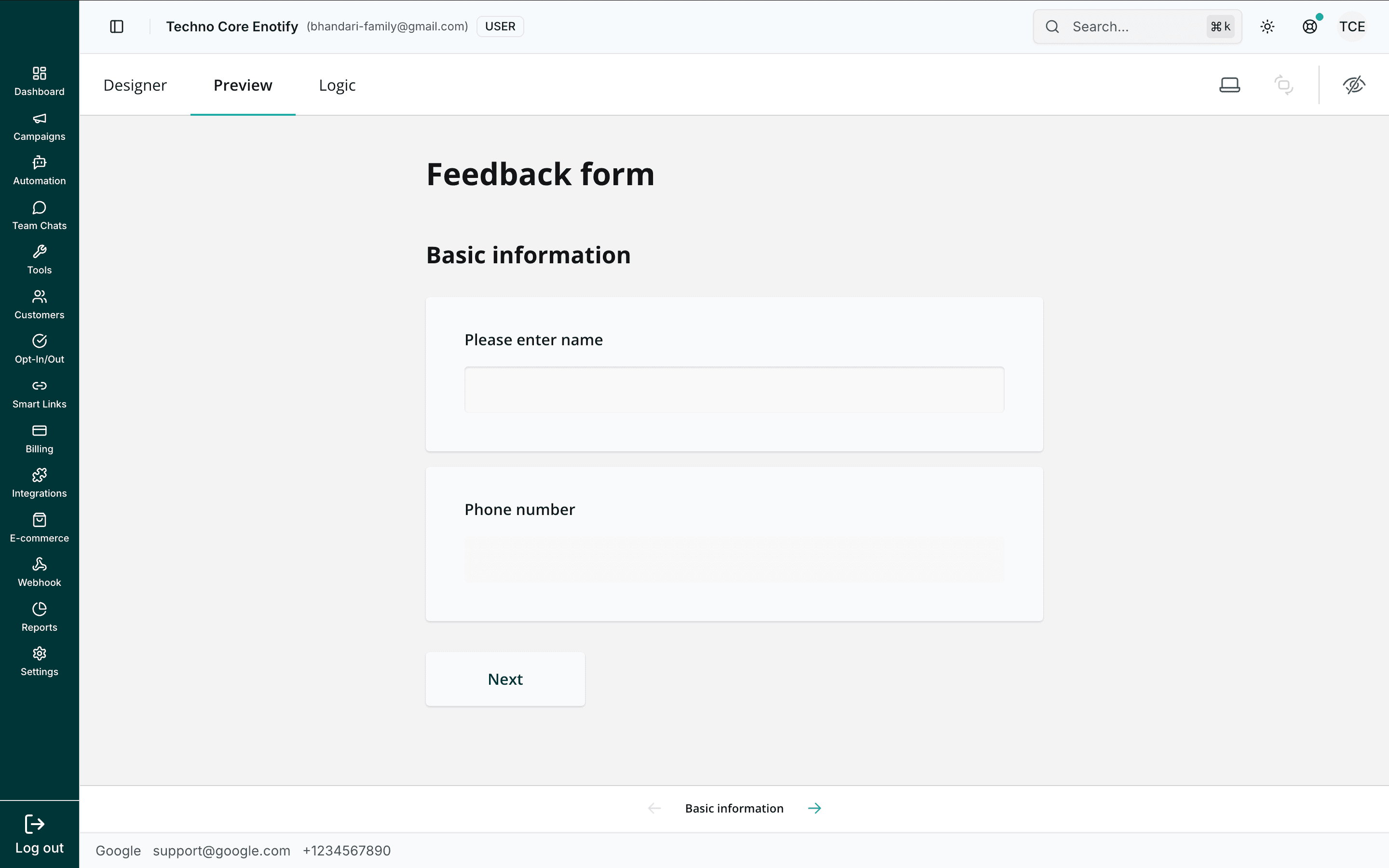
Preview the form
Switch to the Preview tab to see the form exactly as a customer will, including page navigation and your completion flow. Use the device toggle to check the mobile layout, where most WhatsApp users will open it.
Conditional logic
The Logic tab adds rules that change the form as a customer fills it in — show or hide a question, set a value, or skip a page based on a previous answer.
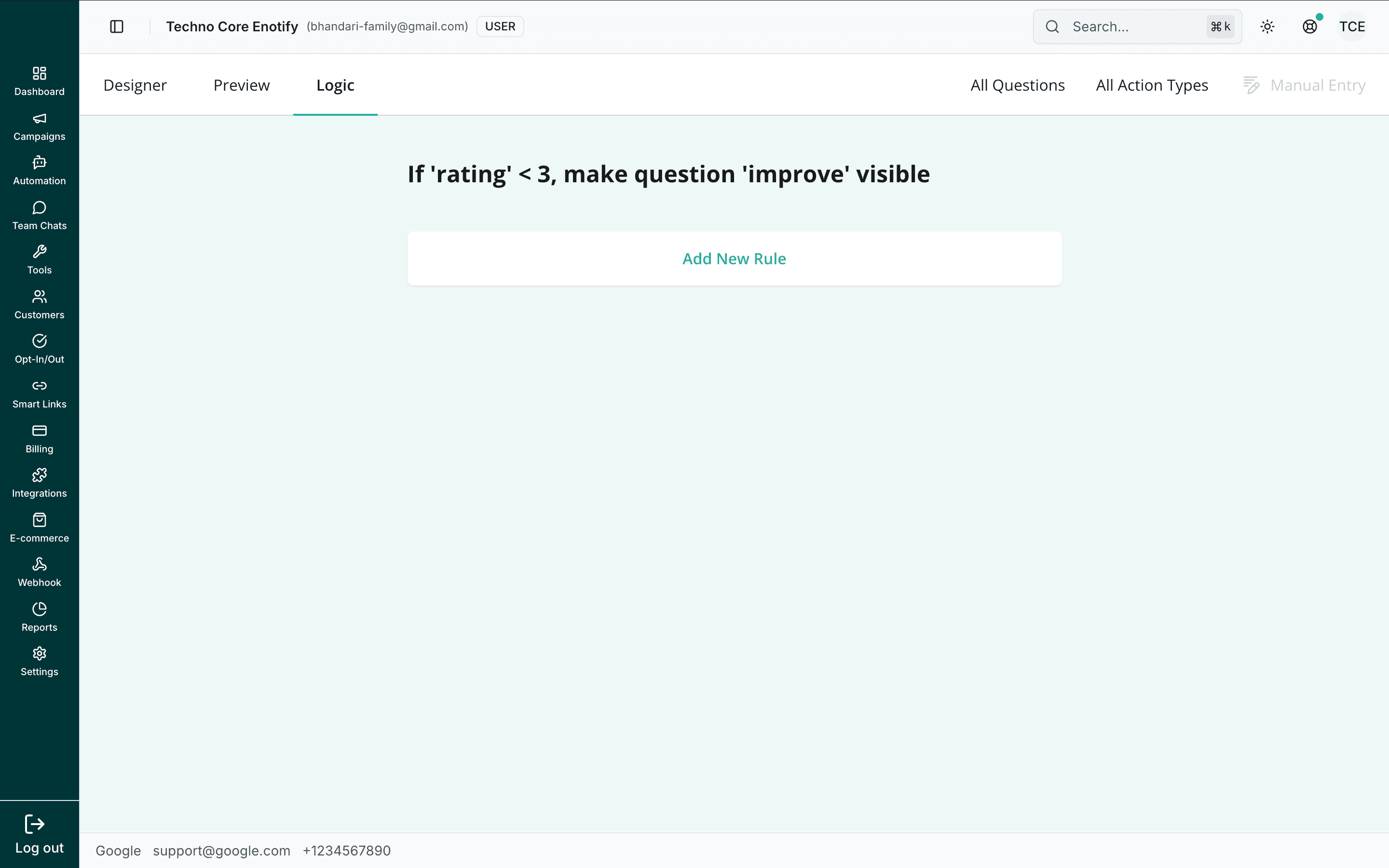
For example, if rating < 3, make question improve visible only asks for improvement feedback from customers who scored you low. Click Add New Rule to create one, and filter existing rules by question or action type.
Sharing forms
In a chatbot flow
Add a Send Form node to a Chatbot flow to deliver the form during a WhatsApp conversation. The customer receives a message with a button; tapping it opens the form in their browser, and the flow continues once they submit, with the answers available as variables.
Pre-filled data
When a form is sent through a chatbot, fields named for the customer's phone number or name are pre-filled automatically — no extra setup needed.
As a standalone link
Share a form anywhere — website, email, social, QR code, or a WhatsApp message — using its slug:
https://your-domain.com/forms/{slug}?custId={customer-id}- The
custIdparameter is optional. When present, the submission is linked to that customer profile. - Without it, submissions are matched to a contact by phone number.
React to submissions
Subscribe a webhook to the form.submitted event to push every completed submission to your own server in real time — useful for CRM sync or lead capture.
Viewing submissions
Choose View submissions from the ⋯ menu, or View submissions from the builder, to open the responses for a form.
Table view
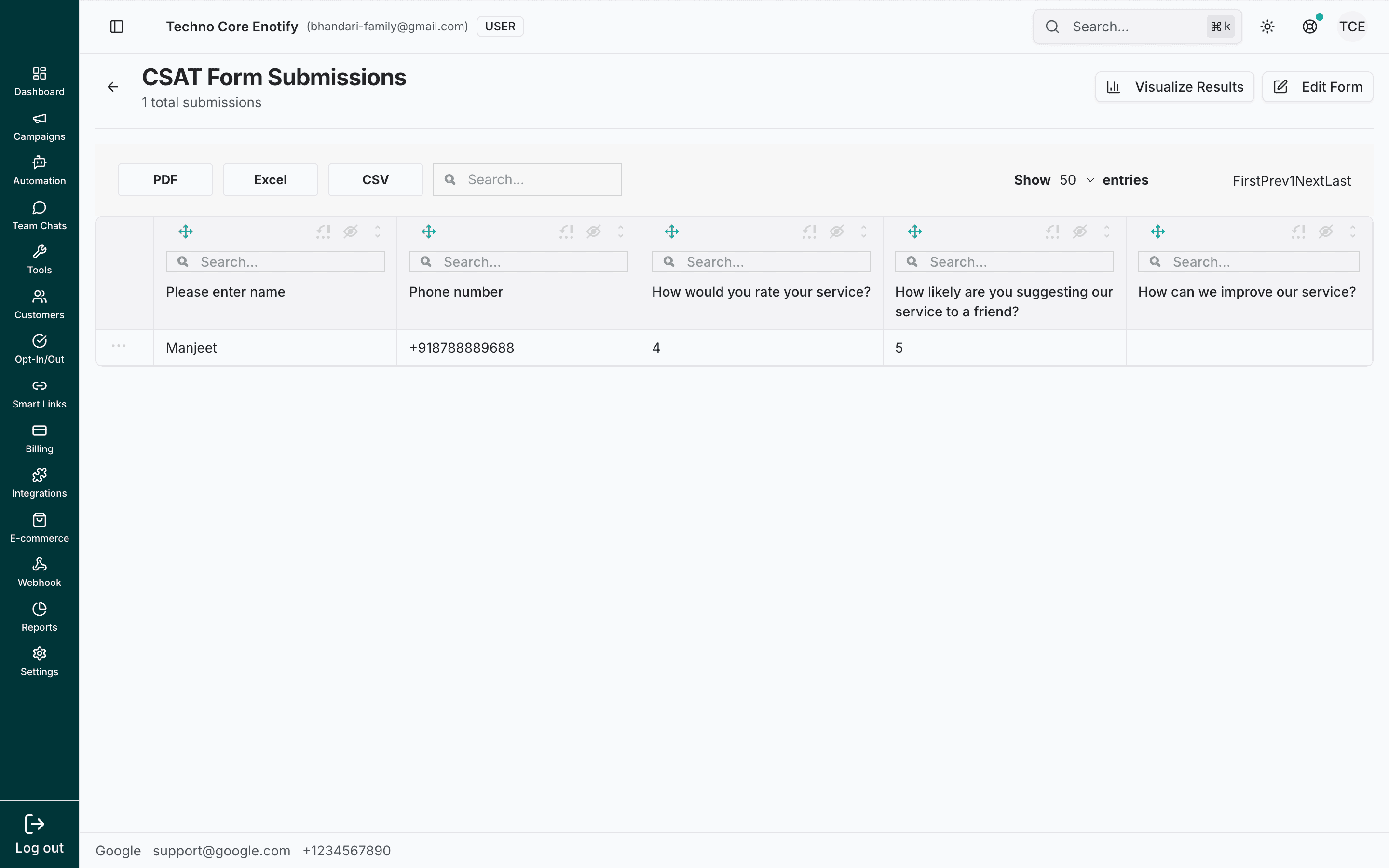
Each question becomes a column and each submission a row. The header shows the total submissions count and offers:
- Export as PDF, Excel, or CSV
- A per-column search to filter responses
- Show … entries and pagination for long lists
- Edit Form to jump back into the builder
Choice answers show their display label; multi-select answers show as comma-separated values.
Visualize results
Click Visualize Results to turn responses into charts.
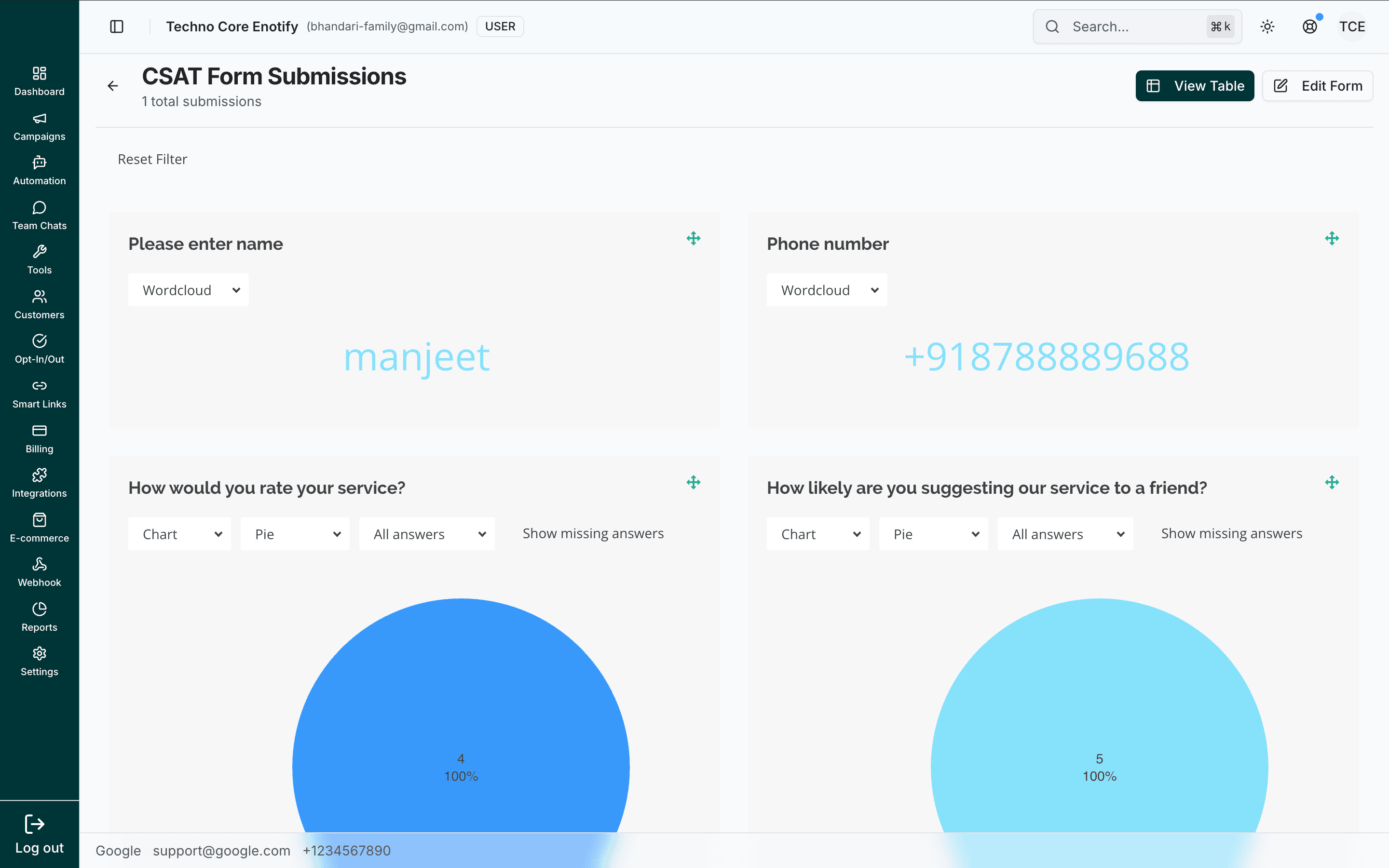
Each question gets a visualisation suited to its type, which you can switch between:
| Question type | Visualisation |
|---|---|
| Text / long text | Word cloud or response list |
| Radio / dropdown | Pie or bar chart |
| Checkboxes / tags | Bar chart (frequency per option) |
| Rating / number | Distribution and average |
Use Reset Filter to clear any applied filters, and View Table to return to the row-by-row view.
Best practices
Troubleshooting
How is this guide?