


Media Library
Upload and manage images, videos, and documents for your campaigns, templates, and chatbot messages.
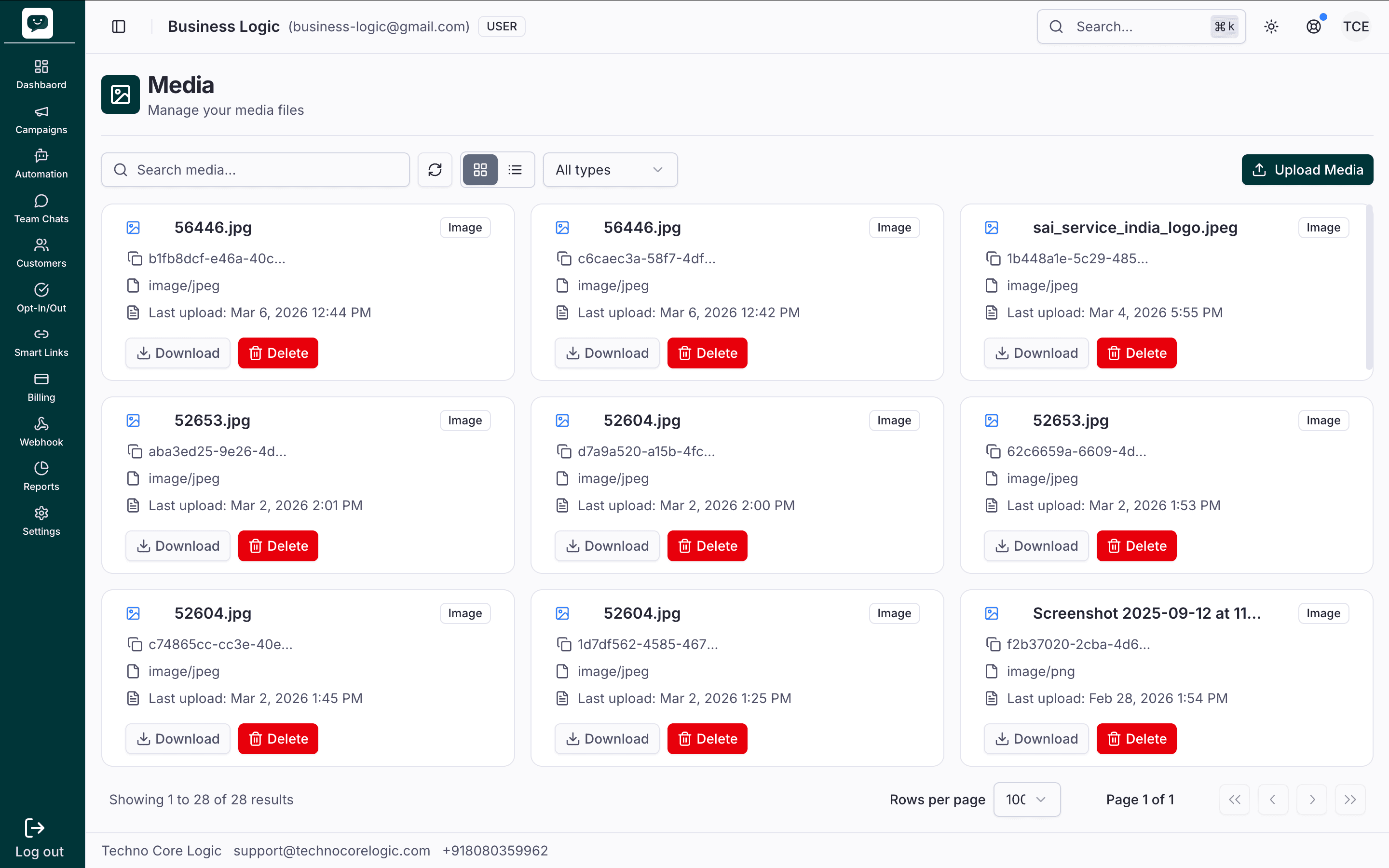
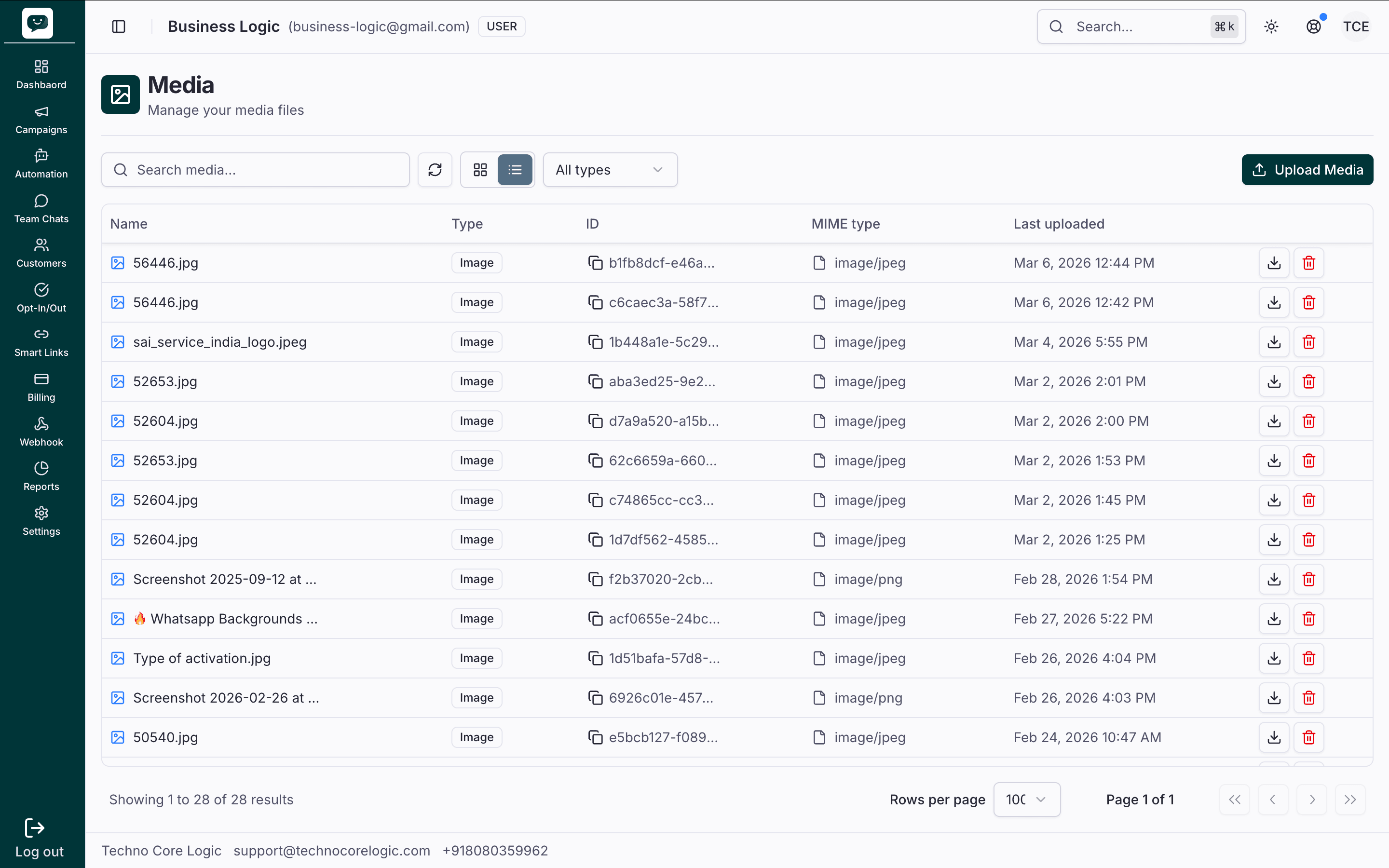
You can switch between Grid and List views using the toolbar. Grid view shows media as cards with name, type, ID, MIME type, last uploaded date, and actions (Download, Delete). List view shows the same in a table with sortable columns.
Grid view
List view
In the app: Dashboard → Campaigns → Media Library
How It Works
Instead of uploading the same file every time you create a template or campaign, the Media Library stores all your files in one place. When you need media, you browse the library and select — no re-uploading.
- Upload a file to the Media Library
- Select it when creating a template header, campaign media step, or chatbot message node
- Reuse the same file across multiple templates and campaigns
Supported File Types
| Type | Formats | Max size | Common uses |
|---|---|---|---|
| Image | JPG, PNG | 5 MB | Template headers, campaign visuals, chatbot messages |
| Video | MP4 | 16 MB | Product demos, tutorials, promotional clips |
| Document | 100 MB | Brochures, invoices, menus, terms & conditions |
Check before uploading
Files that exceed WhatsApp's size limits will upload to the library successfully but will fail when sent in a message. Always verify your file meets the limits above.
Uploading Files
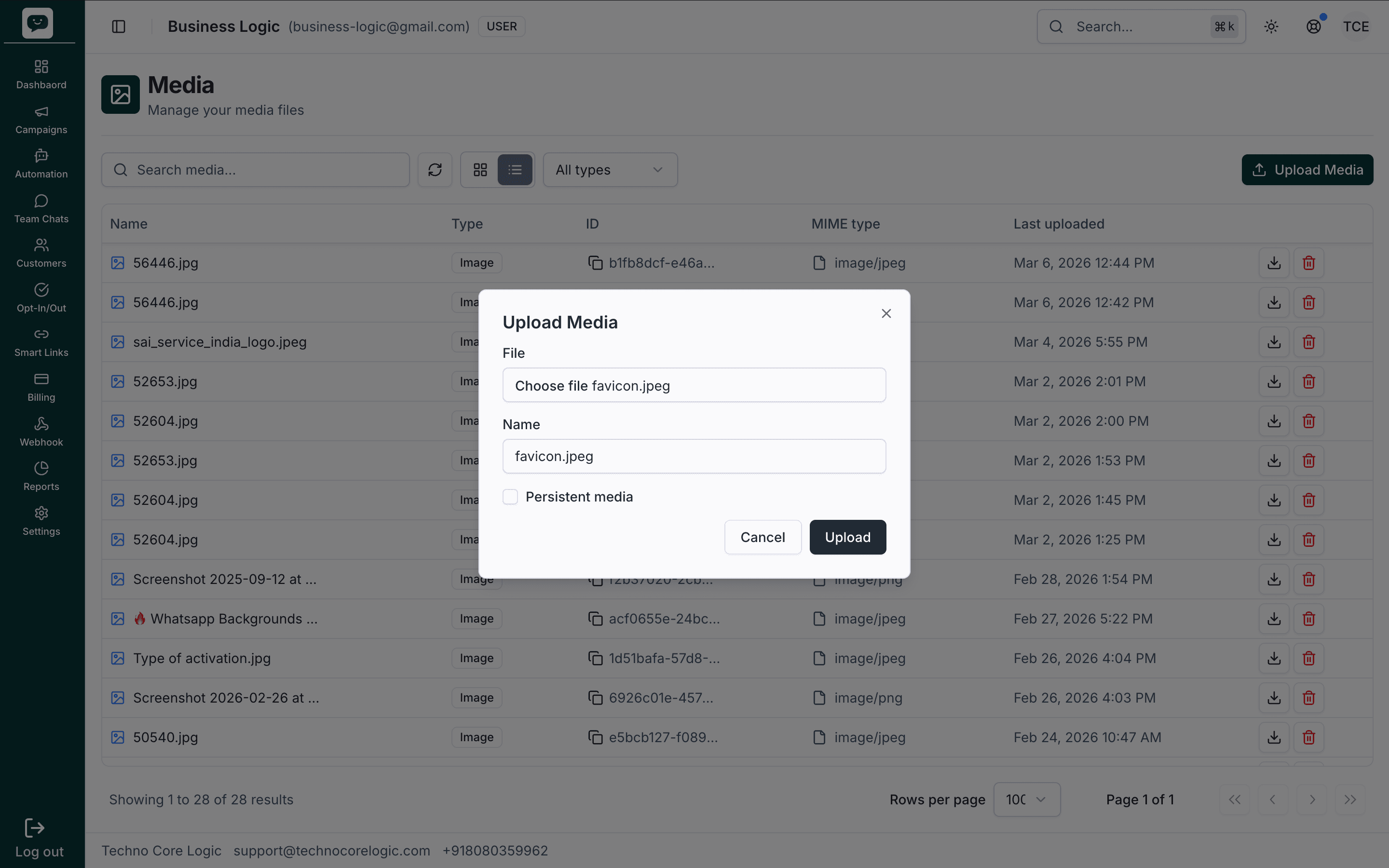
Click Upload Media in the Media Library toolbar to open the upload dialog. Complete the following steps:
- File — Click the file input or browse to choose a file. Accepted types: images (
image/*), videos (video/*), and documents (PDF,.doc,.docx,.xls,.xlsx,.txt). - Name — Optional. Enter a friendly name; if left blank, the original file name is used. Placeholder: Friendly name.
- Persistent media — Optional checkbox. When enabled, the file is stored as persistent media (useful for template headers and reusable assets).
- Click Upload to start the upload, or Cancel to close without uploading. The button shows "Uploading..." while the request is in progress.
- Files are available in the library immediately after a successful upload.
- If no file is selected or no WABA is linked, the app will show an error when you click Upload.
Naming tip
Name files clearly before uploading (e.g., welcome_banner_jan2025.png, product_catalog.pdf). The platform uses the name you set (or the original file name), so a descriptive name makes it easy to find later.
Using Media in Other Features
| Feature | Where media is used | How to select |
|---|---|---|
| Templates | Header (image/video/document) | Template editor → Header → Select from Media Library |
| Campaigns | Step 4 (Template Media) | Campaign wizard → Media step → Browse Library |
| Chatbot | Send Message / Send Template nodes | Node editor → Attach media → Browse Library |
Best Practices
How is this guide?