


Integrations
Connect third-party tools like Shopify to sync store data and trigger WhatsApp automation from commerce events.
Integrations connect external platforms to your account so orders, customers, and webhooks can drive campaigns, segments, and chat automation.
In the app: Dashboard → Integrations
Integrations hub
Open Integrations from the sidebar to see every available connection. Use the search bar to filter by name, category, or feature tags.
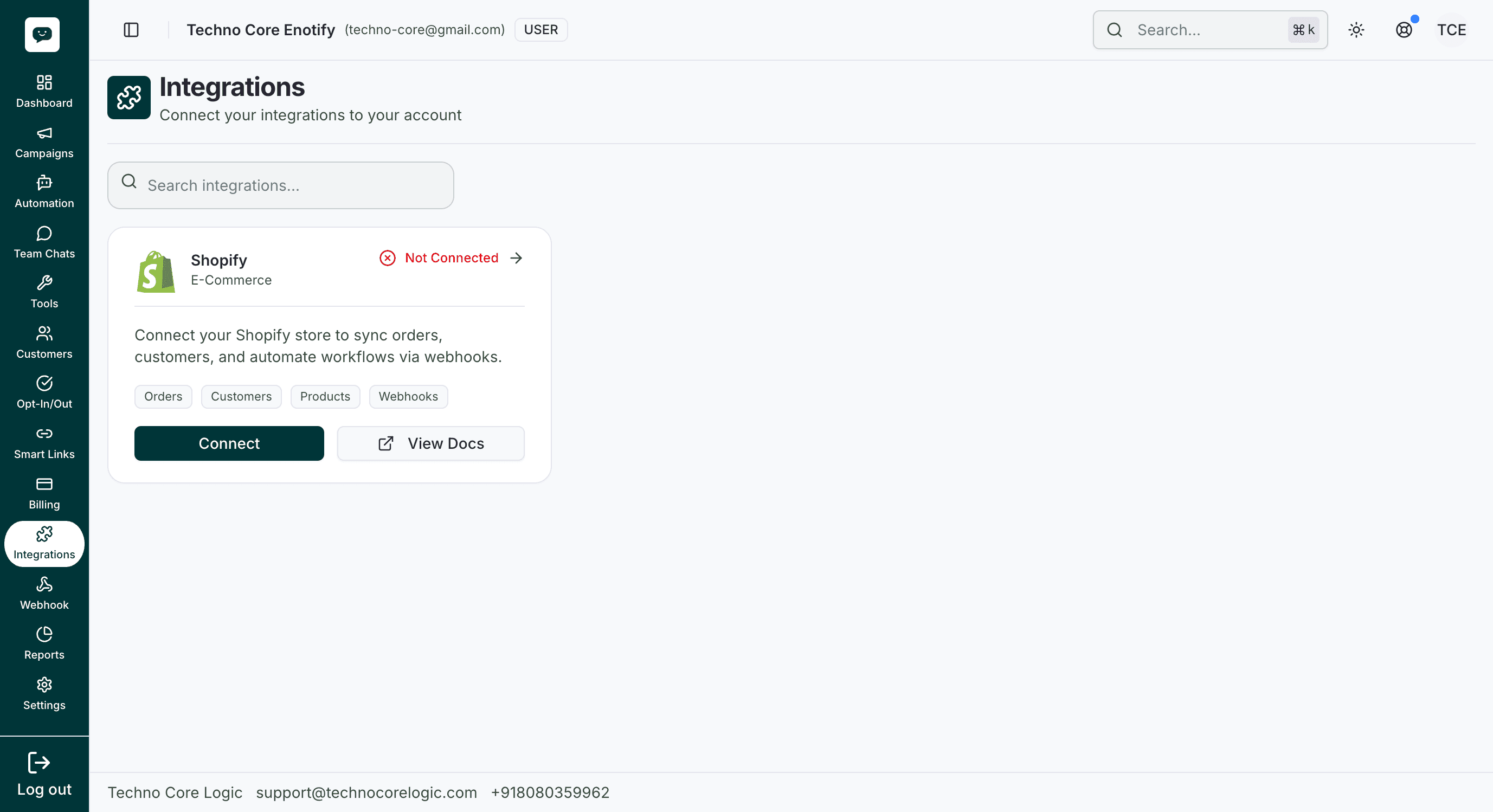
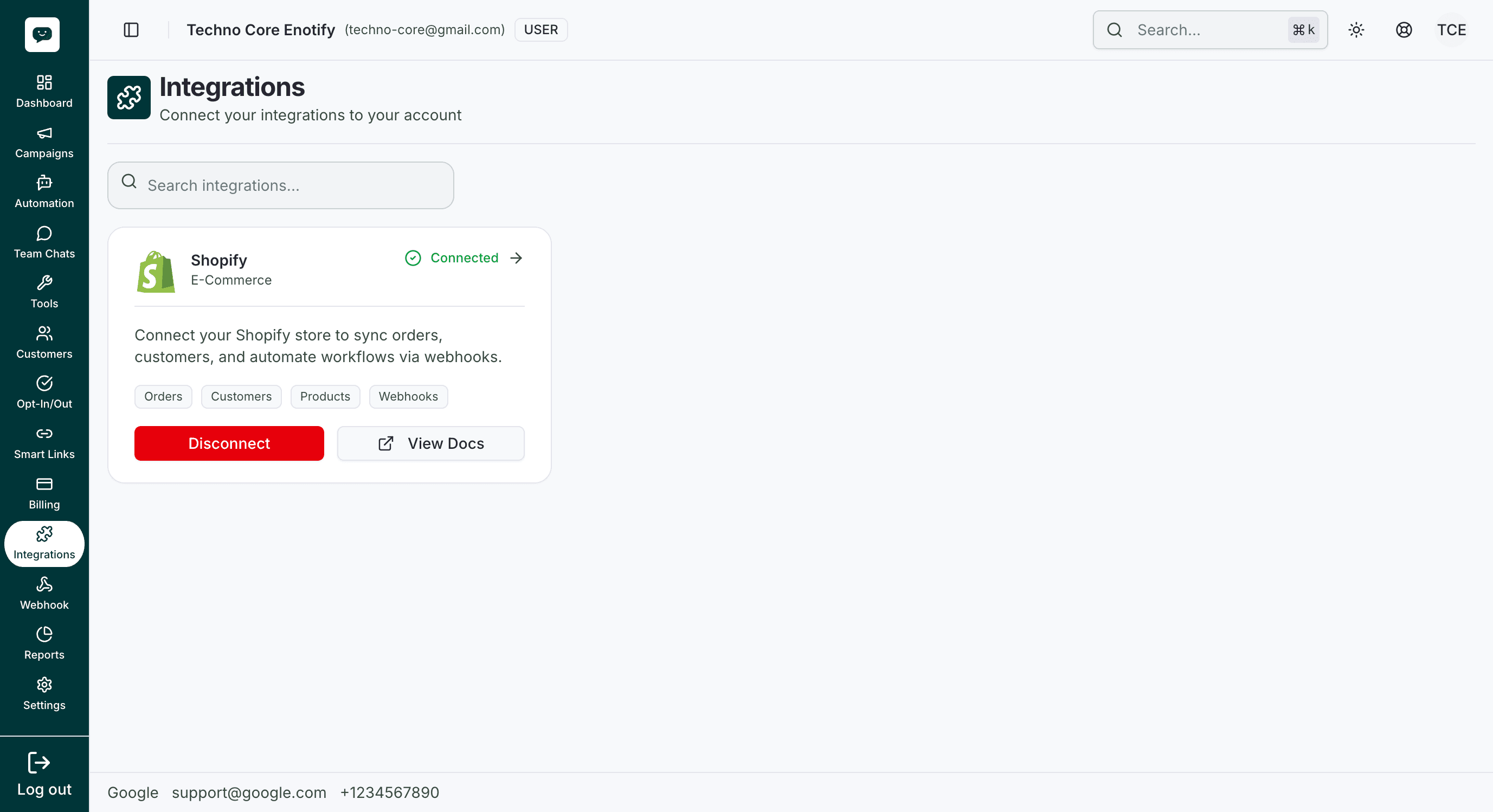
Each card shows the integration name, category (for example E-Commerce for Shopify), a short description, and tags such as Orders, Customers, Products, and Webhooks. Status appears in the top-right: Not Connected (with a red indicator) or Connected (with a green checkmark).
Use Connect to start setup, Disconnect when the integration is active, and View Docs for external reference (Shopify links to their OAuth / app documentation).
Not connected
Connected
When Shopify is linked, the same card shows Connected and offers Disconnect and View Docs.
Shopify
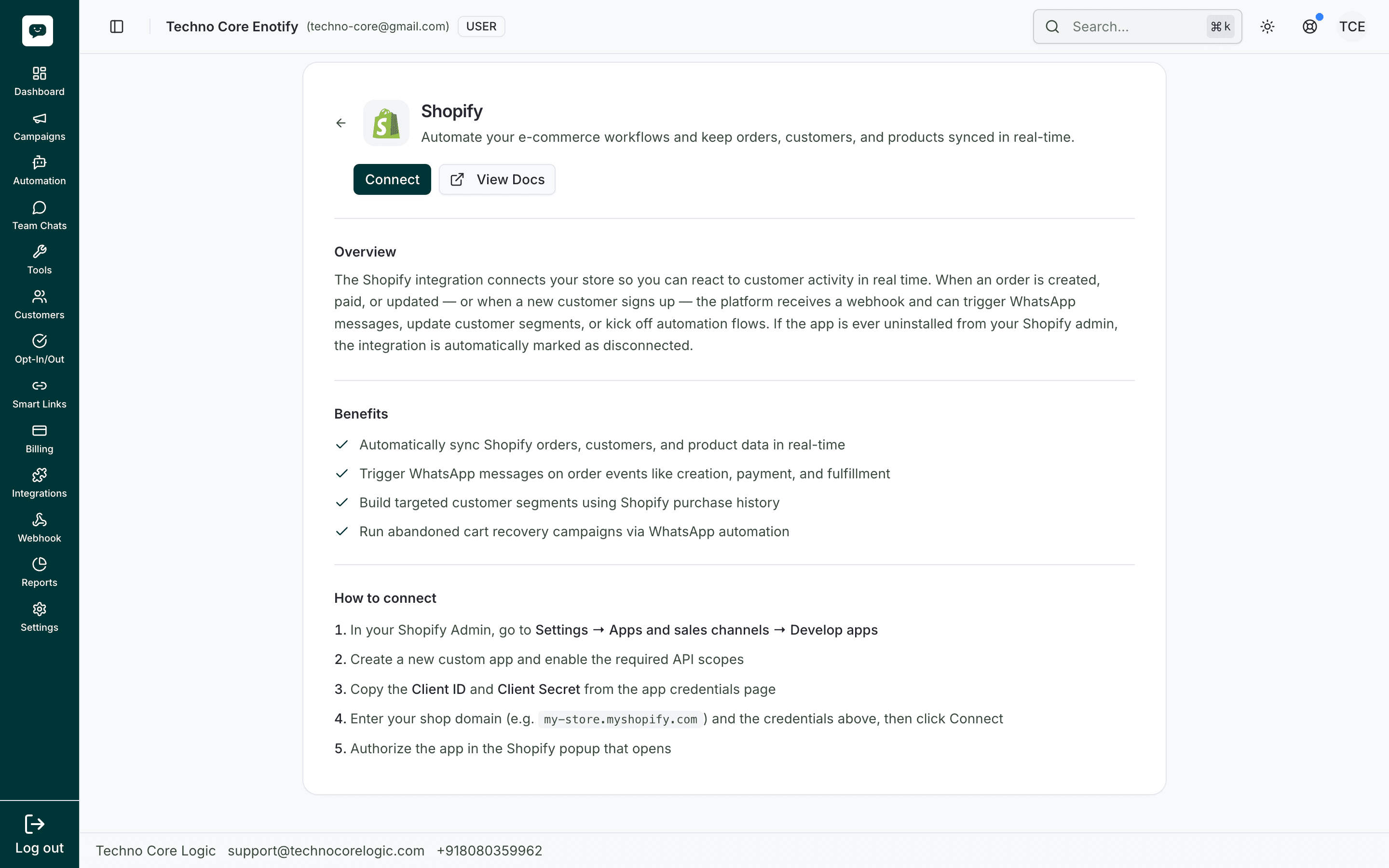
Shopify connects your store so you can react to customer activity in real time. When an order is created, paid, or updated—or when a new customer signs up—the platform can receive webhooks and trigger WhatsApp messages, update customer segments, or start automation flows. If the app is removed from your Shopify admin, the integration is automatically marked as disconnected.
Open the full Shopify screen from Integrations by choosing the Shopify card (arrow or Connect / Disconnect).
Benefits
- Automatically sync Shopify orders, customers, and product data in real time
- Trigger WhatsApp messages on order events such as creation, payment, and fulfillment
- Build targeted customer segments using Shopify purchase history
- Run abandoned cart recovery campaigns via WhatsApp automation
Connect Shopify
Open Shopify from Integrations
From Dashboard → Integrations, open the Shopify card. When not connected, use Connect (and View Docs if you need Shopify’s app setup reference).
Create a Shopify custom app
In Shopify Admin, go to Settings → Apps and sales channels → Develop apps. Create a new custom app and enable the API scopes your workflows need.
Copy credentials and connect
From the app’s credentials page in Shopify, copy the Client ID and Client Secret. In our portal, enter your shop domain (for example my-store.myshopify.com), paste the credentials, then start connect. Complete authorization in the Shopify window that opens.
Confirm connected state
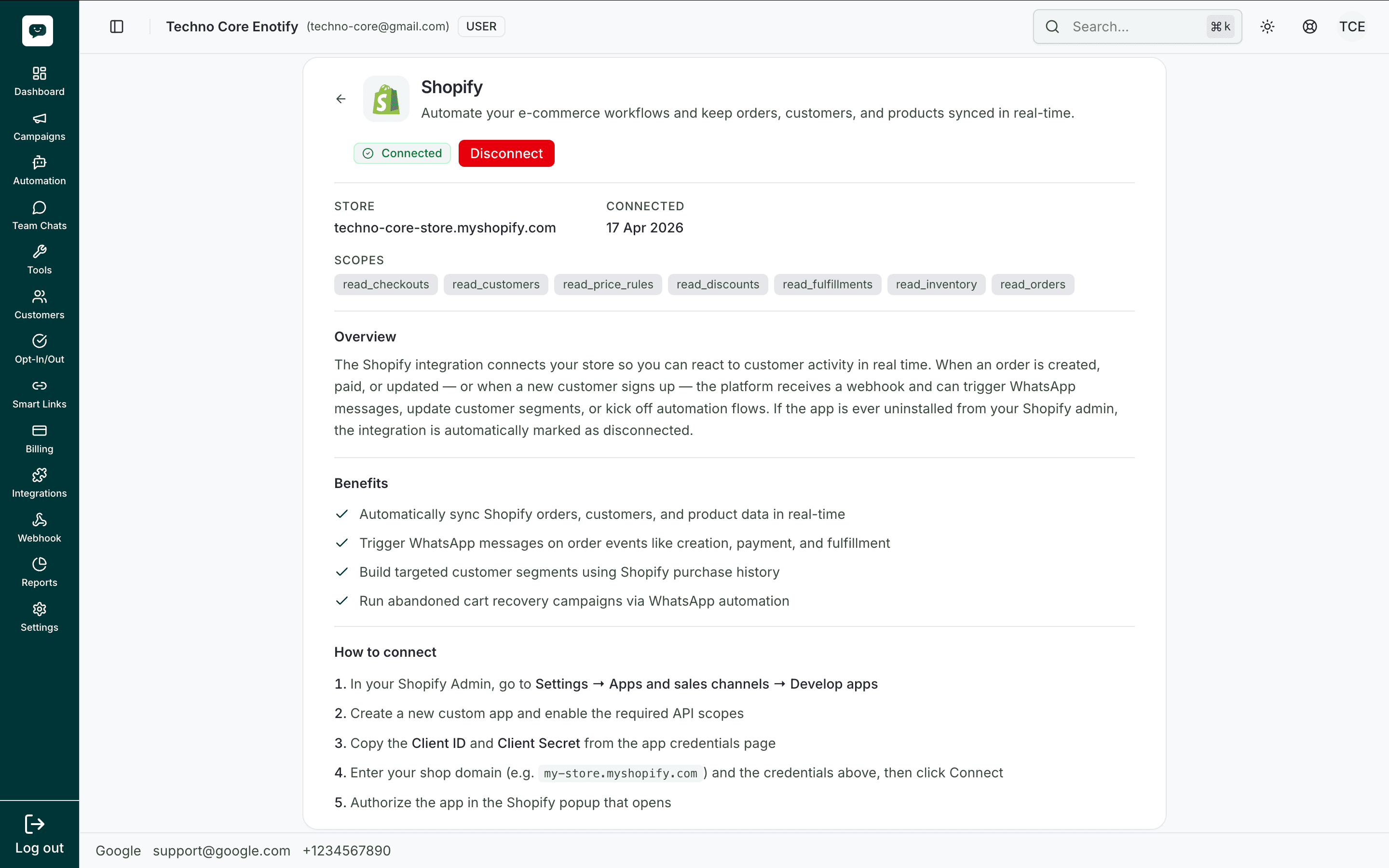
After OAuth succeeds, the Shopify page shows a green Connected badge, Disconnect, and details such as:
- STORE — your
*.myshopify.comdomain - CONNECTED — the date the store was linked
- SCOPES — granted API permissions (for example
read_orders,read_customers,read_inventory, and others your app requested)
Disconnect Shopify
On the Shopify integration page, use Disconnect when you want to remove the link. You will be asked to confirm; disconnecting removes registered webhooks and stops the store from receiving automated events through this integration until you connect again.
Before disconnecting
Dependent automations and segments that rely on Shopify webhooks will stop receiving updates until you reconnect and restore the integration.
Troubleshooting
How is this guide?
Call History
Every call relayed between WhatsApp and your phone system — the columns, all eight call states, filtering, and a troubleshooting table for calls that did not connect.
Chat Widget Builder
Customize a WhatsApp chat launcher and widget, preview it live, and generate embed code for your website.