


Customers
Manage your customer database — search and filter contacts, edit attributes and tags, and manage messaging consent.
Your central customer database. Every contact who interacts with your WhatsApp number appears here. Search and filter contacts, manage the attributes and tags that power segments and automation, and control messaging consent.
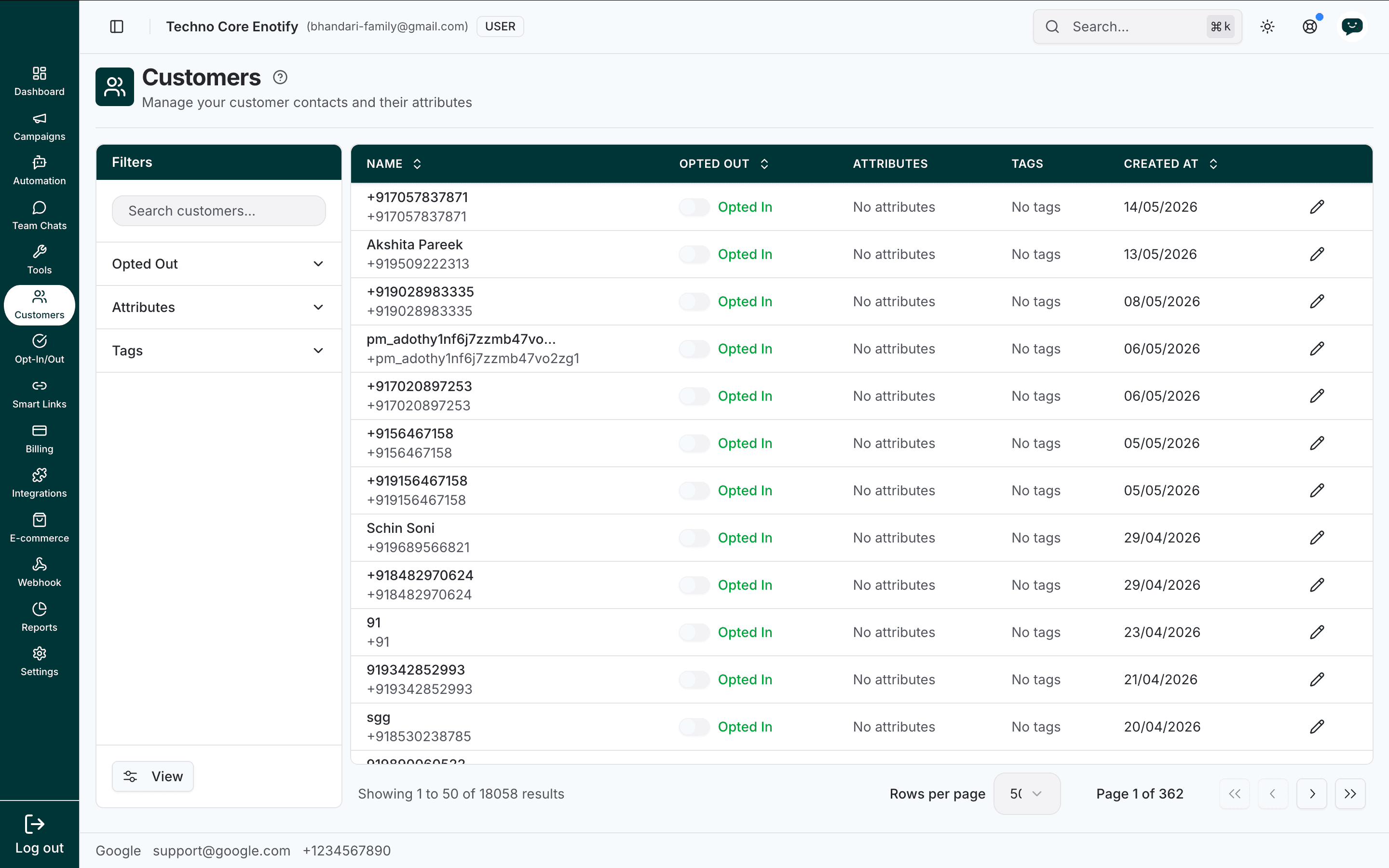
In the app: Dashboard → Customers
The Customers page
The customer list shows every contact on your account. Each row has:
| Column | Meaning |
|---|---|
| Name | The customer's name and WhatsApp number |
| Opted Out | Messaging consent toggle — see Opt-In / Opt-Out |
| Attributes | Custom fields set on the customer, or No attributes |
| Tags | Labels applied to the customer, or No tags |
| Created At | When the contact was first added |
The footer controls Rows per page and pages through large lists.
Search and filter
The Filters panel on the left narrows the list:
- Search customers — by name or phone number
- Opted Out — filter by messaging consent state
- Attributes — filter by custom attribute values
- Tags — filter by applied tags
Editing a customer
Click the pencil icon on any row to open the Edit Customer dialog.
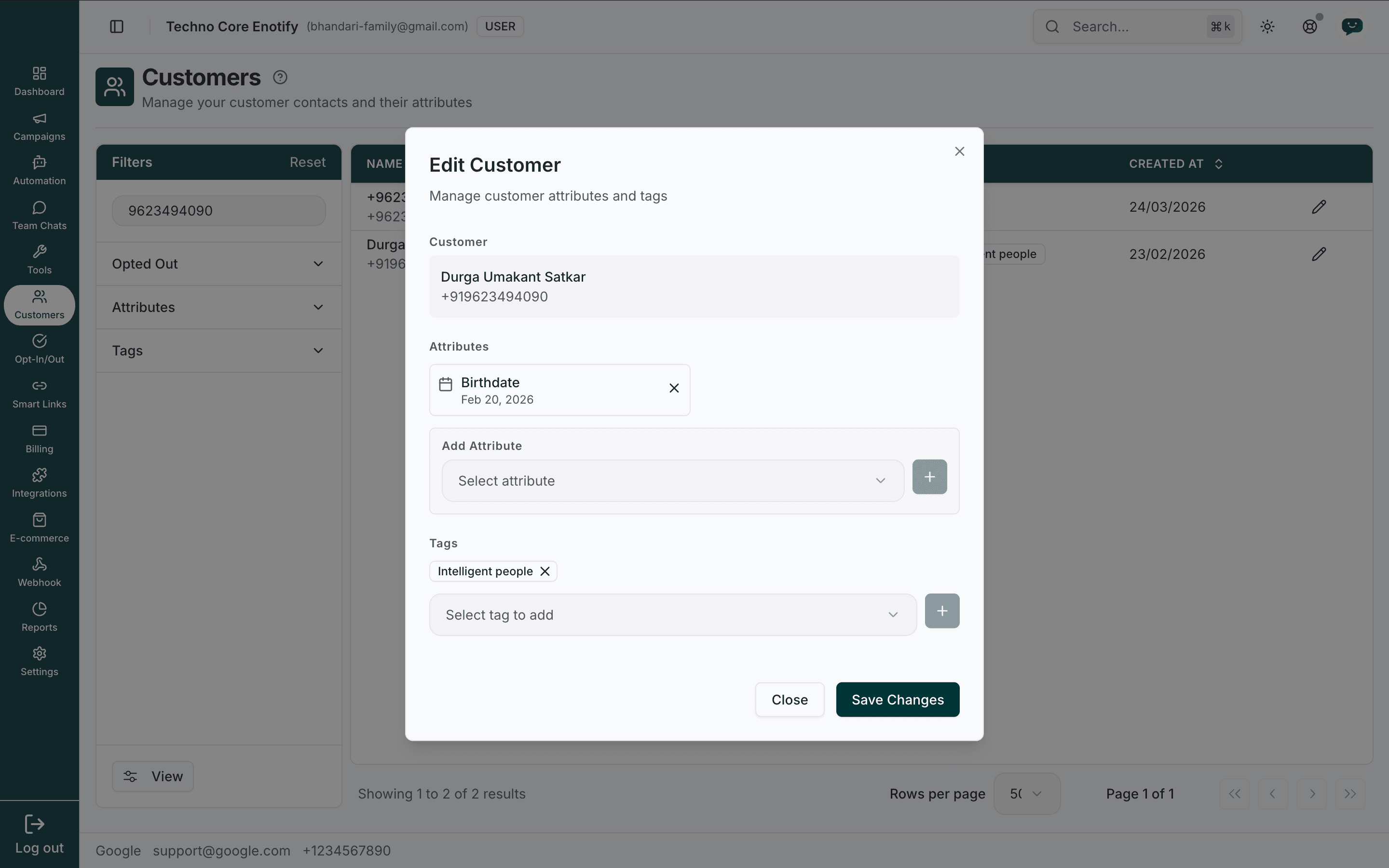
The customer's name and number are shown for reference. From here you manage two things:
Attributes
Custom fields attached to the customer. Existing attributes appear as chips with their value — remove one with its ✕. To add an attribute, pick it from Select attribute and click +.
Attribute definitions live in Settings → Attributes, where each has a type — text, number, true/false, date, time, date-time, or JSON. Attributes are also populated automatically by chatbot flows and forms.
Tags
Labels for categorising customers — "VIP", "Lead", "Newsletter". Existing tags show as chips; remove one with its ✕, or add one from Select tag to add and +. Manage tag names in Settings → Tags.
Click Save Changes to apply, or Close to discard.
Attributes and tags in practice
Attributes and tags are what make segments precise. The more you capture, the more targeted your campaigns can be.
| Example attribute | Type | Typical source |
|---|---|---|
| City | Text | Chatbot / Form |
| Birthdate | Date | Form / Manual |
| Plan | Text | Manual |
| Order count | Number | Integration / Manual |
Messaging consent
The Opted Out toggle on each row reflects whether the customer may receive marketing messages. Opted-out customers are excluded from marketing campaigns automatically. Manage consent and keyword-based opt-out on the Opt-In / Opt-Out page.
Best practices
How is this guide?