


Nodes Reference
All 17 chatbot node types — triggers, messages, input, logic, integration, and action nodes with configuration options.
Every chatbot flow is built from nodes — the building blocks that define what happens at each step of a conversation. The editor provides 17 node types in six categories, listed in the node sidebar. Drag a node onto the canvas, then double-click it to configure.
In the app: Dashboard → Automation → Chatbot → [Edit] → node sidebar
Variables in any field
Wherever a field shows the </> icon, you can insert a saved value — customer info, a contact attribute, or a flow variable — instead of static text. See Triggers & Variables.
Triggers
Messages
Input
Logic
Integration
Actions
Triggers
Trigger nodes are the entry points of a flow. Which one fires depends on the chatbot's trigger type, set when you create it (see Triggers & Variables).
On First Message
Starts the flow on the first contact ever from a new customer, and fires once per contact. No configuration. Use it for onboarding and first-time welcome flows.
On Message
Starts the flow when an incoming message matches the chatbot's keywords or pattern. This is the entry point for keyword, exact-match, starts-with, and regex chatbots. The match itself is configured by the chatbot's trigger type and keywords, not on the node.
Message nodes
Nodes that send content to the customer. They're send-only: they don't wait for a reply. Use an input node when you need to capture an answer.
Send Message
Send text, an image, a video, or a document.
| Config option | Description |
|---|---|
| Message | The message body. Supports variables with the </> picker |
| Attachment | Optional. Add attachment to include an image, video, or document |
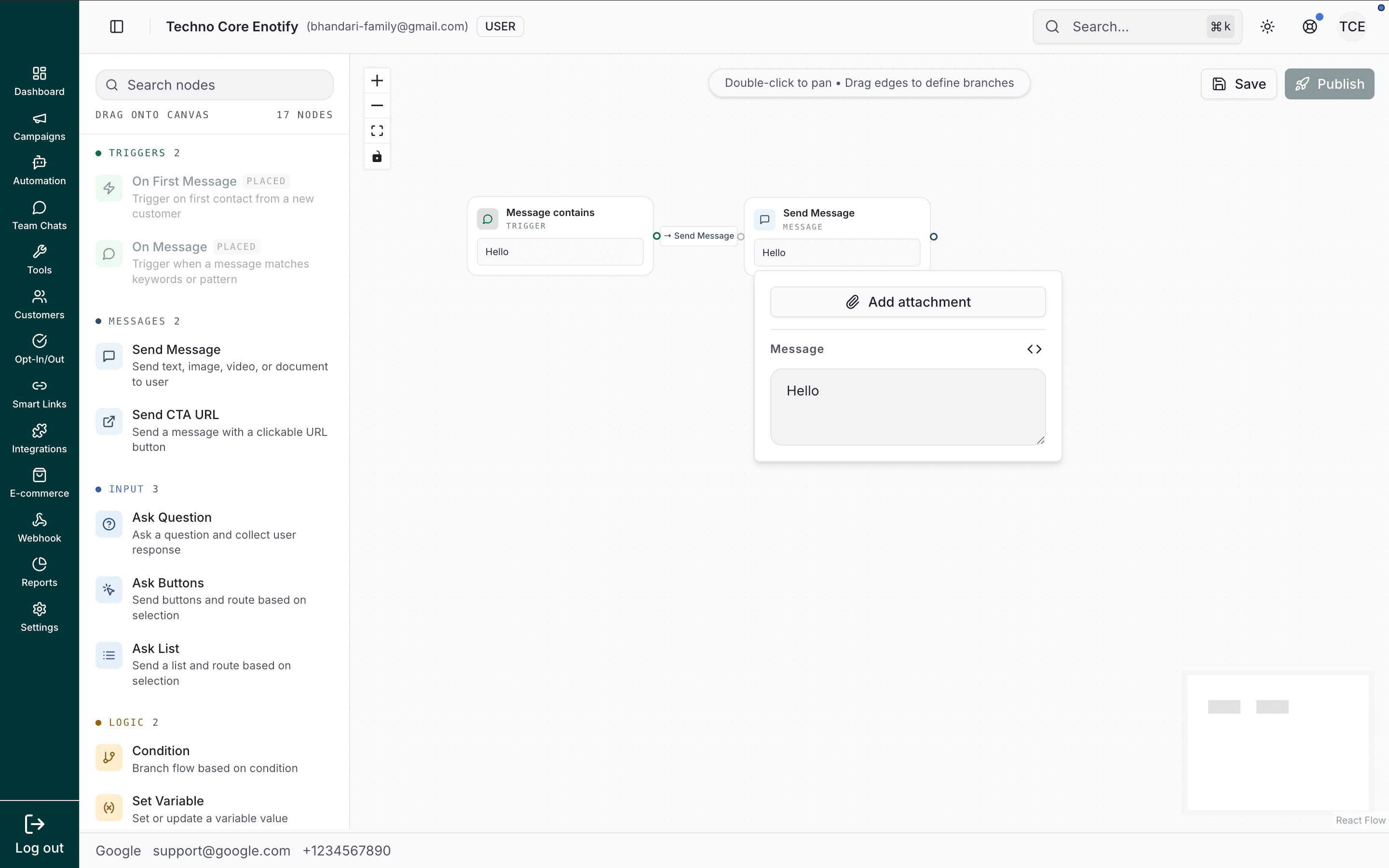
Add attachment opens a picker. Upload a new file, or pick one from your Media Library.
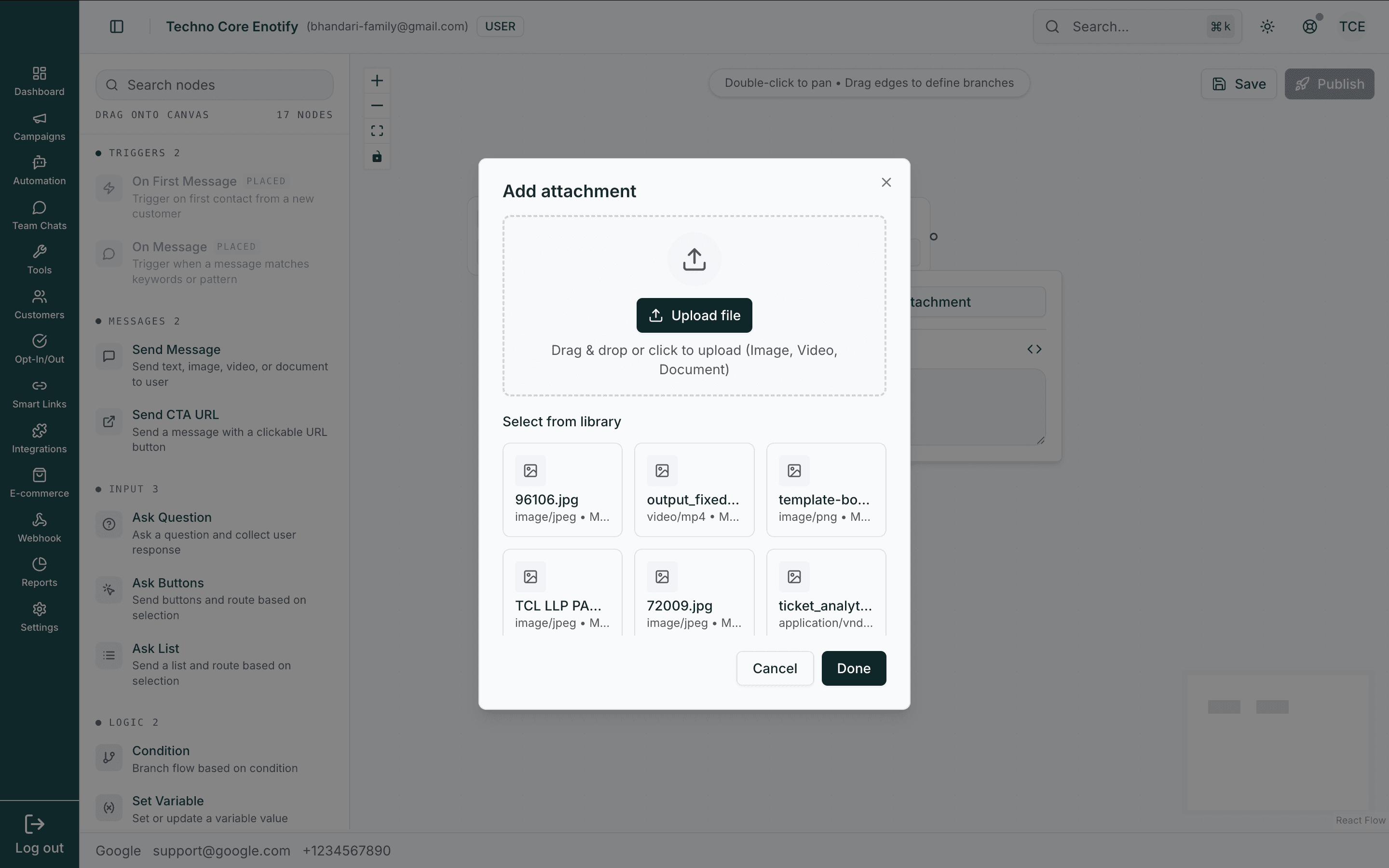
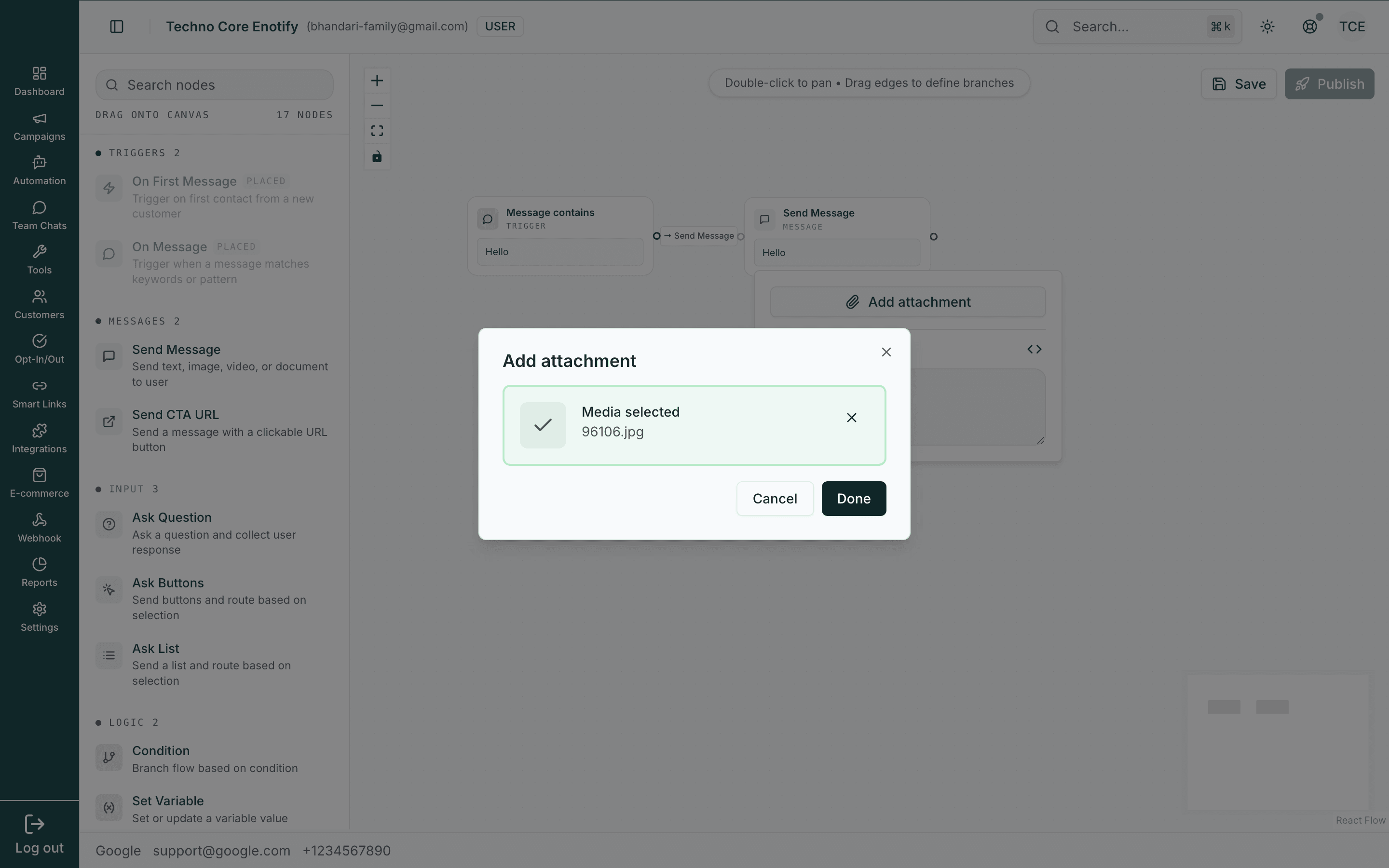
The selected file is confirmed in the dialog before you apply it.
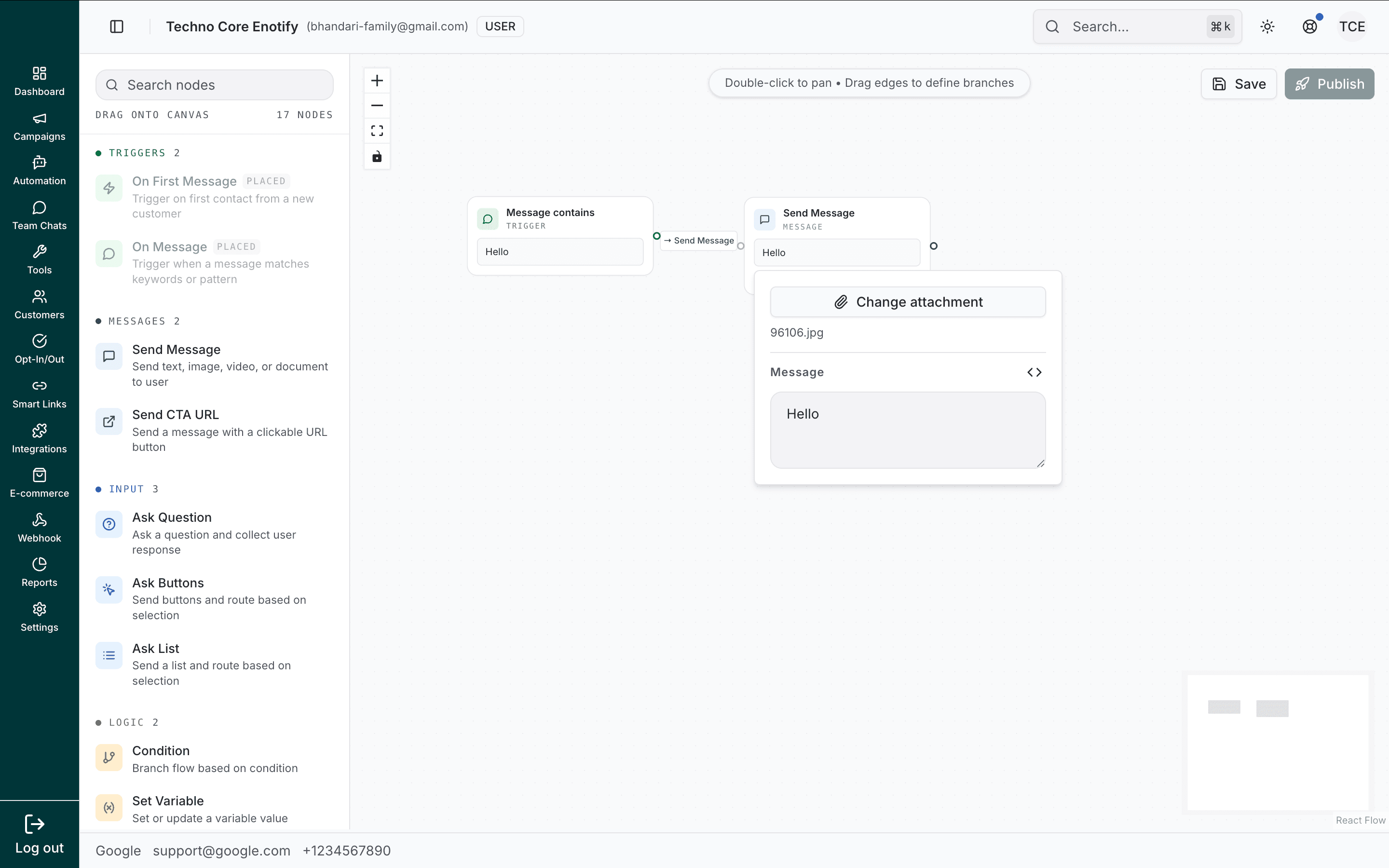
Once attached, the button becomes Change attachment, and the file name shows on the node.
When to use: Welcome messages, confirmations, instructions, or sending media — any message where you don't need a reply.
Send CTA URL
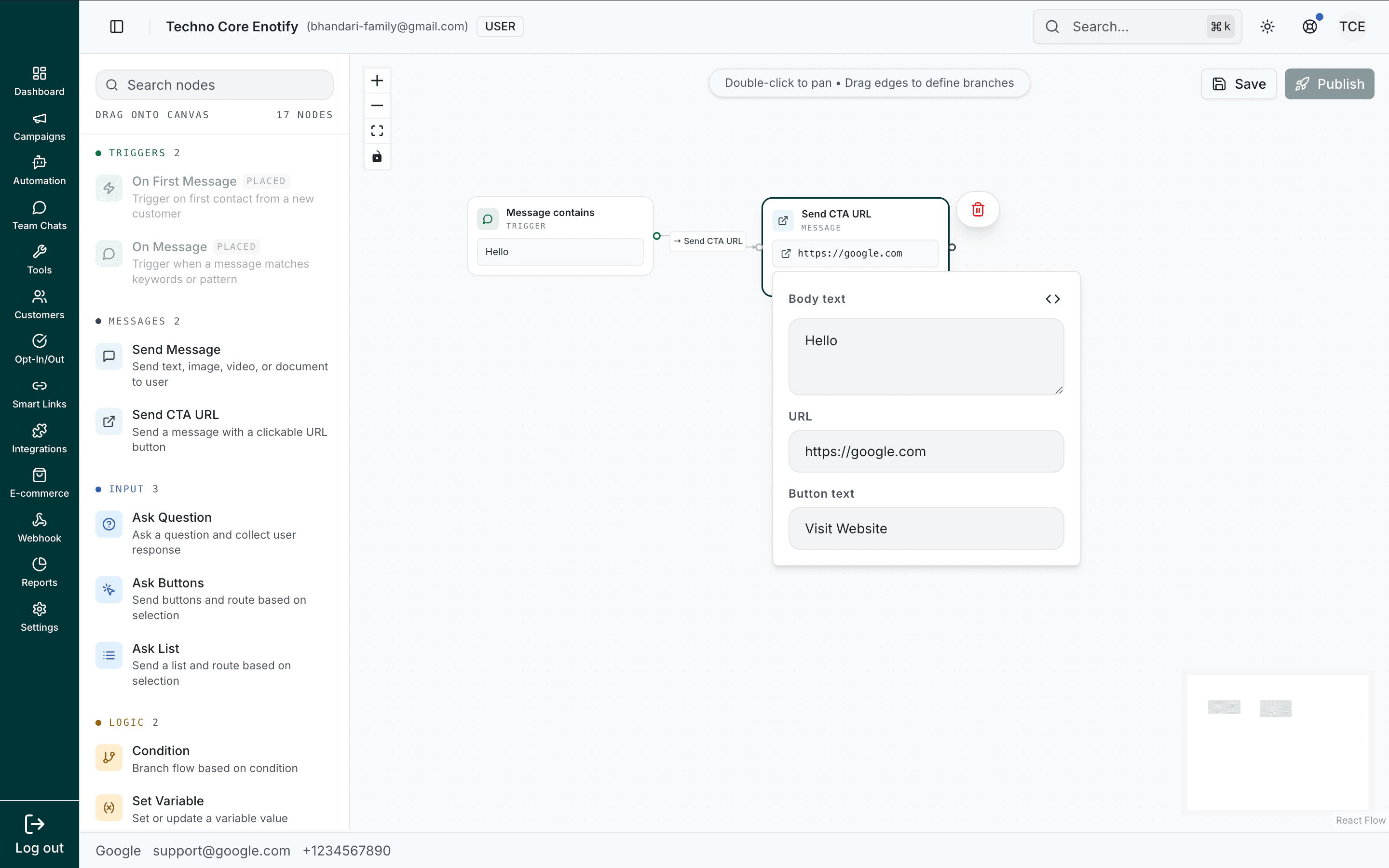
Send a message with a single clickable button that opens a URL.
| Config option | Description |
|---|---|
| Body text | The message shown above the button. Supports variables |
| URL | The link the button opens, e.g. https://google.com |
| Button text | The button label, e.g. "Visit Website" |
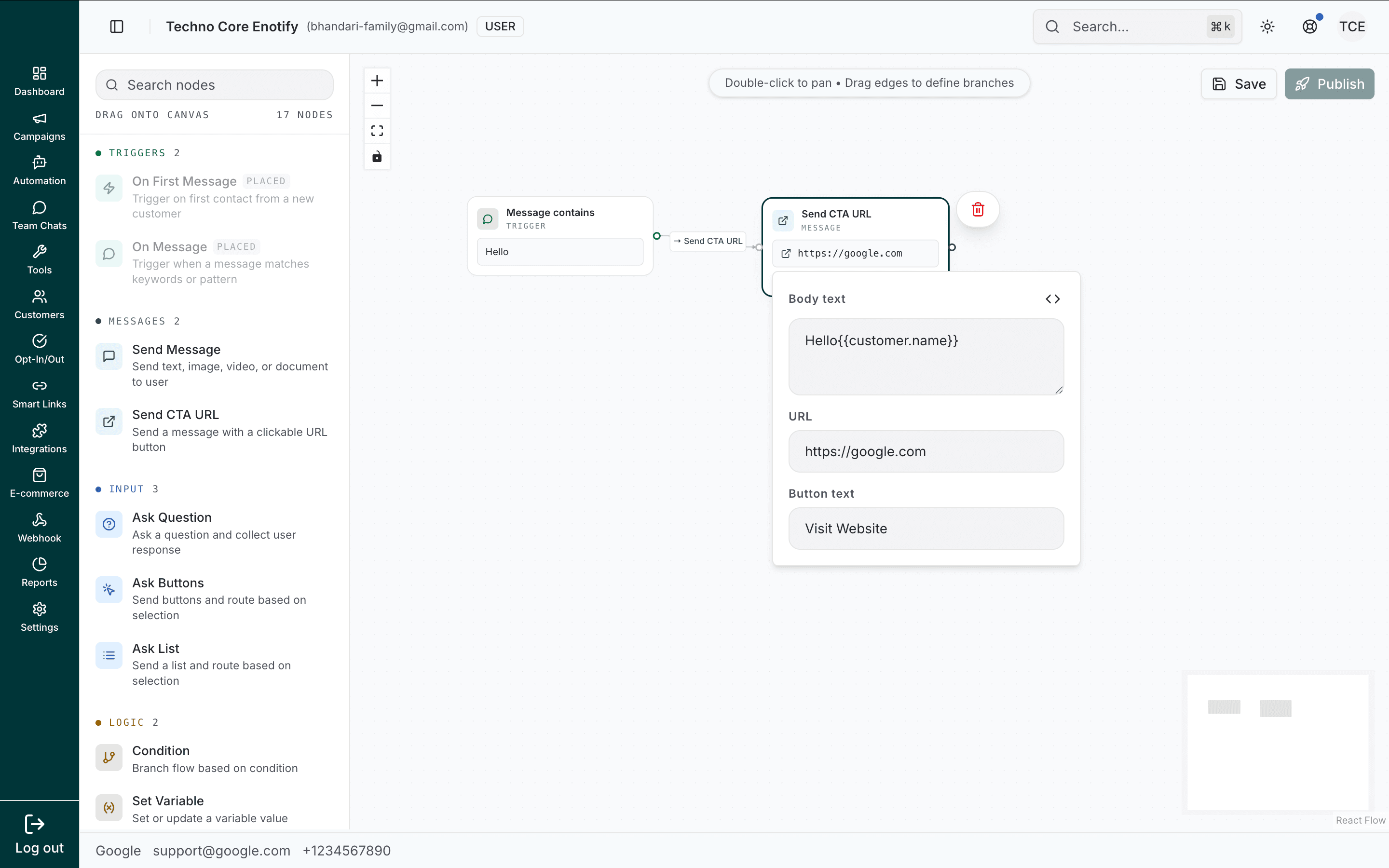
Personalize the body with the </> picker. Insert a customer field such as their name:
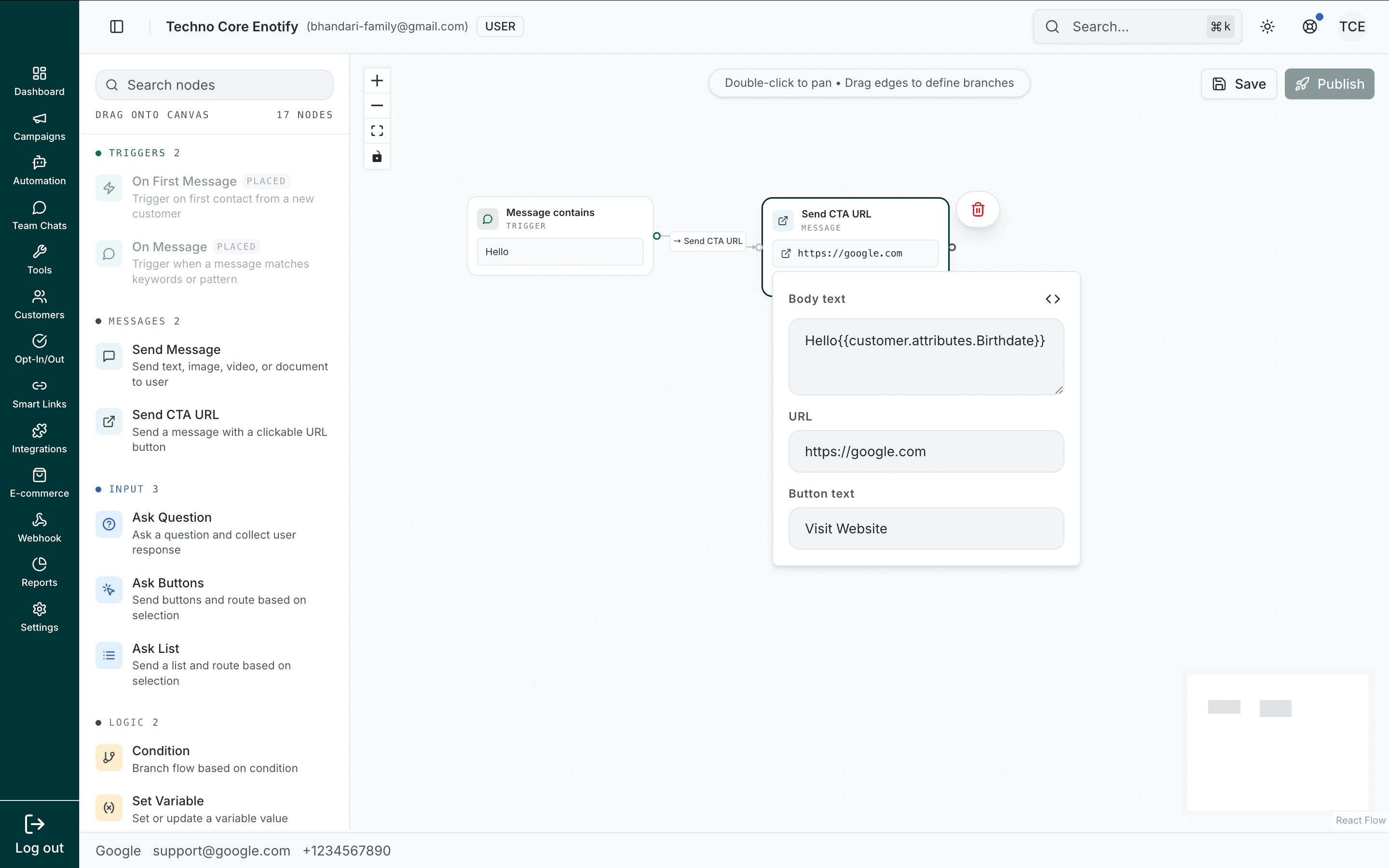
Or a contact attribute, referenced with dot notation:
When to use: Driving customers to a product page, a smart link, a booking page, or any external destination from inside the chat.
Input nodes
Nodes that send a message and wait for the customer's reply. The reply is captured for use later in the flow.
Ask Question
Ask a free-text question and wait for the customer to type a reply.
| Config option | Description |
|---|---|
| Question | The question text. Supports variables |
| Save response to variable | The variable that stores the reply. Pick one, or create a new one with + |
| Validation rule | Optional check applied to the reply |
| Invalid message | Shown when validation fails, so the customer can retry |
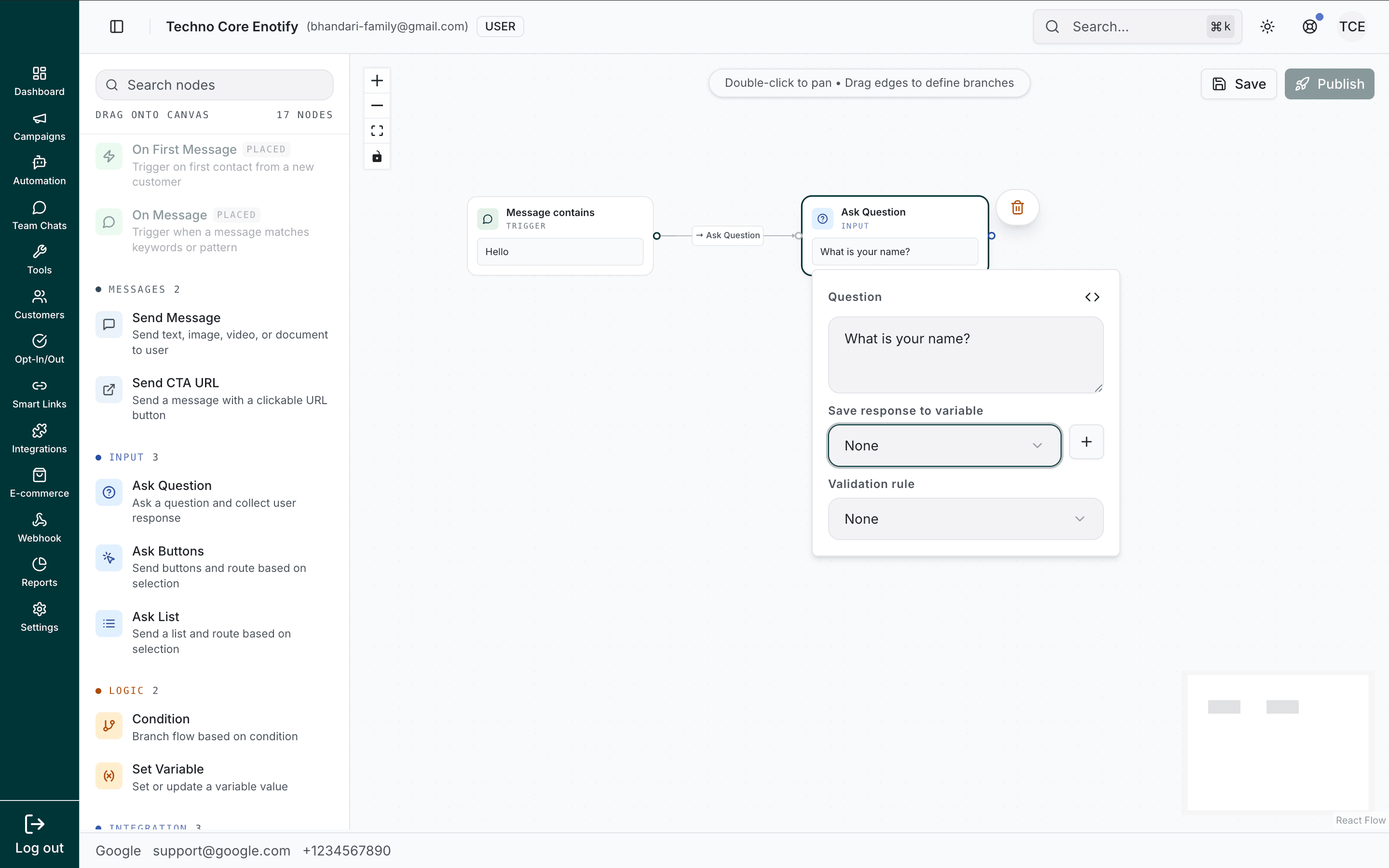
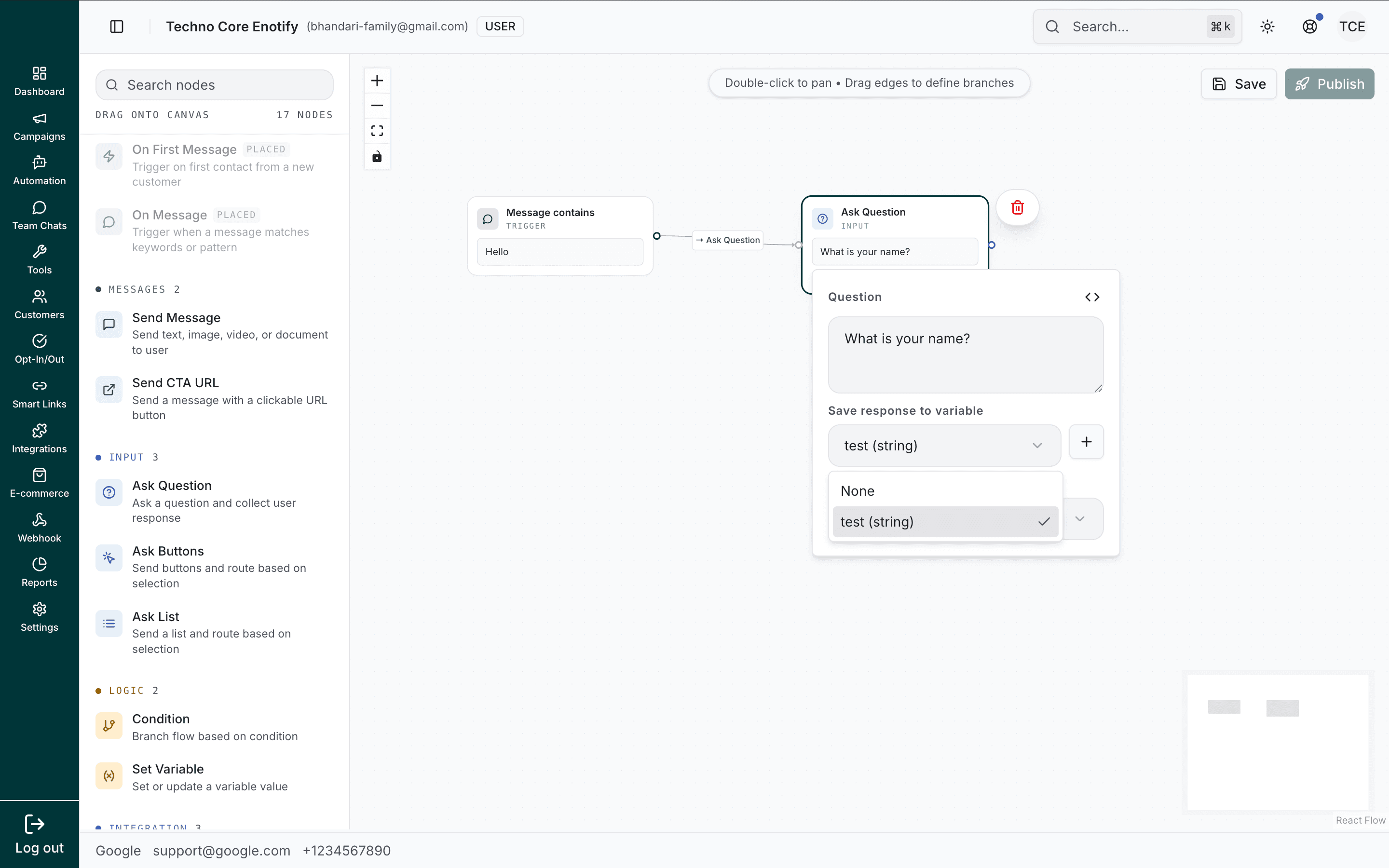
The Save response to variable dropdown lists existing variables, or use + to create one inline.
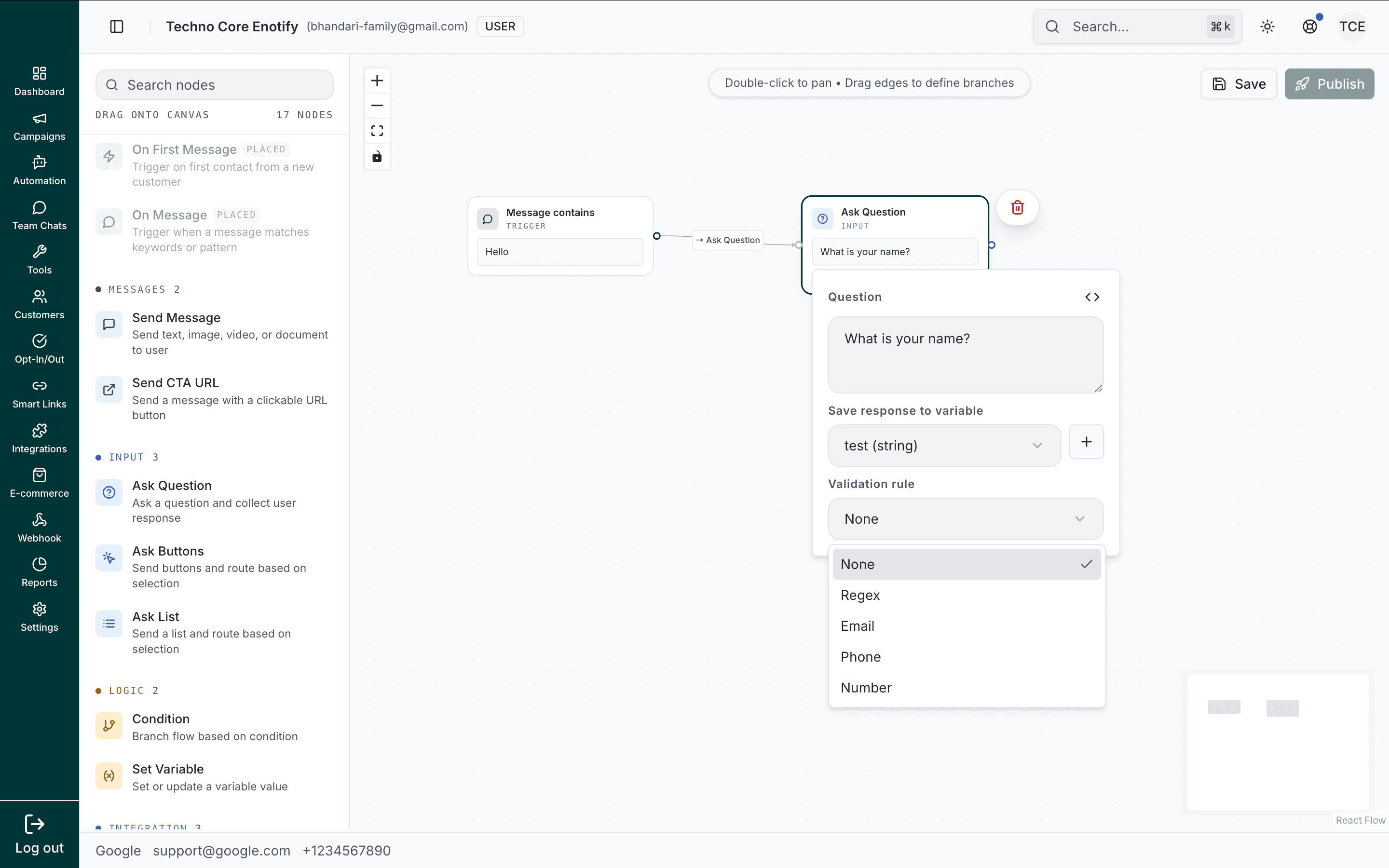
Pick a validation rule to enforce the reply's format: None, Regex, Email, Phone, or Number.
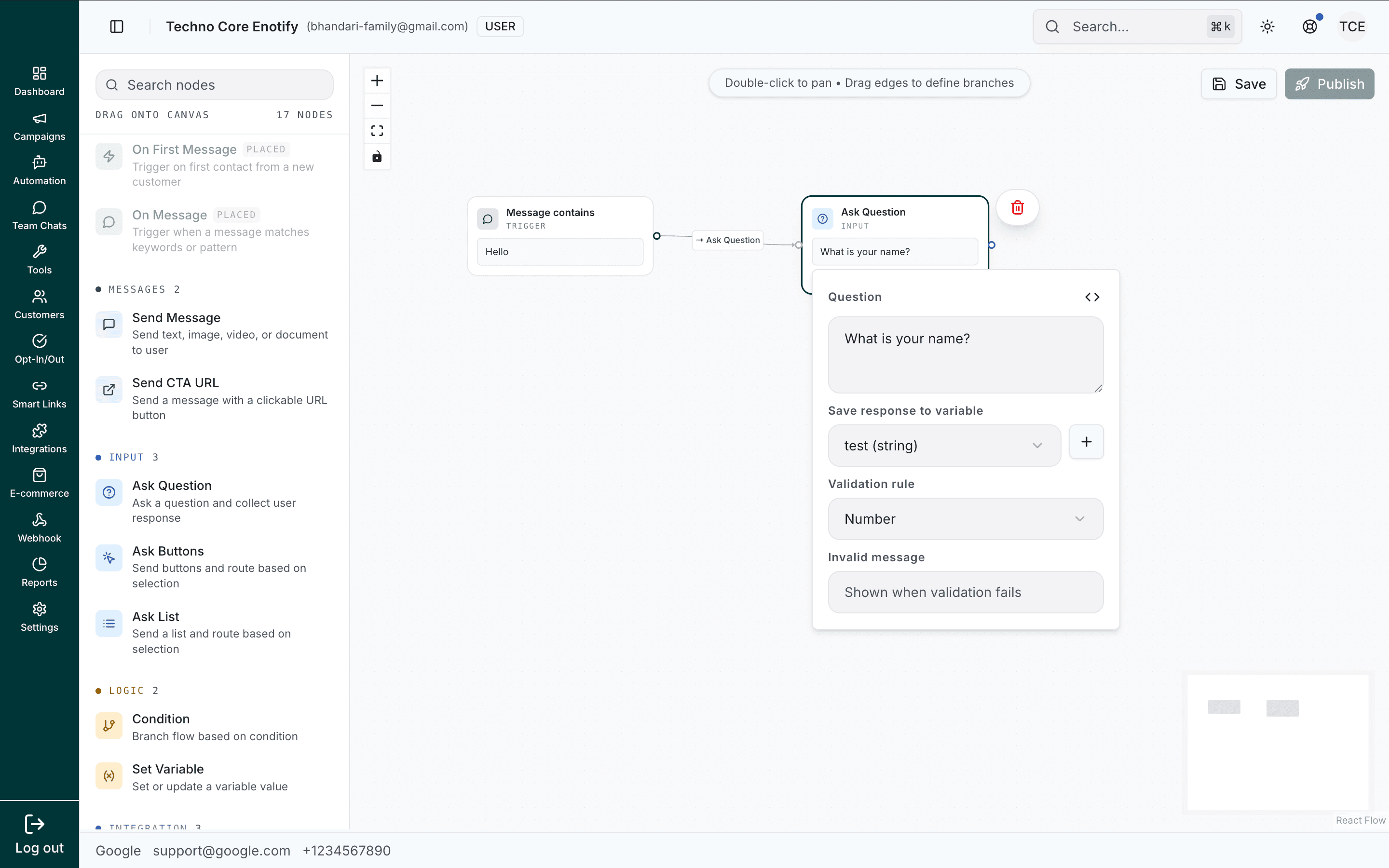
With a rule set, an Invalid message appears for the customer if their reply doesn't pass.
Validation saves cleanup
Use Email or Phone validation to ensure properly formatted data. On an invalid reply the customer sees your Invalid message and tries again; the flow only advances once the input is valid.
Ask Buttons
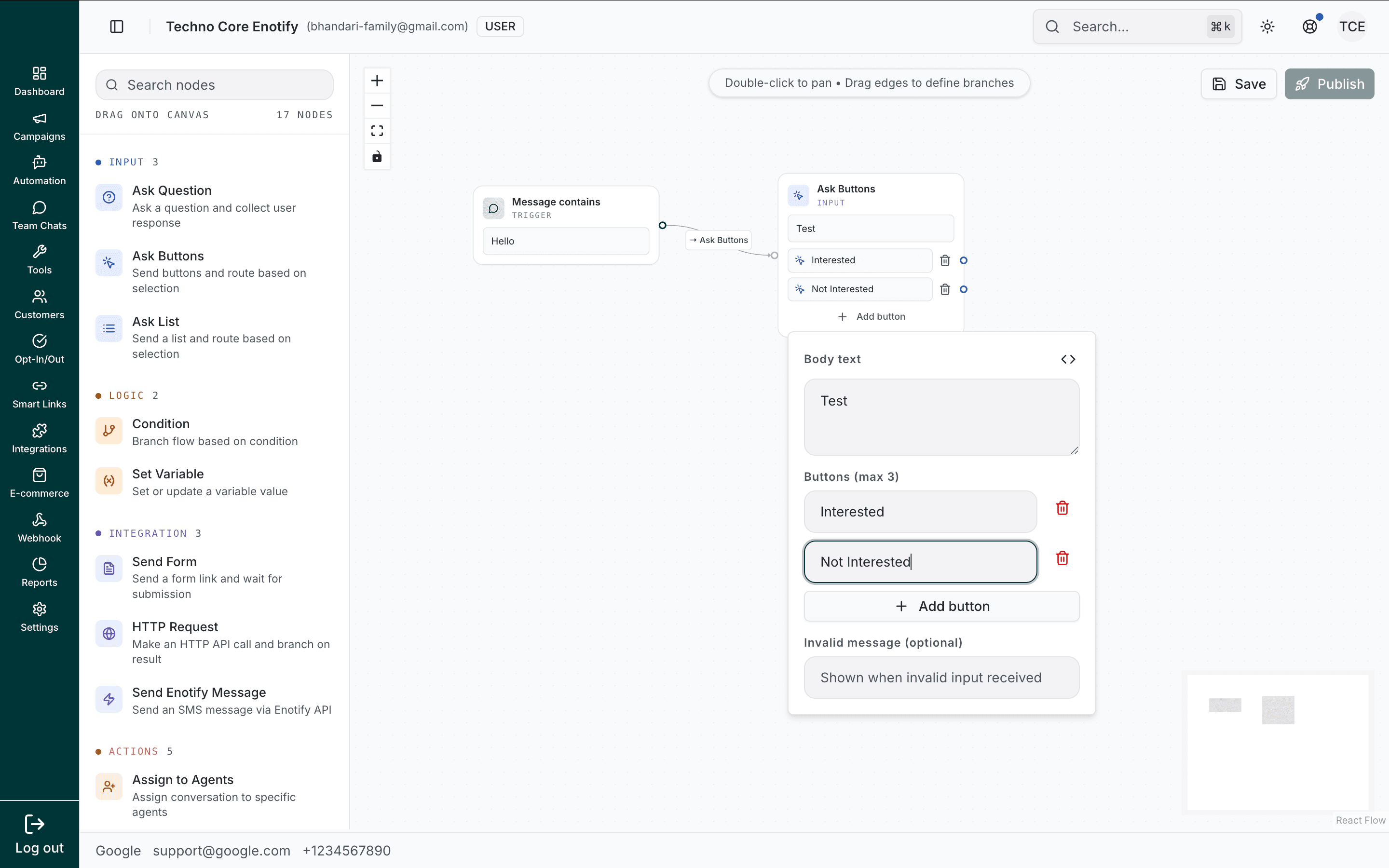
Send up to 3 quick-reply buttons and wait for the customer to tap one. Each button becomes its own branch.
| Config option | Description |
|---|---|
| Body text | The message shown above the buttons |
| Buttons (max 3) | Each button's label. Add button to add another |
| Invalid message (optional) | Shown when the customer types instead of tapping |
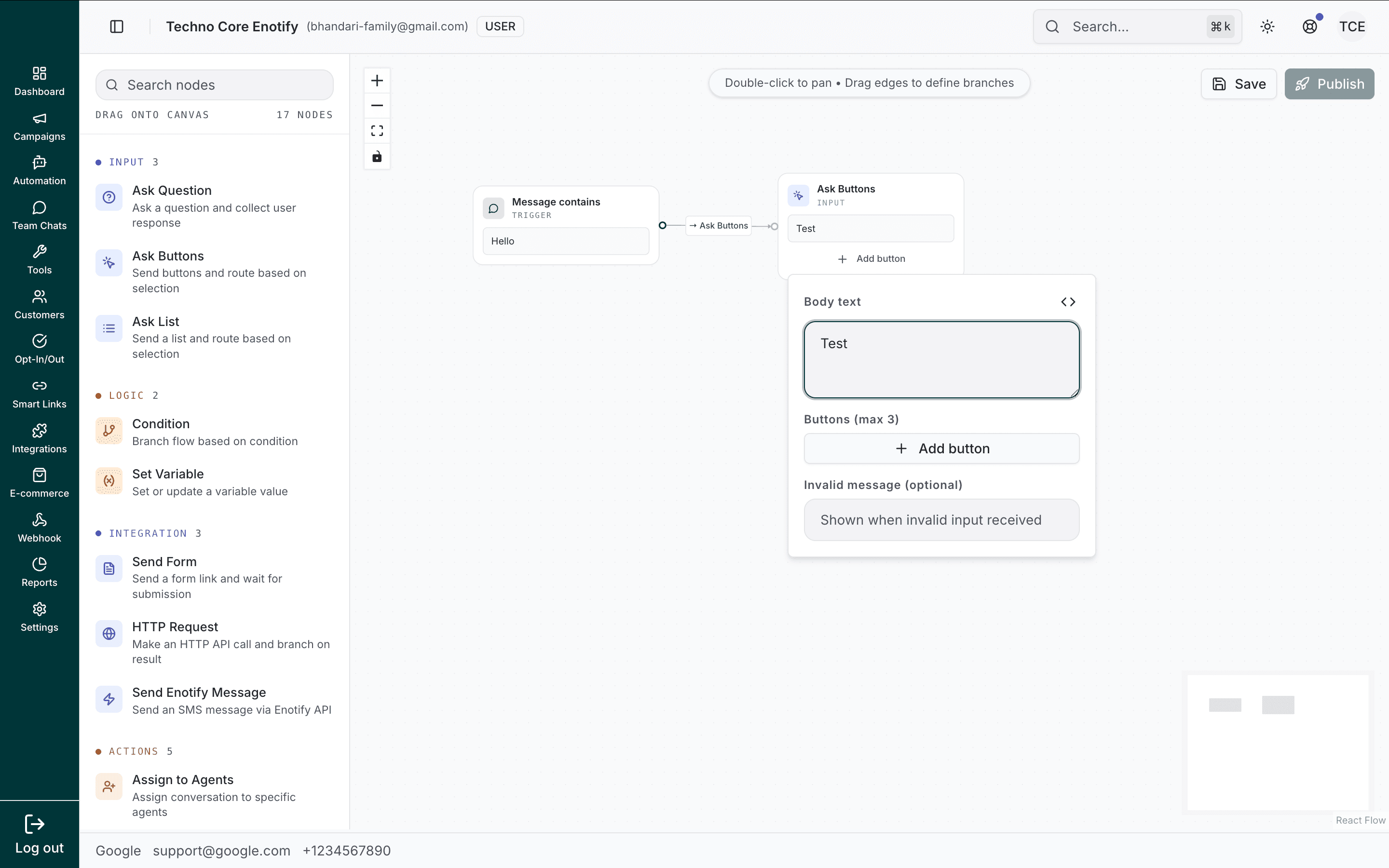
Each button you add gets its own row and its own outgoing edge. Connect each edge to the next node for that choice.
WhatsApp limit
WhatsApp allows a maximum of 3 buttons per message. For more options, use Ask List.
Ask List
Send a scrollable list of options grouped into sections, and wait for the customer to select one. Use it when you need more than three choices or want descriptions.
| Config option | Description |
|---|---|
| Body text | The message shown with the list button |
| Sections | Groups of rows. Add section to add a group |
| Rows | Each row has a title (max 24 chars) and an optional description (max 72 chars). Add row to add one |
| Save selection to variable (optional) | Stores the selected row |
| Invalid message (optional) | Shown when the customer doesn't select from the list |
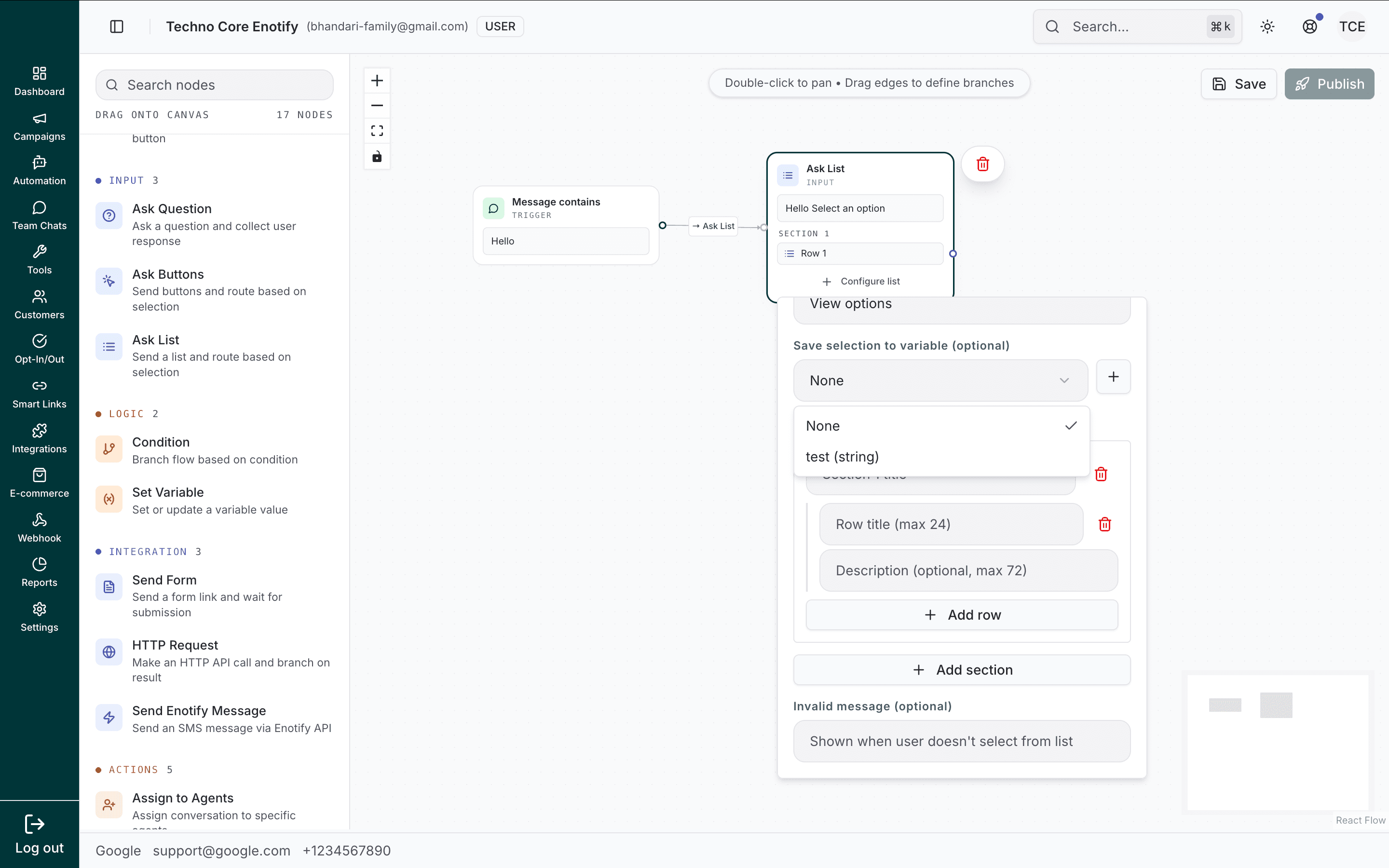
Build the list with as many sections and rows as you need. Each section groups related options under a heading.
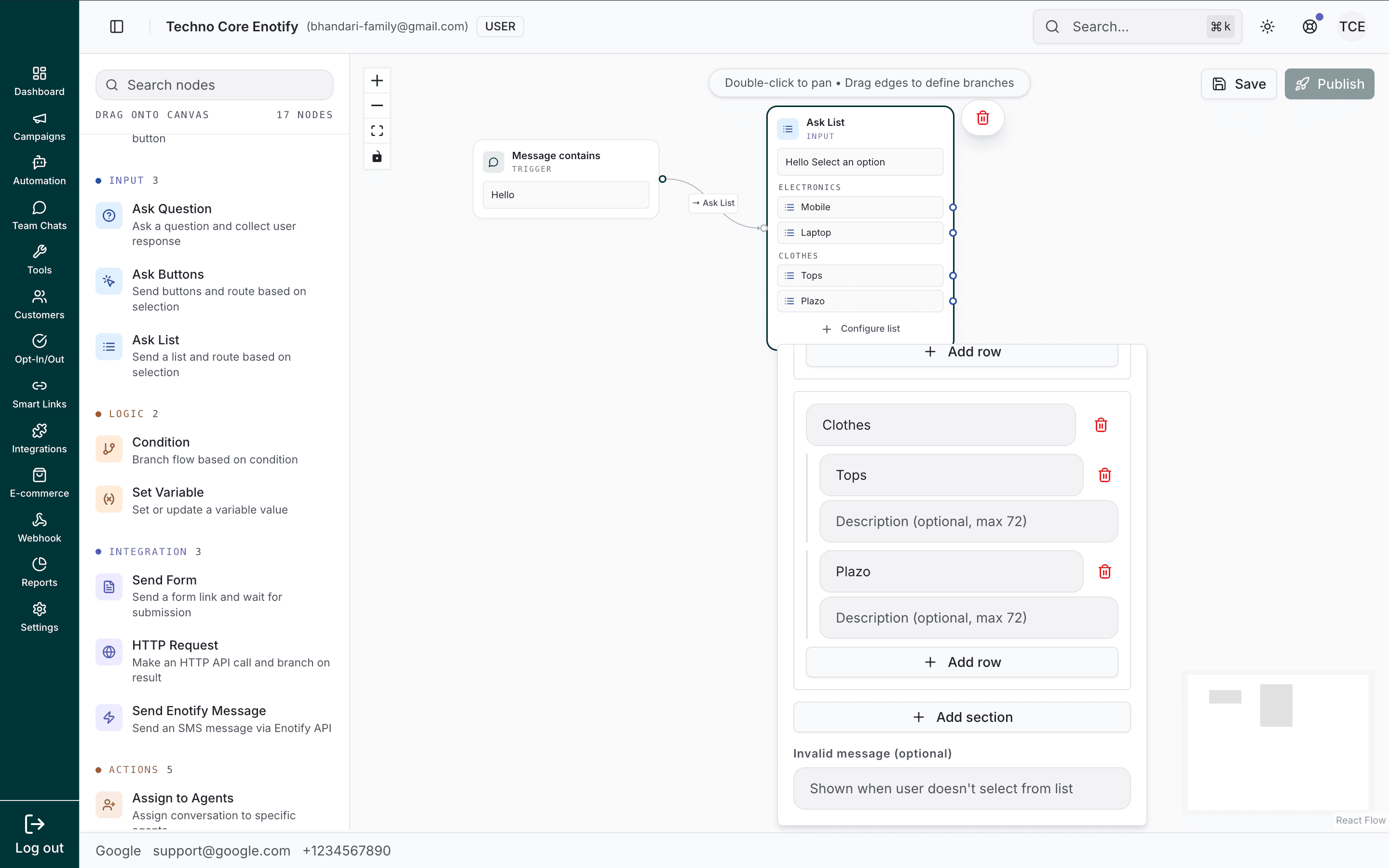
When to use: Menus with 4+ options, product or service categories, or any selection that benefits from descriptions.
Logic nodes
Nodes that control the path and manage data.
Condition
Branch the flow by comparing a variable against a value. Add one or more conditions; each row has a variable, an operator, and a value.
| Config option | Description |
|---|---|
| Variable | The variable to check |
| Operator | How to compare (see below) |
| Value | The value to compare against. Supports variables |
| Add condition | Stack additional comparisons |
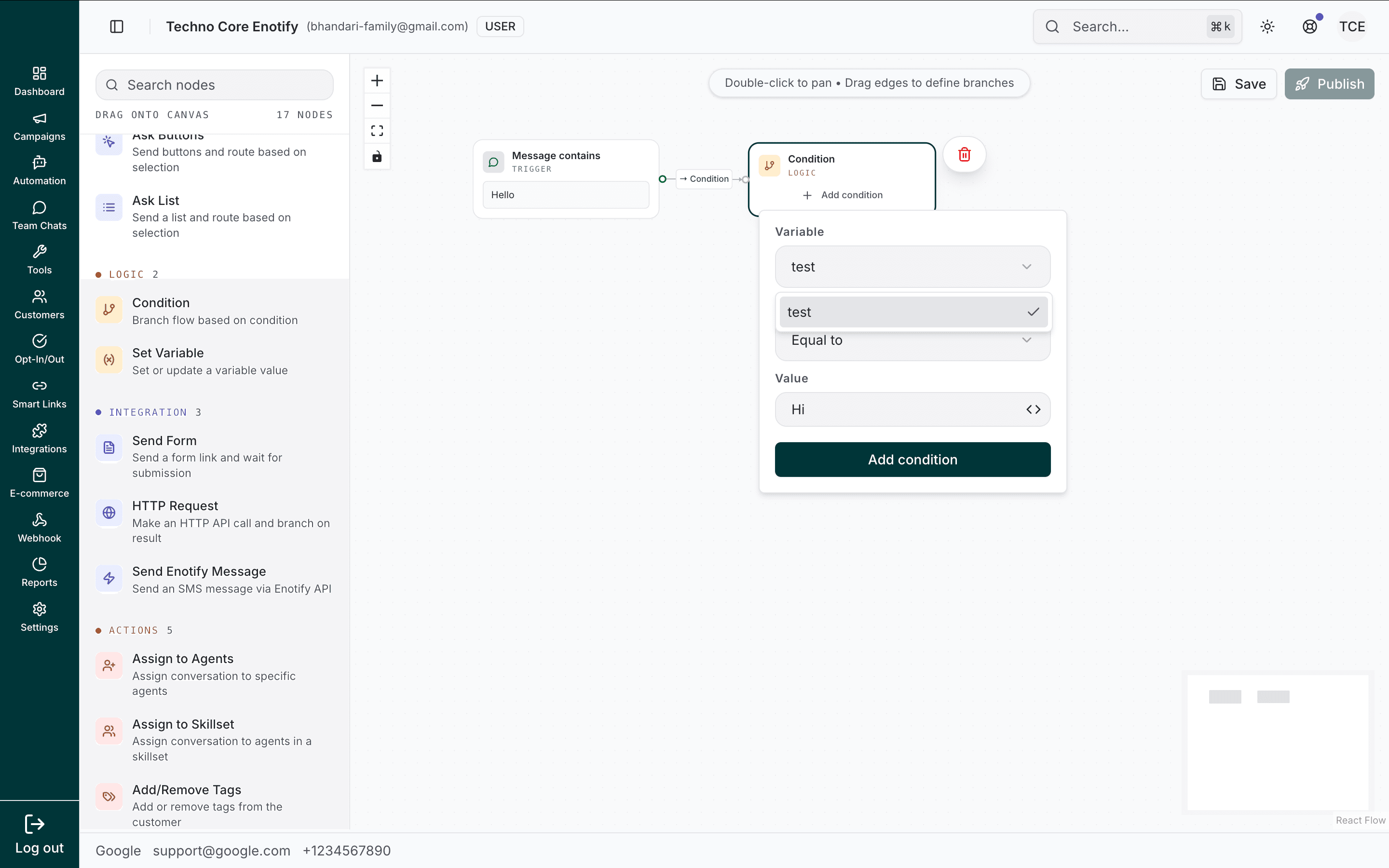
The operator dropdown offers six comparisons: Equal to, Not equal, Greater than, Less than, Greater than or equal, Less than or equal.
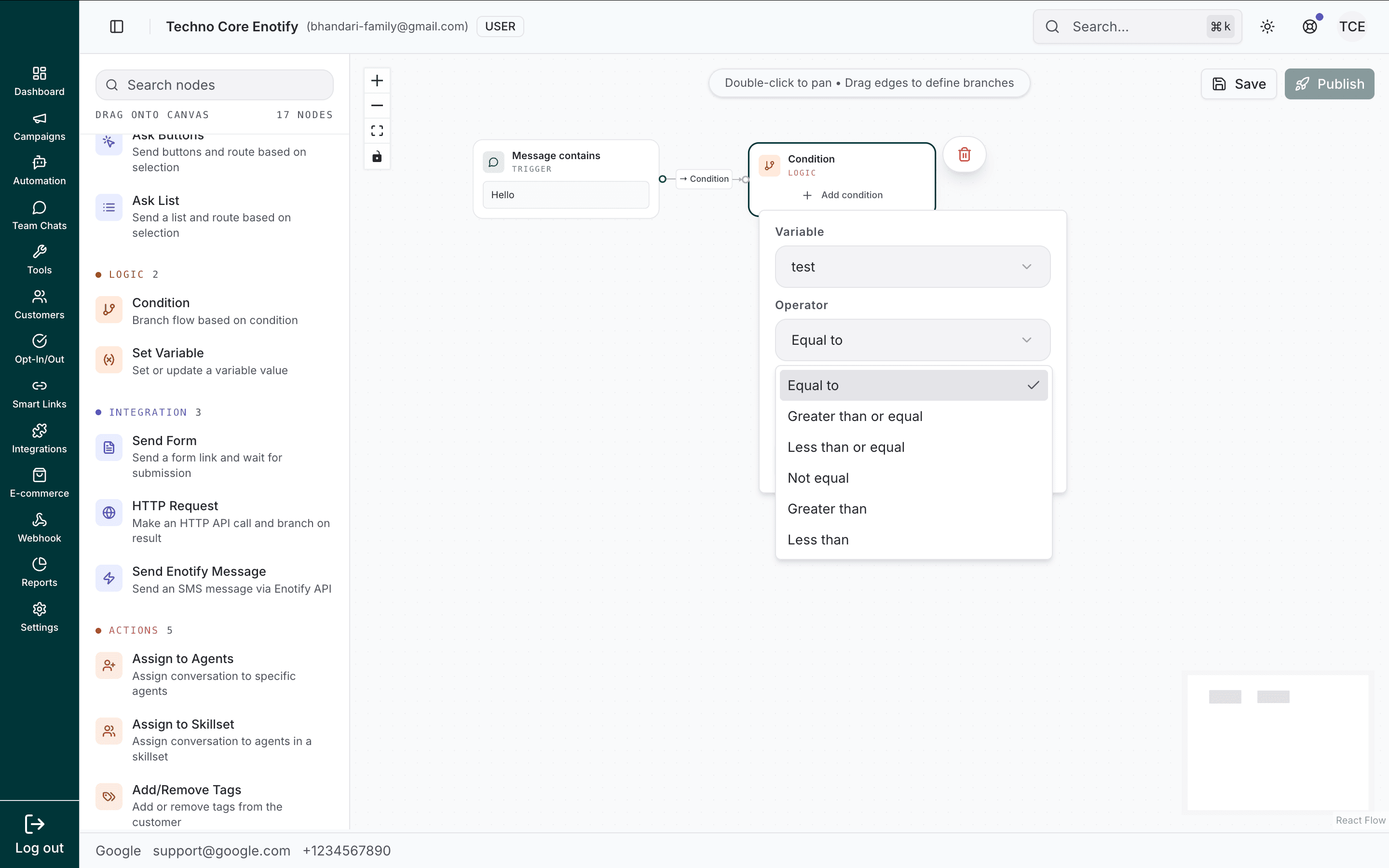
Stack multiple conditions to test more than one thing at once.
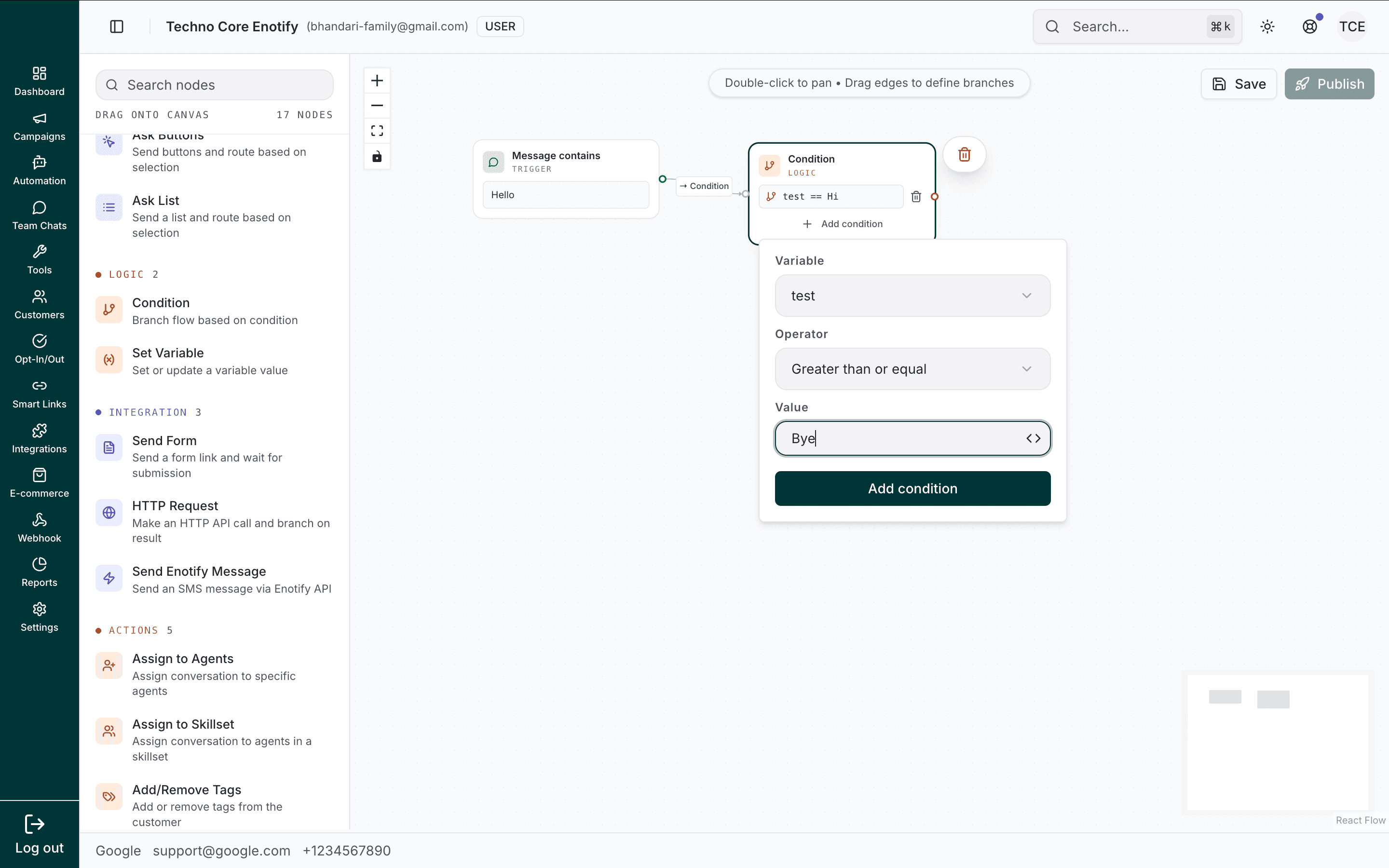
Each condition compares a variable against a value, which can itself be another variable.
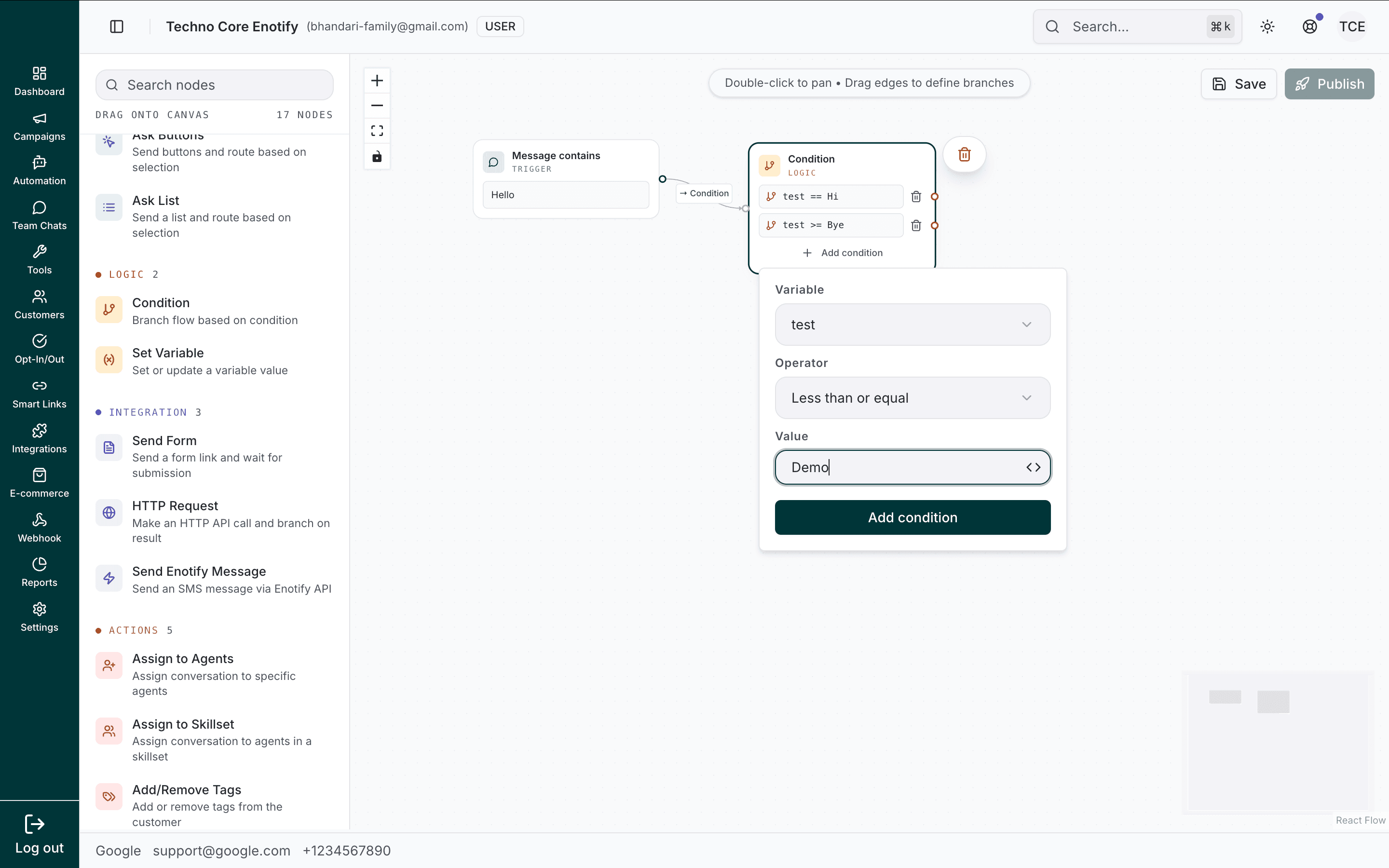
When to use: Routing on a customer's answer, gating on a contact attribute, or checking an API result before the next step.
Set Variable
Assign a value to a variable, for storing data, setting a flag, or preparing a value for a later node.
| Config option | Description |
|---|---|
| Variable | The variable to set |
| Value | The value to assign. Static text or another variable |
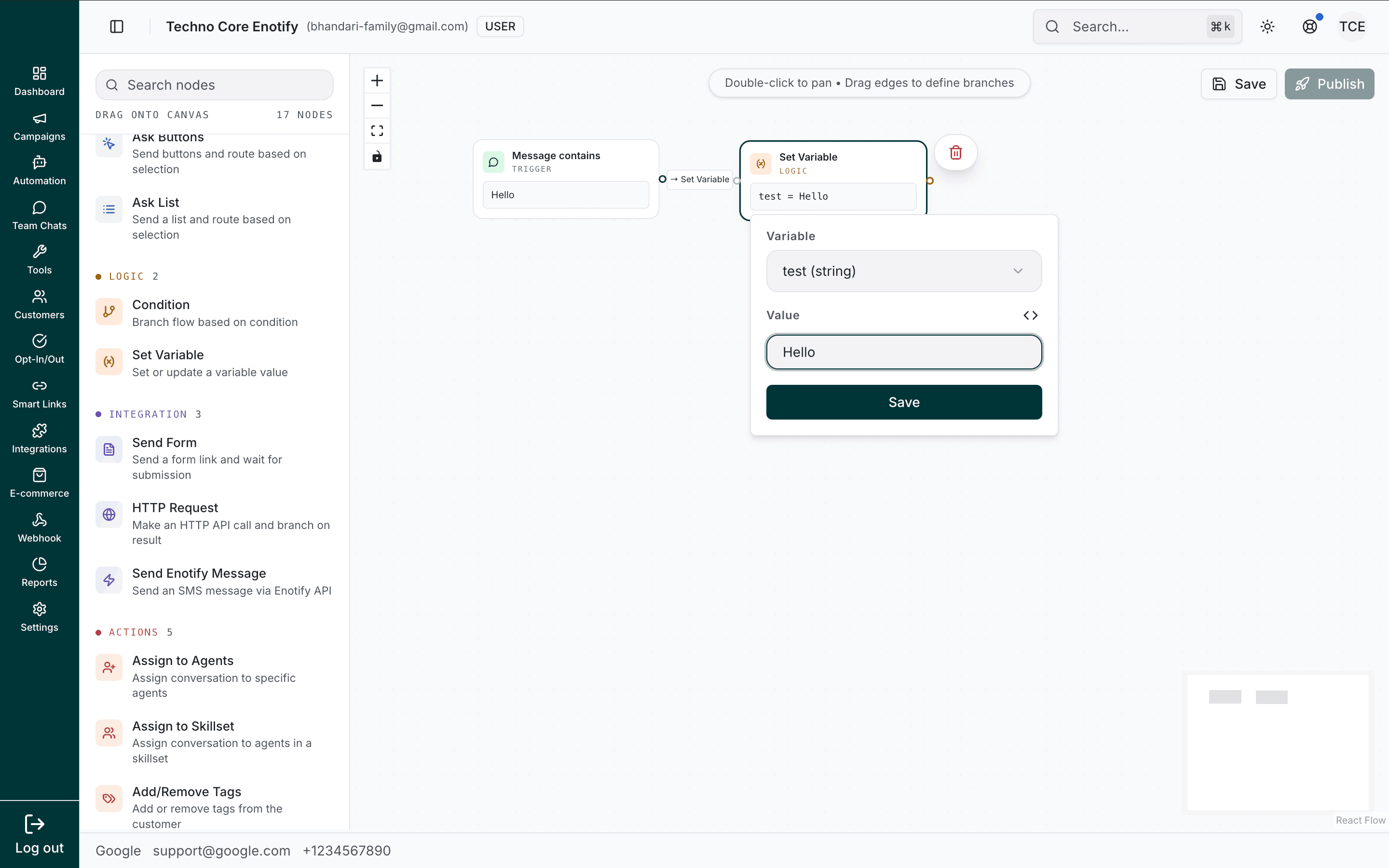
When to use: Storing computed or copied values, setting flags, or seeding a default before a Condition.
Integration nodes
Nodes that connect the flow to forms, your own APIs, and outbound messaging.
Send Form
Send a Form as a link button and wait for the customer to submit it. Submitted fields are saved to a variable for use later in the flow.
| Config option | Description |
|---|---|
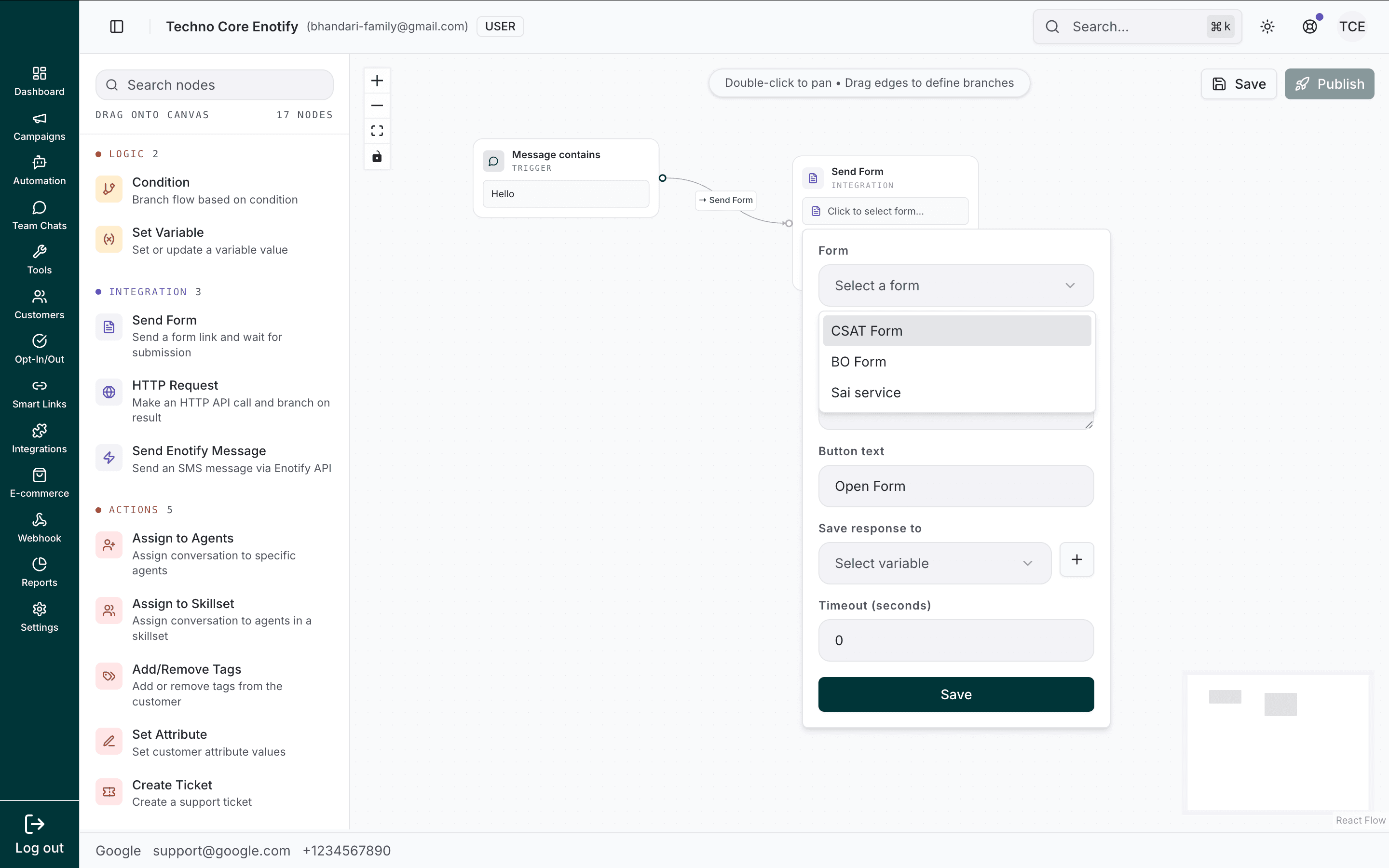
| Form | Select one of your forms |
| Body text | The message shown with the form link |
| Button text | The button label (default: "Open Form") |
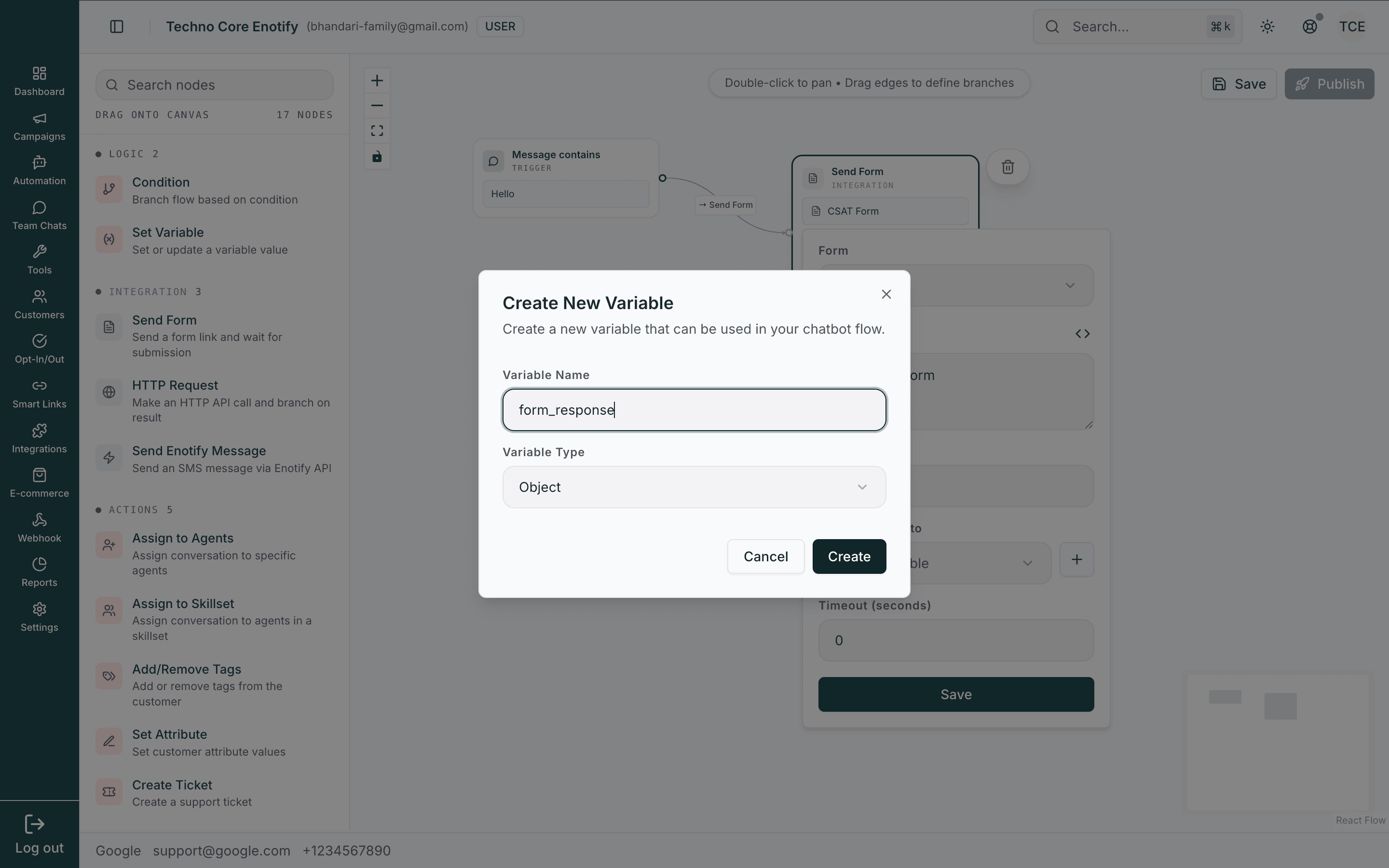
| Save response to | An object variable that stores the submission |
| Timeout (seconds) | How long to wait for submission (0 = no timeout) |
Pick the form to send from your published forms.
The submission is stored in an object variable — create one with + if you don't have it yet.
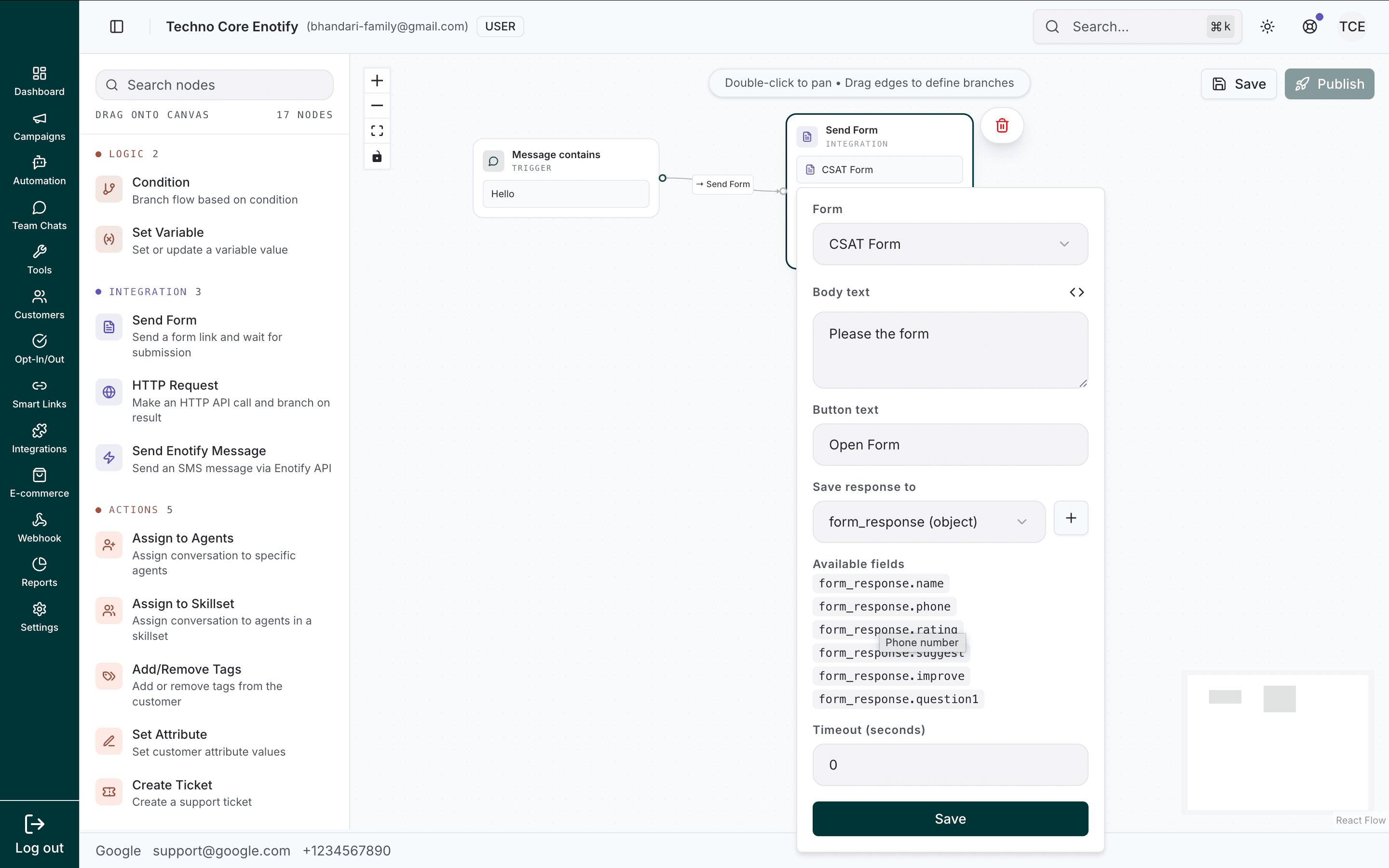
Once a form is selected, its available fields are listed (for example form_response.name, form_response.phone, form_response.rating) so you can reference individual answers downstream.
When to use: Lead capture, surveys, appointment booking, or any structured data collection mid-conversation.
HTTP Request
Call an external API and use the response in your flow — look up an order, check inventory, or create a record in your CRM.
| Config option | Description |
|---|---|
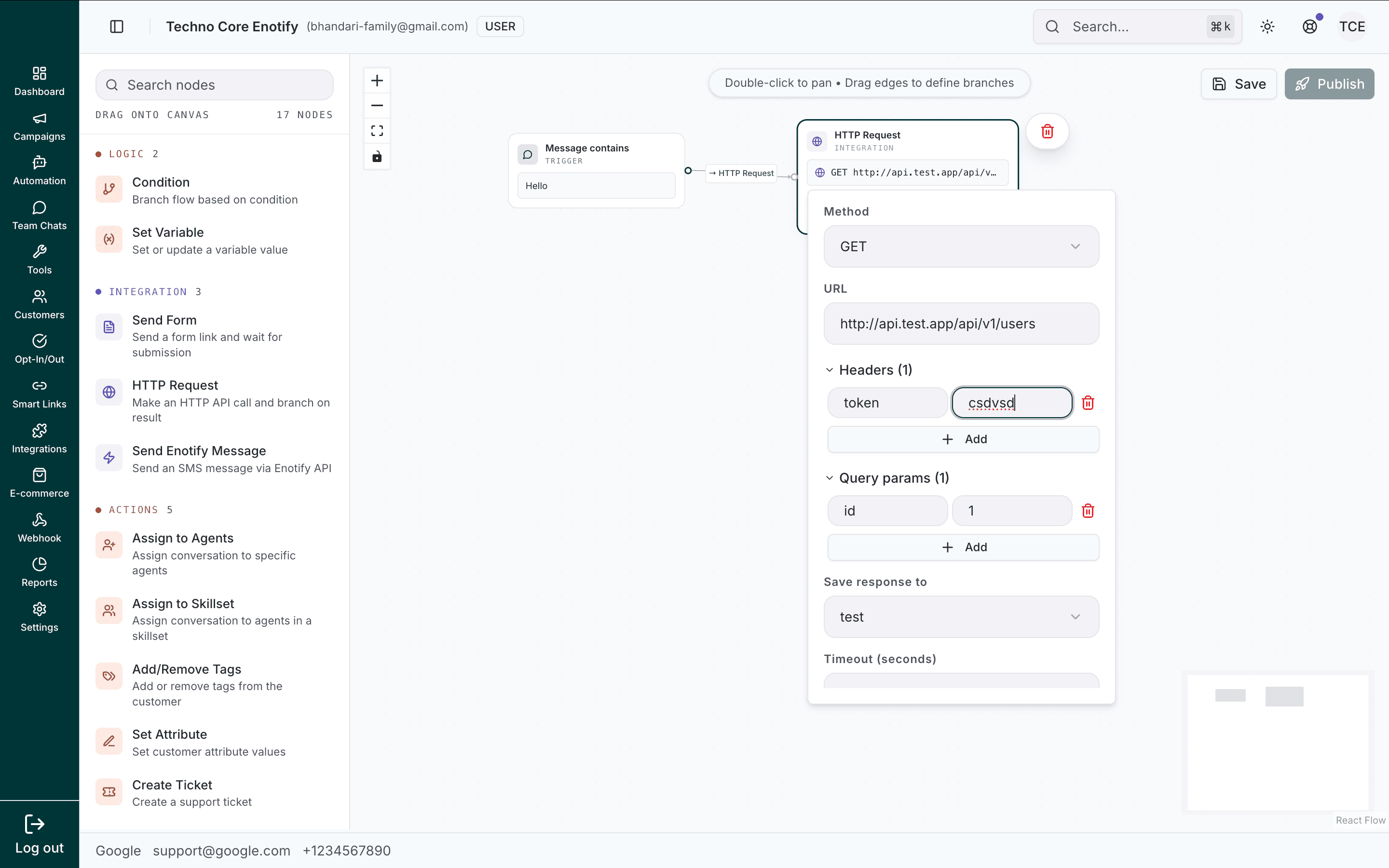
| Method | GET, POST, and so on |
| URL | The endpoint. Supports variables |
| Headers | Key-value pairs (e.g. an auth token). Add for more |
| Query params | Key-value query string pairs. Add for more |
| Save response to | The variable that stores the response |
| Timeout | Max seconds to wait |
When to use: Order lookups, inventory checks, CRM writes, or any external data the flow needs to branch on.
Send Enotify Message
Send an outbound message via the Enotify API. Useful for notifying a different number than the one in the conversation.
| Config option | Description |
|---|---|
| API token | Your Enotify API token |
| Phone number | The recipient. A literal number, or a variable such as the contact's phone |
| Message | The message text. Supports variables |
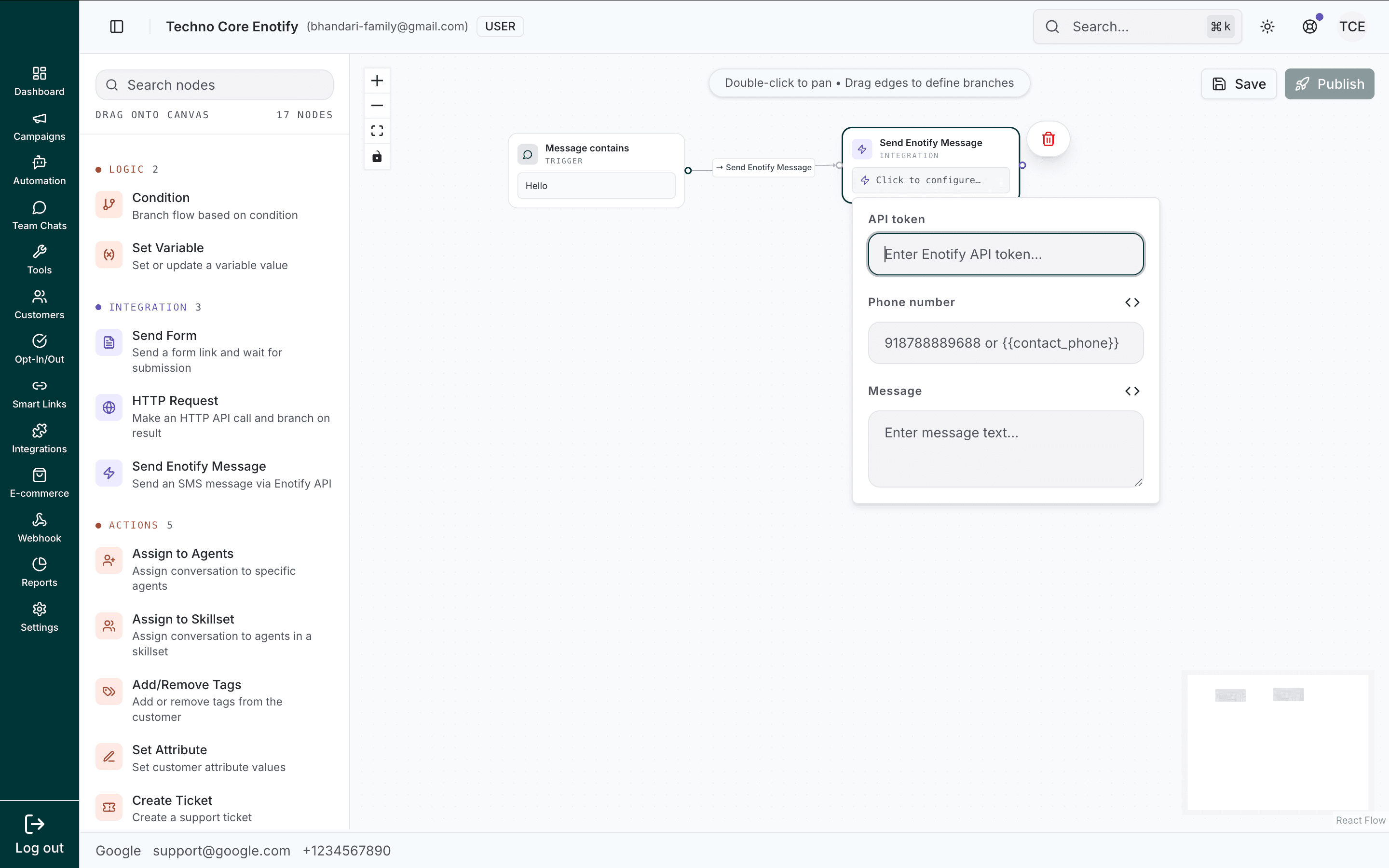
Fill in the token, recipient, and message body.
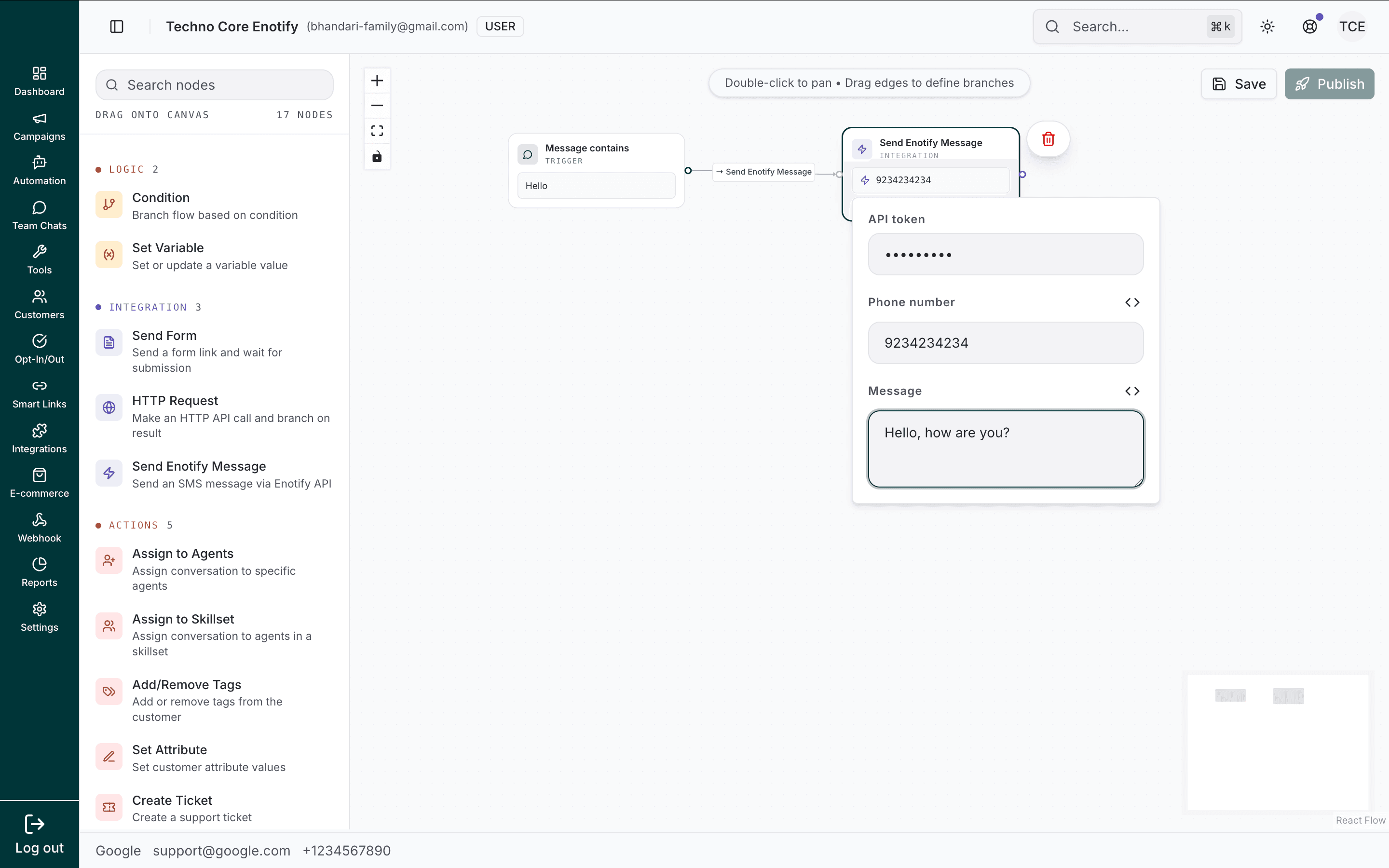
When to use: Internal alerts, notifying a second number, or sending a confirmation through the API.
Action nodes
Nodes that act on the conversation and the contact: assignment, tagging, attributes, and tickets.
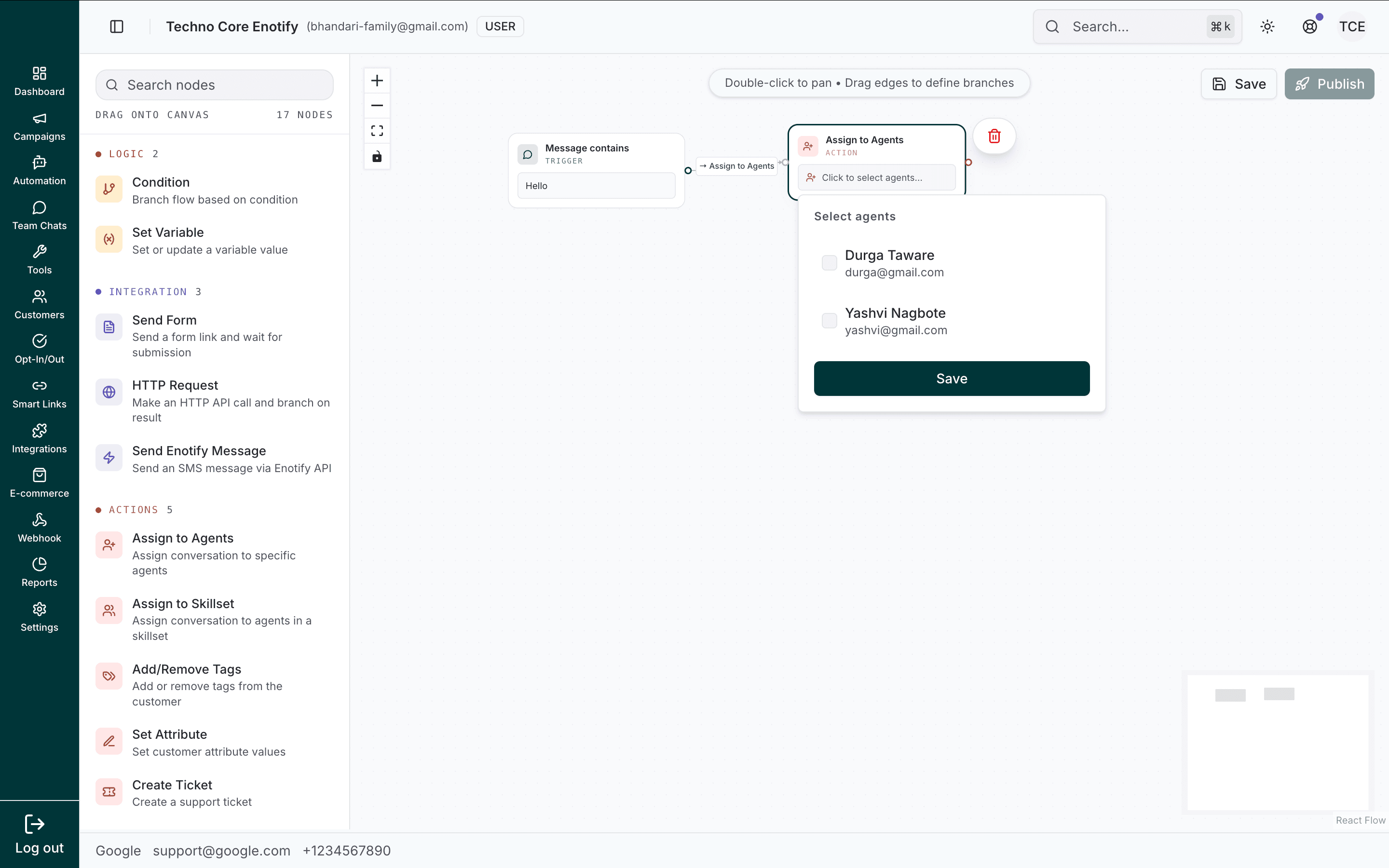
Assign to Agents
Assign the conversation to one or more specific agents in Team Chats.
| Config option | Description |
|---|---|
| Select agents | Tick the agents to assign the conversation to |
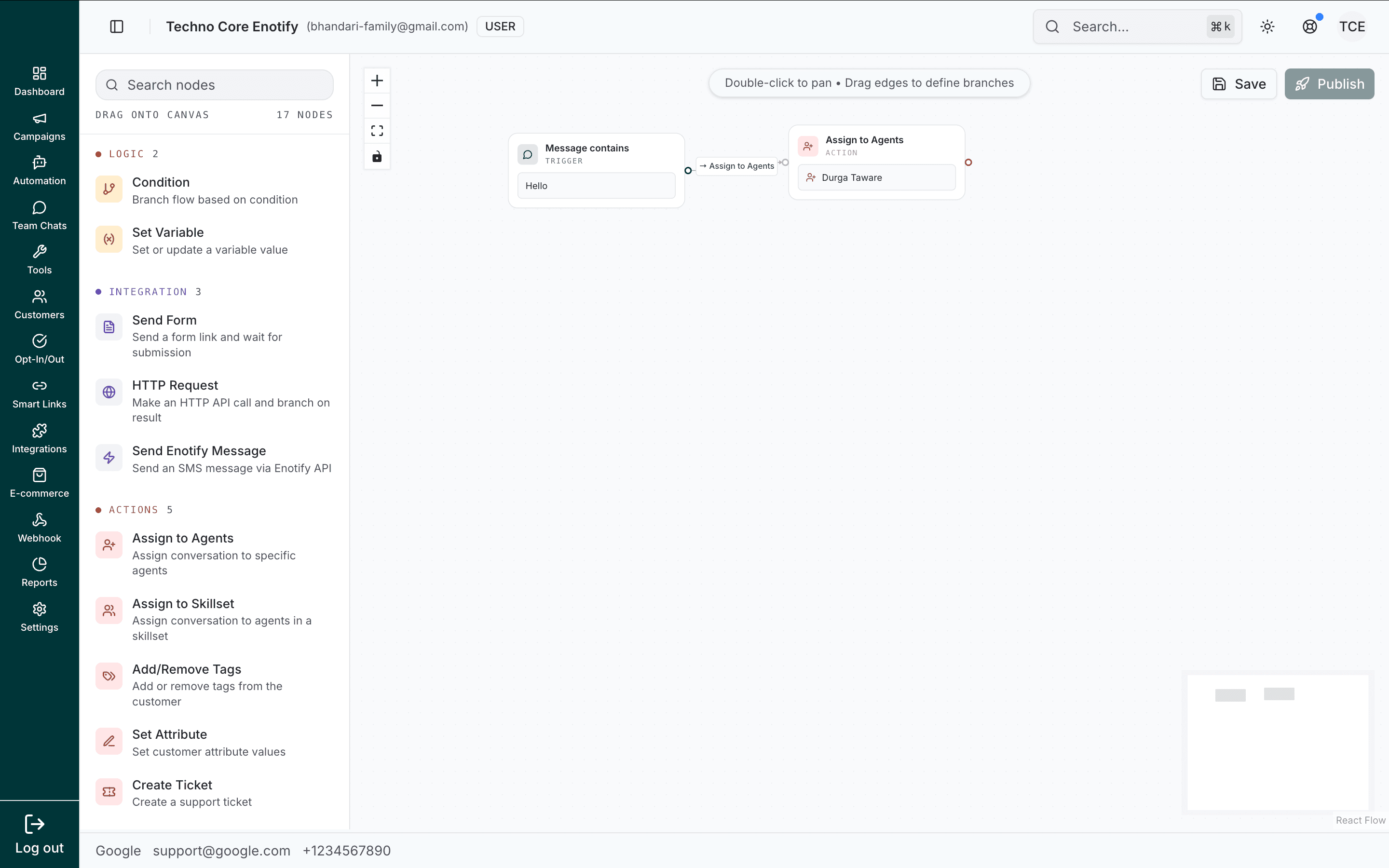
Once saved, the node shows the assigned agent on the canvas.
When to use: Routing to a known account manager, VIP handling, or direct assignment based on flow logic.
Assign to Skillset
Route the conversation to a skillset. The next available agent with that skill picks it up.
| Config option | Description |
|---|---|
| Select skillsets | Tick one or more skillsets to route to |
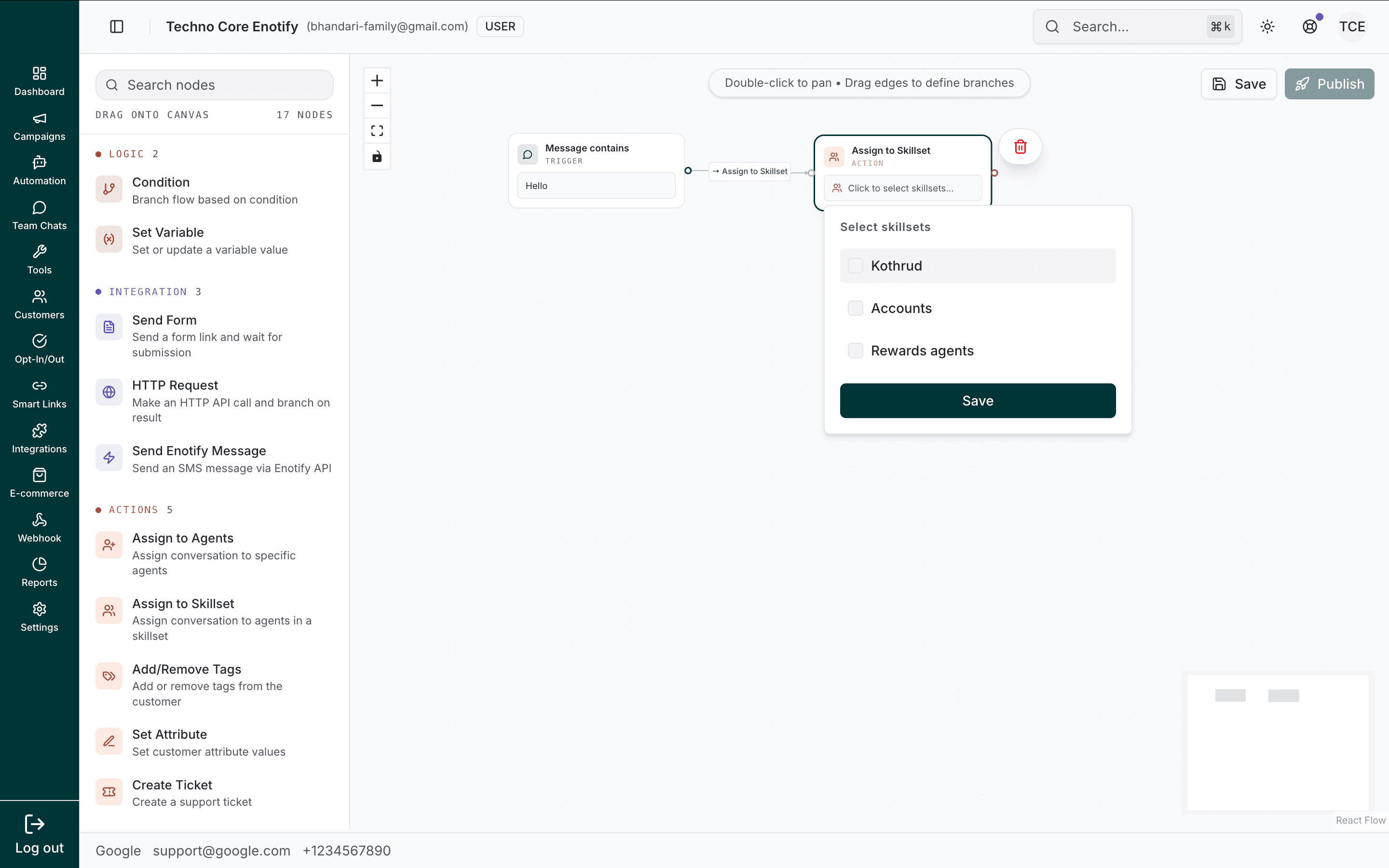
You can route to several skillsets at once.
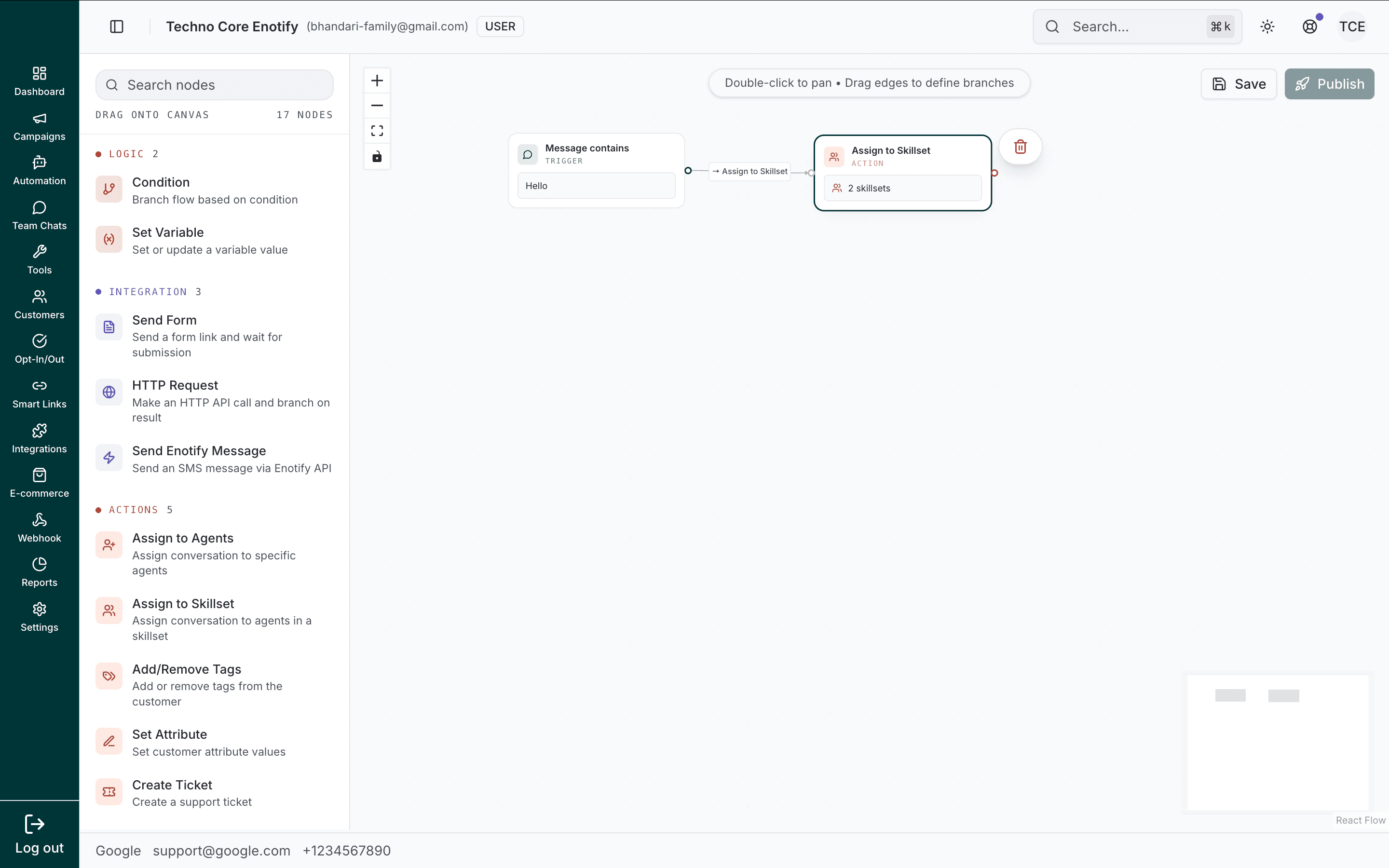
When to use: Skill-based routing after the bot identifies the need (for example, customer chose "Technical issue" → Technical Support skillset).
Add/Remove Tags
Add or remove tags on the customer's contact during the flow.
| Config option | Description |
|---|---|
| Add tags | Tick the tags to add |
| Remove tags | Tick the tags to remove |
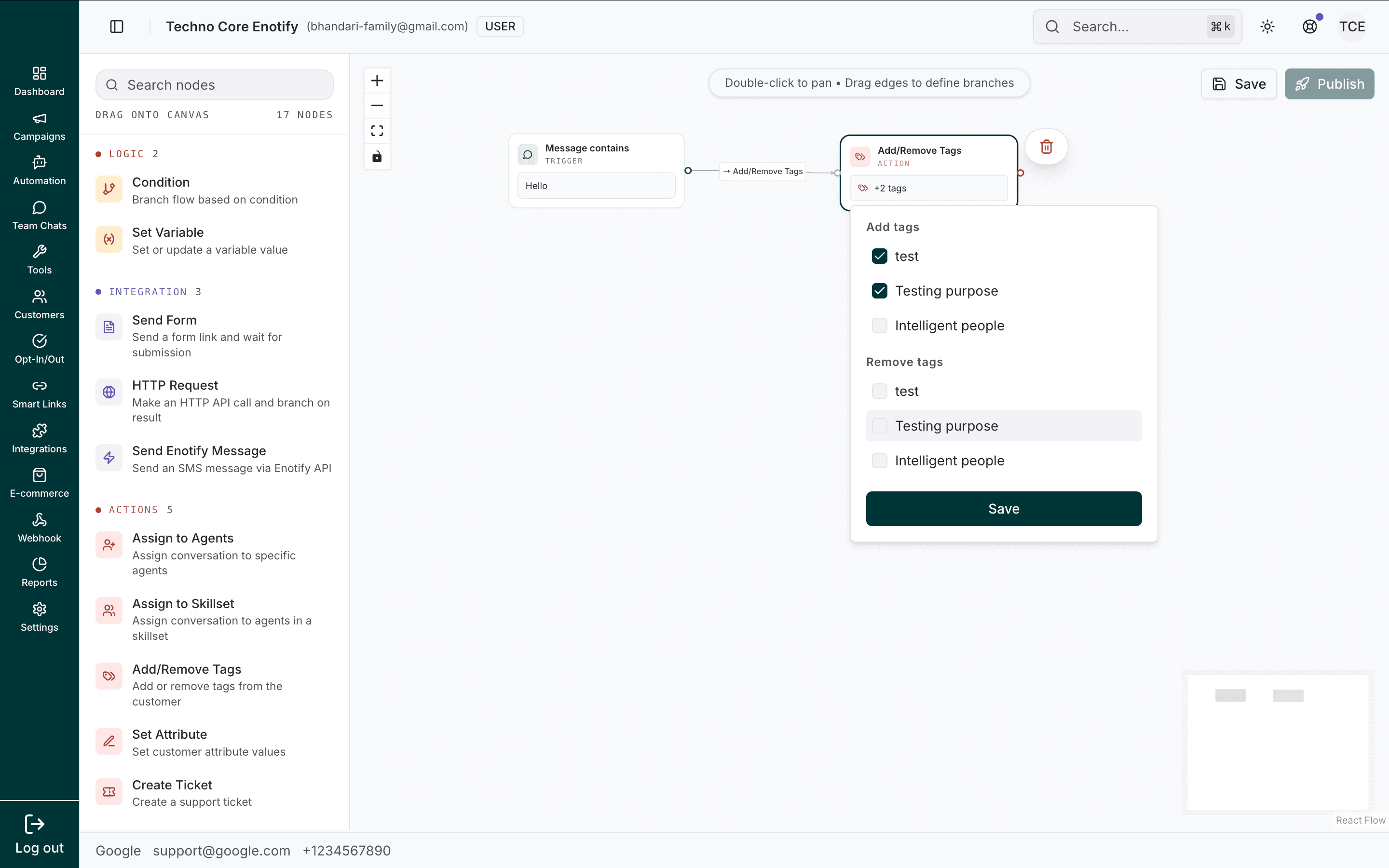
Add and remove in the same node — useful for swapping a contact from one stage tag to another.
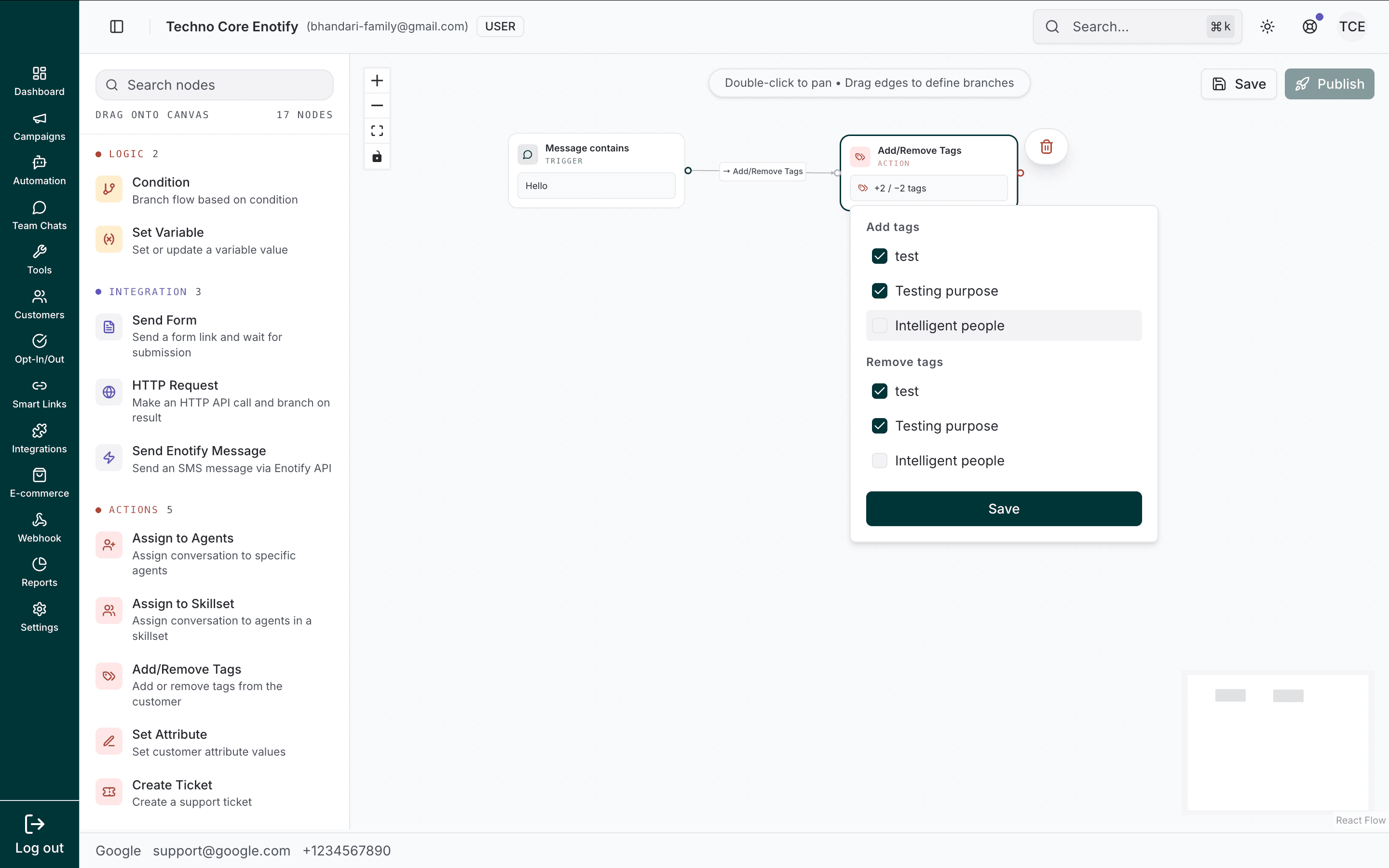
When to use: Auto-categorizing leads ("interested", "hot_lead"), marking flow completion, or clearing outdated tags.
Set Attribute
Update one or more contact attributes on the customer's profile.
| Config option | Description |
|---|---|
| Attribute assignments | Each row: Select attribute, then a Value (static text or a variable) |
| Add assignment | Set additional attributes in one node |
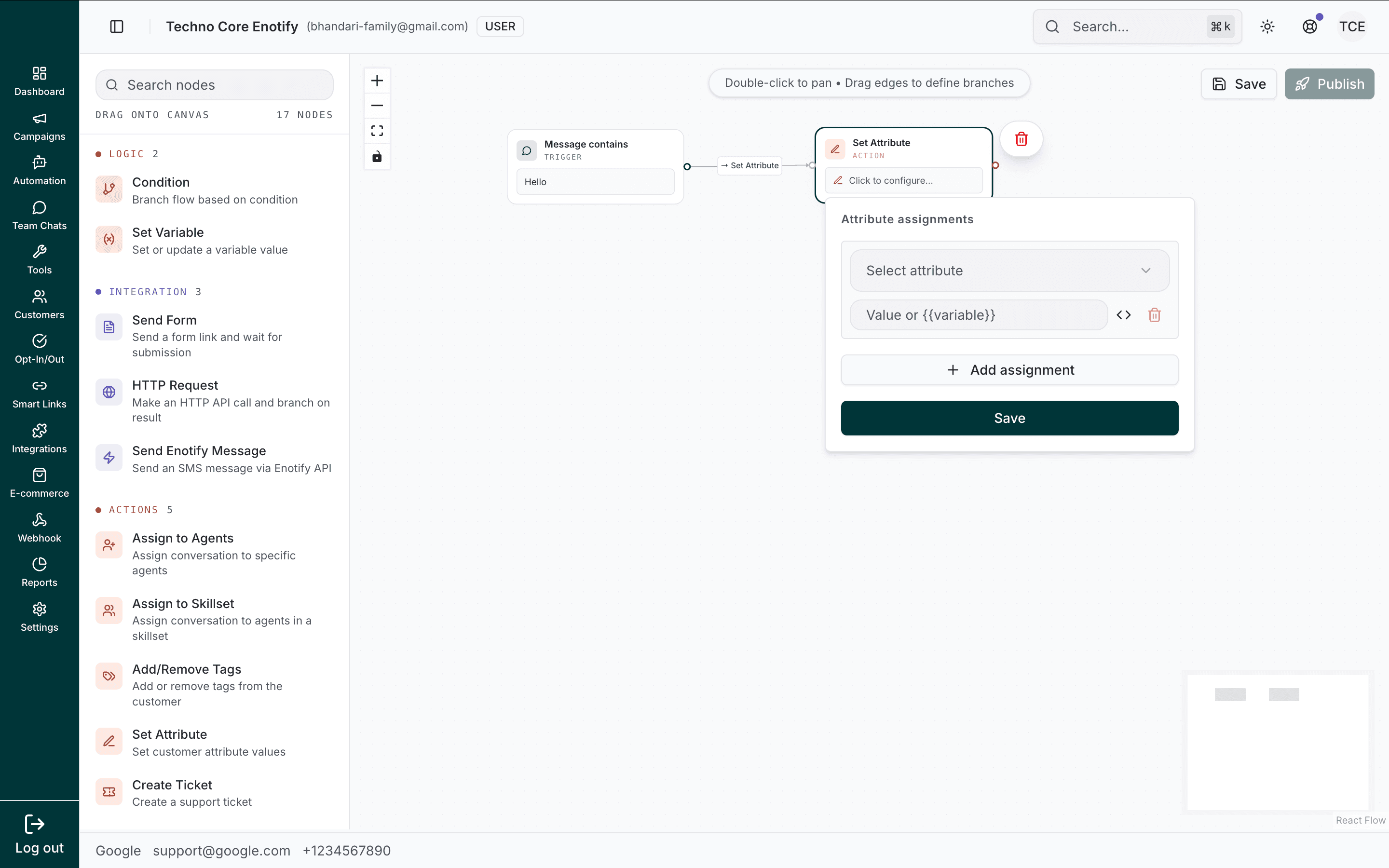
Choose the attribute and give it a value. Add more assignments to set several at once.
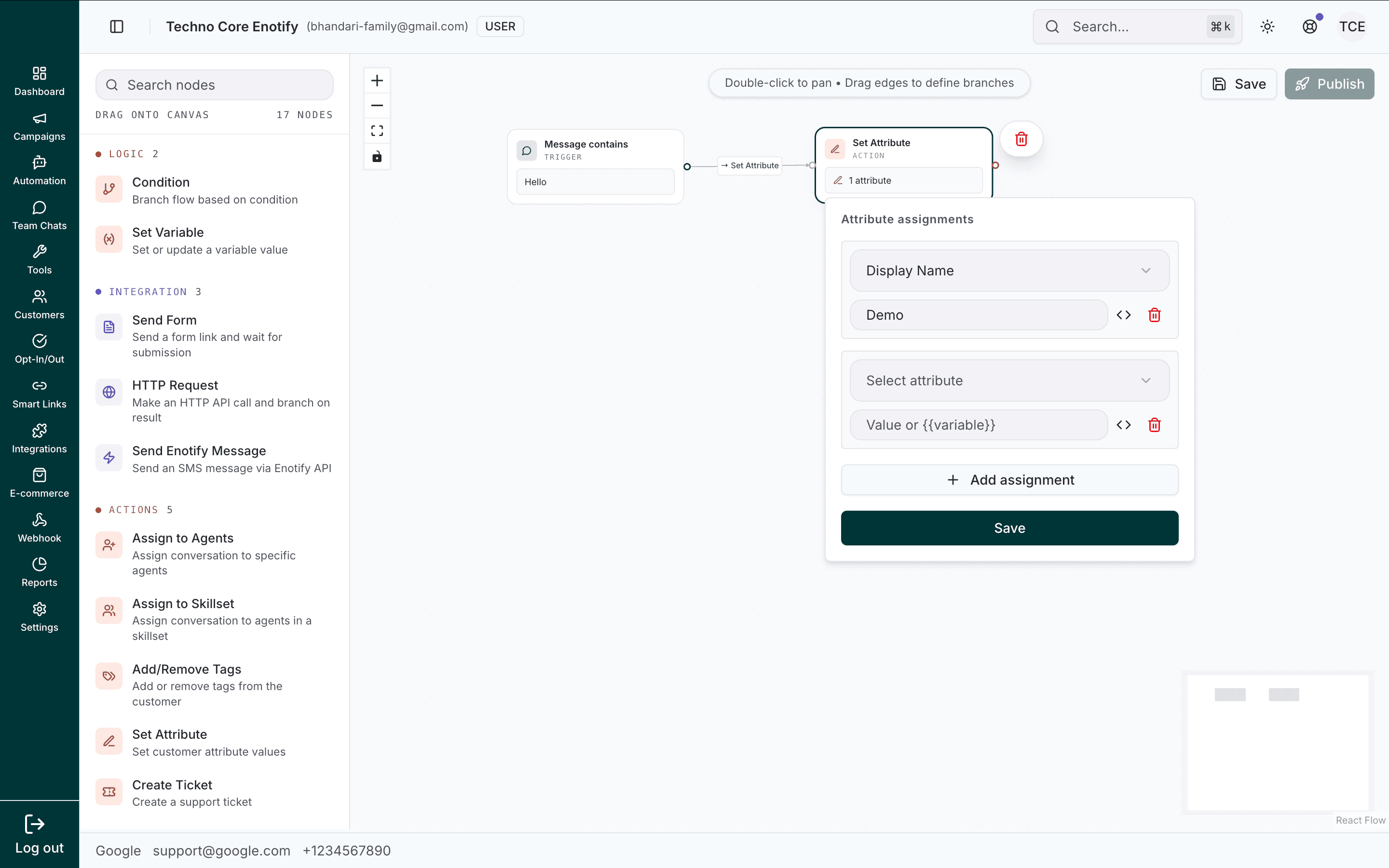
When to use: Saving preferences, recording data collected in the flow, or updating profile fields for later segments.
Create Ticket
Create a support ticket from the conversation.
| Config option | Description |
|---|---|
| Subject (required) | Ticket subject. Supports variables |
| Description | Ticket detail. Supports variables |
| Priority | Low, Medium, High, or Urgent |
| Assignees | Agents to assign the ticket to |
| Tags | Tags to apply to the ticket |
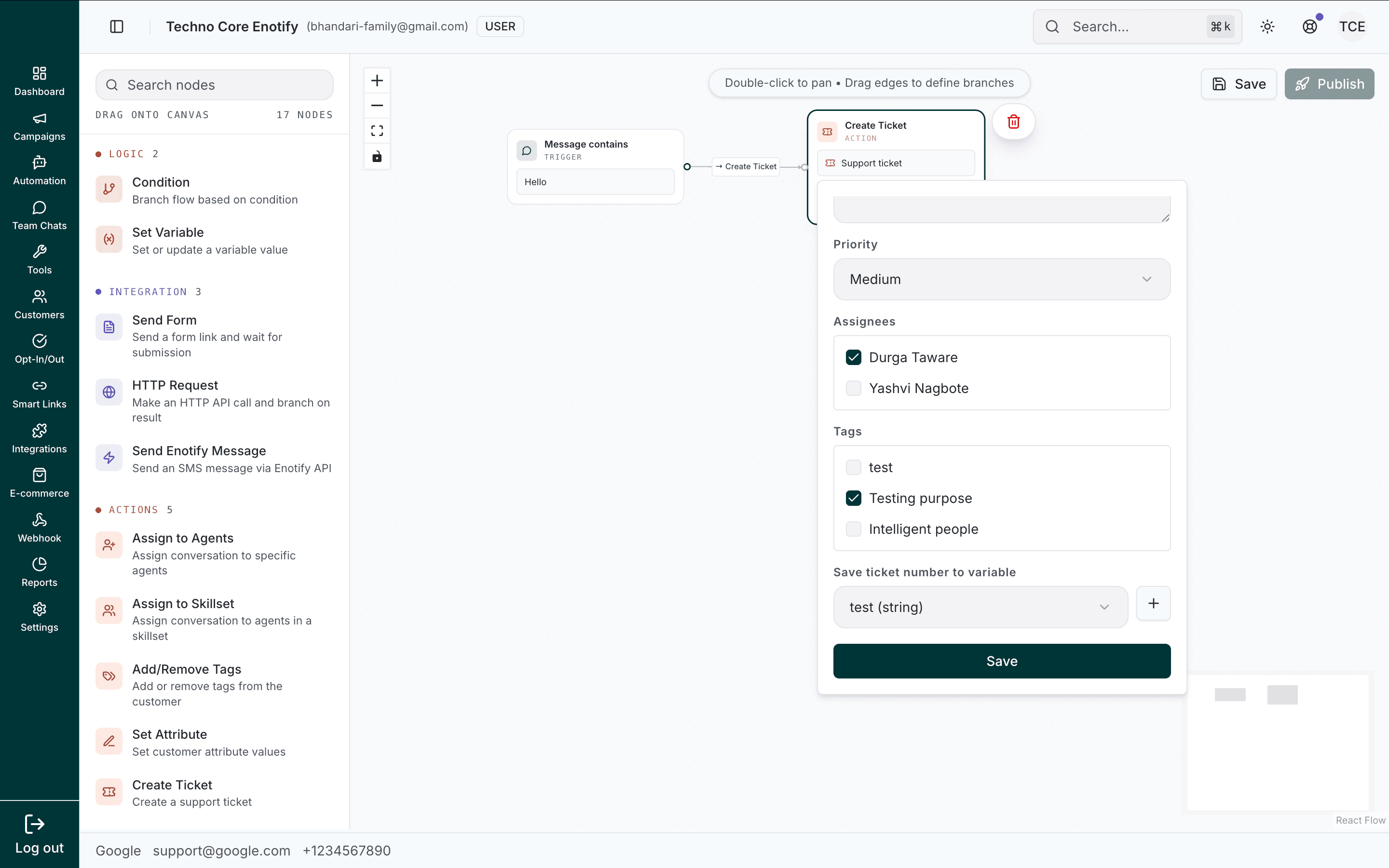
| Save ticket number to variable | Stores the new ticket's number for later use |
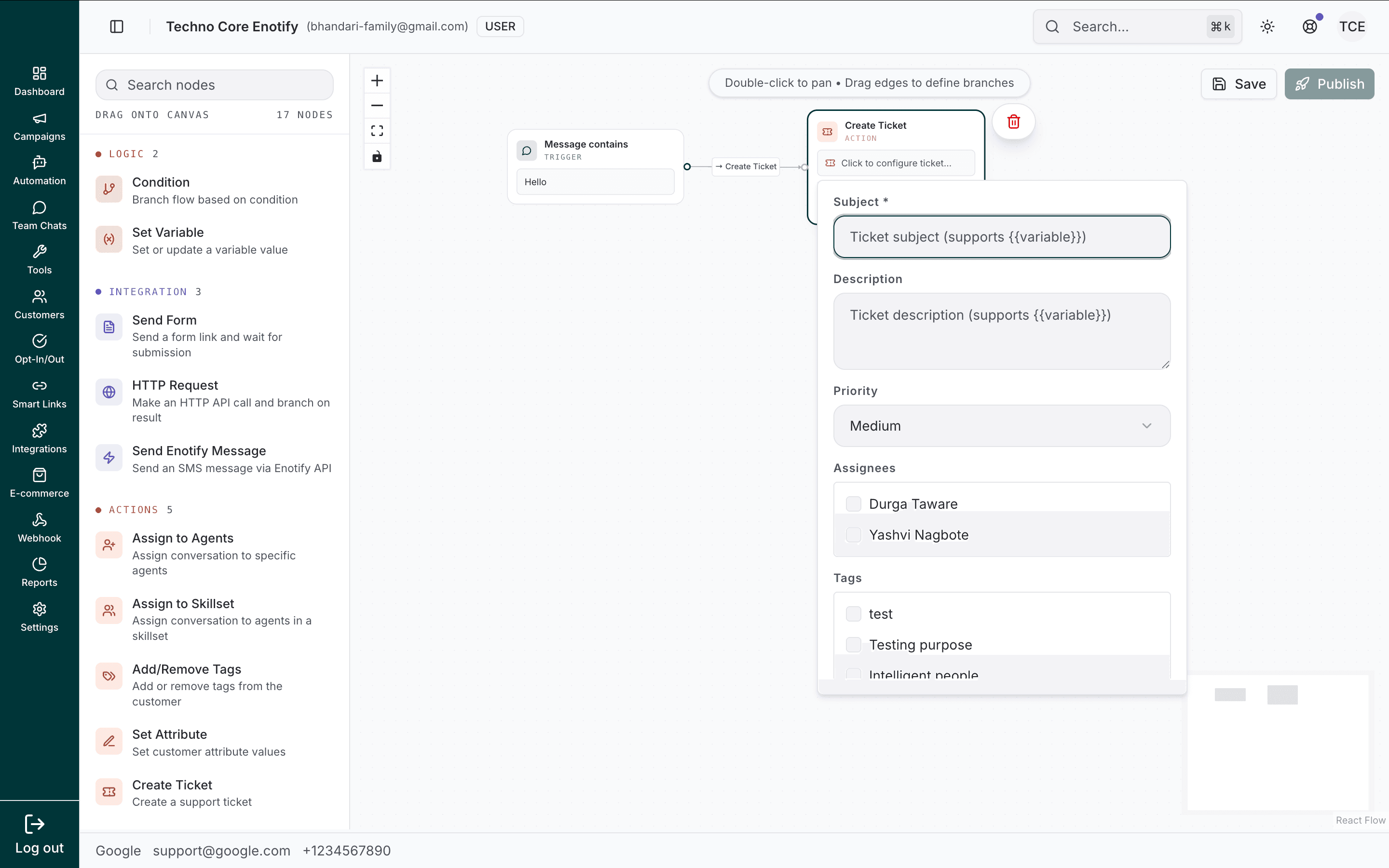
Set the urgency with the priority dropdown.
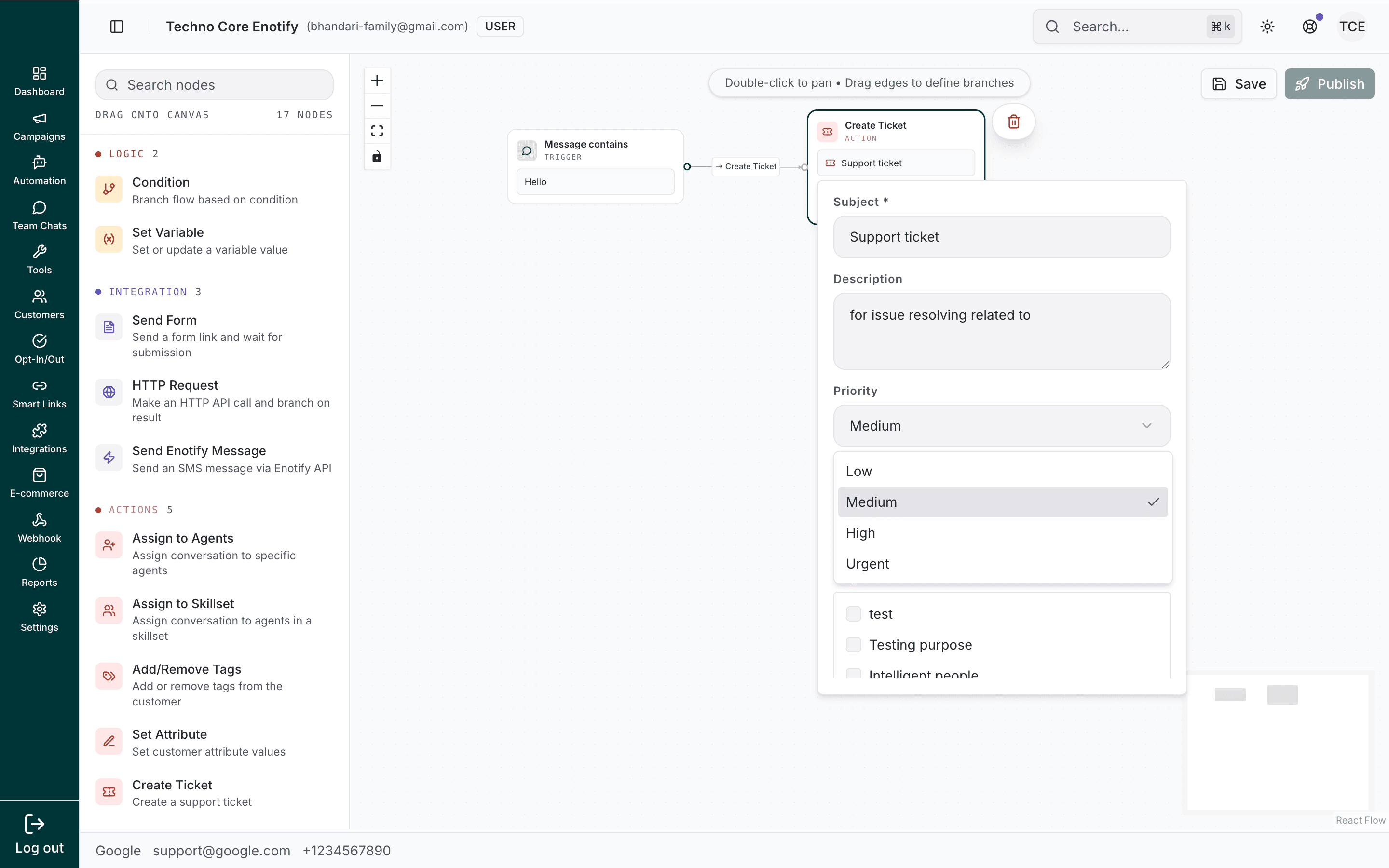
Pick assignees and tags, and optionally save the new ticket's number to a variable to reference it later.
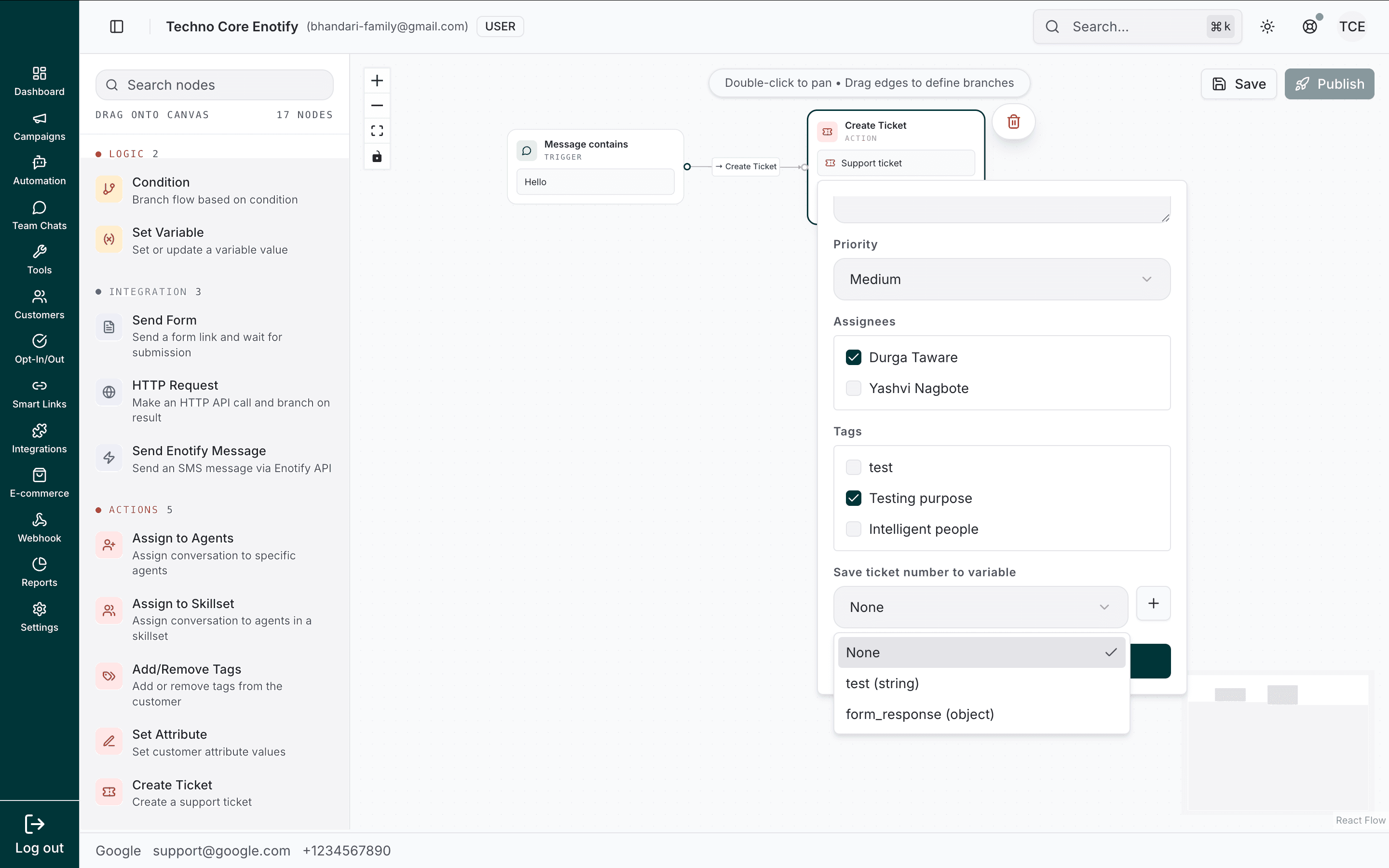
The completed node carries everything an agent needs to pick the ticket up.
When to use: Logging issues that need follow-up, capturing complaints, or any conversation that should become trackable work.
Quick reference
| Node | Category | Waits for input? | Key use |
|---|---|---|---|
| On First Message | Trigger | — | Start on first-ever contact |
| On Message | Trigger | — | Start on keyword / pattern match |
| Send Message | Message | No | Text, image, video, document |
| Send CTA URL | Message | No | Message with a link button |
| Ask Question | Input | Yes | Free-text input with validation |
| Ask Buttons | Input | Yes | Up to 3 button choices |
| Ask List | Input | Yes | Scrollable list selection |
| Condition | Logic | No | Branch by comparison |
| Set Variable | Logic | No | Store / set a value |
| Send Form | Integration | Yes | Collect a form submission |
| HTTP Request | Integration | No | Call an external API |
| Send Enotify Message | Integration | No | Outbound message via API |
| Assign to Agents | Action | No | Assign to specific agents |
| Assign to Skillset | Action | No | Route by skillset |
| Add/Remove Tags | Action | No | Tag the contact |
| Set Attribute | Action | No | Update contact attributes |
| Create Ticket | Action | No | Create a support ticket |
How is this guide?